Learn how to access and analyze engagement reports for specific content items within your administrative dashboard. This guide provides a clear walkthrough of the navigation steps needed to evaluate viewer interactions and track individual user performance.
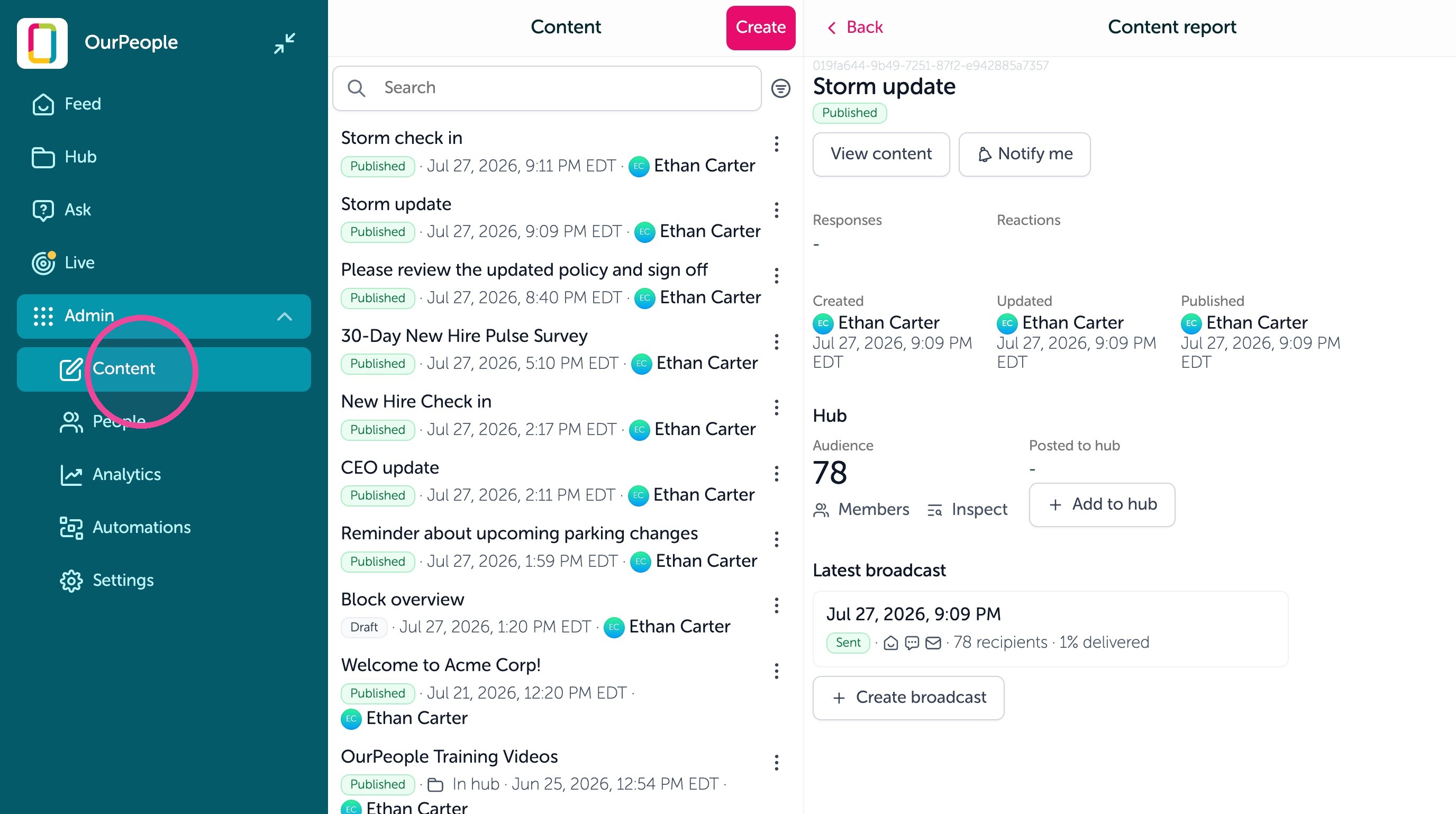
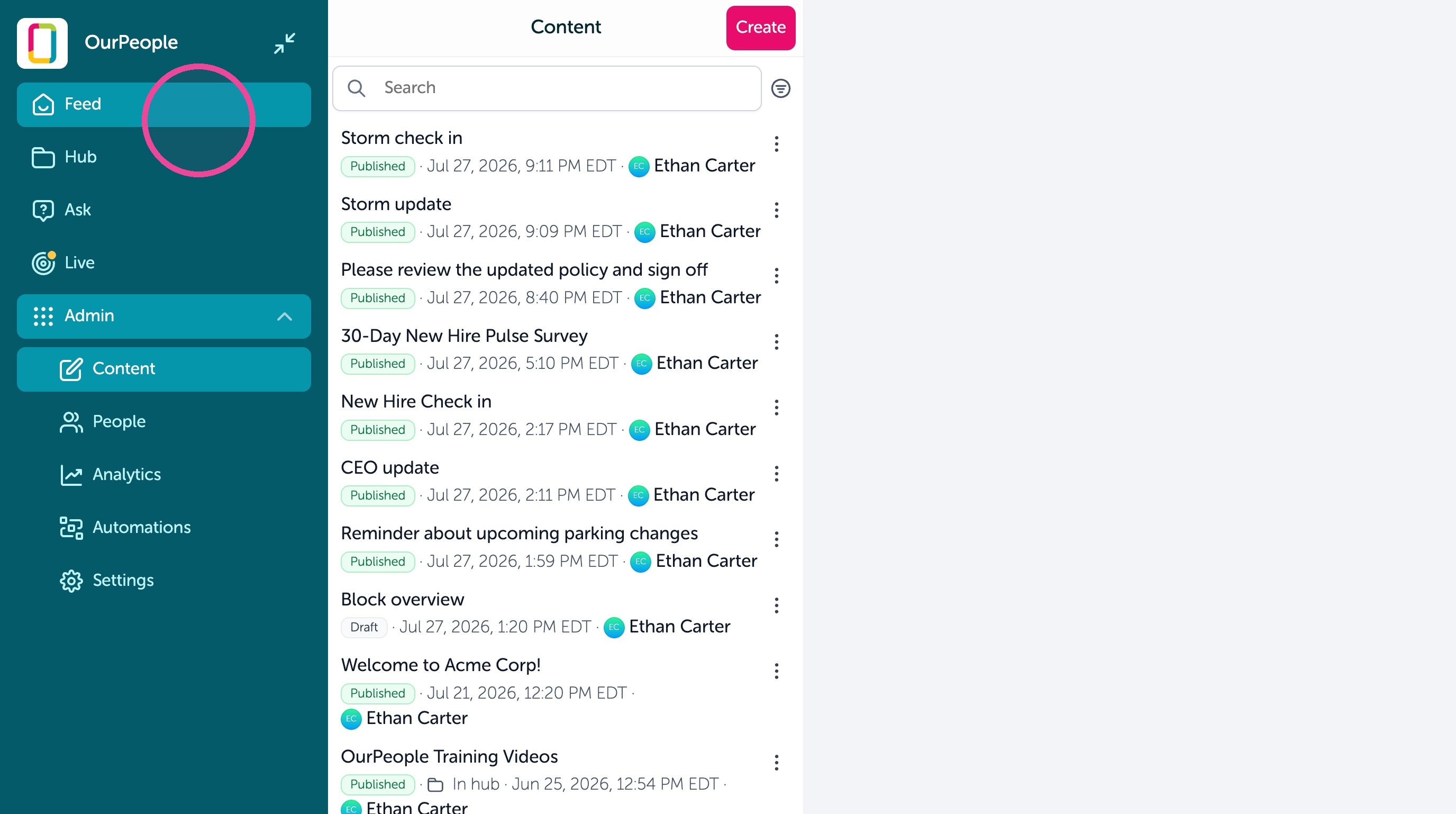
1. Under the Admin > Content page you can find Content reports.
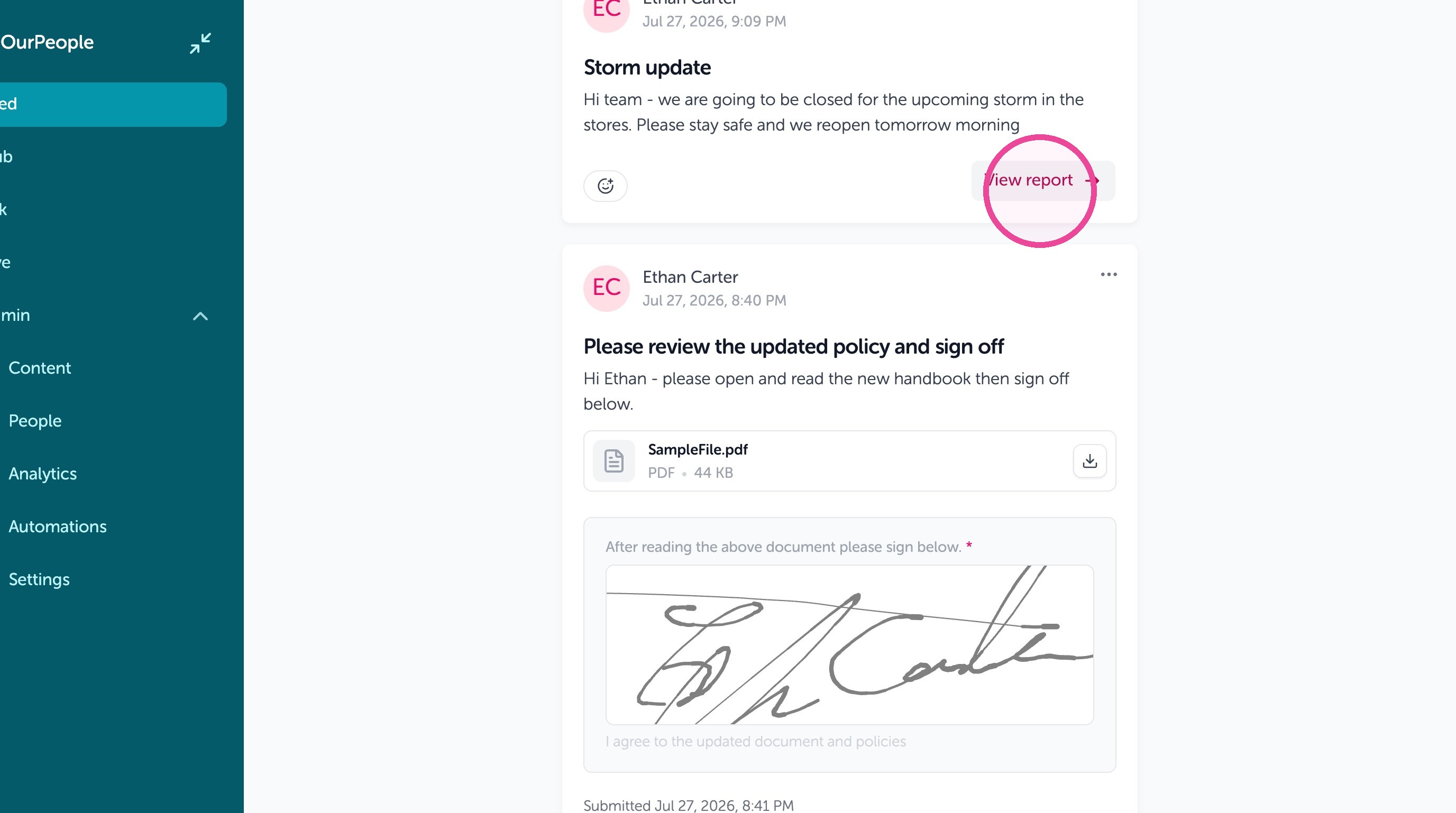
2. Or you can find the content in the Feed if you were in the audience.
3. In the Feed you can click "View report"
4. From here you can see the audience and audience count
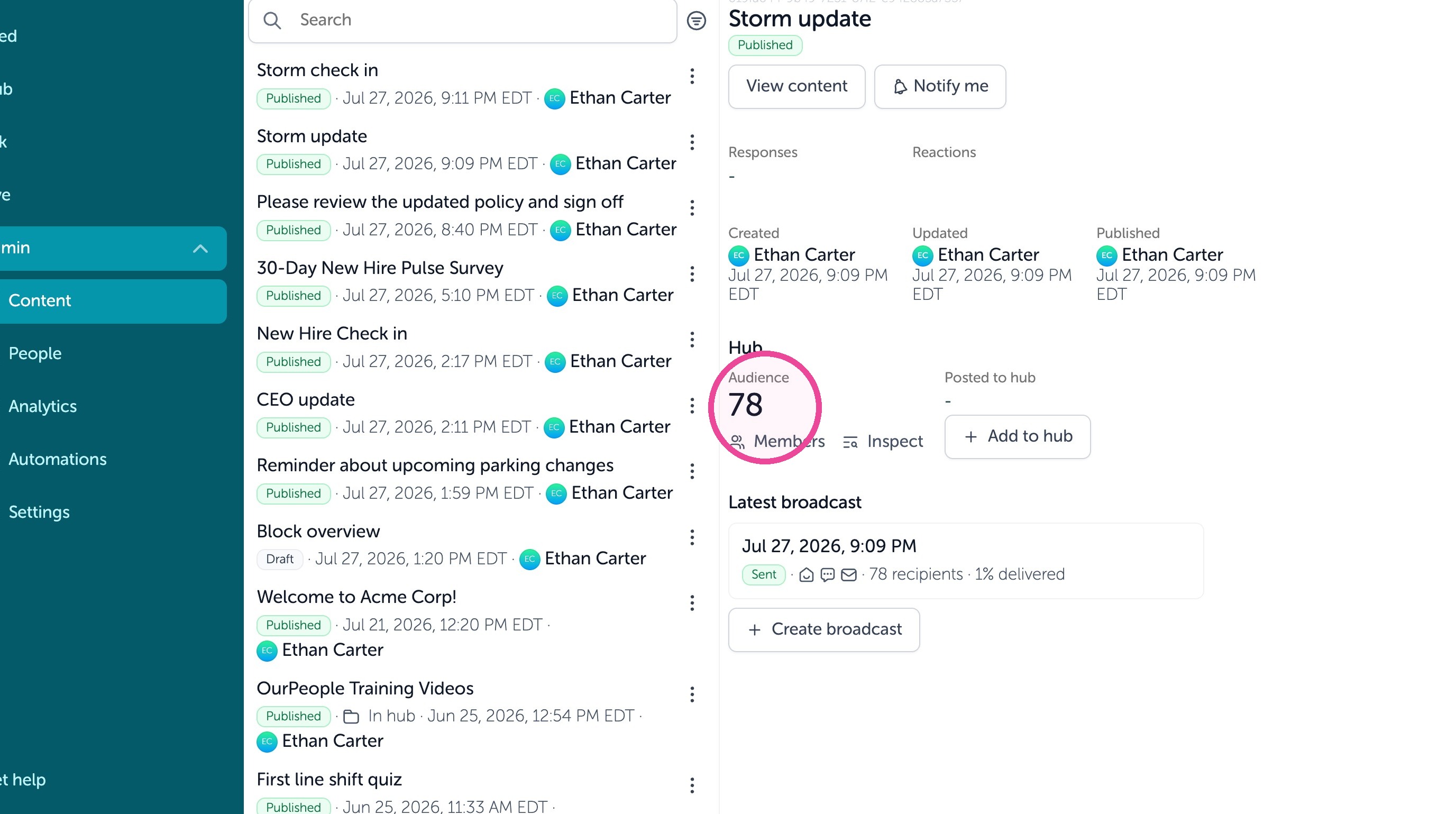
5. You can see the latest (or all) broadcasts of the content. Click the broadcast to view the Broadcast report.
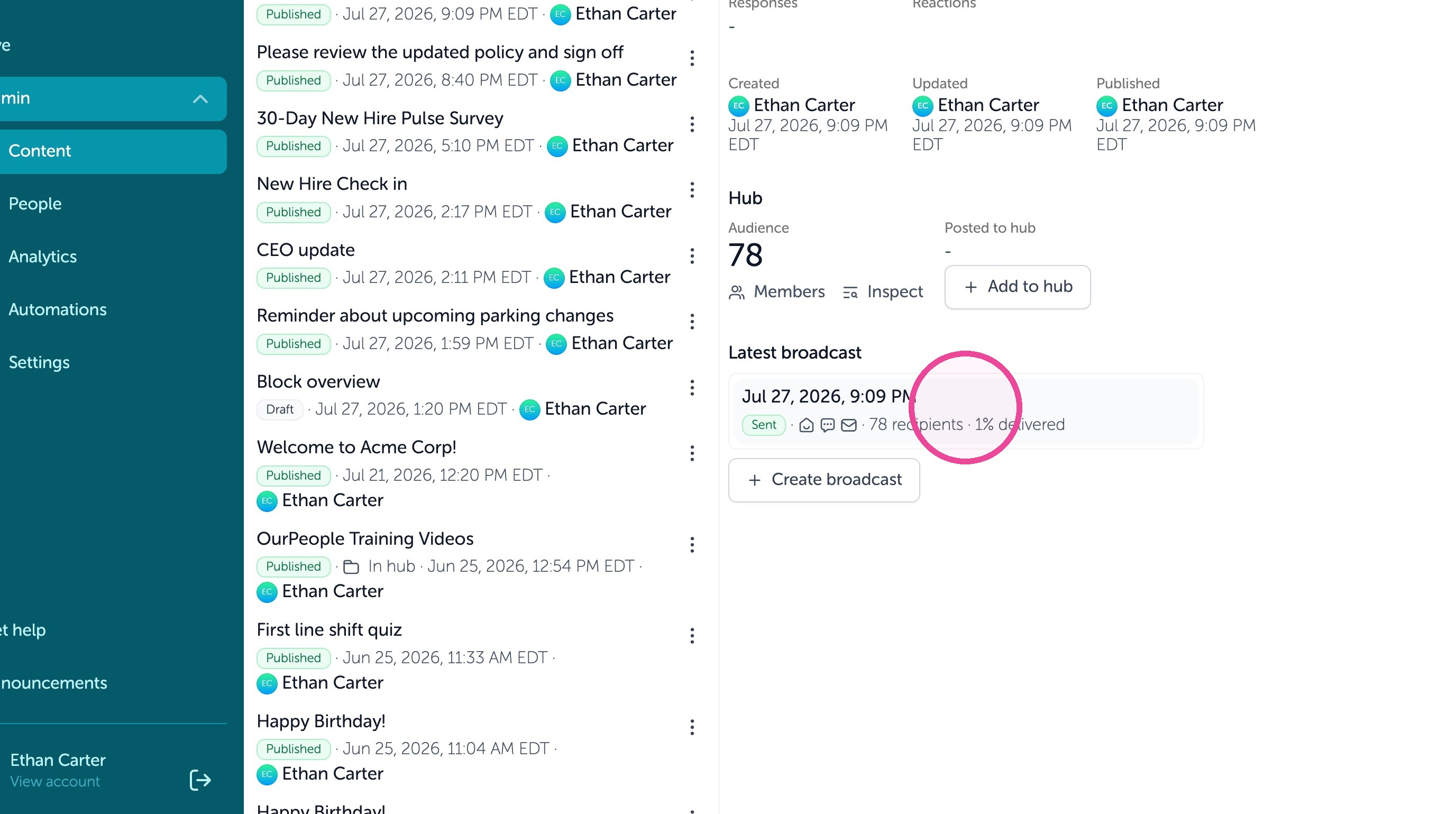
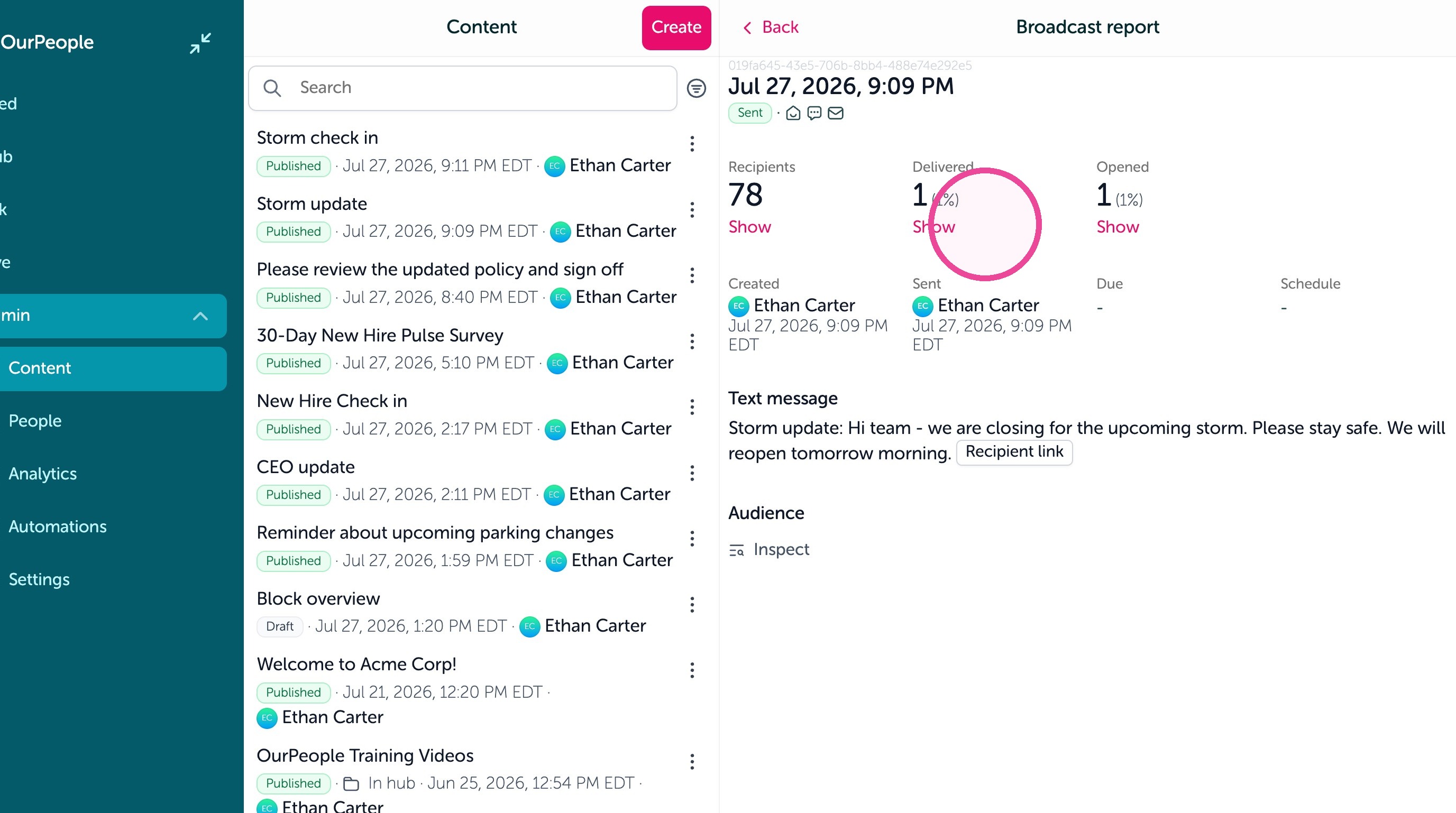
6. The Broadcast report shows the selected audience that it was sent to by text message, the delivery success rate, and how many people clicked the link in the text to open the message. You can also see what the text that went out looked like under "text message"
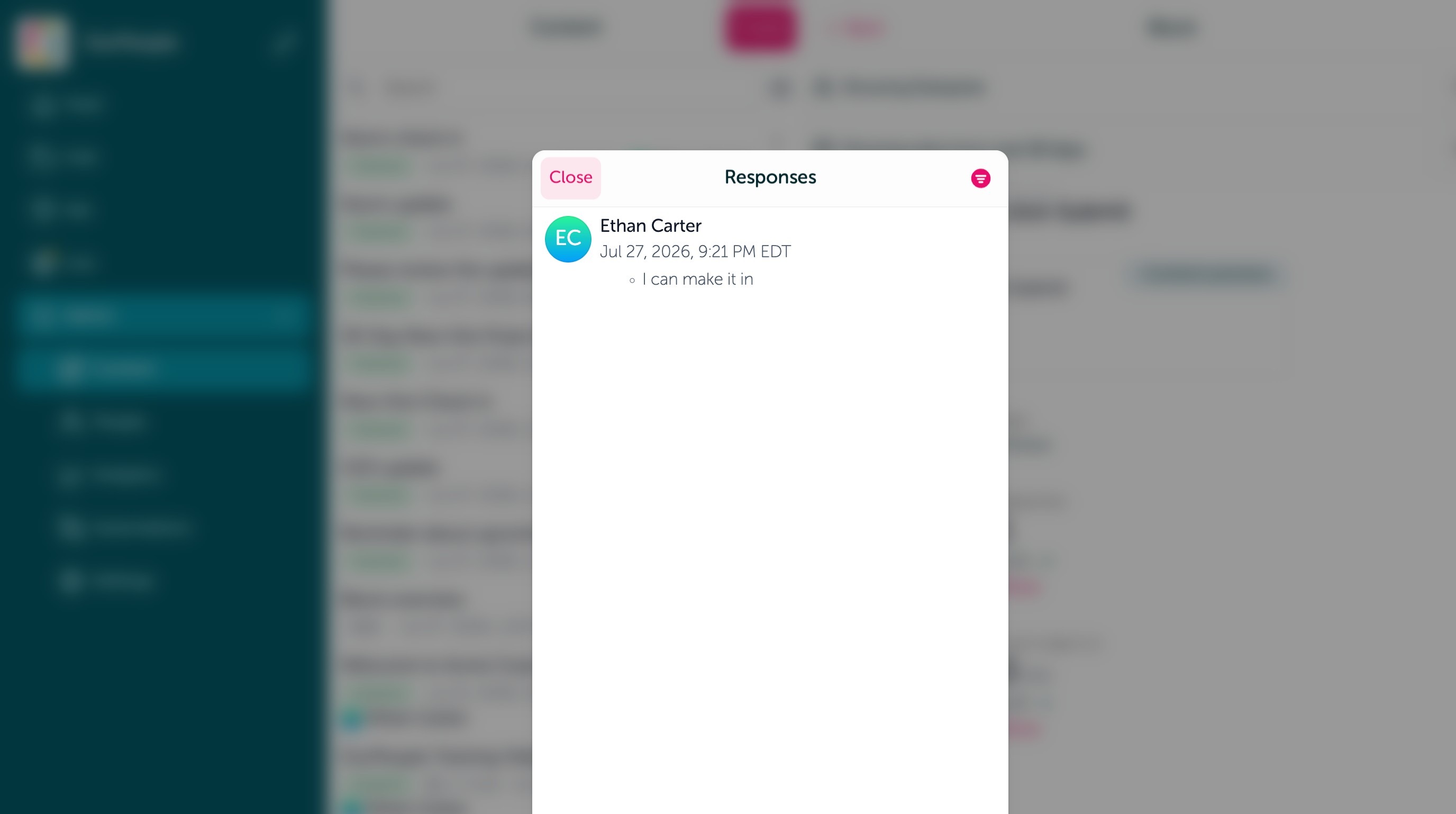
7. If you used a block that allows for a response, you can see responses in the content report. Under the response report.
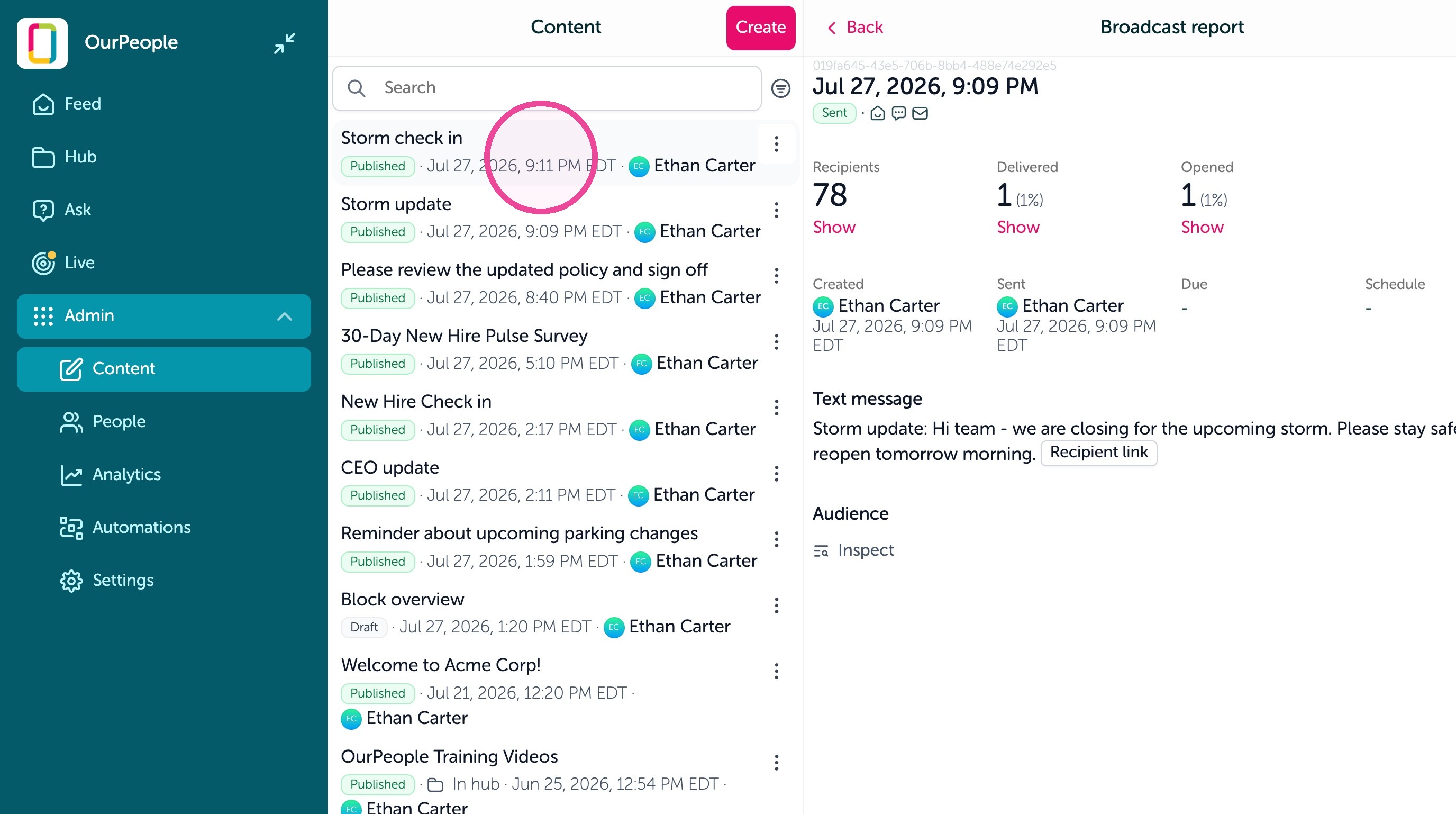
8. In the content report, you can click "View report"
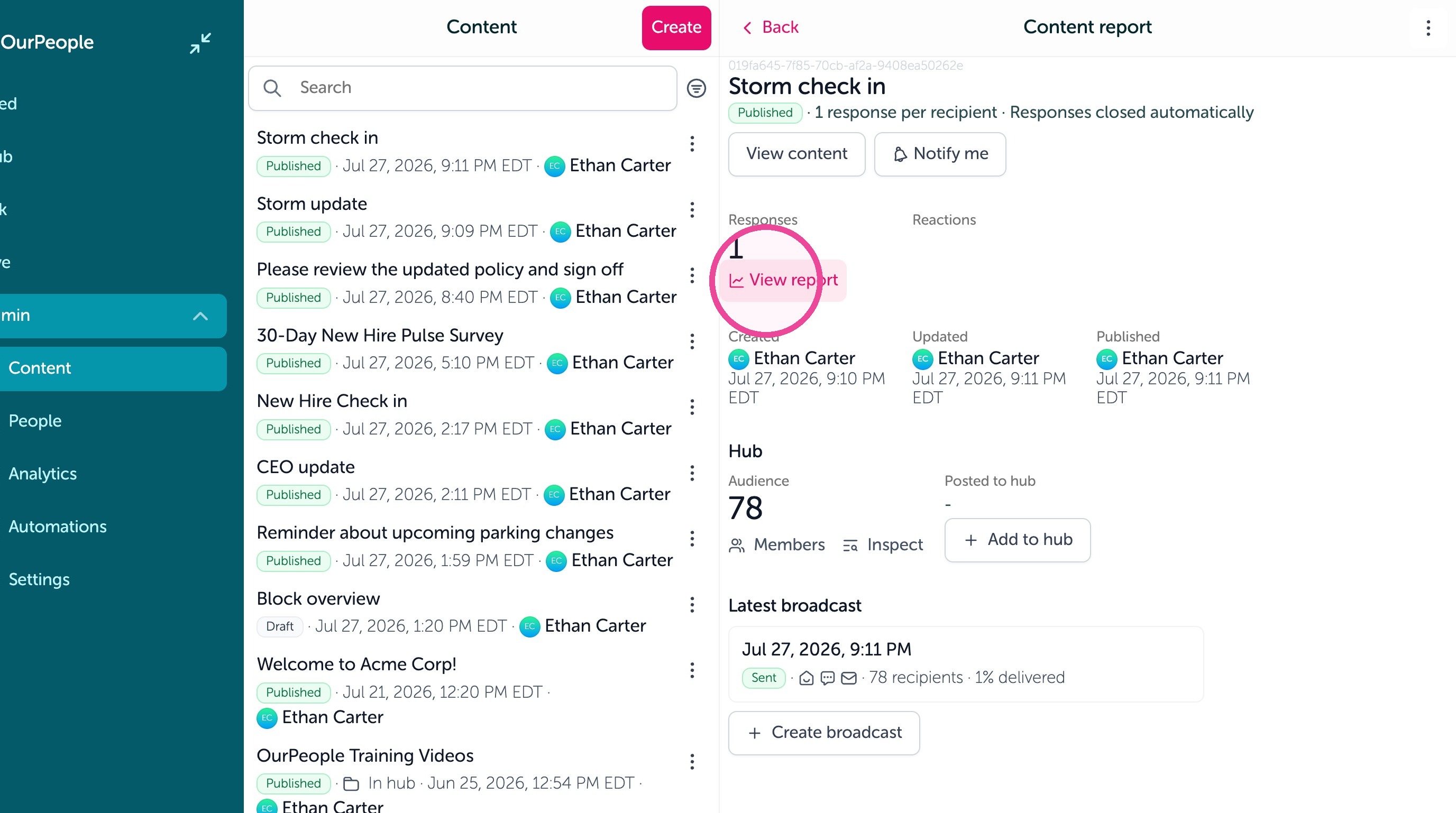
9. From here, you can see individual responses. Or questions.
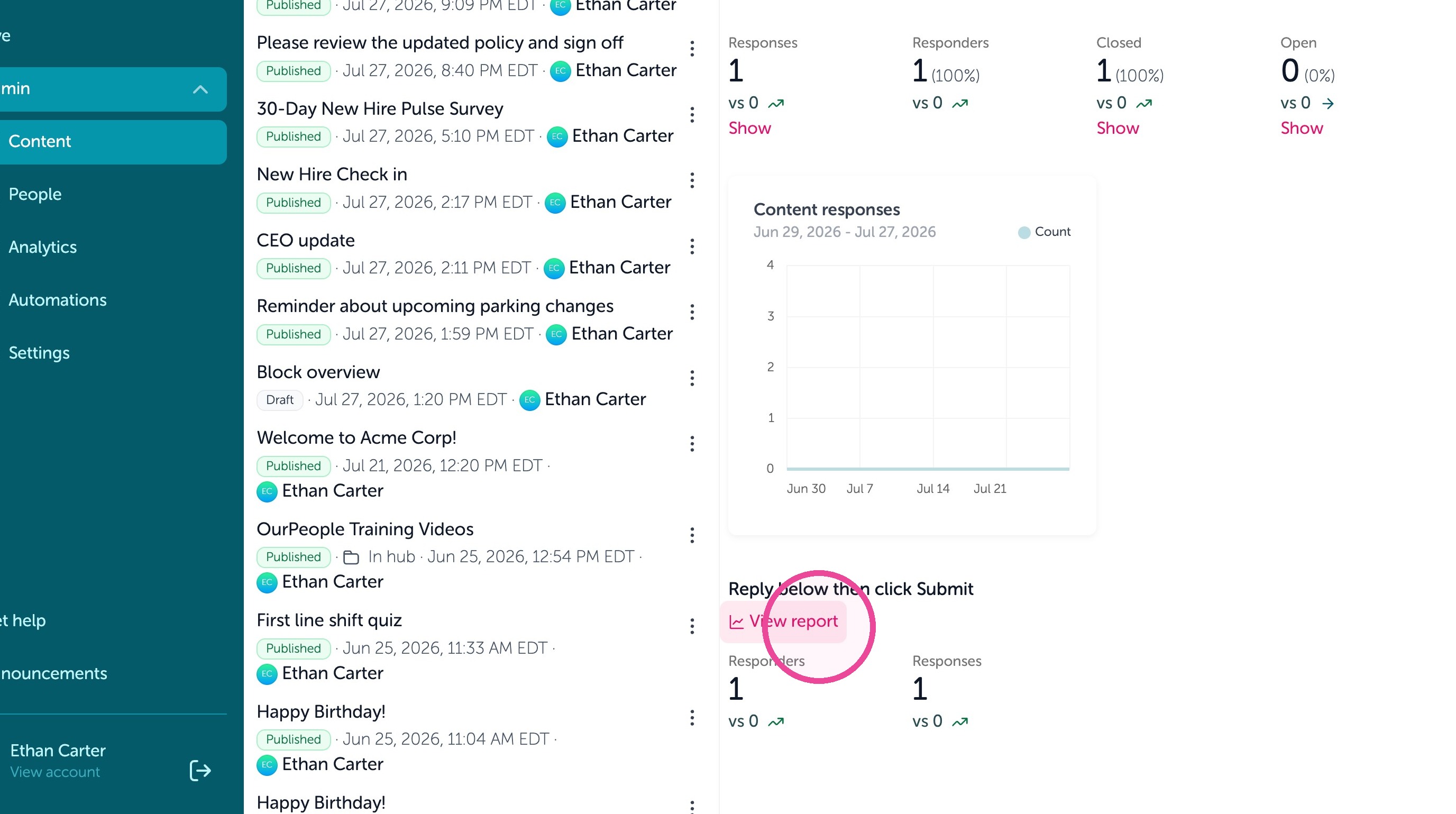
10. Click "Show" to see a list of who replied to this Choice block option.
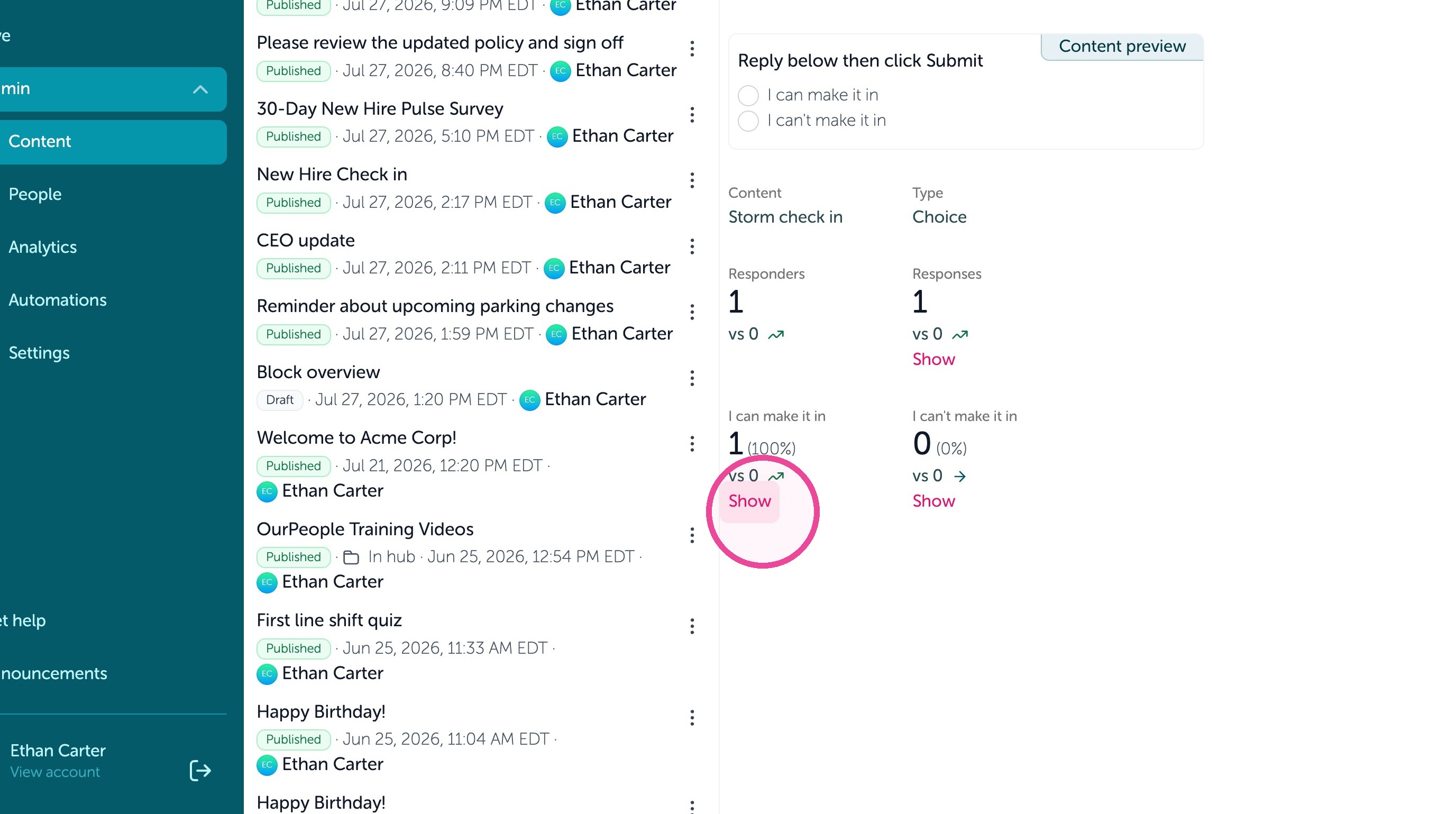
11. You can also see individual responses under their name.