Learn how to distribute important policy documents to your team and collect digital signatures. This guide walks you through setting up a broadcast with file attachments and mandatory sign-off requirements.
How to send a policy doc to sign
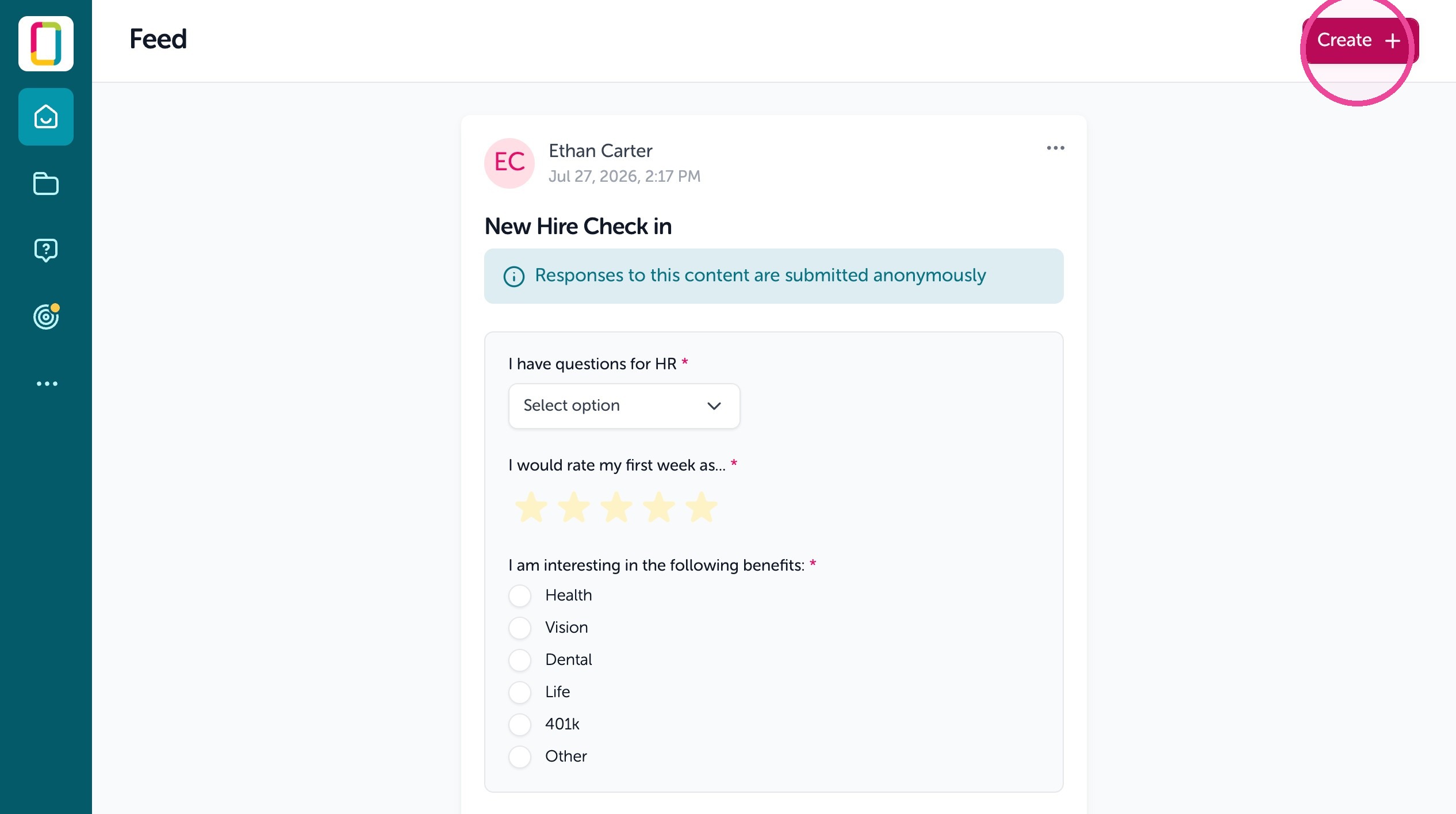
1. To capture an electronic signature. Go to your Feed and click "Create"
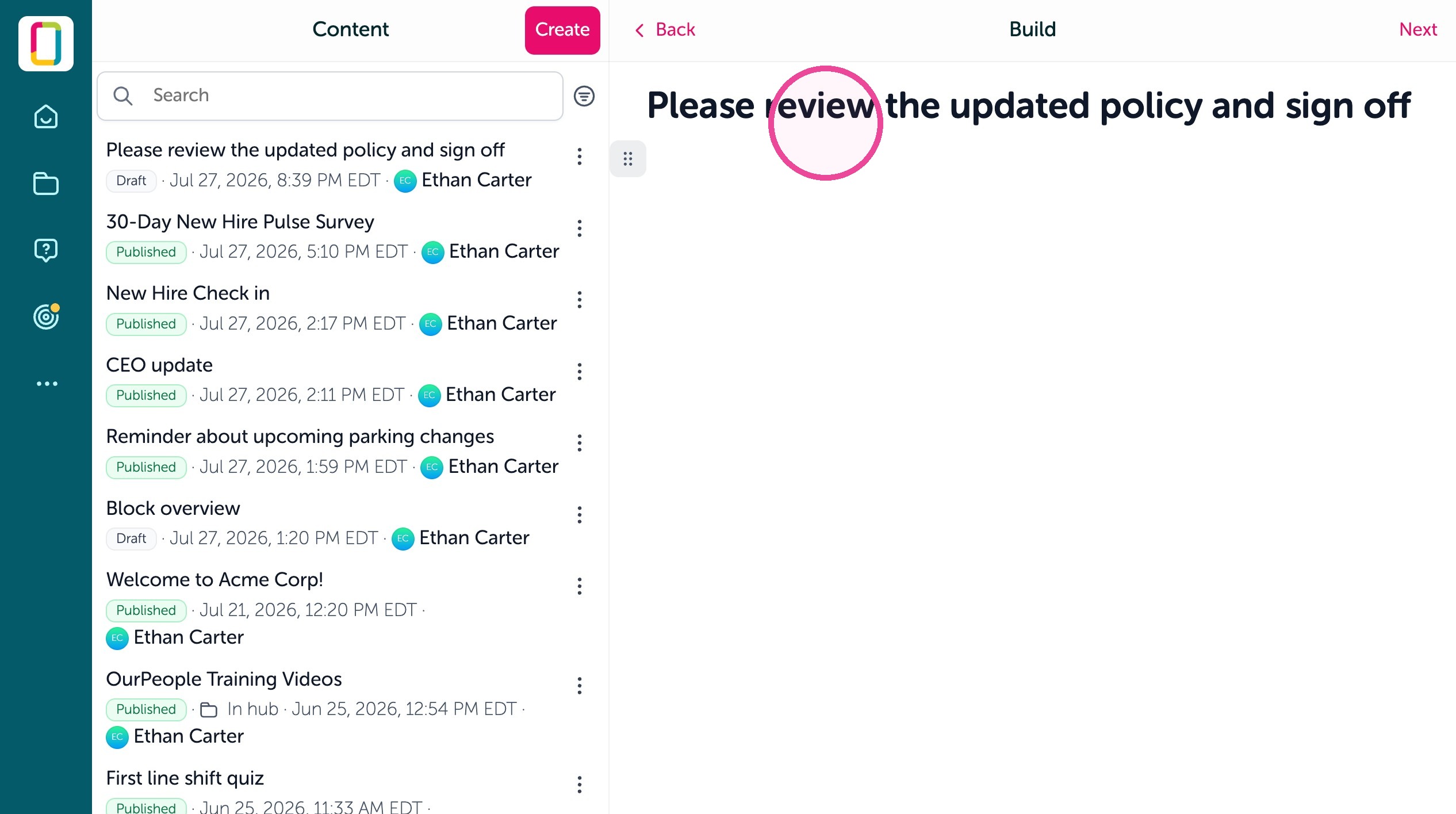
2. Give your content a title, then add blocks.
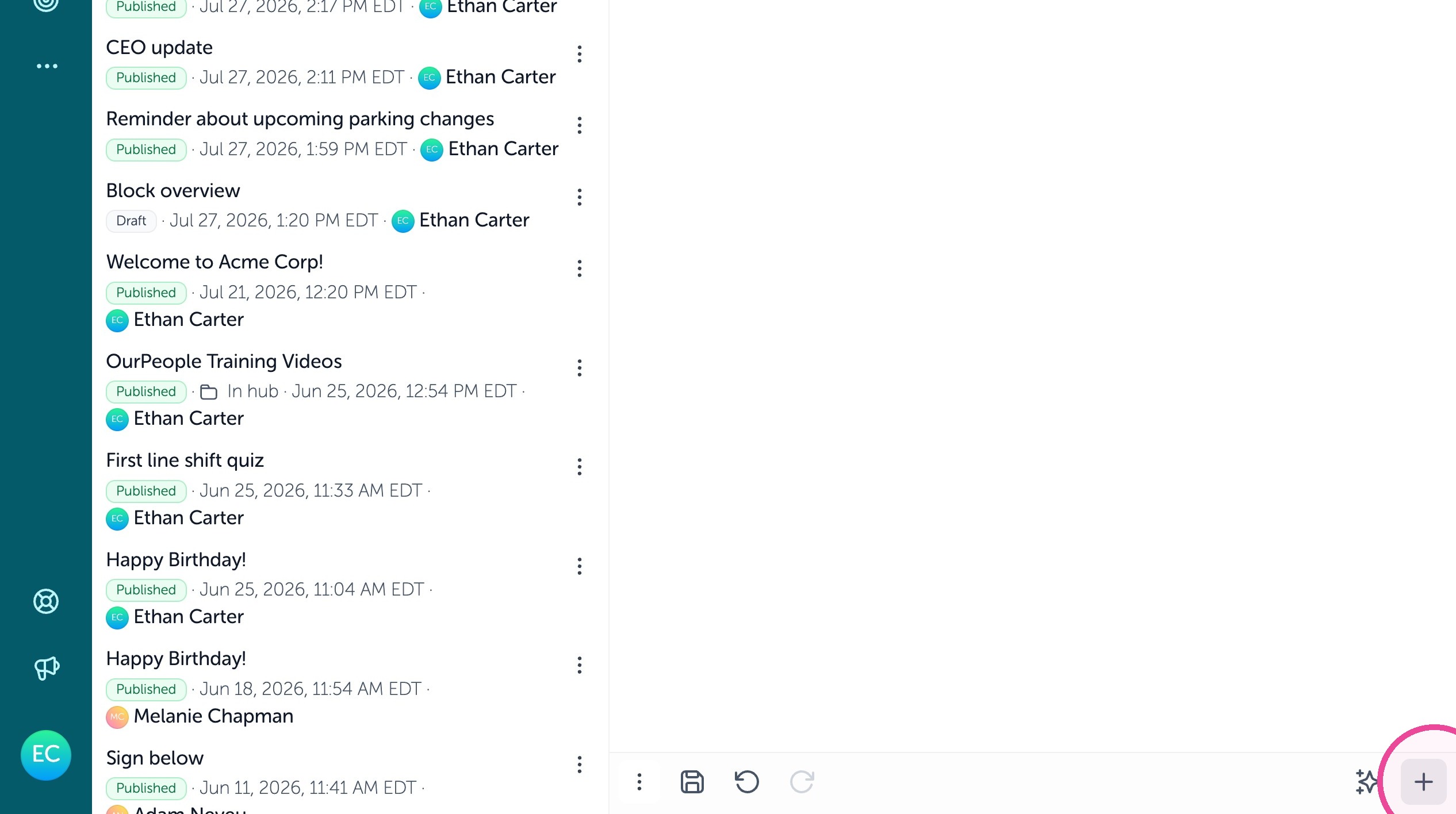
3. Click the + icon to add blocks.
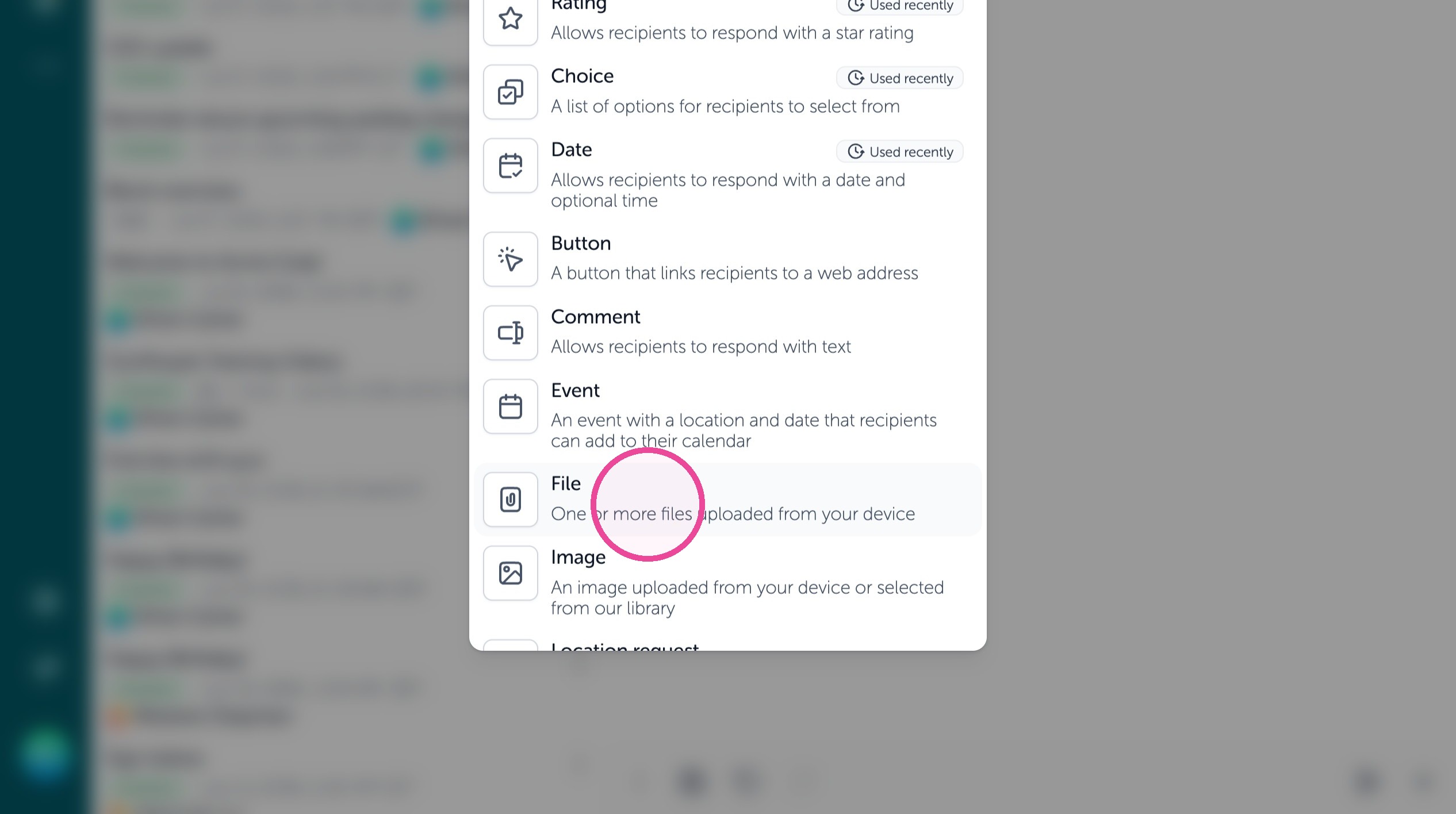
4. After adding some text, attach the policy to review using a File block
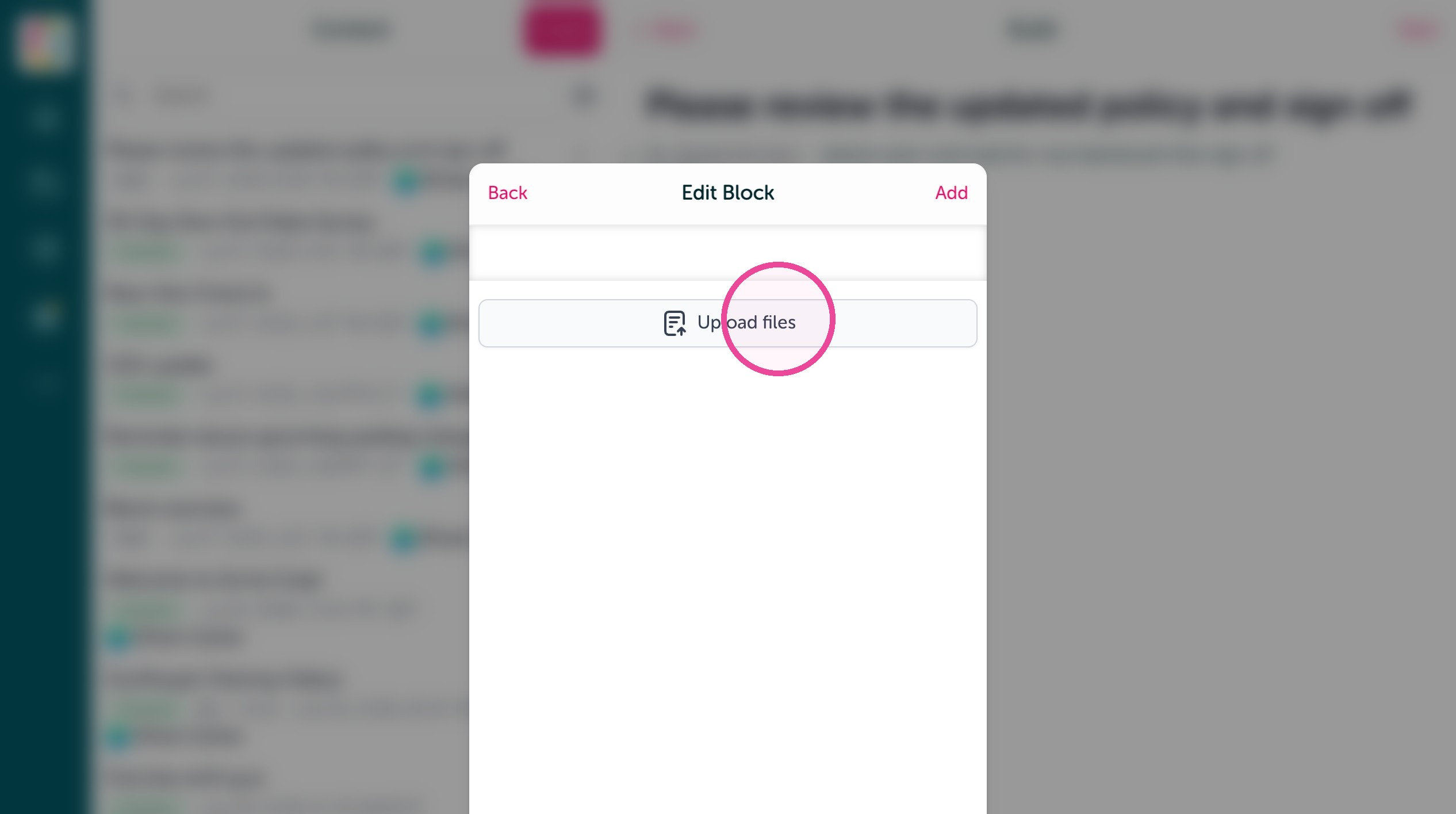
5. Click "Upload files"
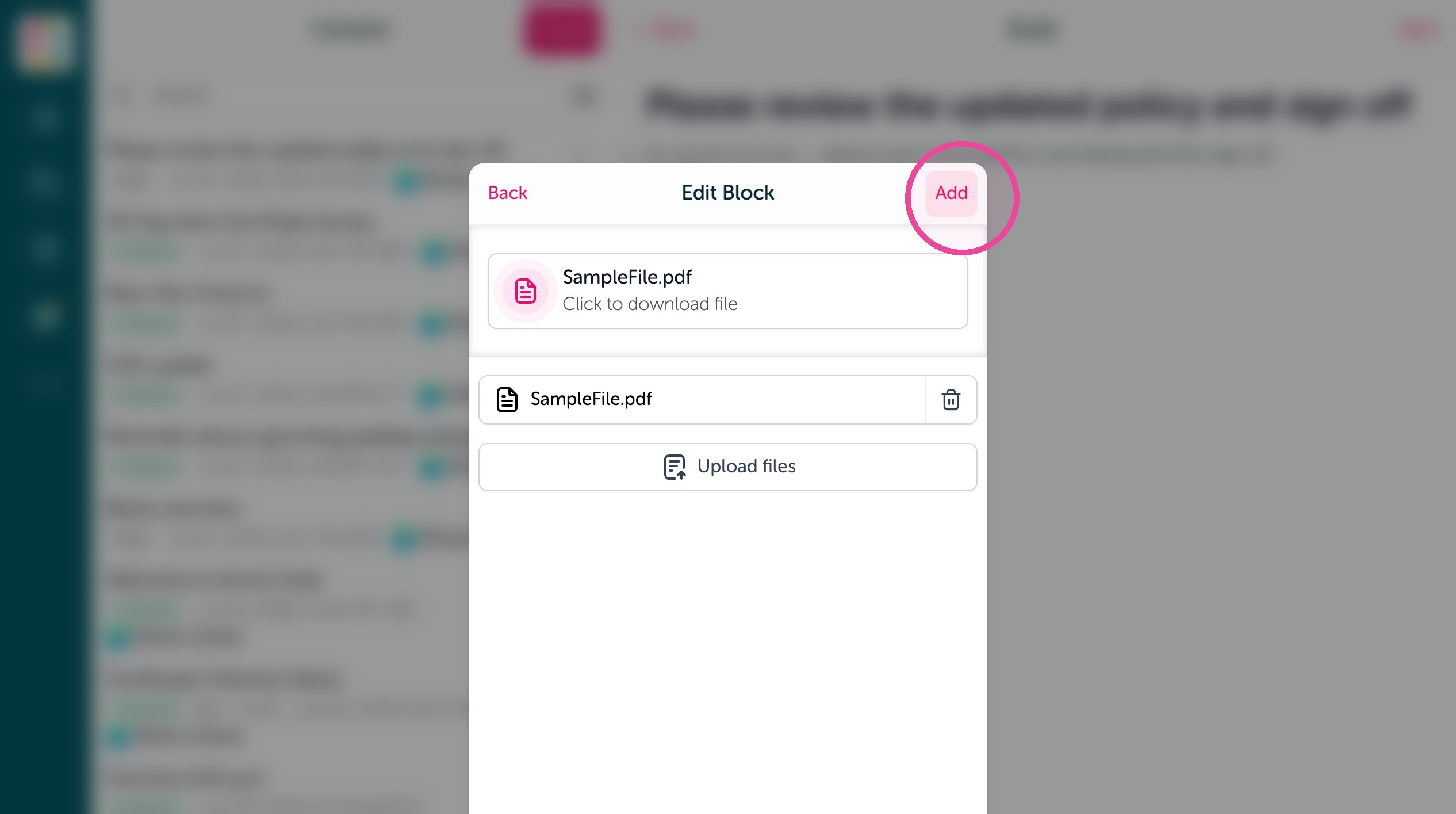
6. Click "Add"
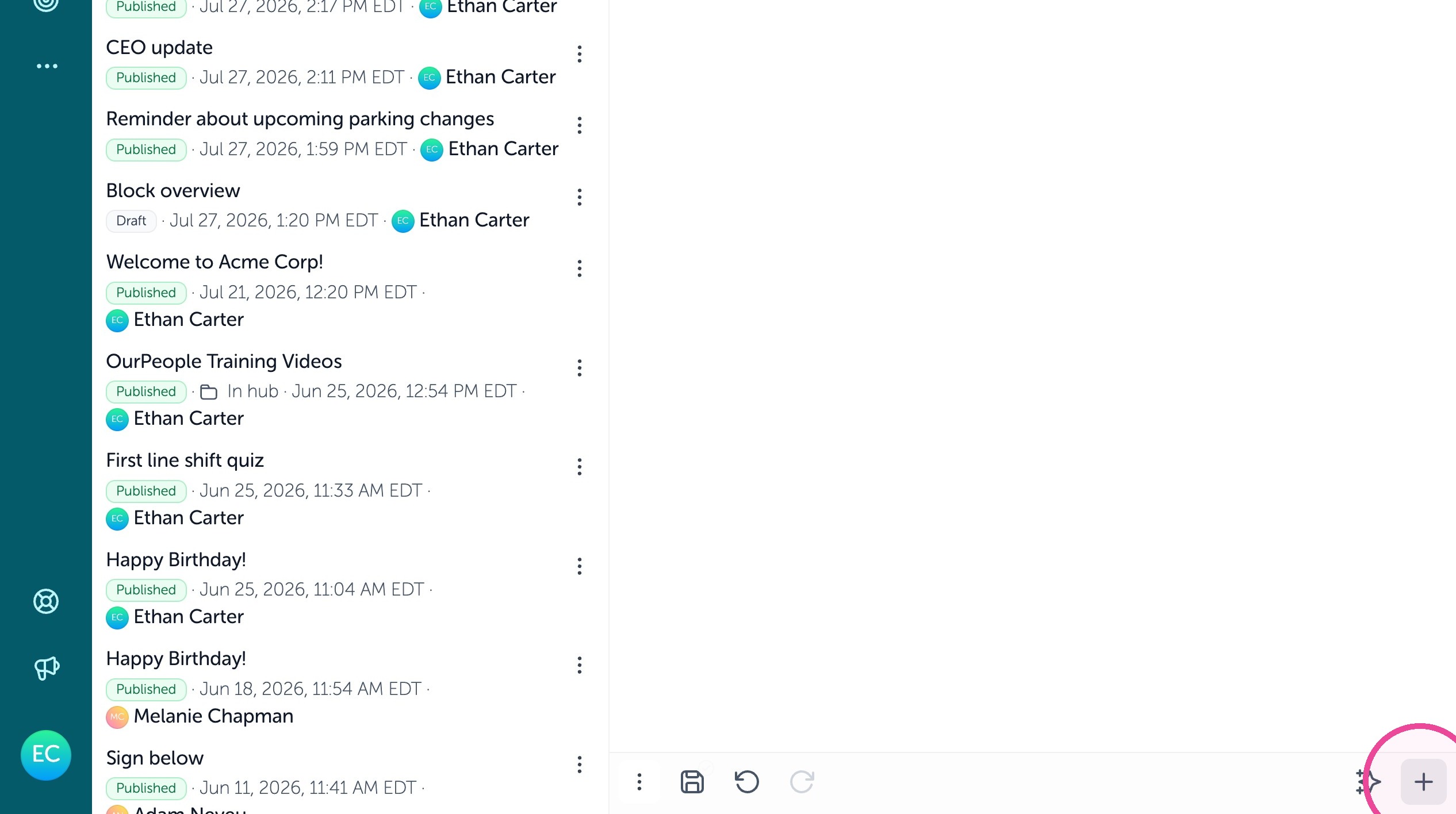
7. And let's capture the signature using a "Sign block". Click the + button to add this new block.
8. Use the Sign block to capture a signature.
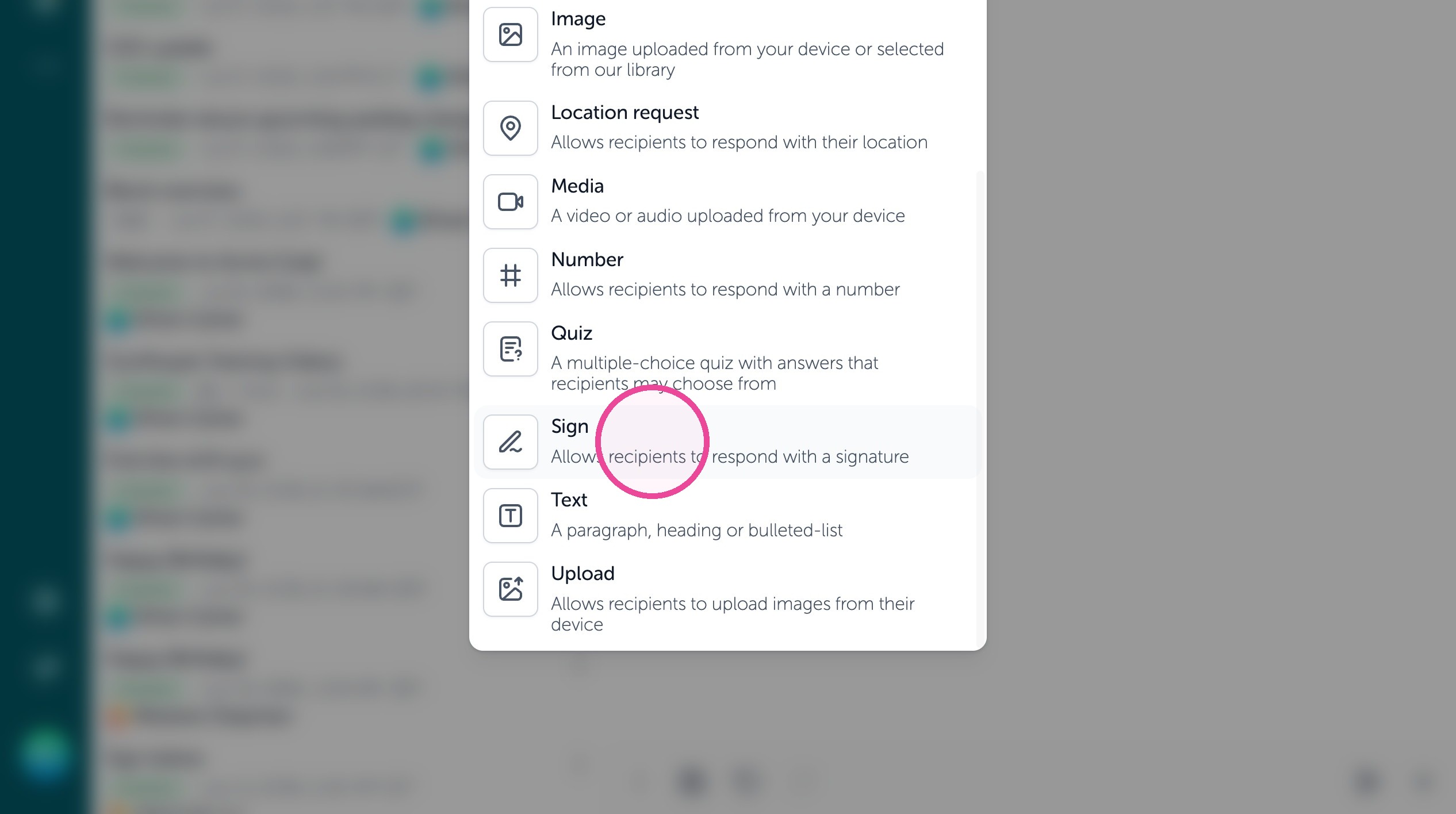
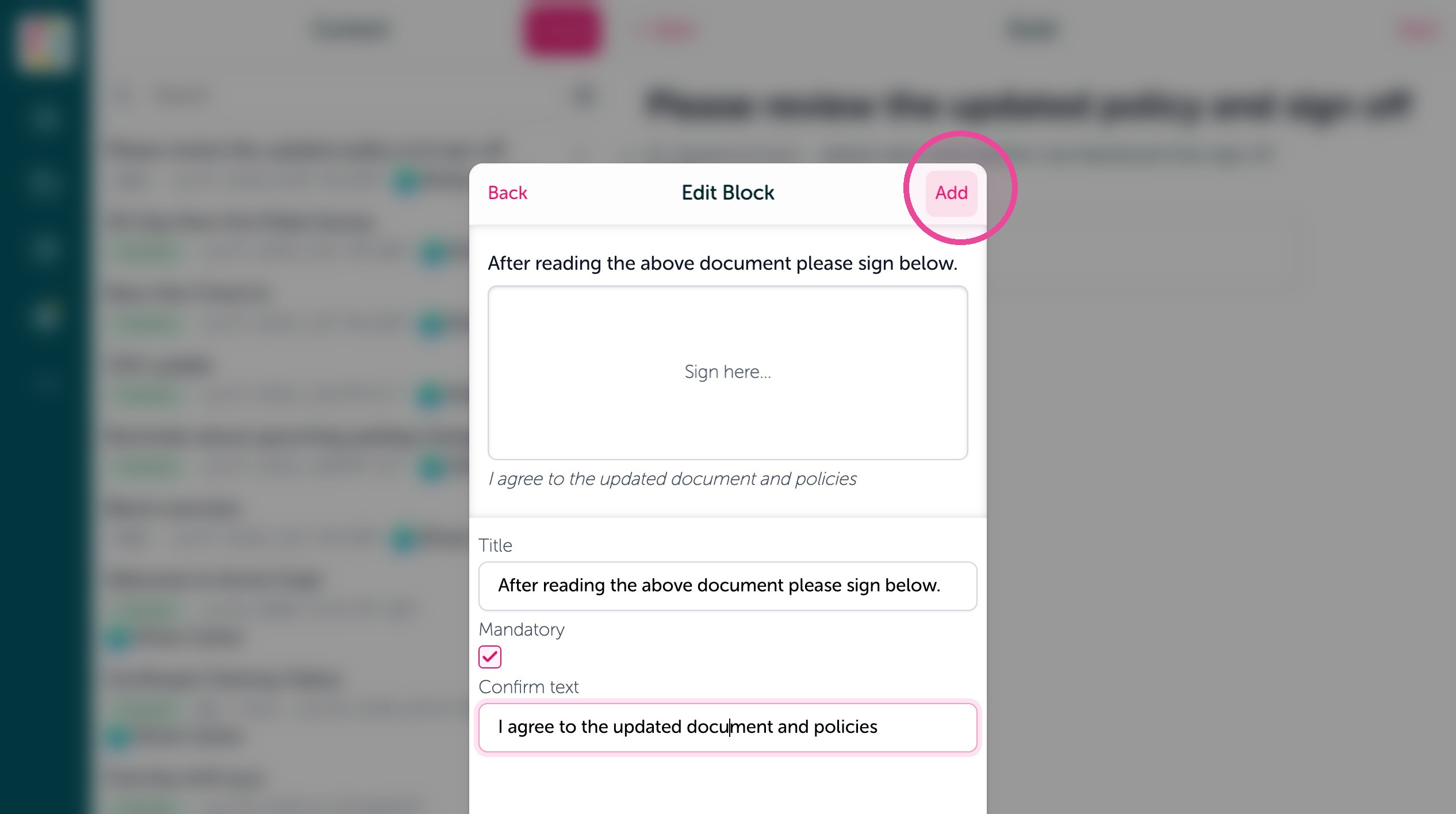
9. Add a title to the block using the "Title" field.
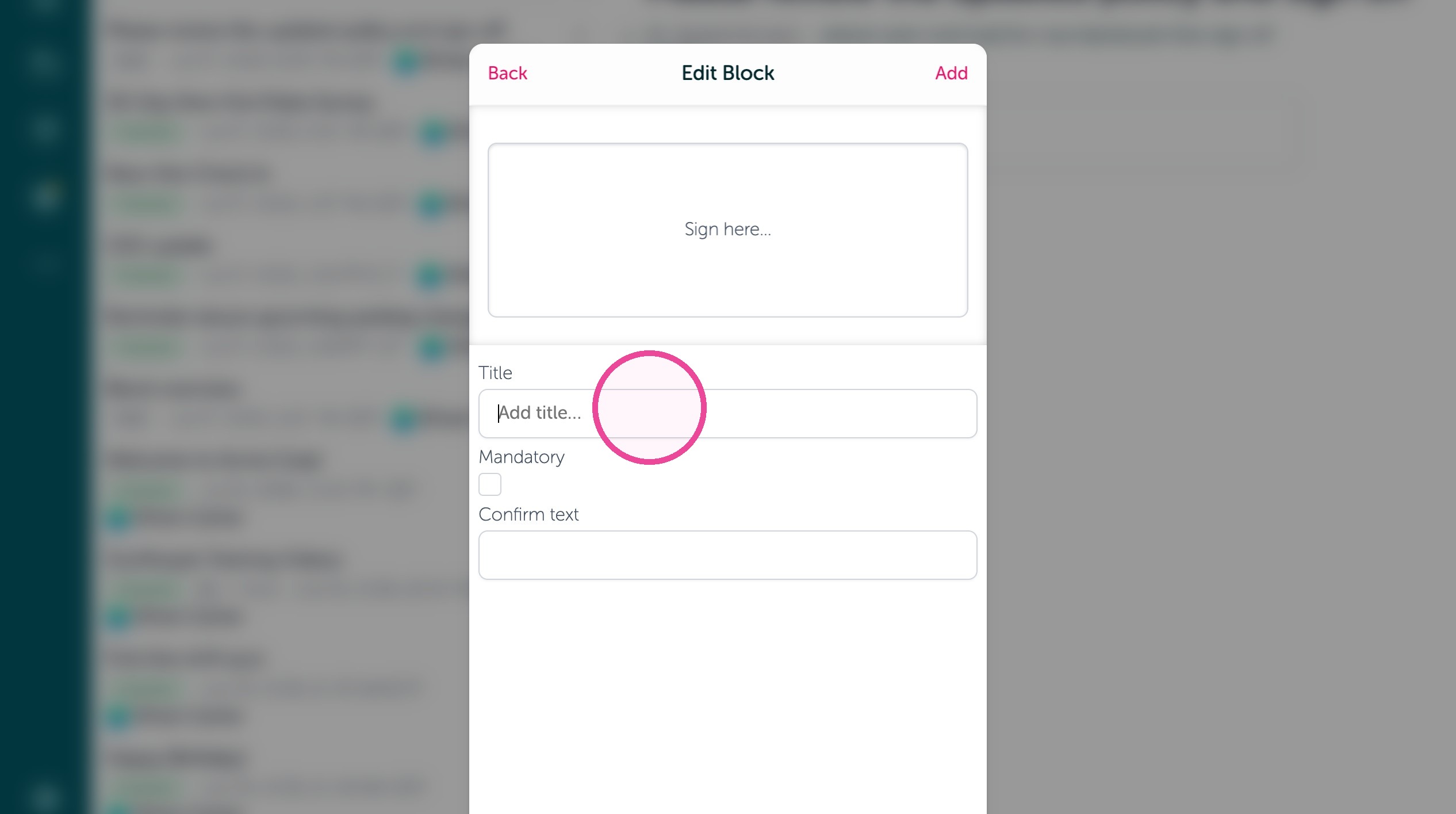
10. Click here to make a signature mandatory to submit.
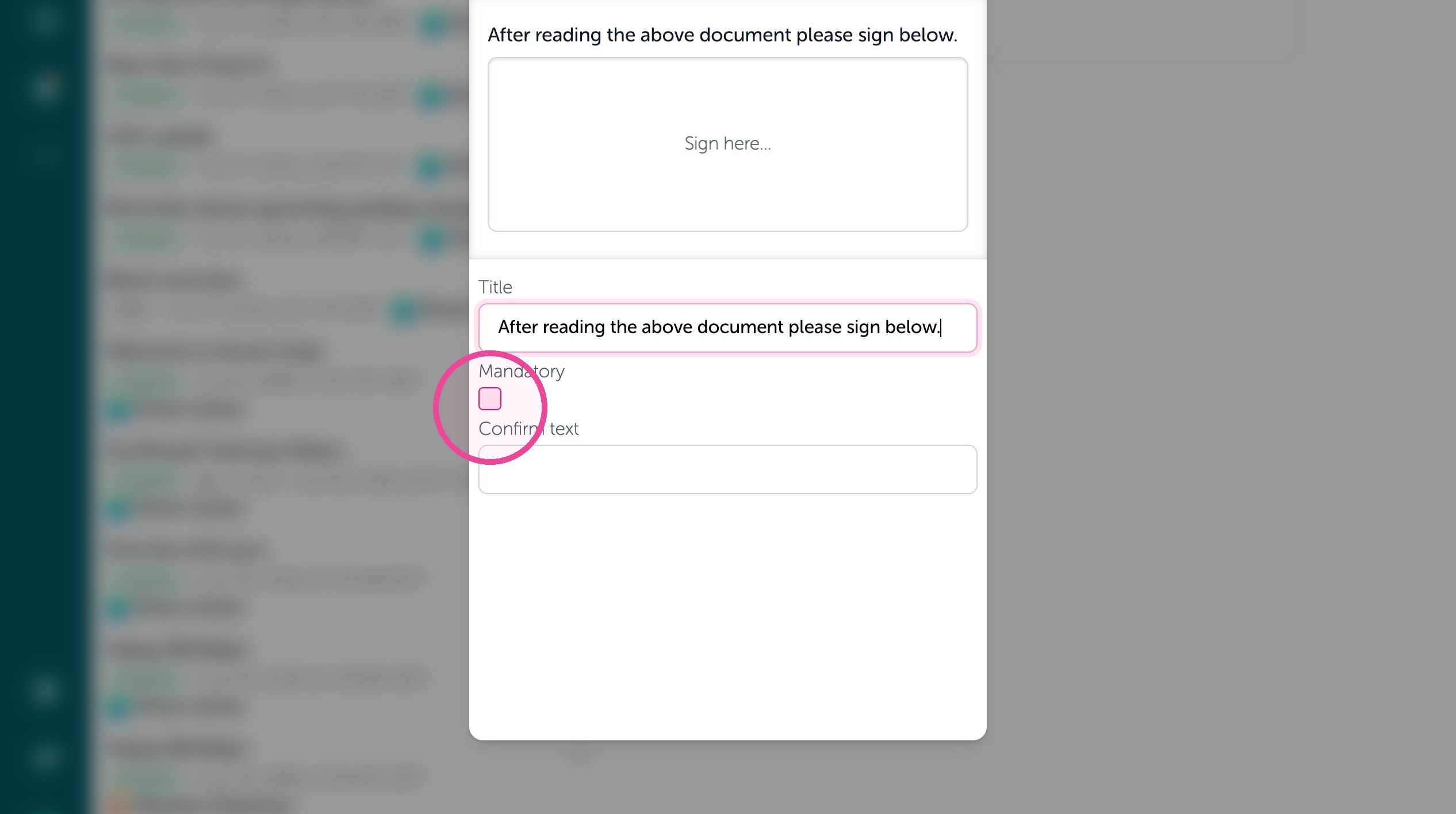
11. Add signoff confirmation text under the signature area using the "Confirm text" field.
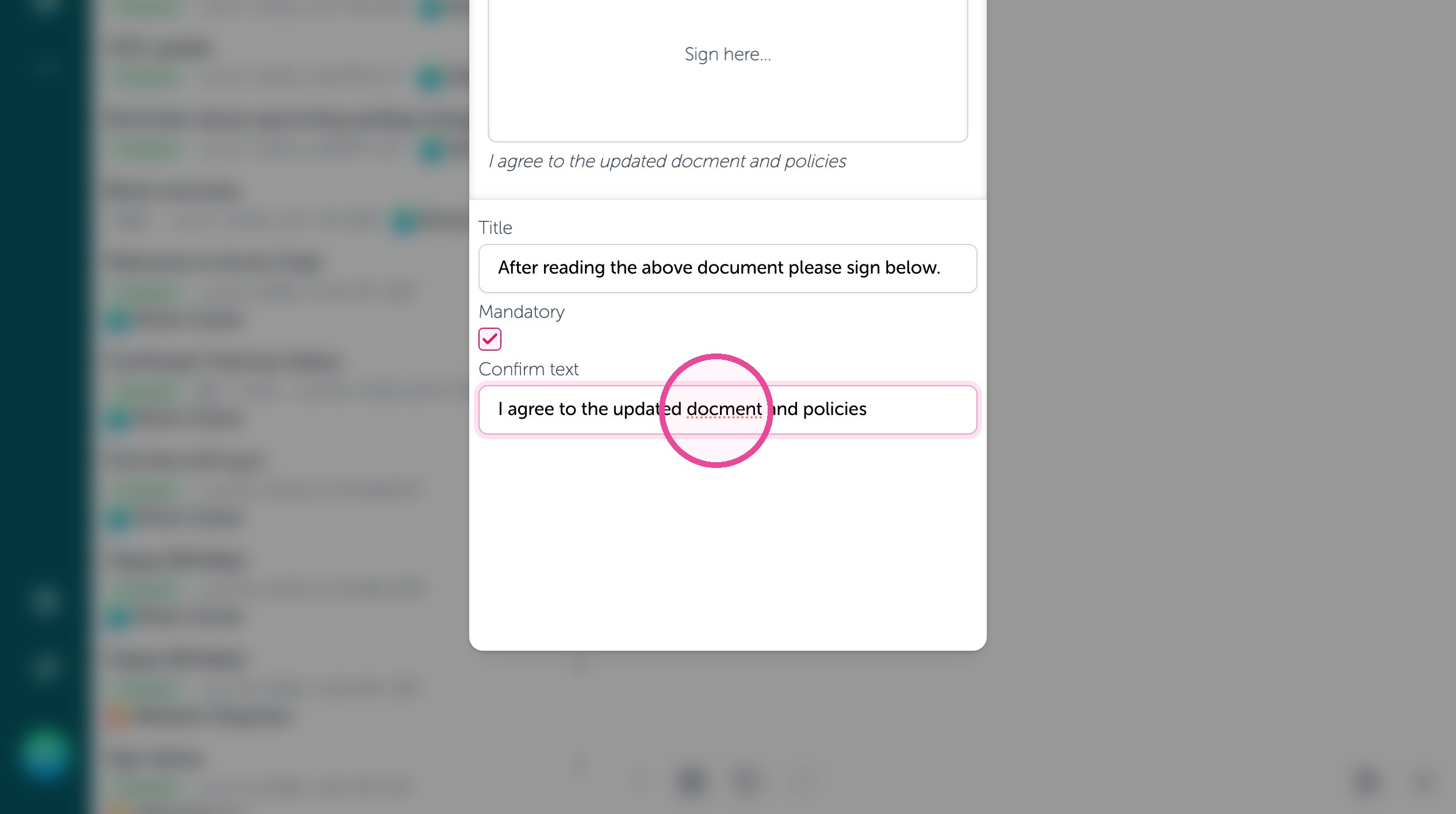
12. Click "Add" to add the sign block.
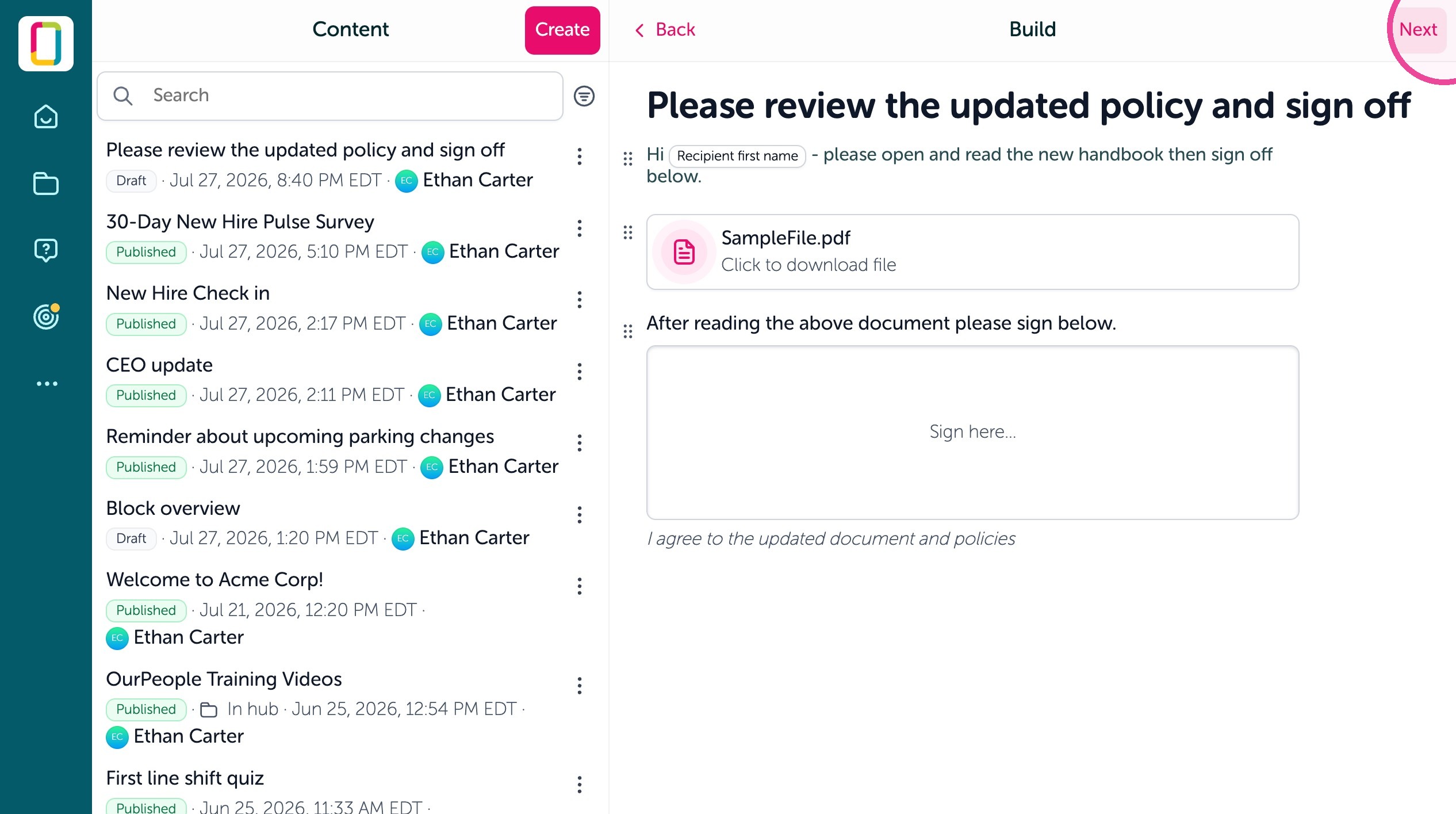
13. Click Next.
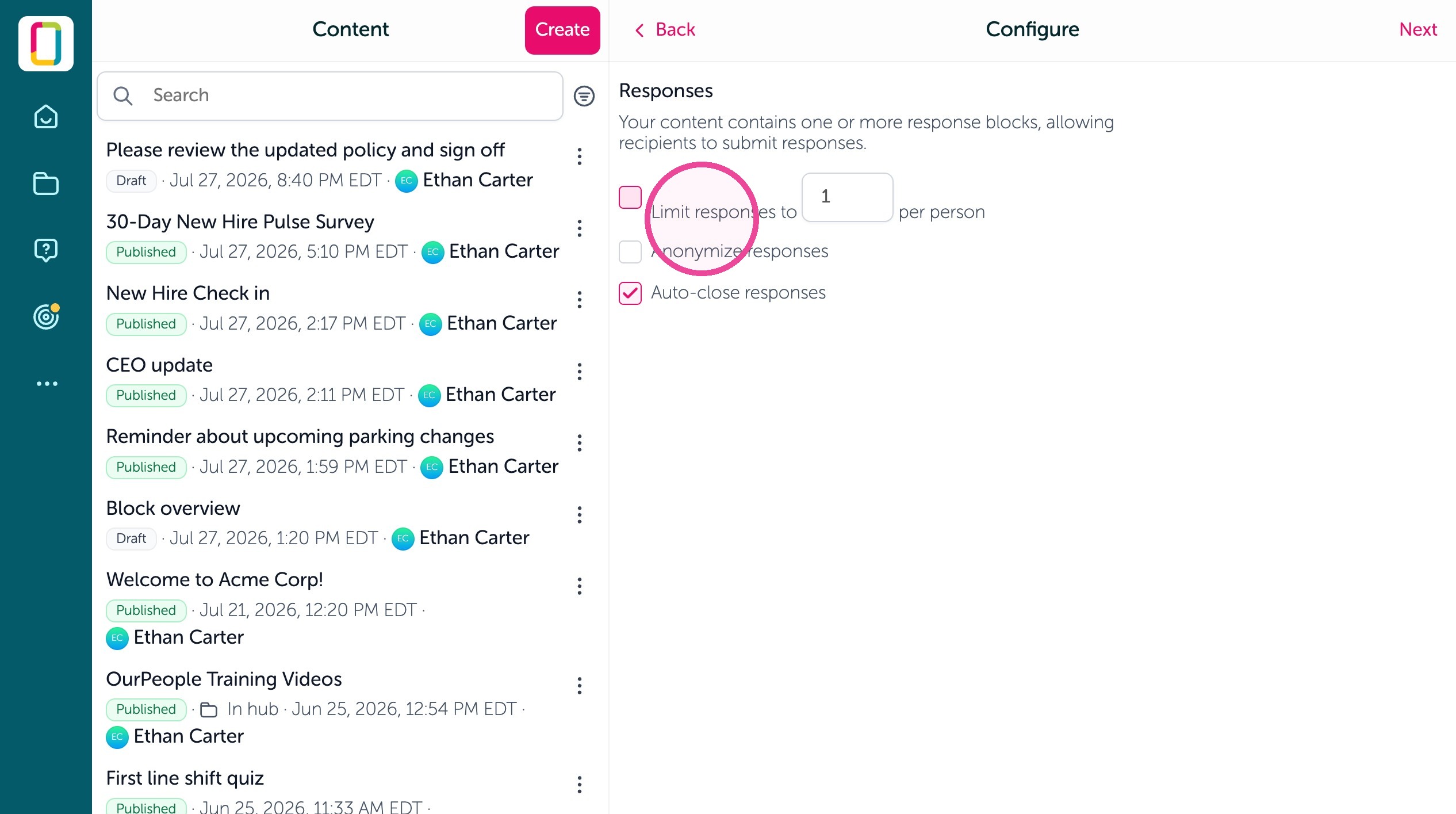
14. Click "Limit responses to 1 per person" if you only need them to sign off once.
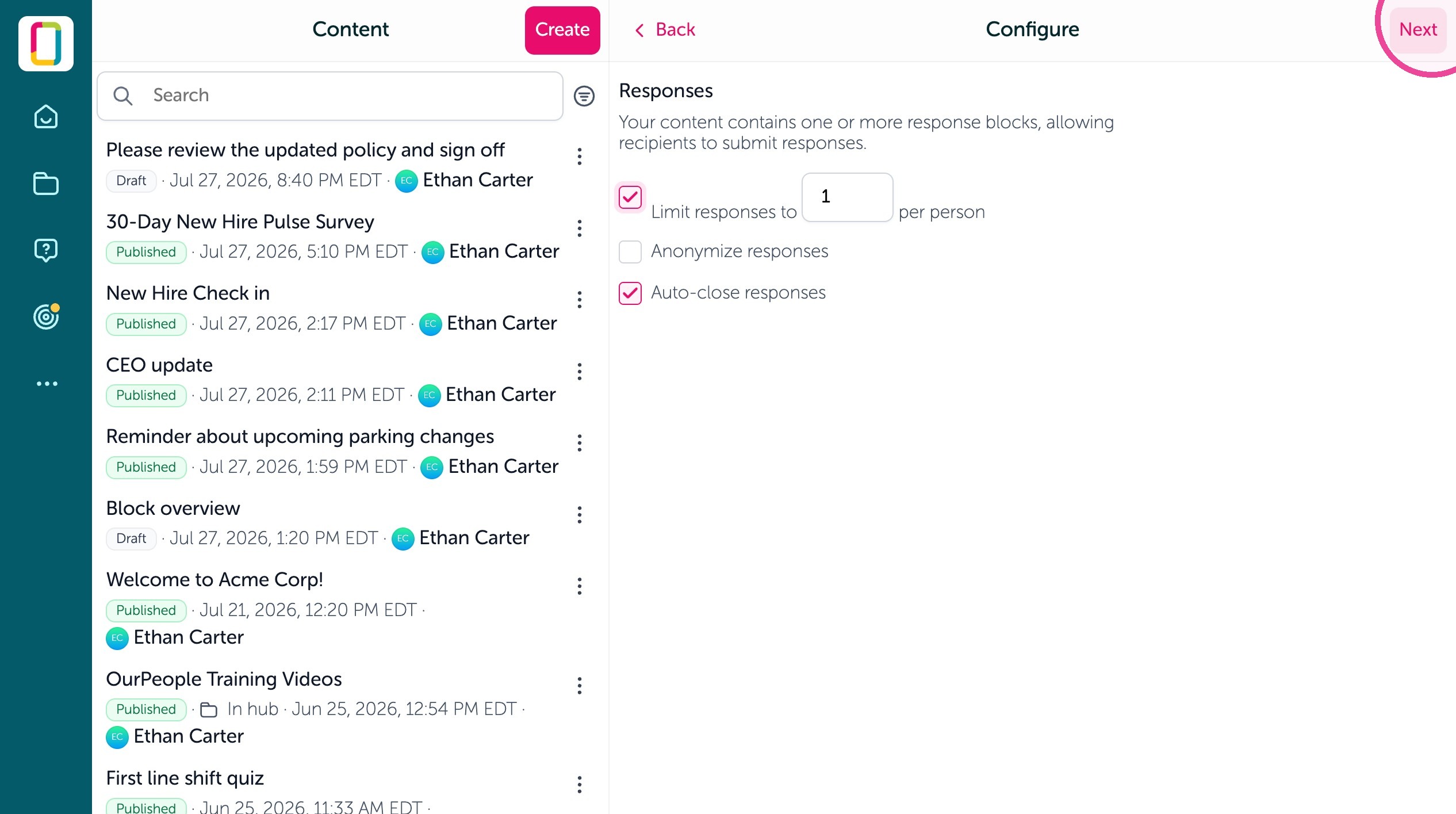
15. Click Next
16. You'll see the text message preview, make any edits then click Next
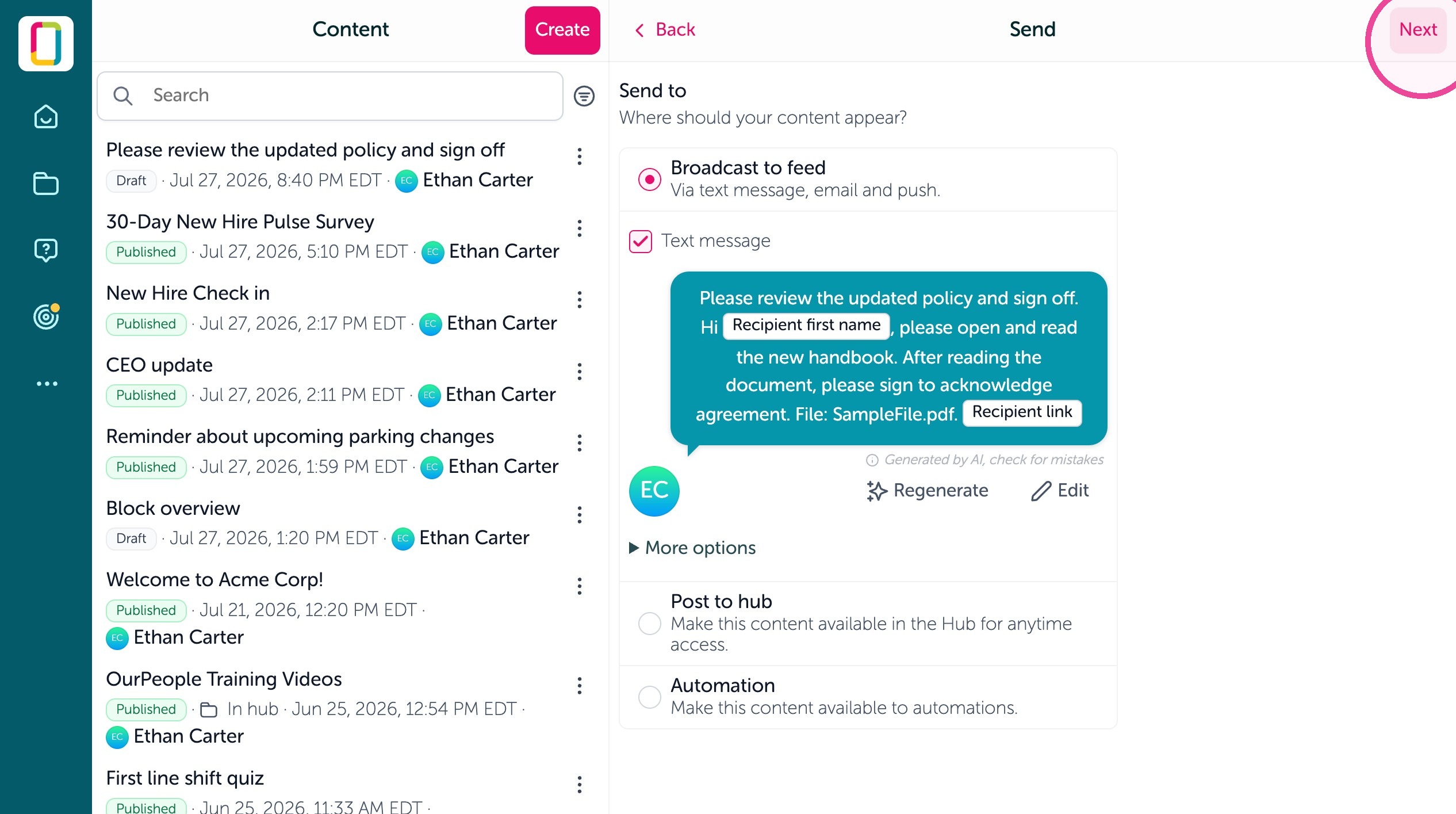
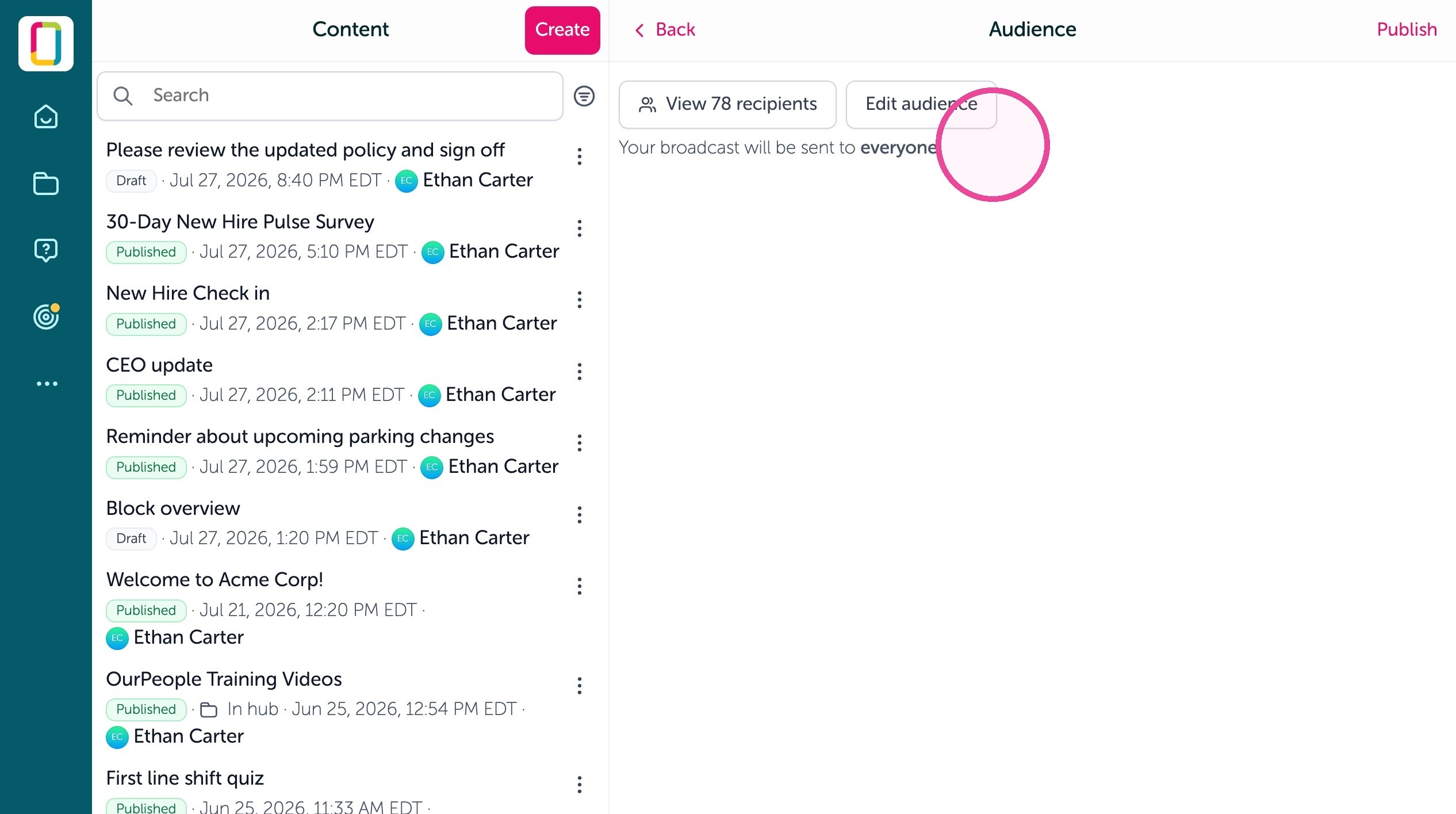
17. You can then edit the audience to send to the right employees.
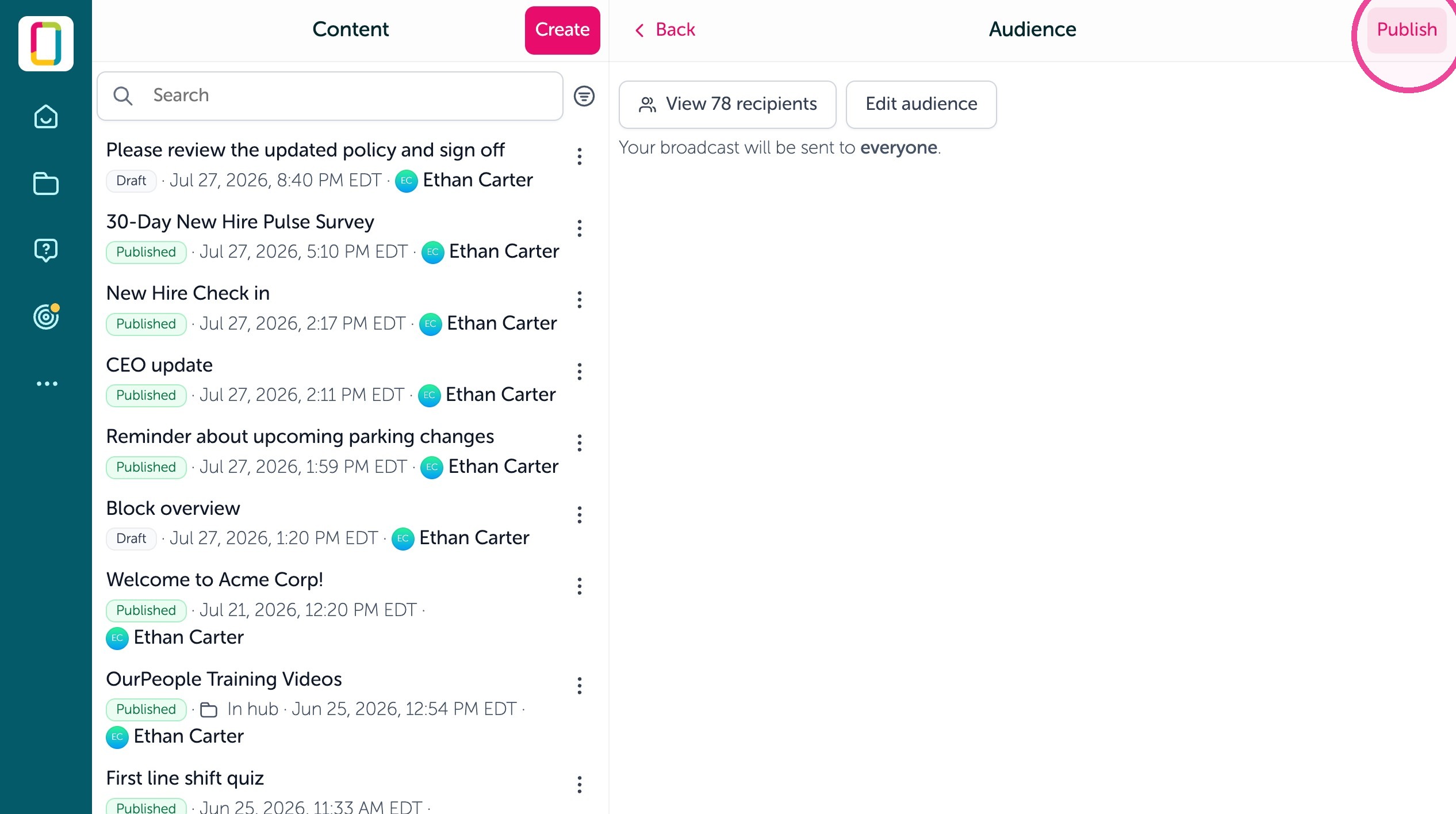
18. Click "Publish" to send the signature request.
See captured signatures
19. Find the content you created for the Feed, then under the Content report selcet "View report"
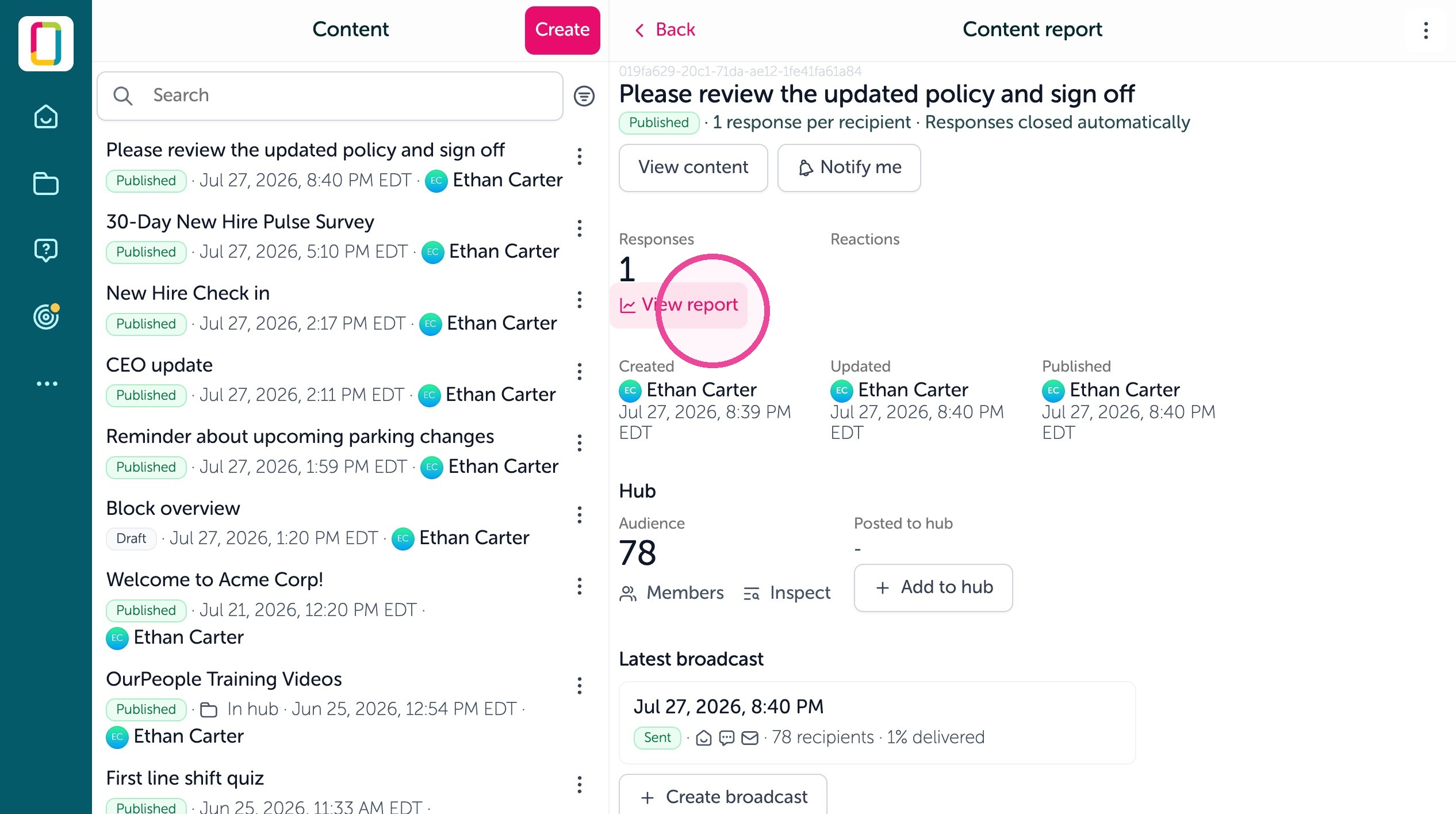
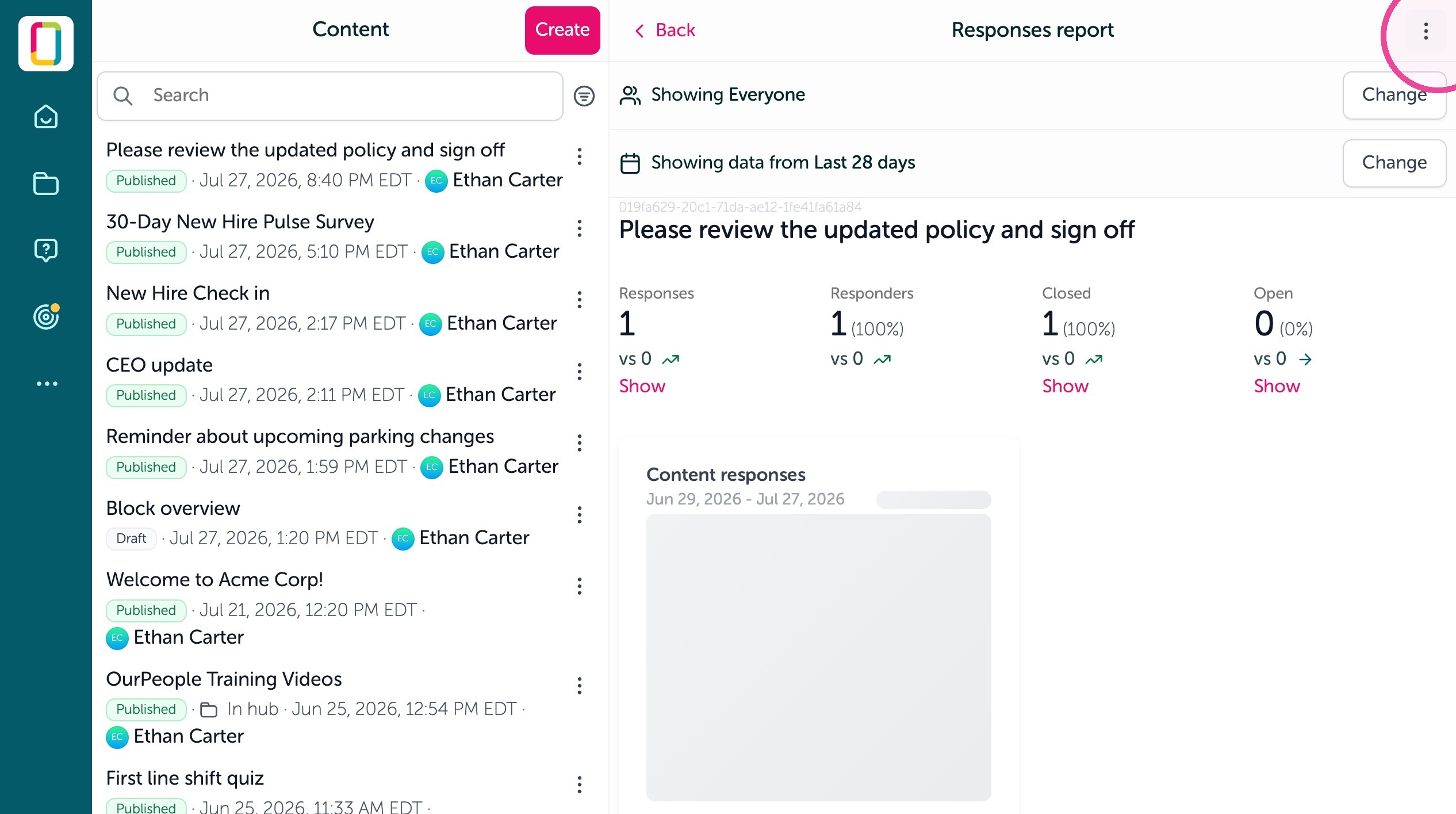
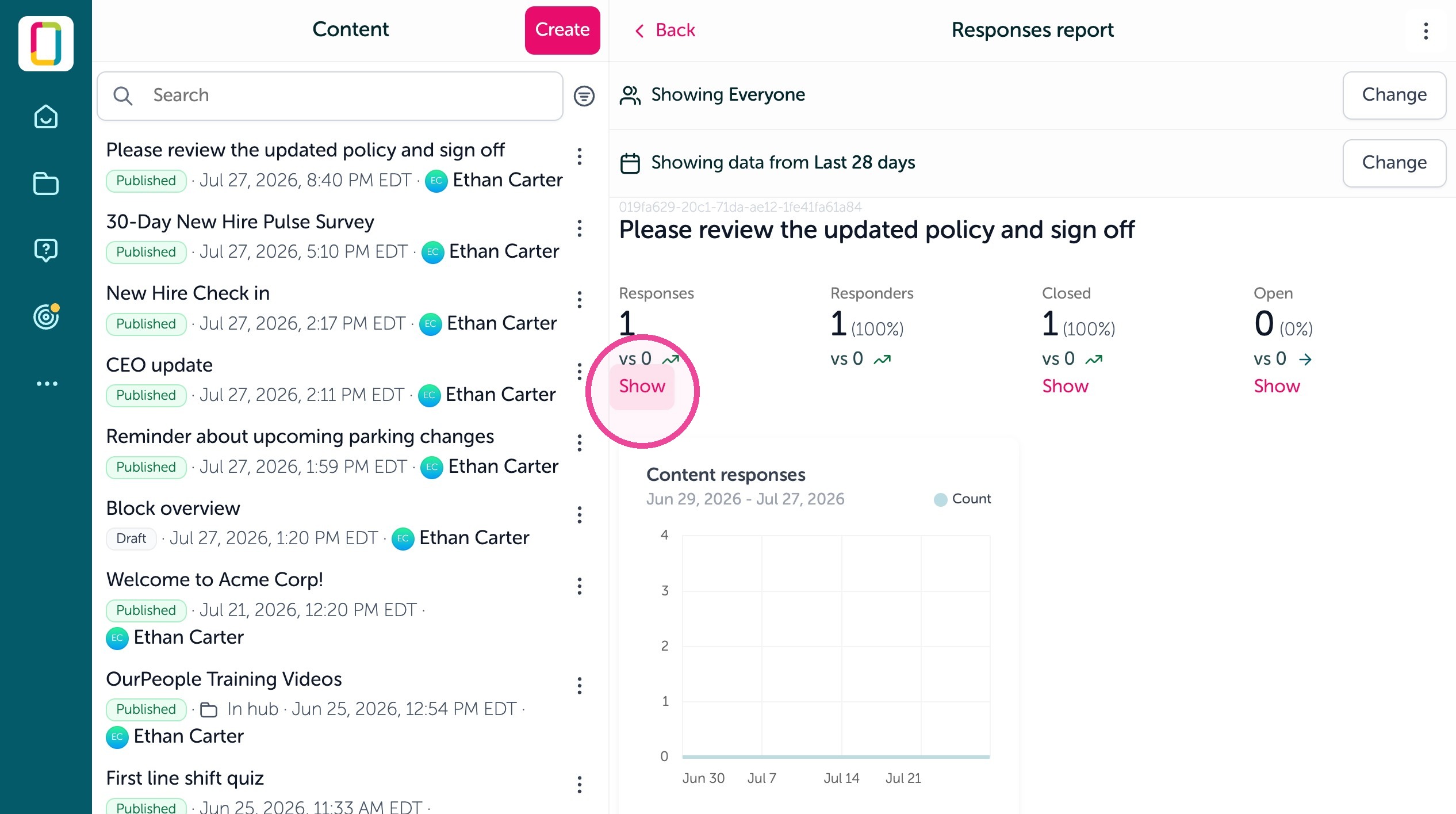
20. In the Responses report, you can click show under Responses to see a list of employees.
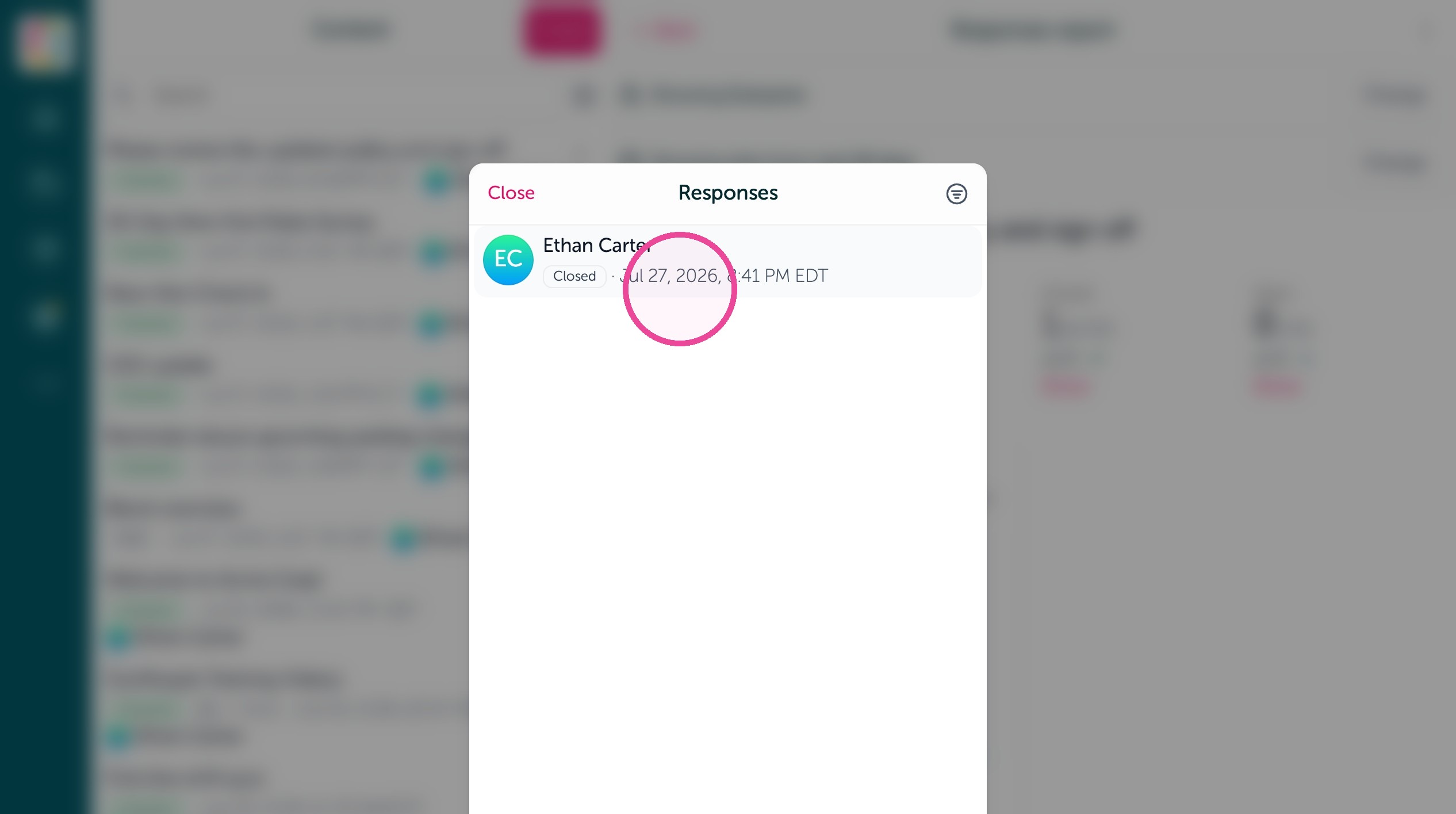
21. Click their name to see the signed content doc.
22. Use the 3 dots to export as a PDF
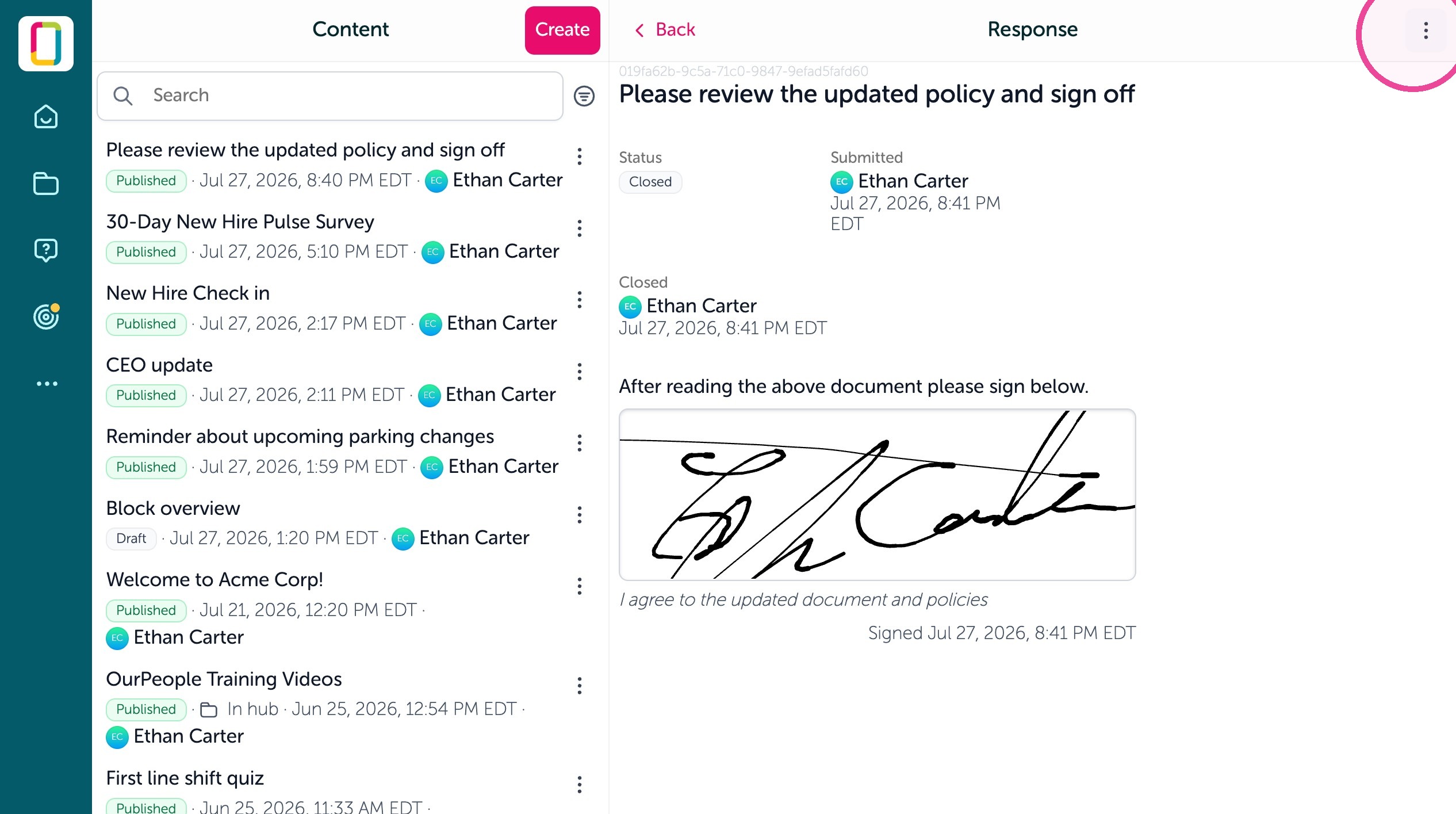
23. Or export a full list of employees who signed off as a CSV (won't show signature, use PDF for this).