Learn how to effectively communicate important updates to your team using the OurPeople platform. This guide walks you through drafting a message, attaching relevant images, setting recipient criteria, and broadcasting or scheduling your message.
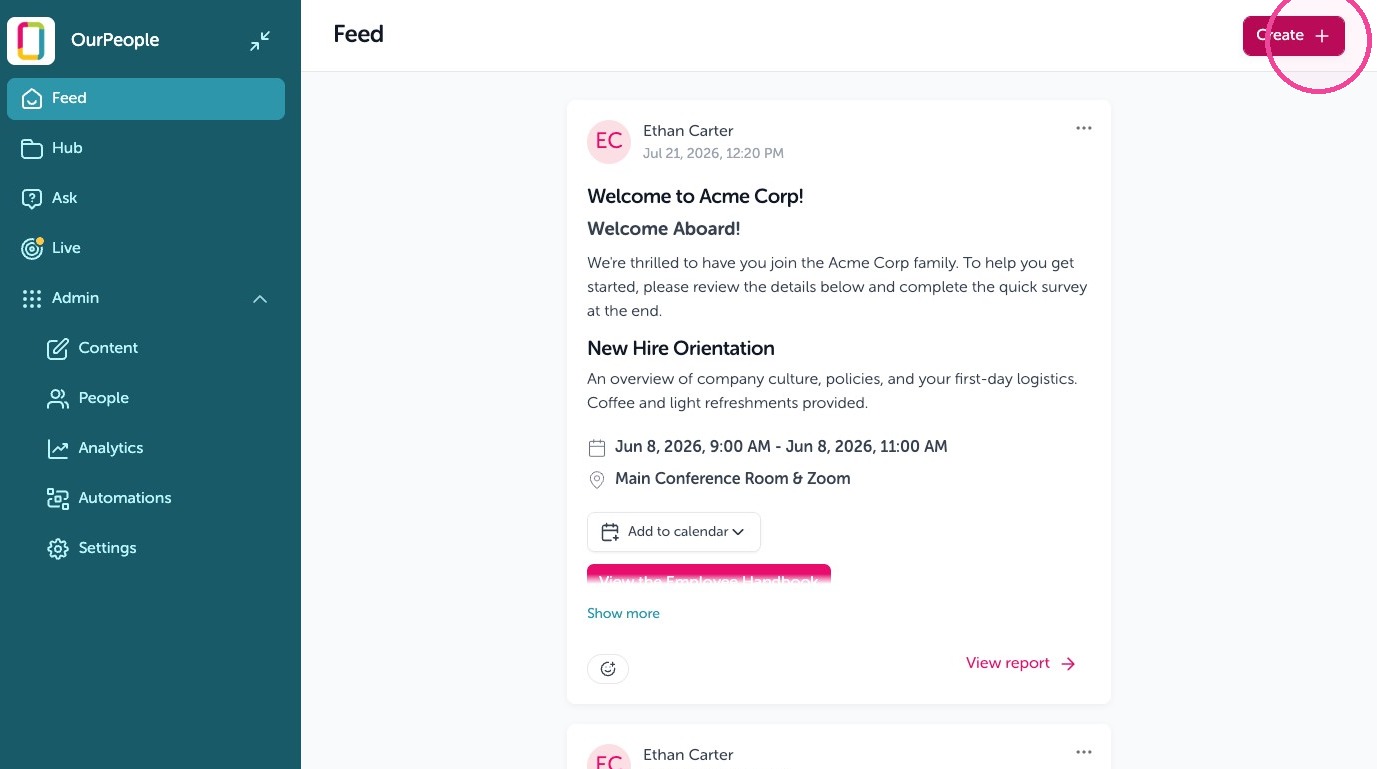
1. Go to your Feed then click "Create"
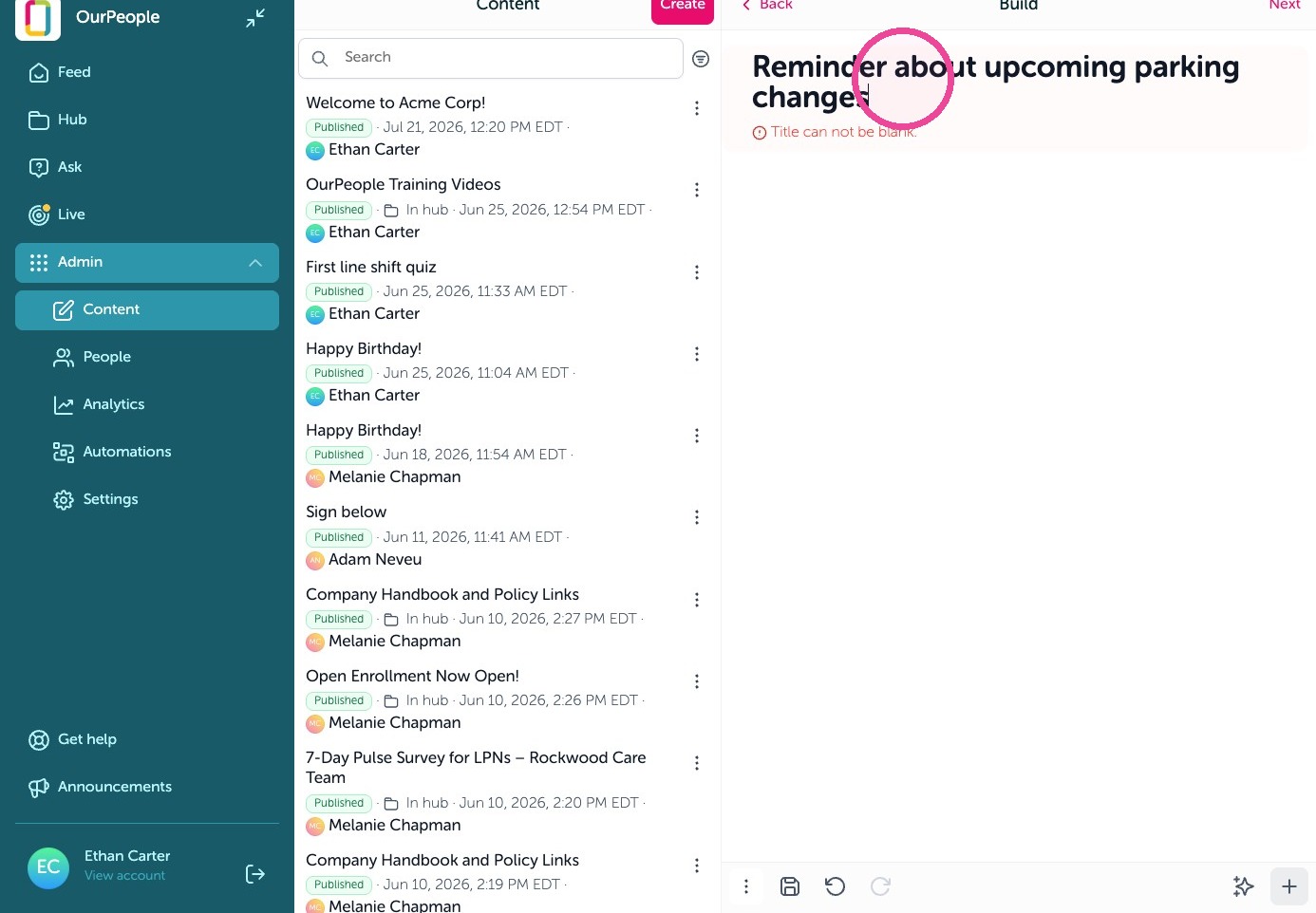
2. Give your message a title
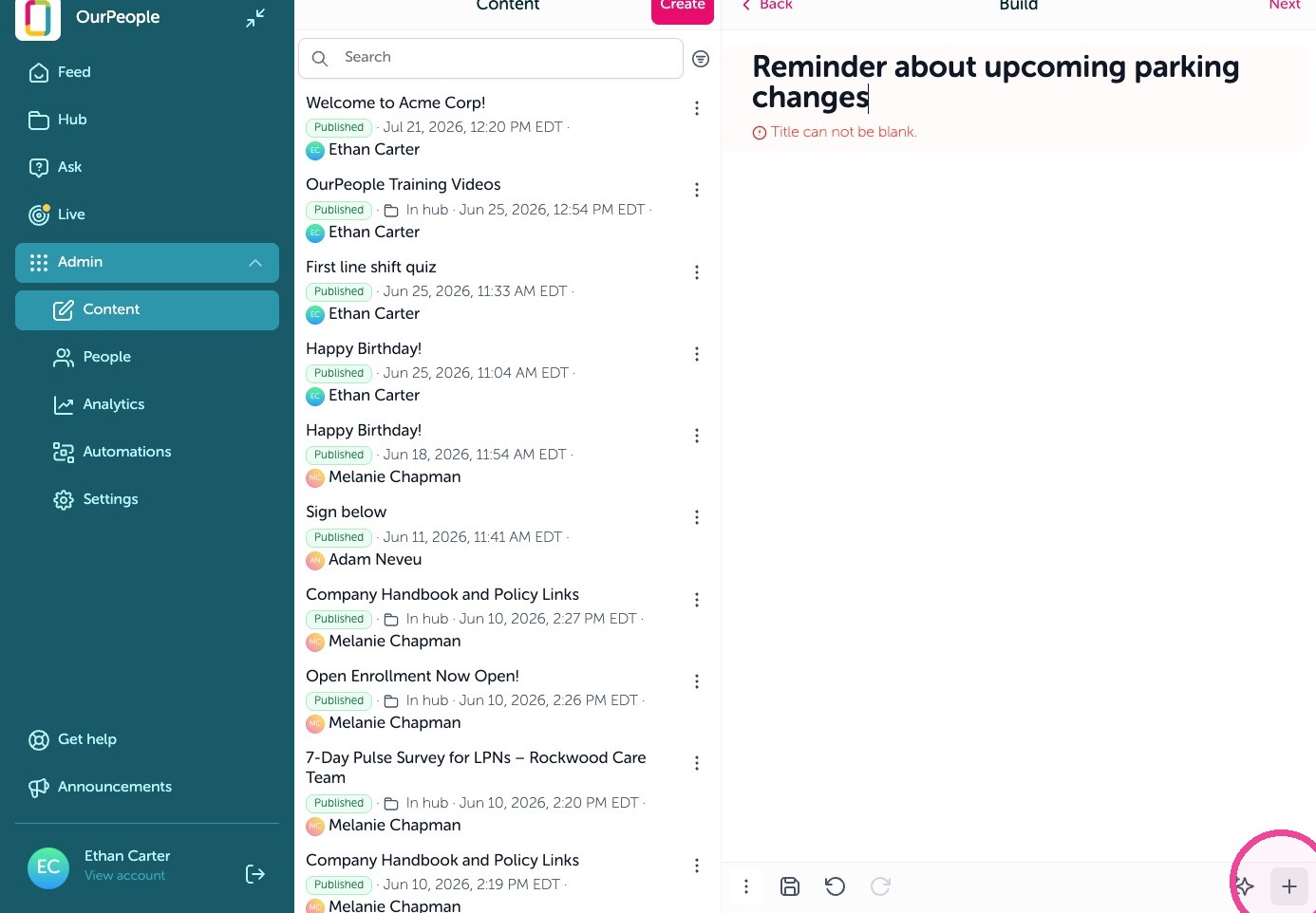
3. Click the + icon to add a block
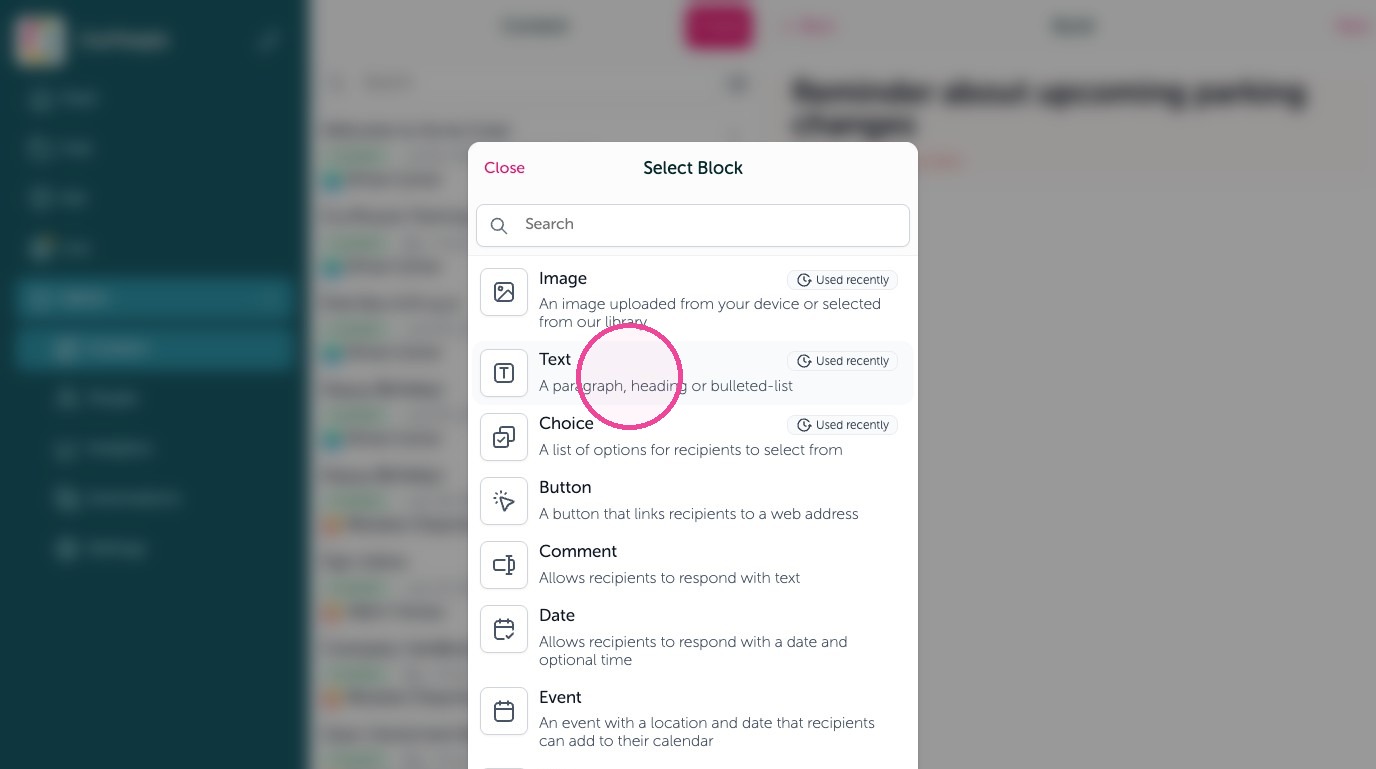
4. Click "Text" to add text
5. Type in your message
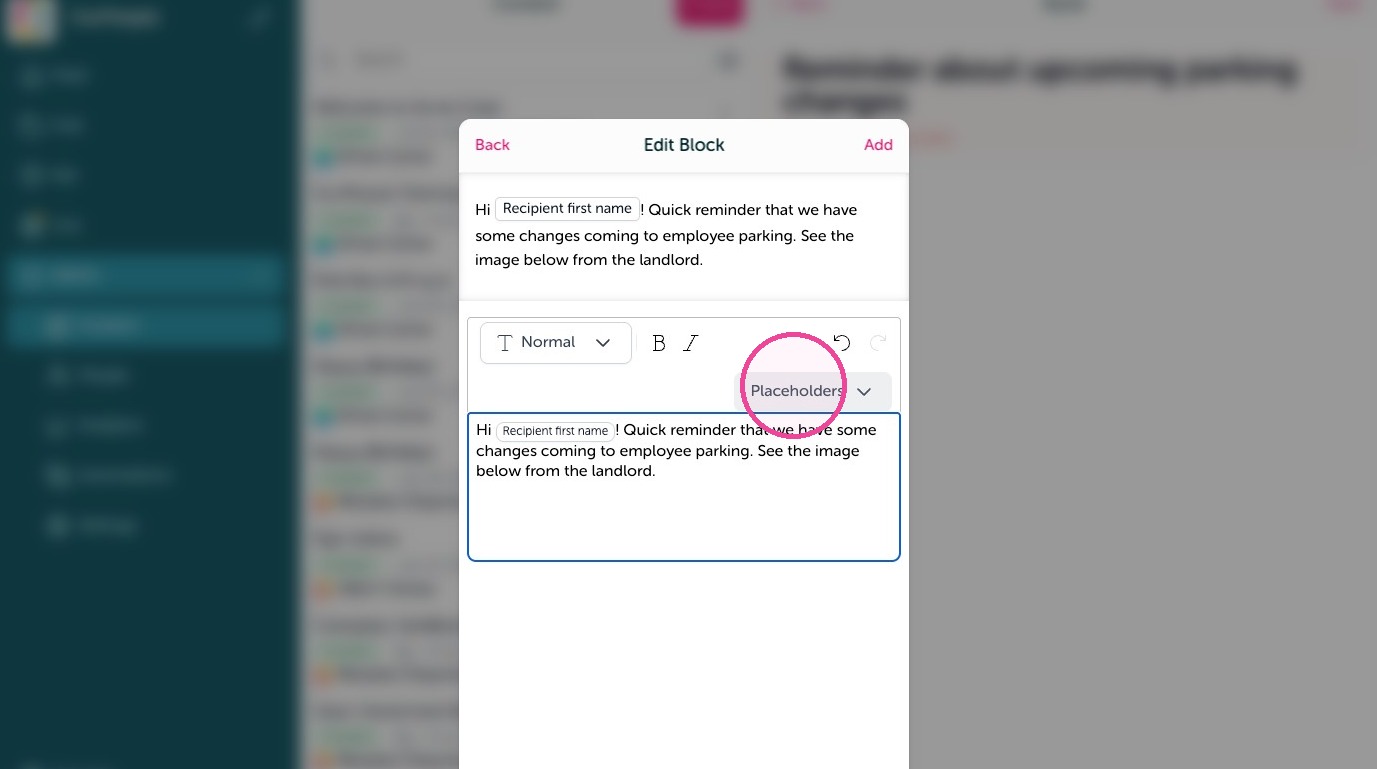
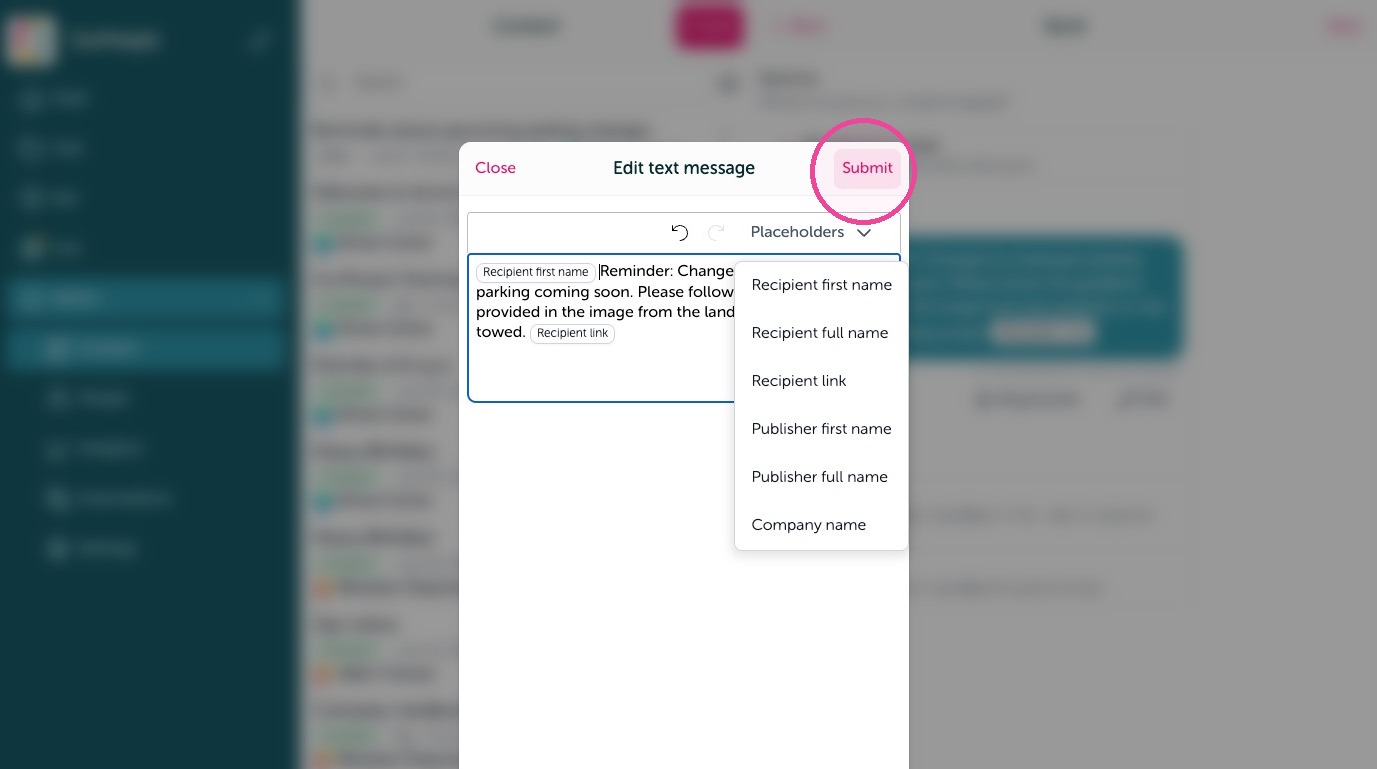
6. Personalize the message by using "Placeholders" This auto-adds things such as the company name or the employees first or full name.
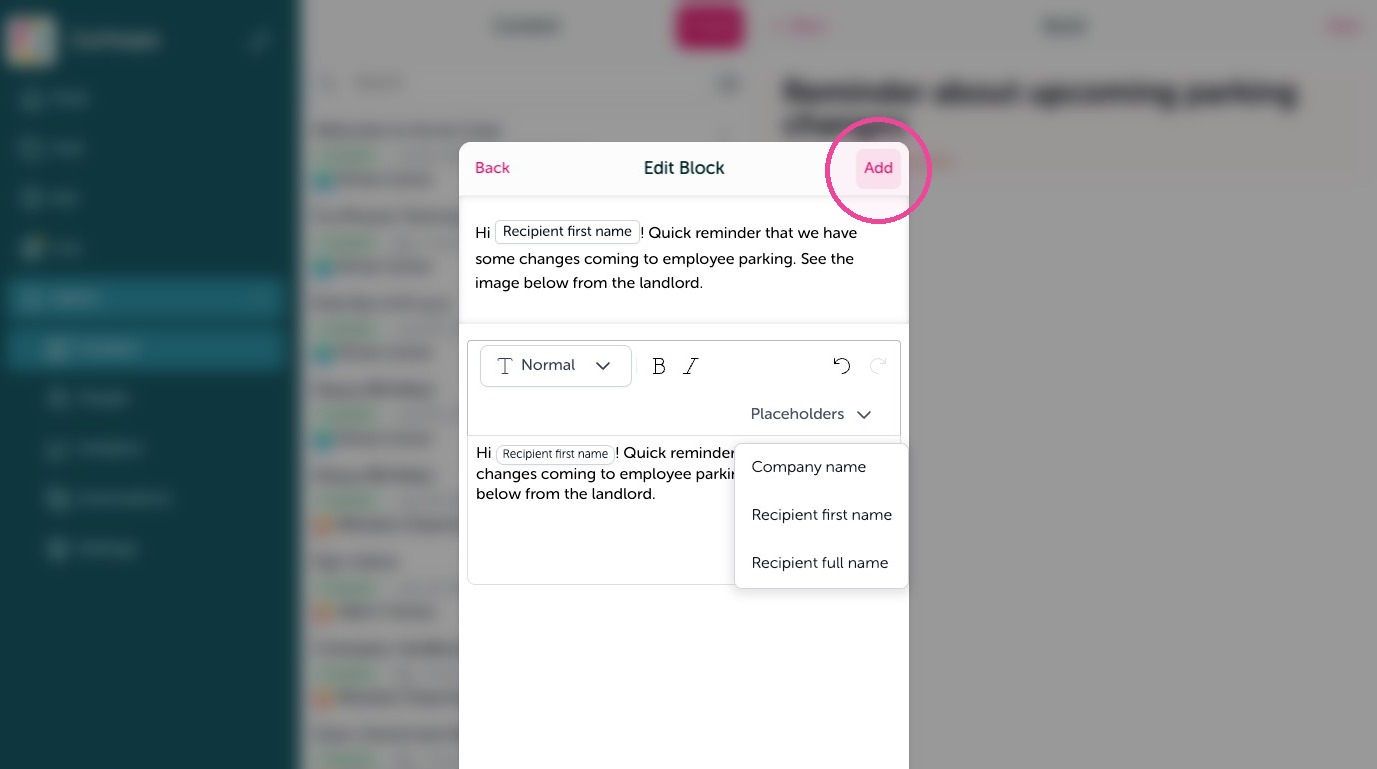
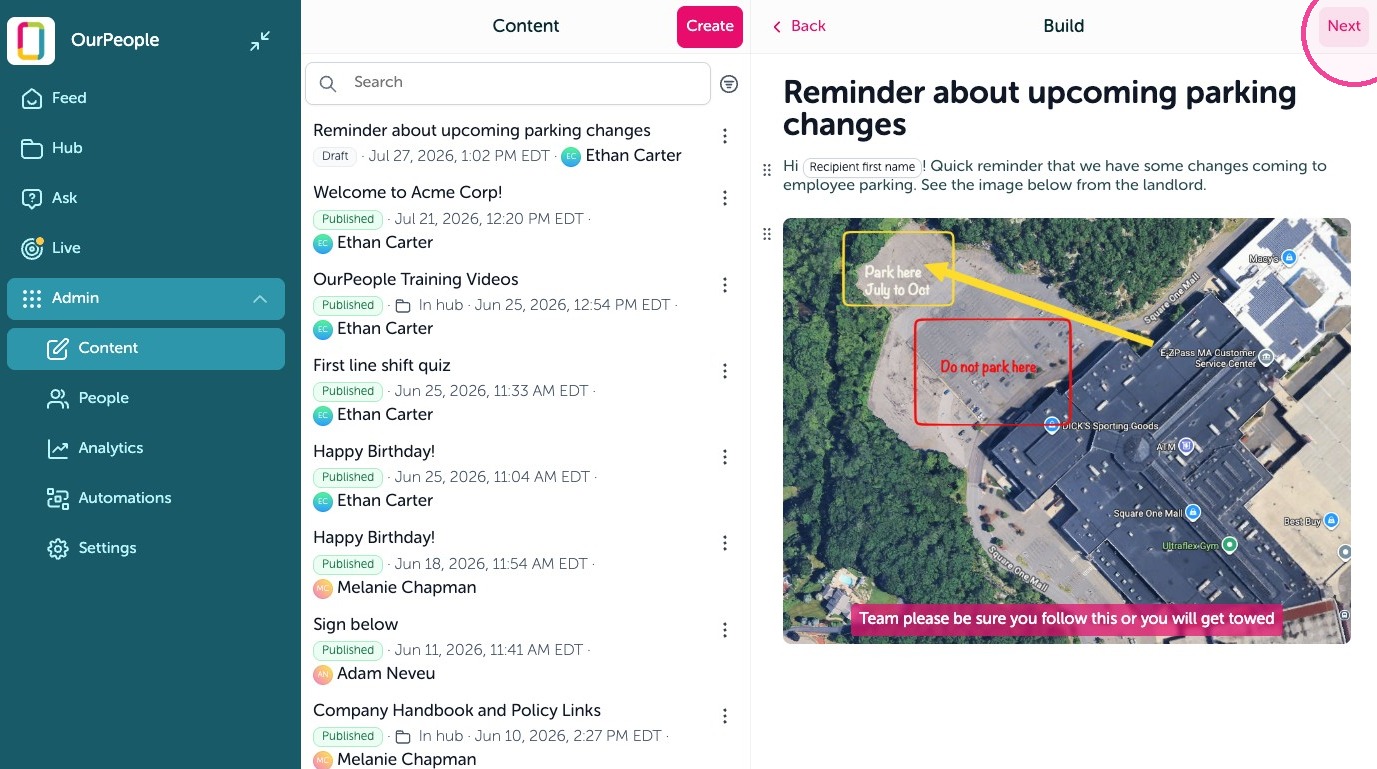
7. To add an image click the + icon to add another block.
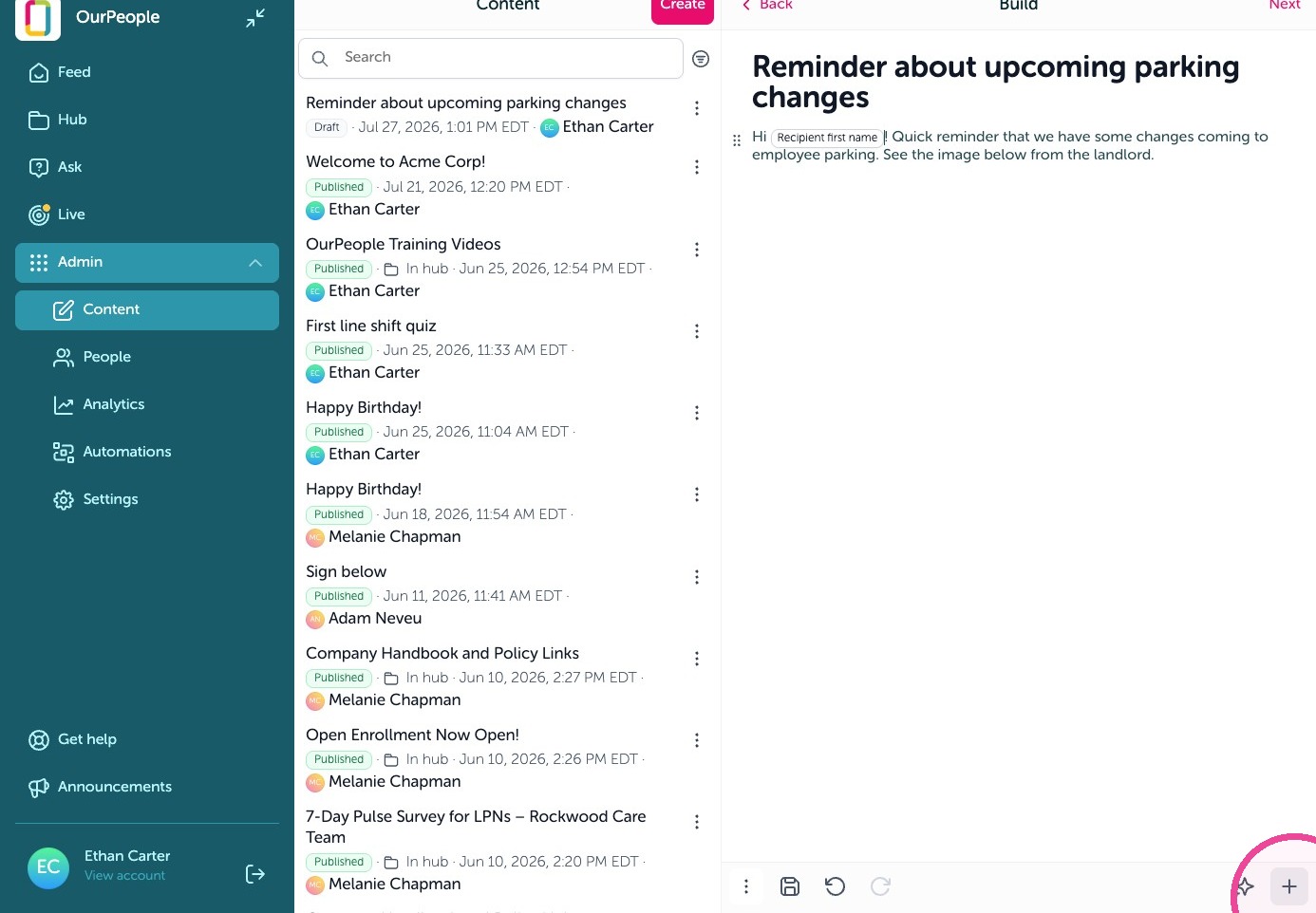
8. Click on "Image" to add an image block
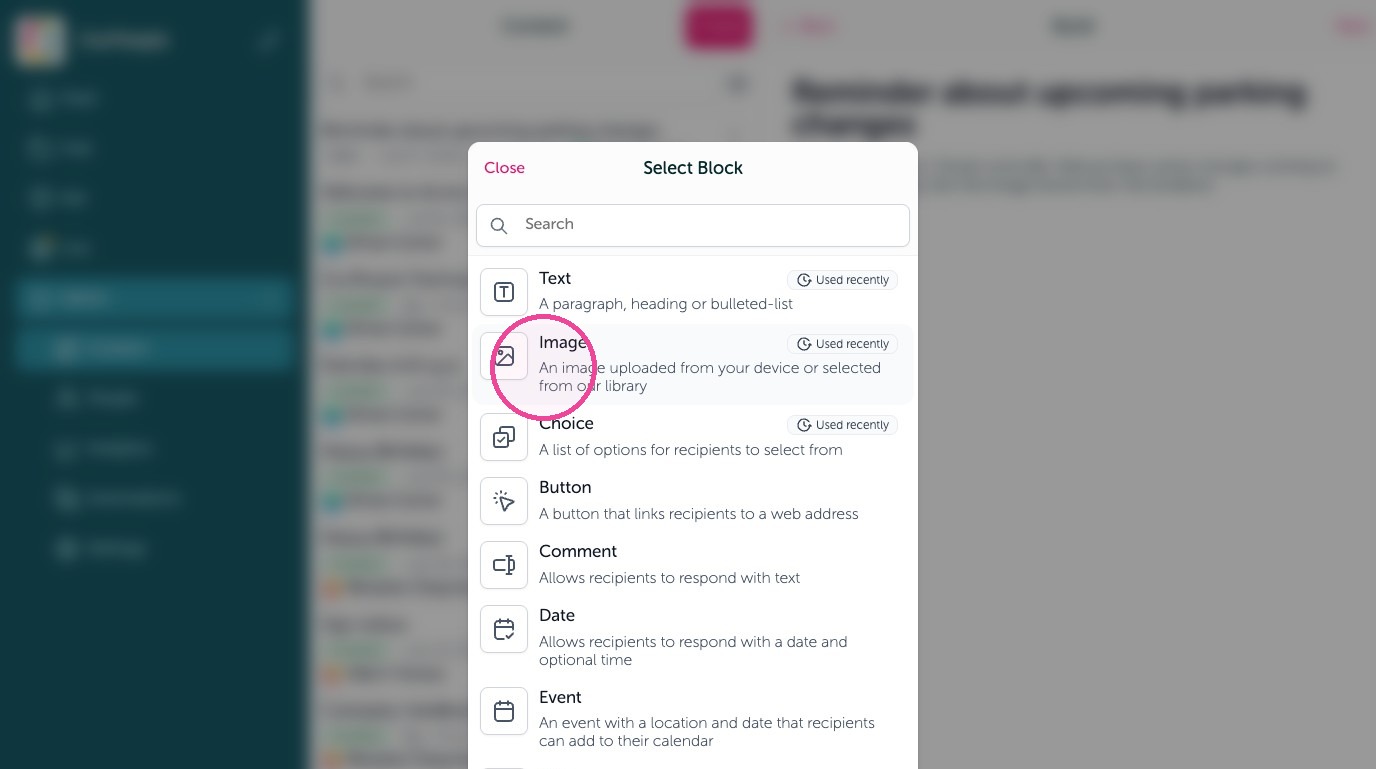
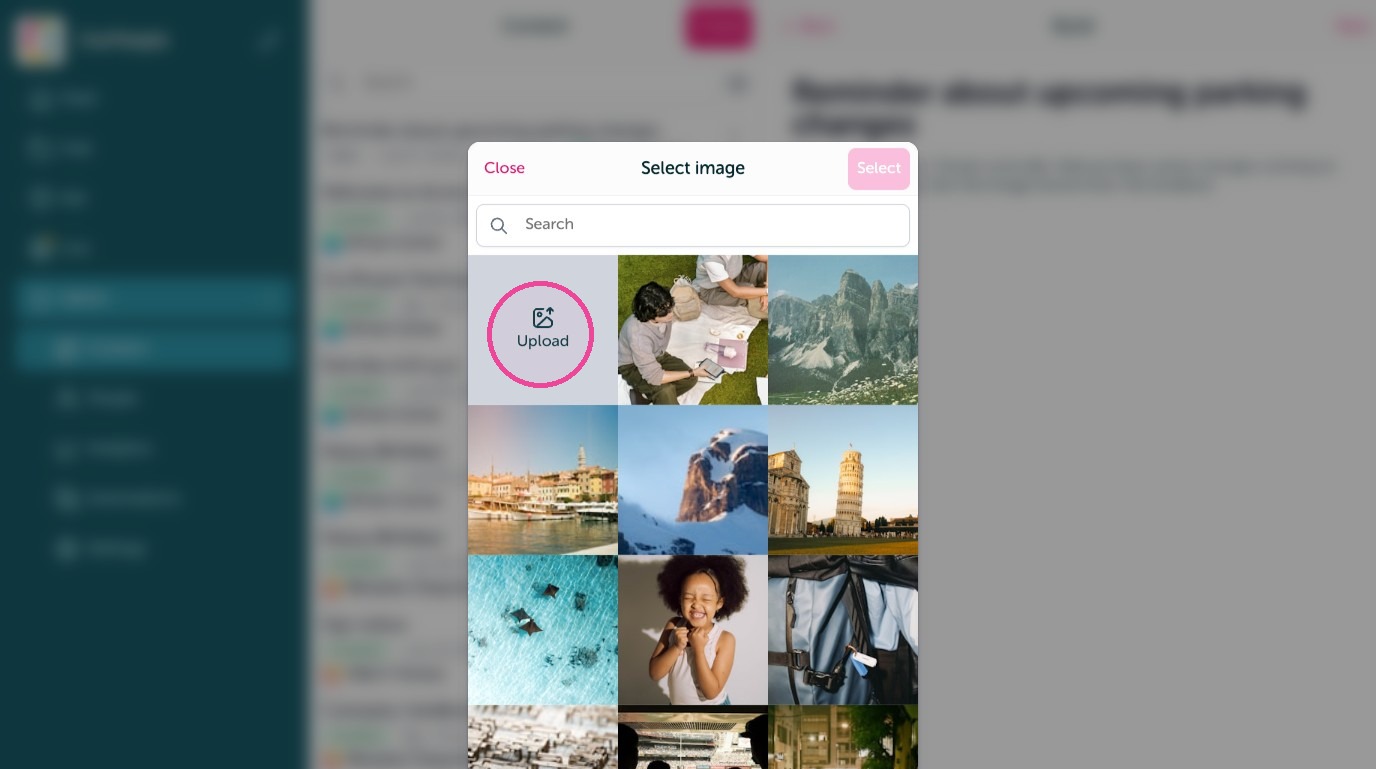
9. Click "Upload" to upload images to the message or use the free library.
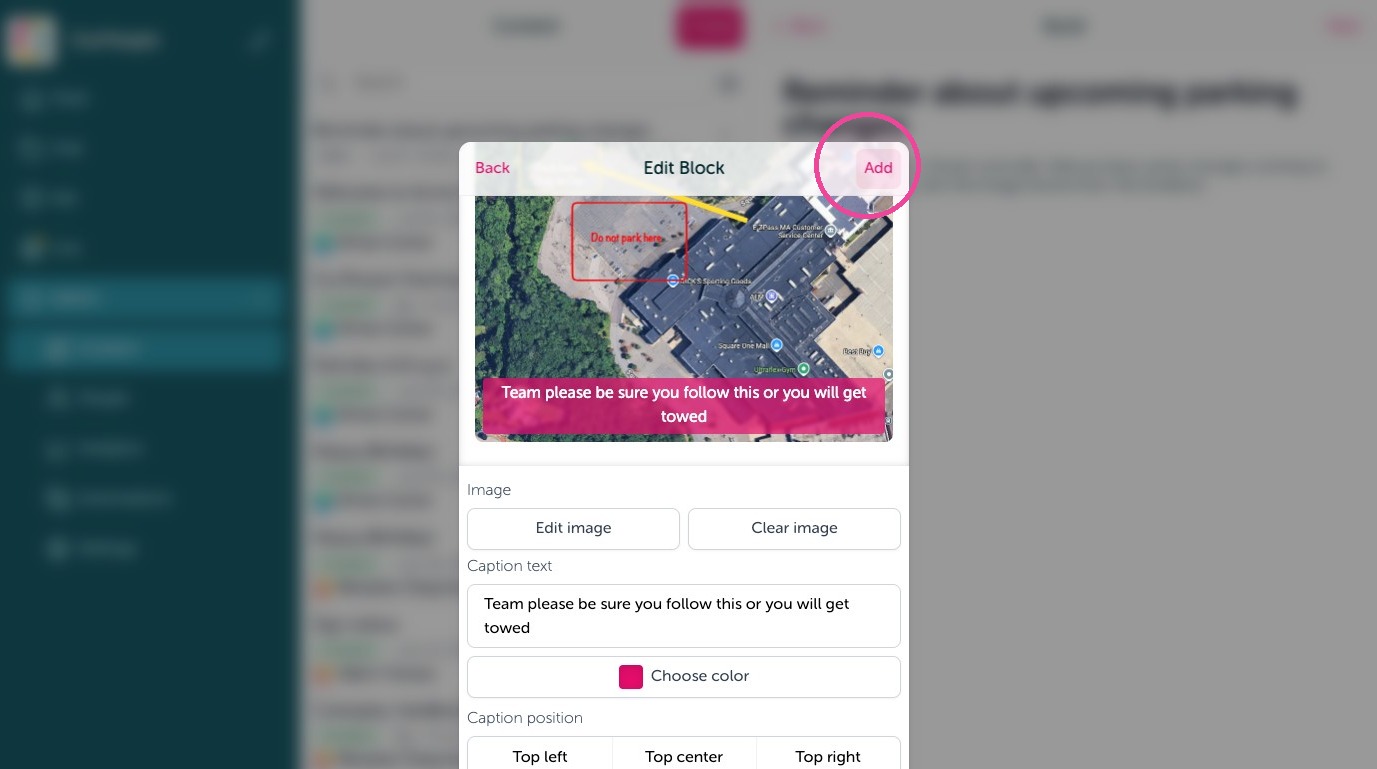
10. You can overlay text on images as a "Caption text"
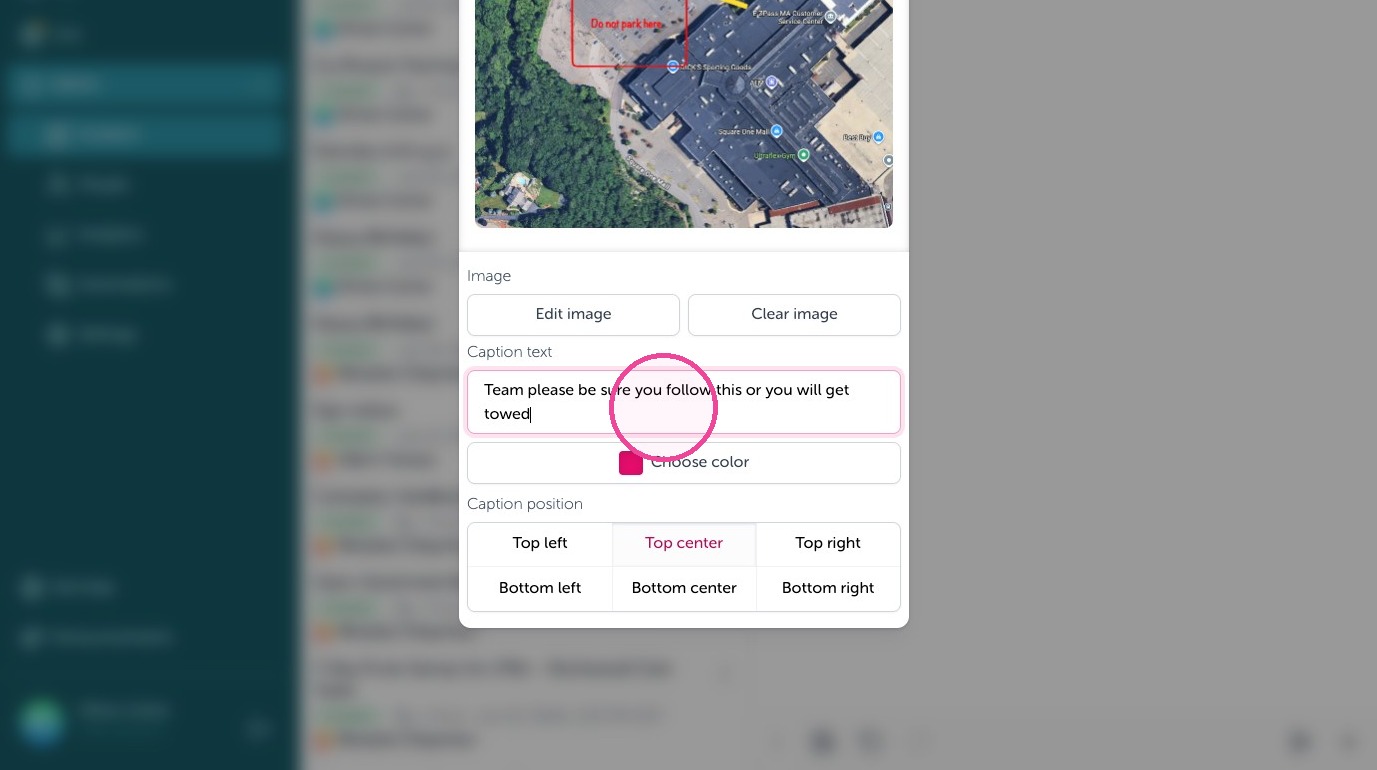
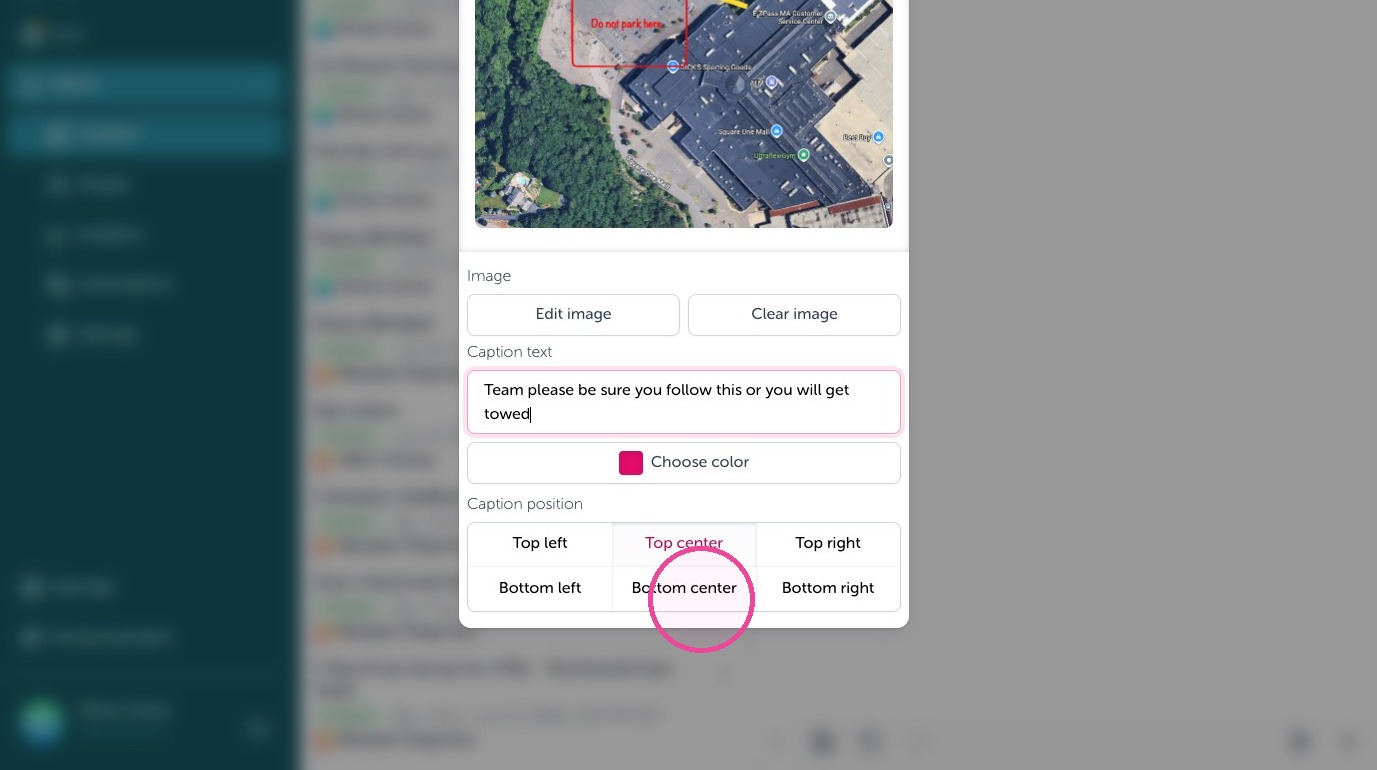
11. Change the position by using "Caption postion"
12. Click "Add" to add the Image block to the message
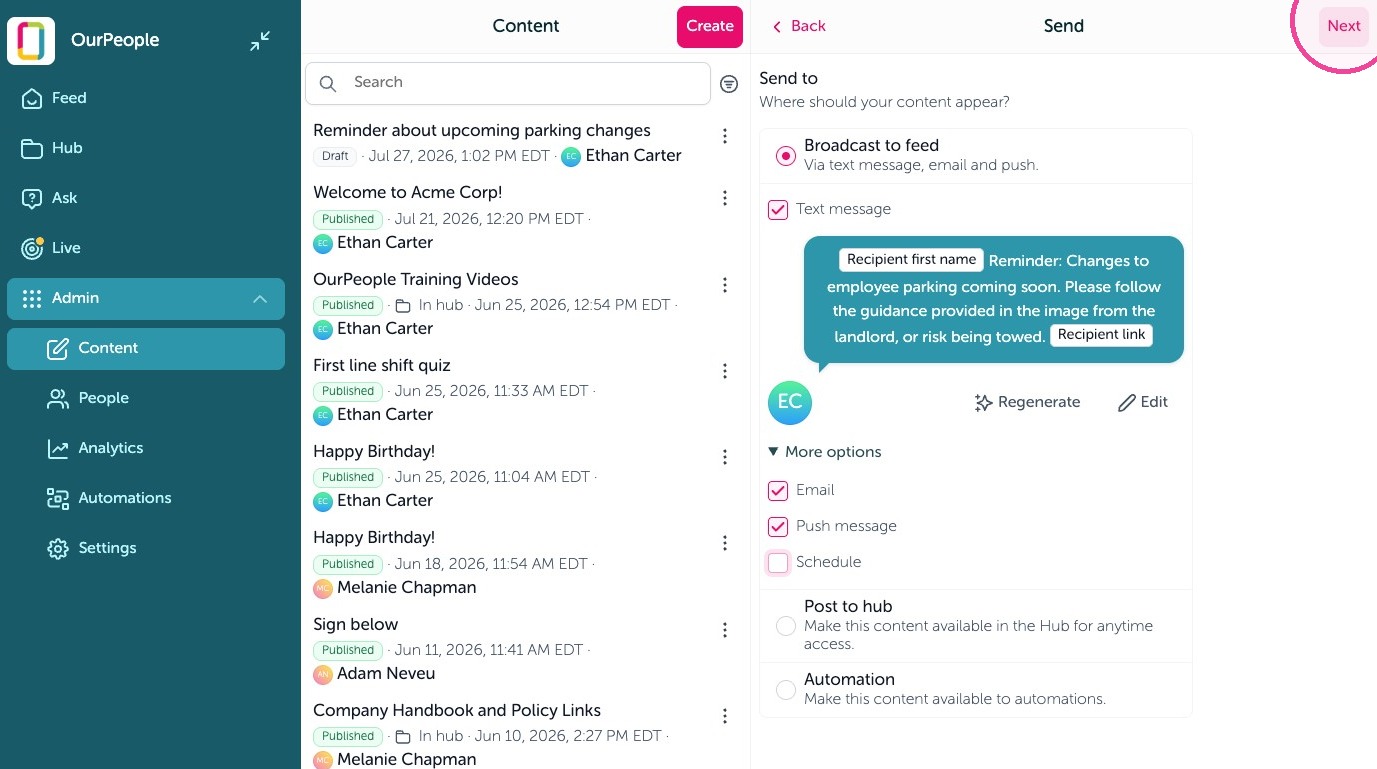
13. Click next
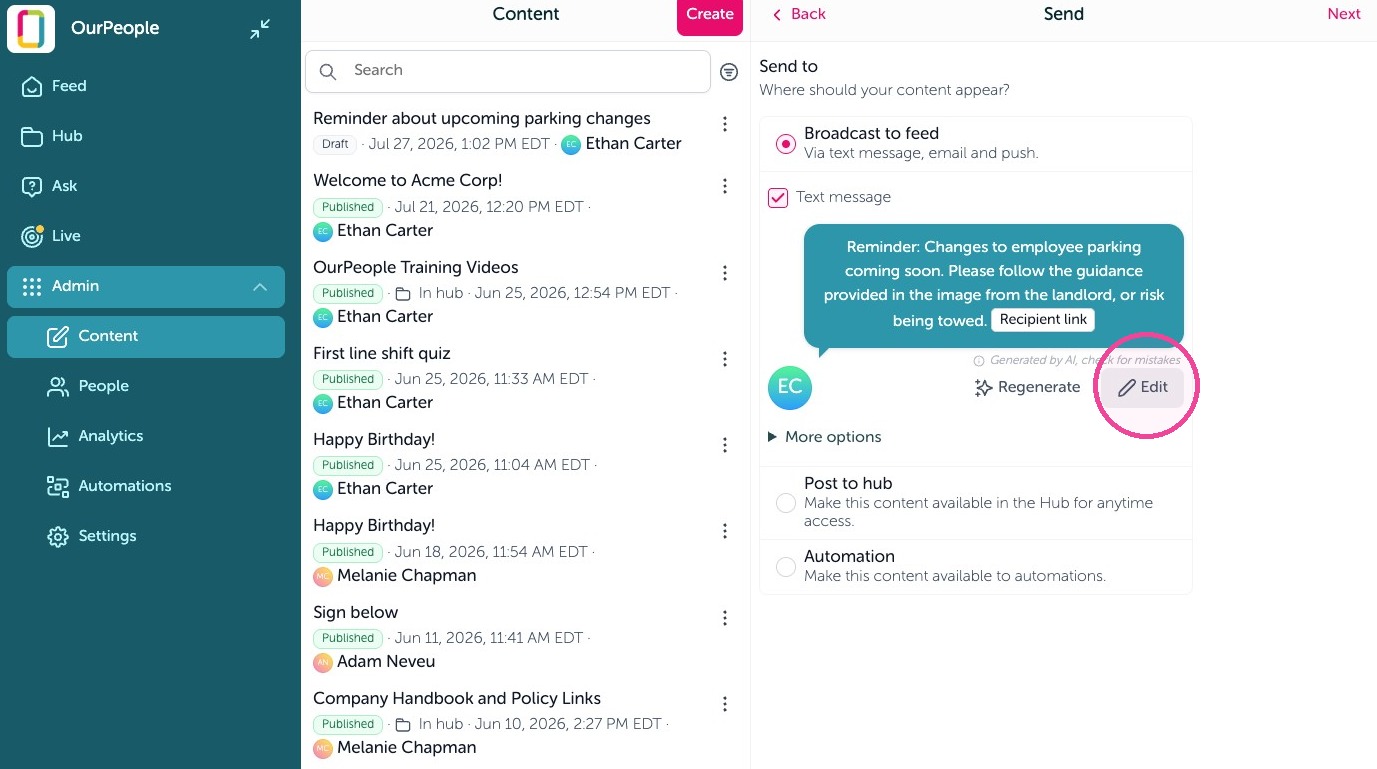
14. You'll see a preview of what the text message will look like. You can "Regenerate" or "Edit" the text here.
15. Click "Submit" to save any edits to the text message
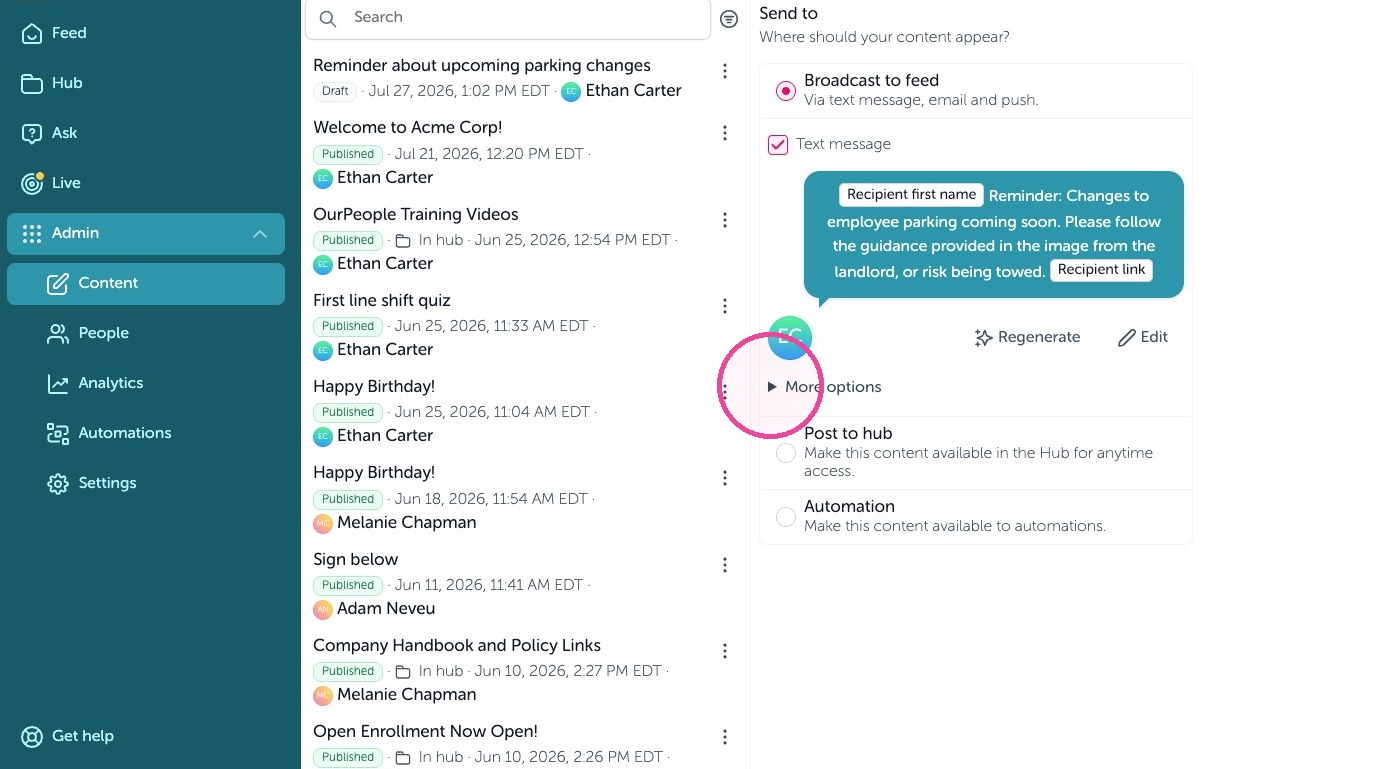
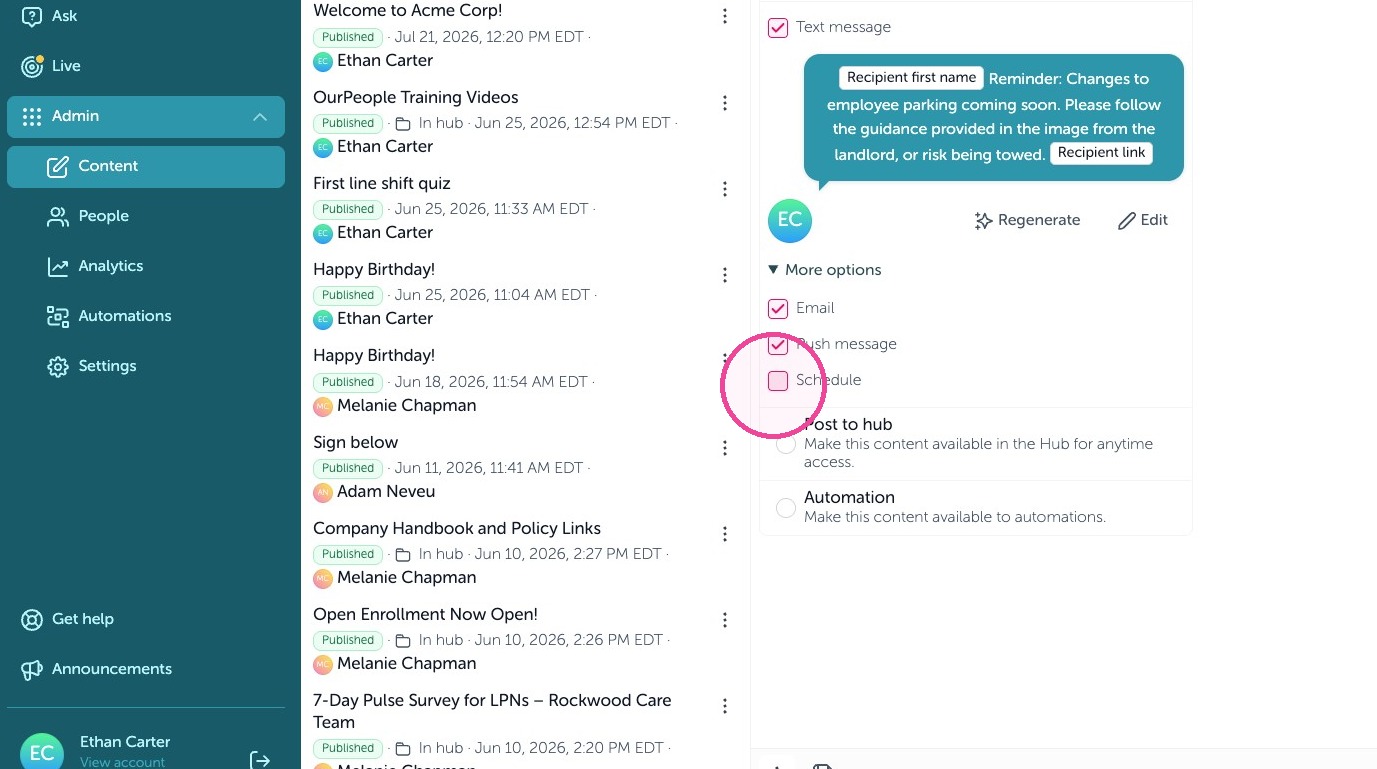
16. To "Schedule" or "Repeat" a message click "More options"
17. Check "Schedule"
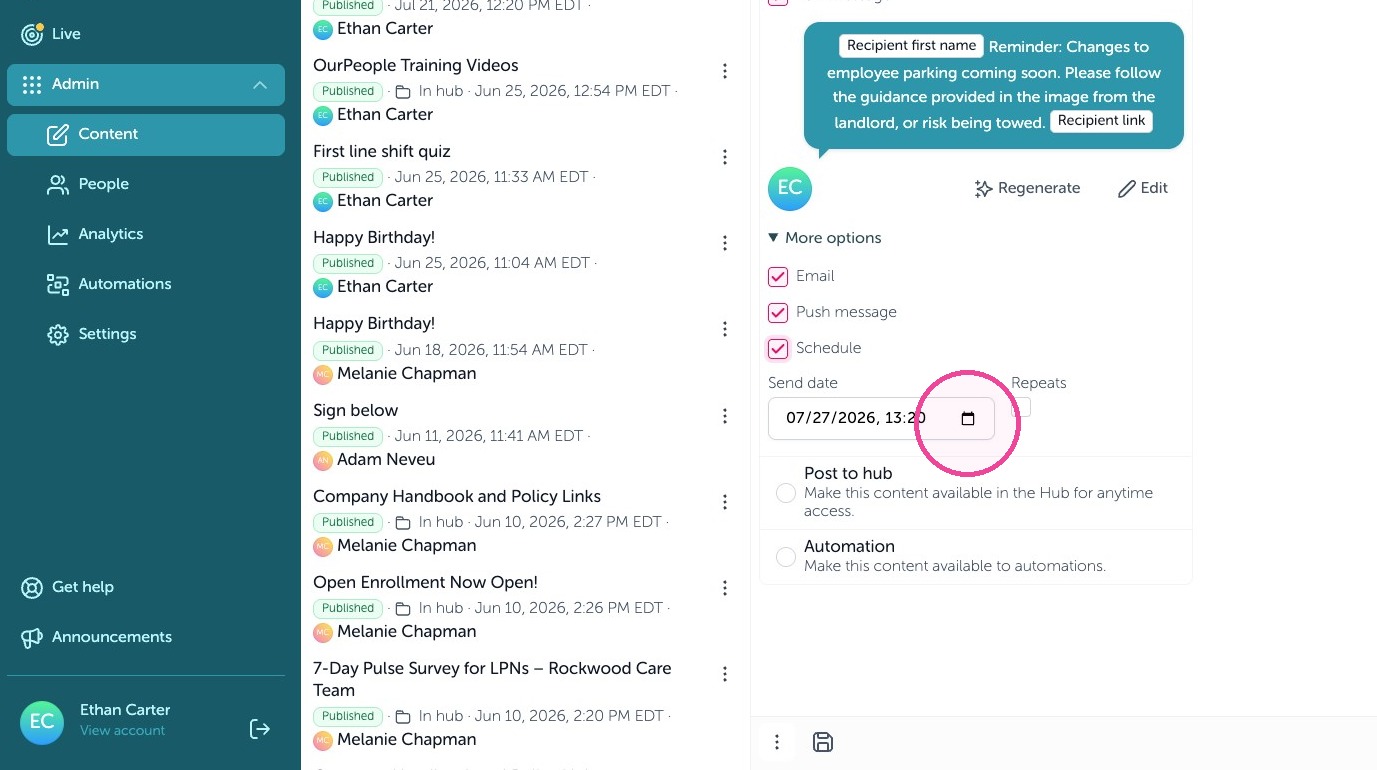
18. Select the date and time to send the broadcast
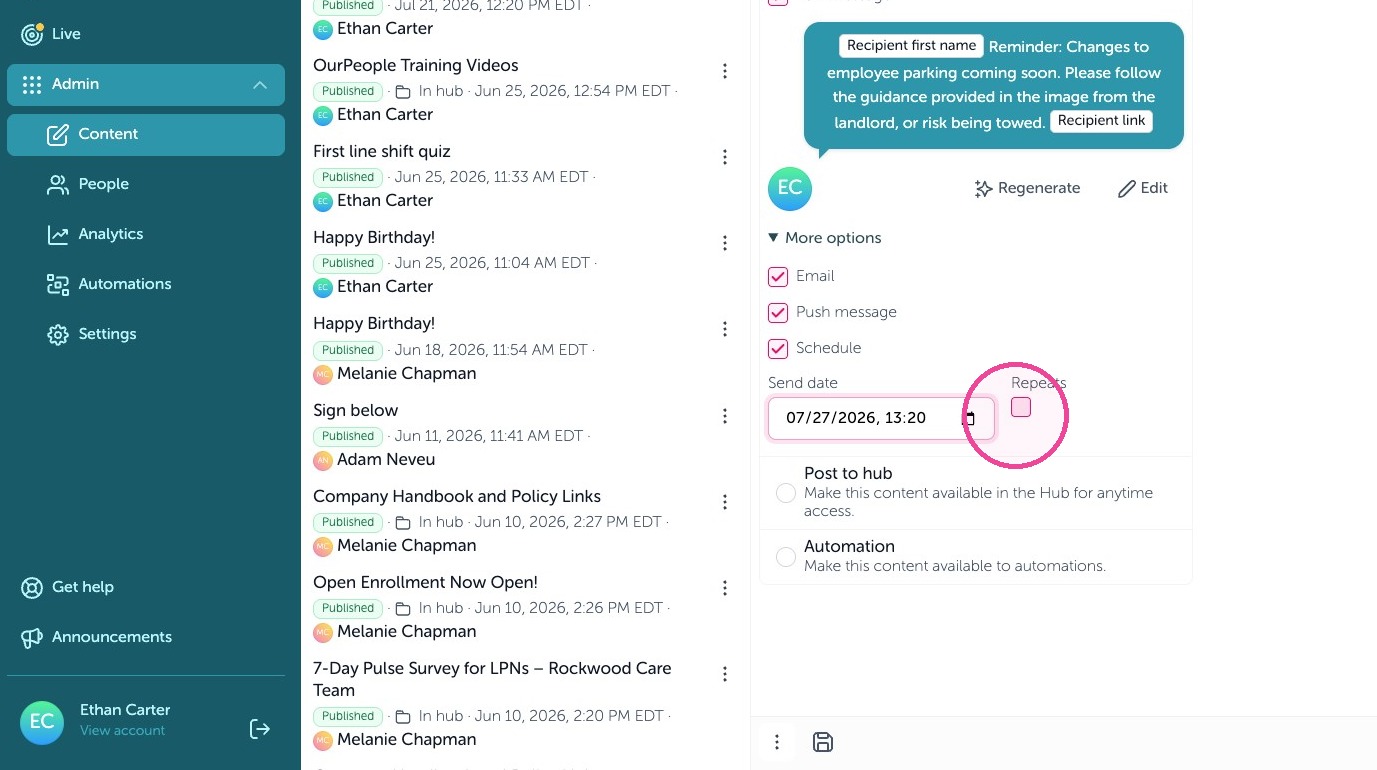
19. To repeat send a broadcast check off "Repeats"
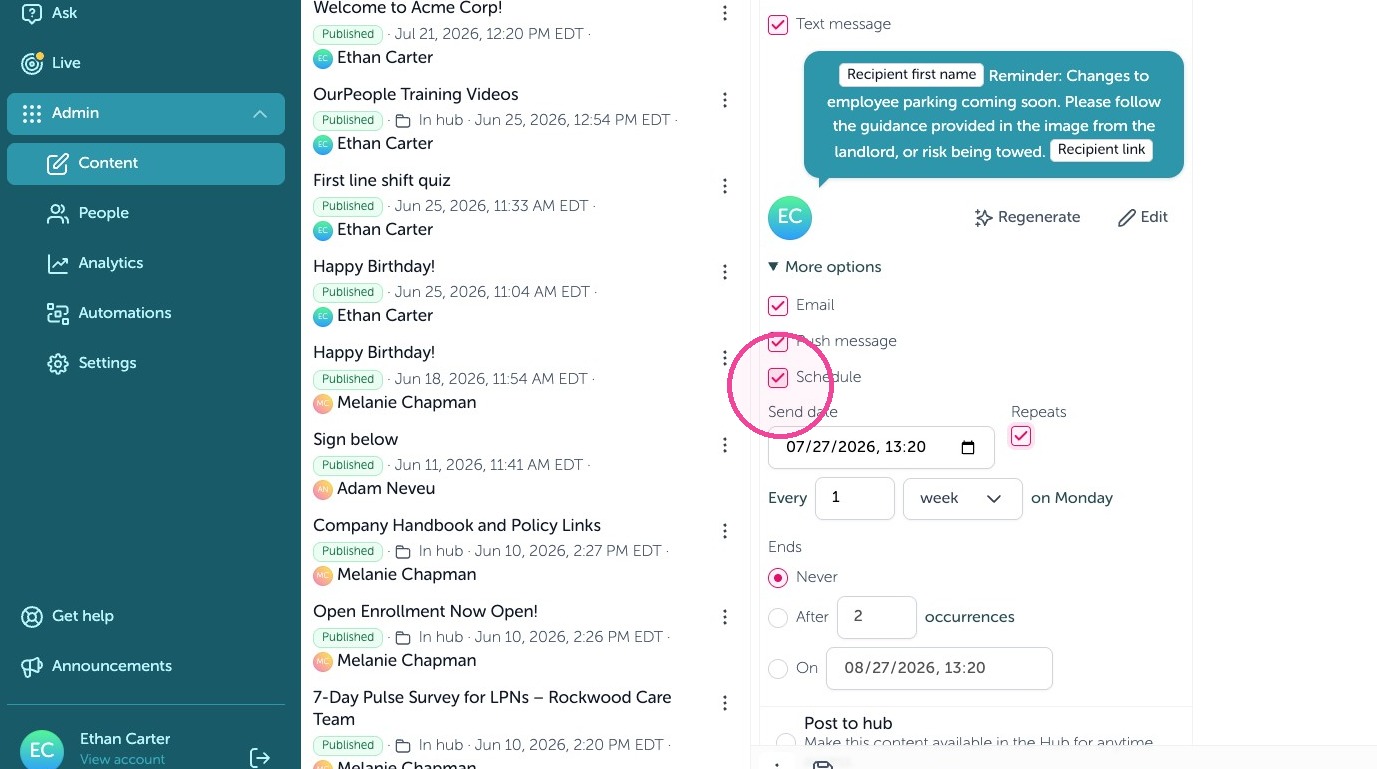
20. Then set up the repeating message below
21. Select Next to continue
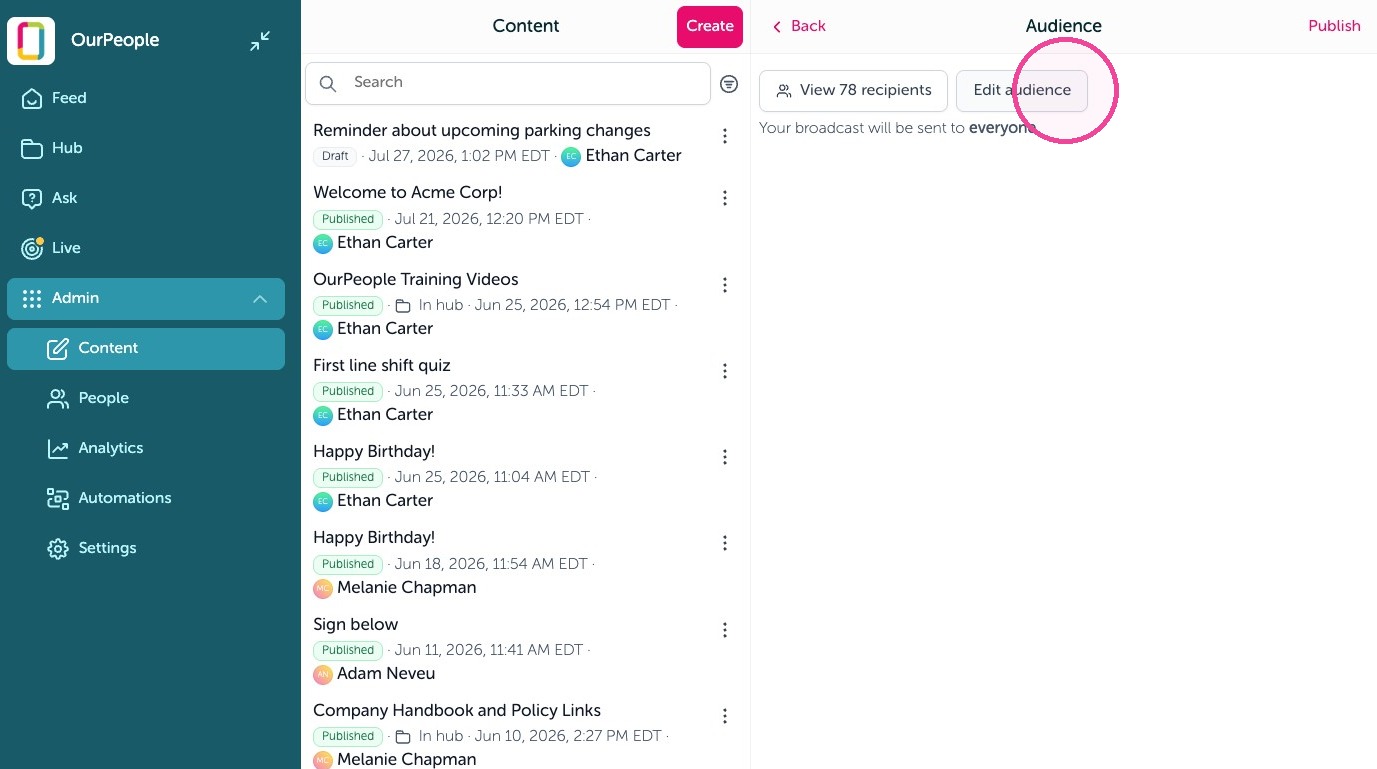
22. Set your audience, if you want to filter to specific people or tags click "Edit audience"
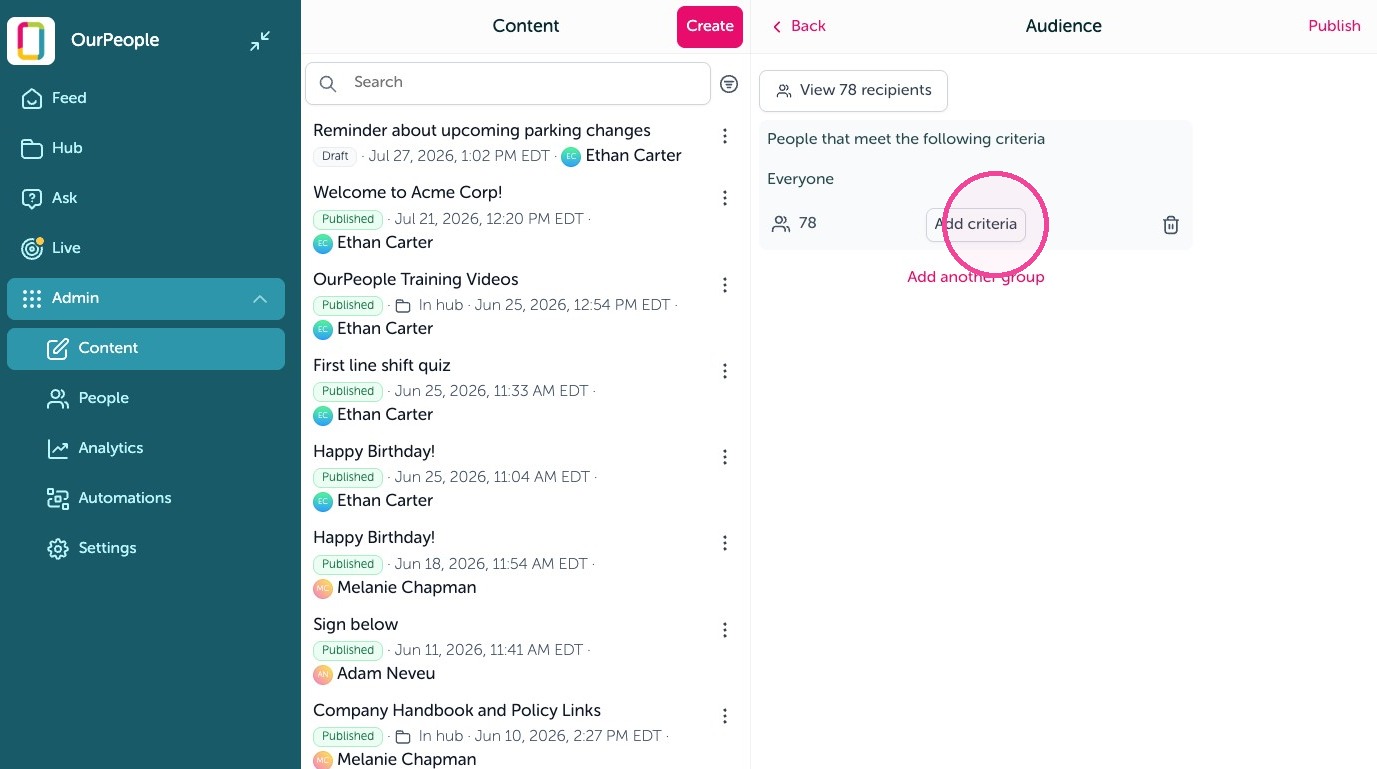
23. Then click "Add criteria"
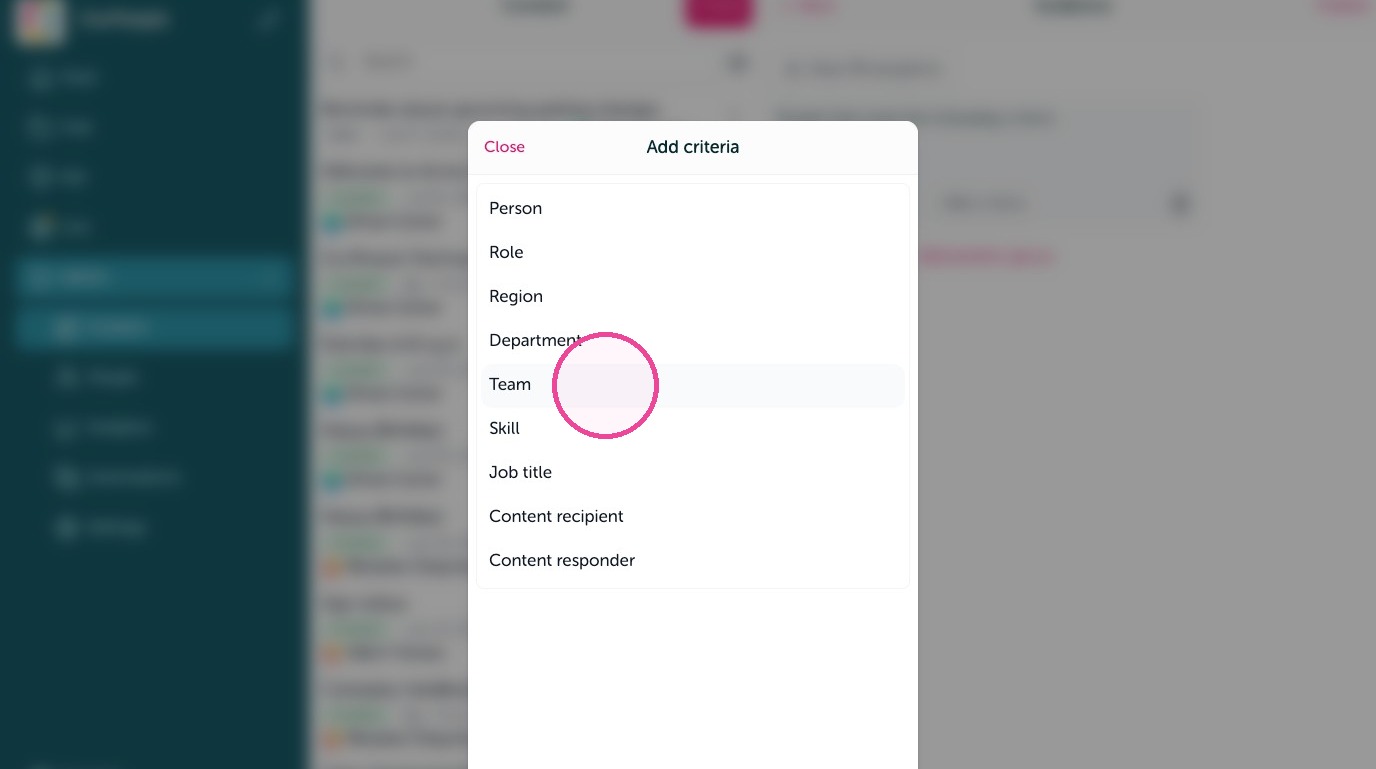
24. You can filter by person, or Tags like department, team, job titles, skills, etc.
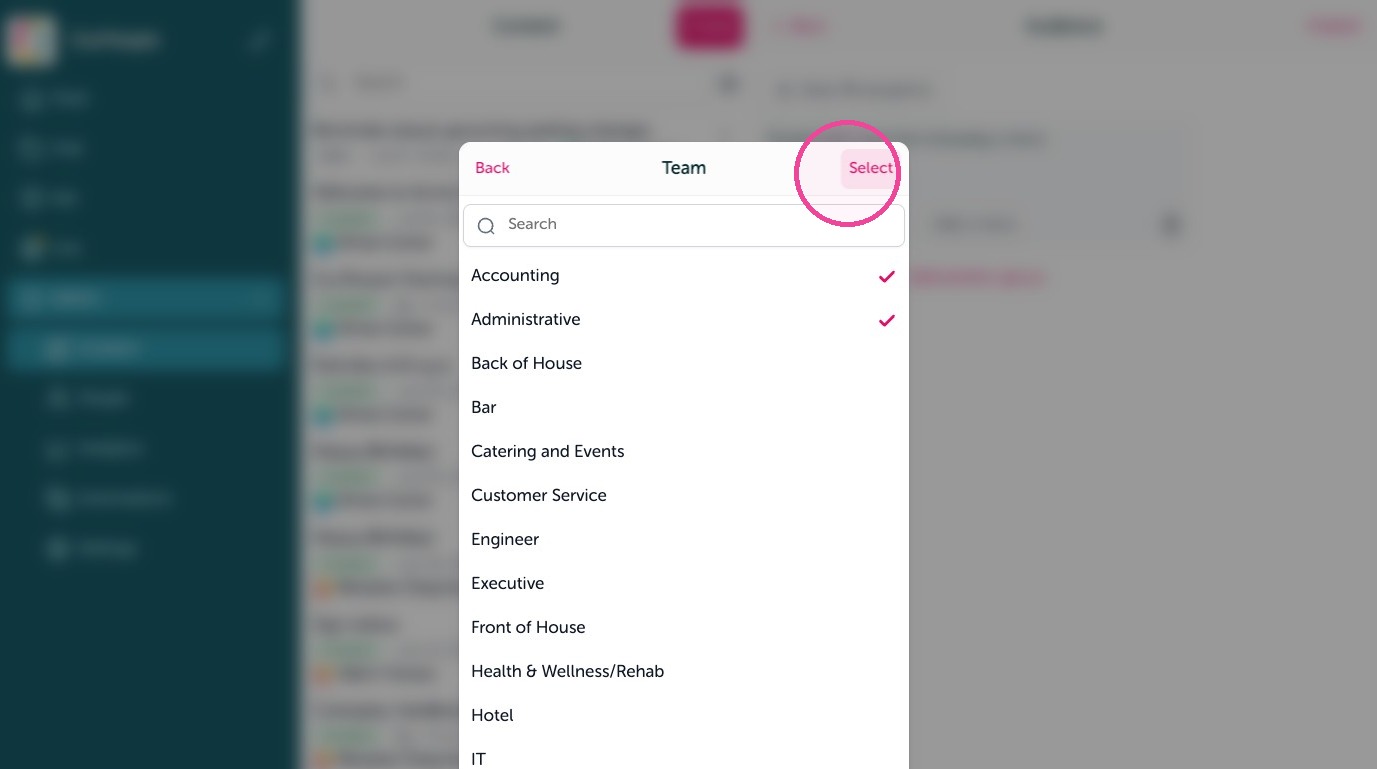
25. Click "Select" to save your selected tags.
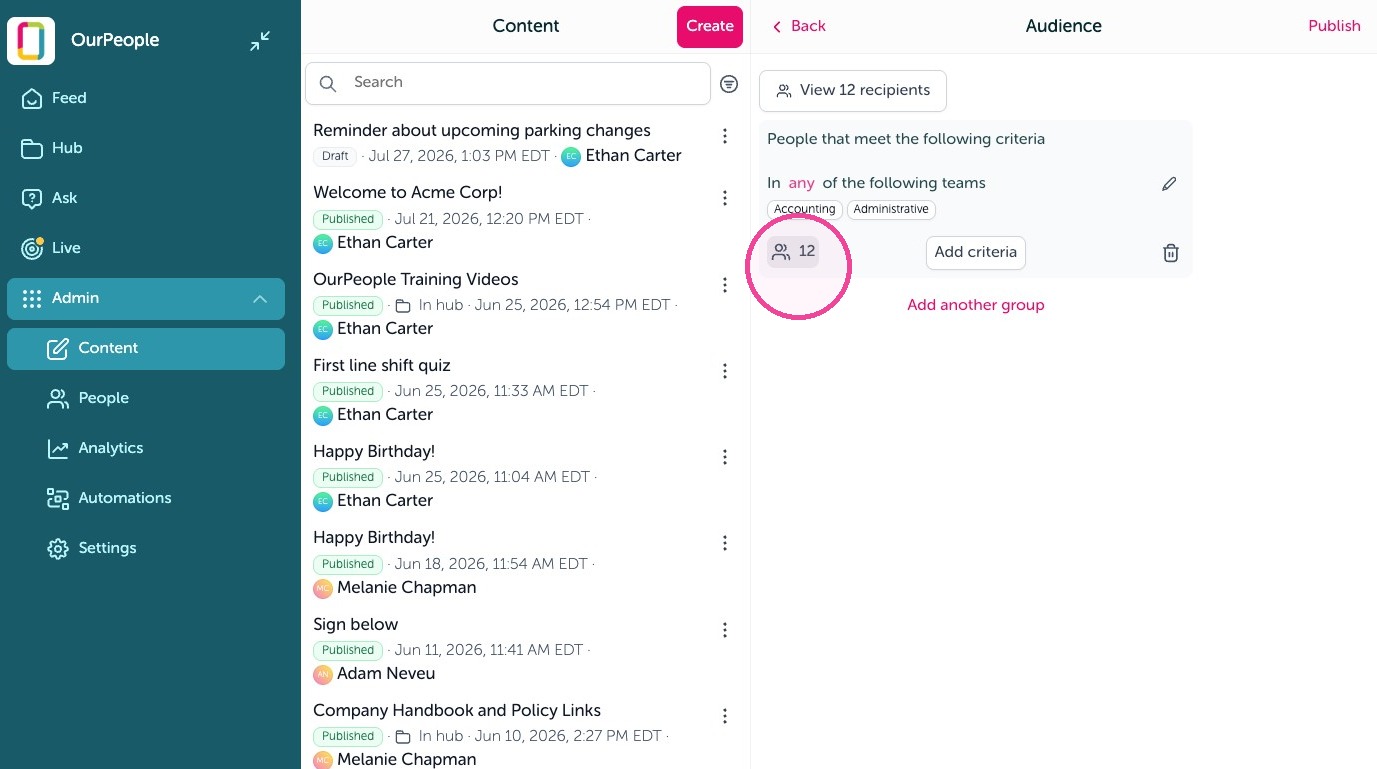
26. To verify or view who is in the audience click the number here.
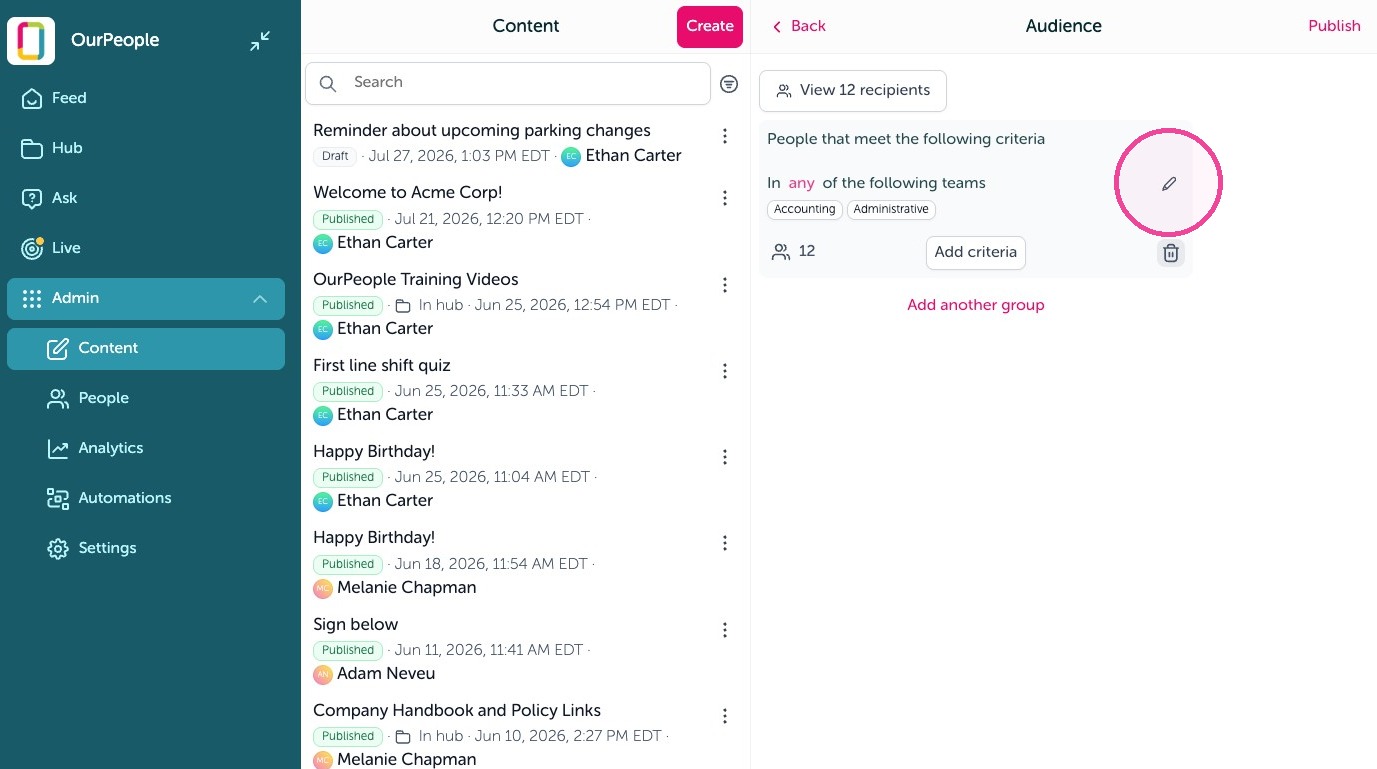
27. You can edit or add more tags or people to the filter using the "pencil icon"
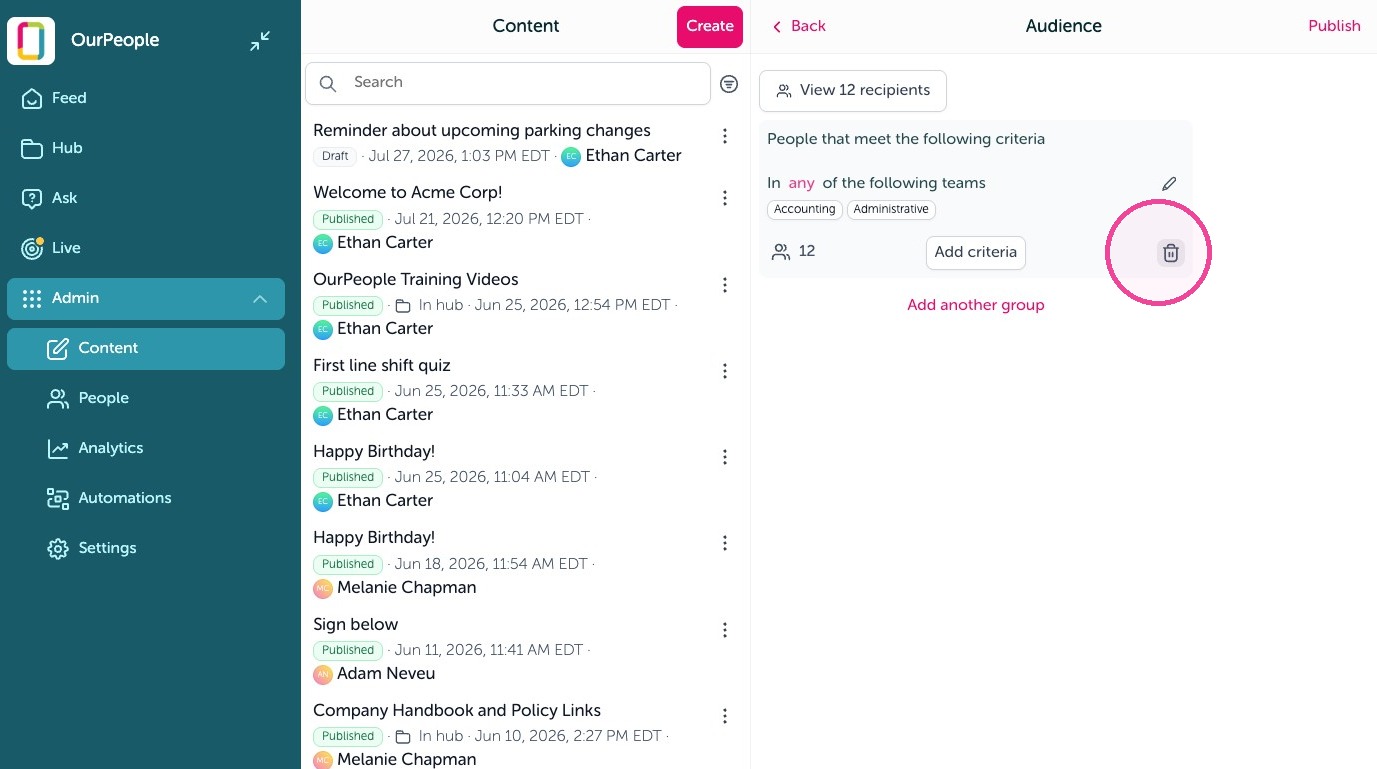
28. You can delete a filter using the "trash bin icon"
29. To send your message click "Publish"
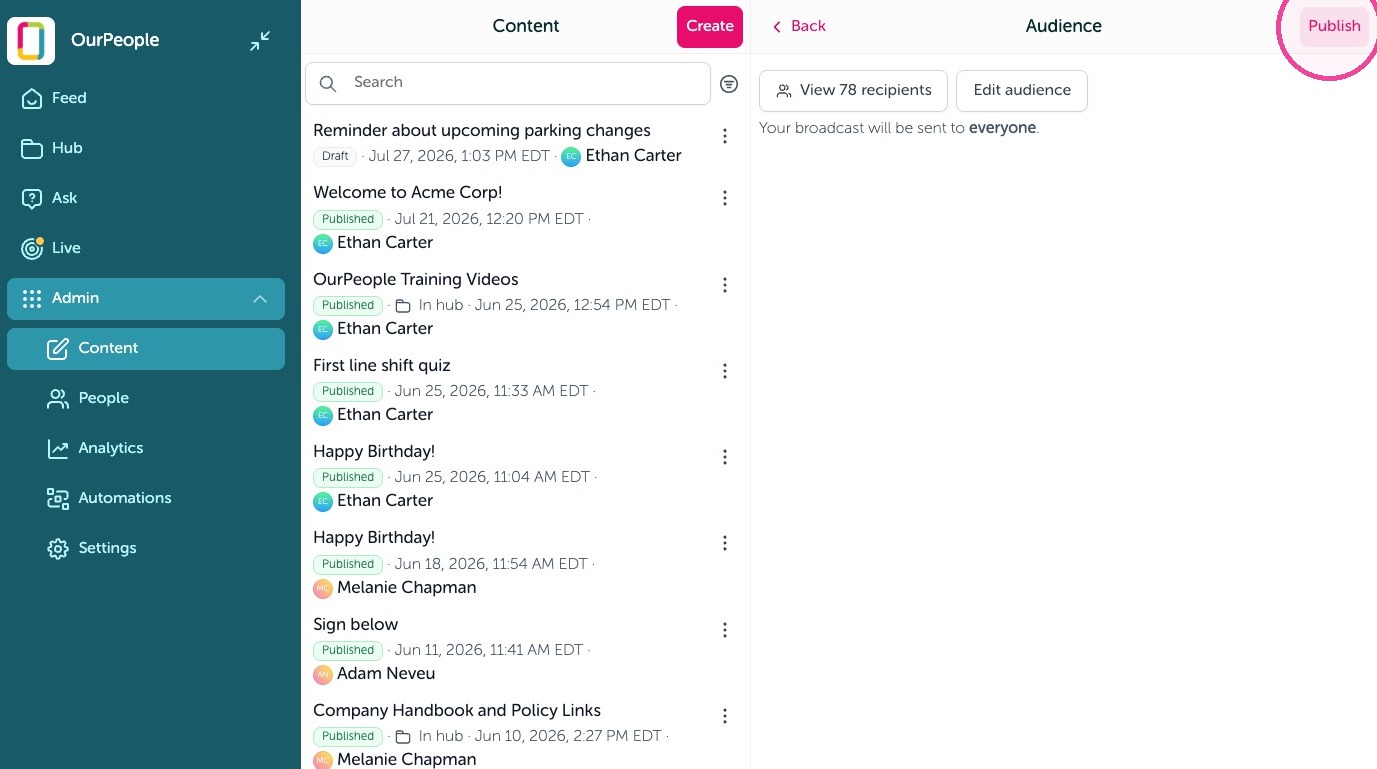
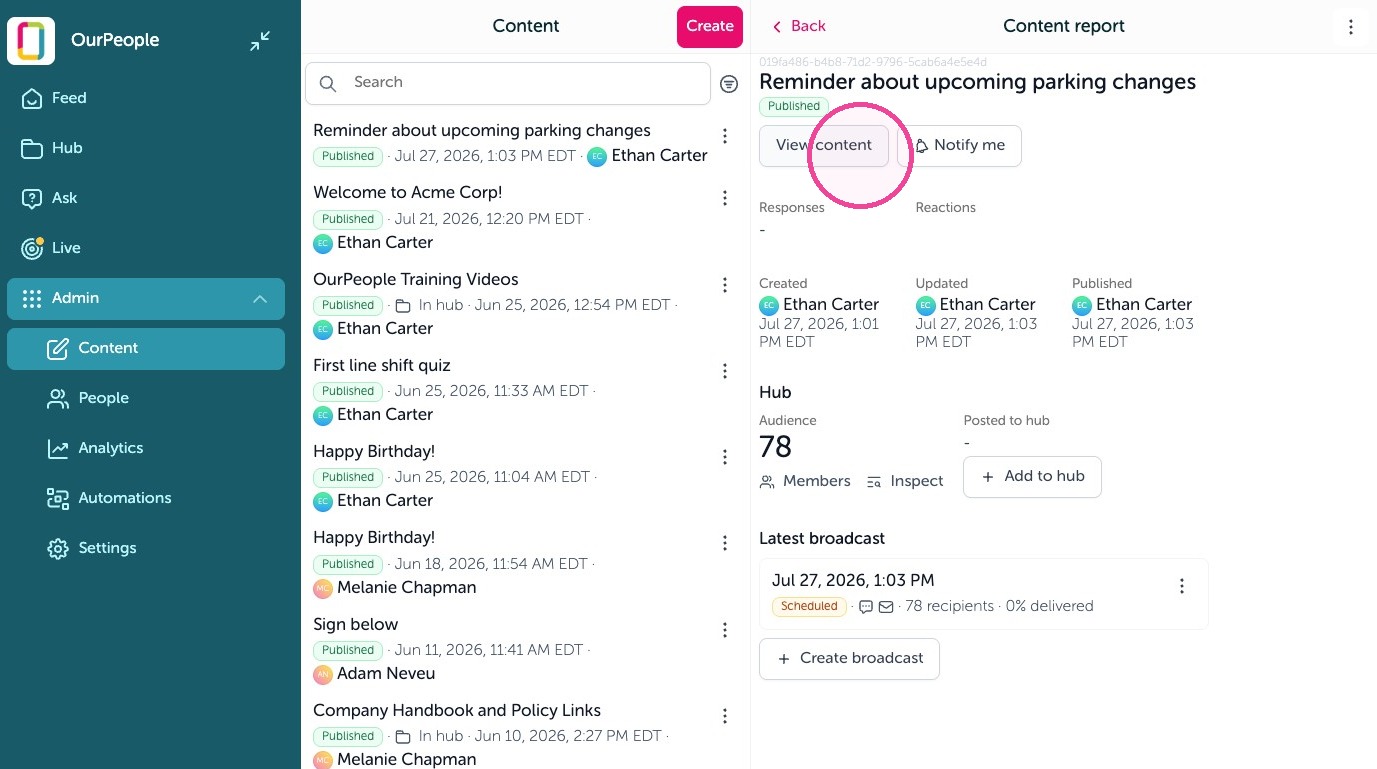
30. You will now see your message has been scheduled to send. You can view what it will look like by clicking "View content"
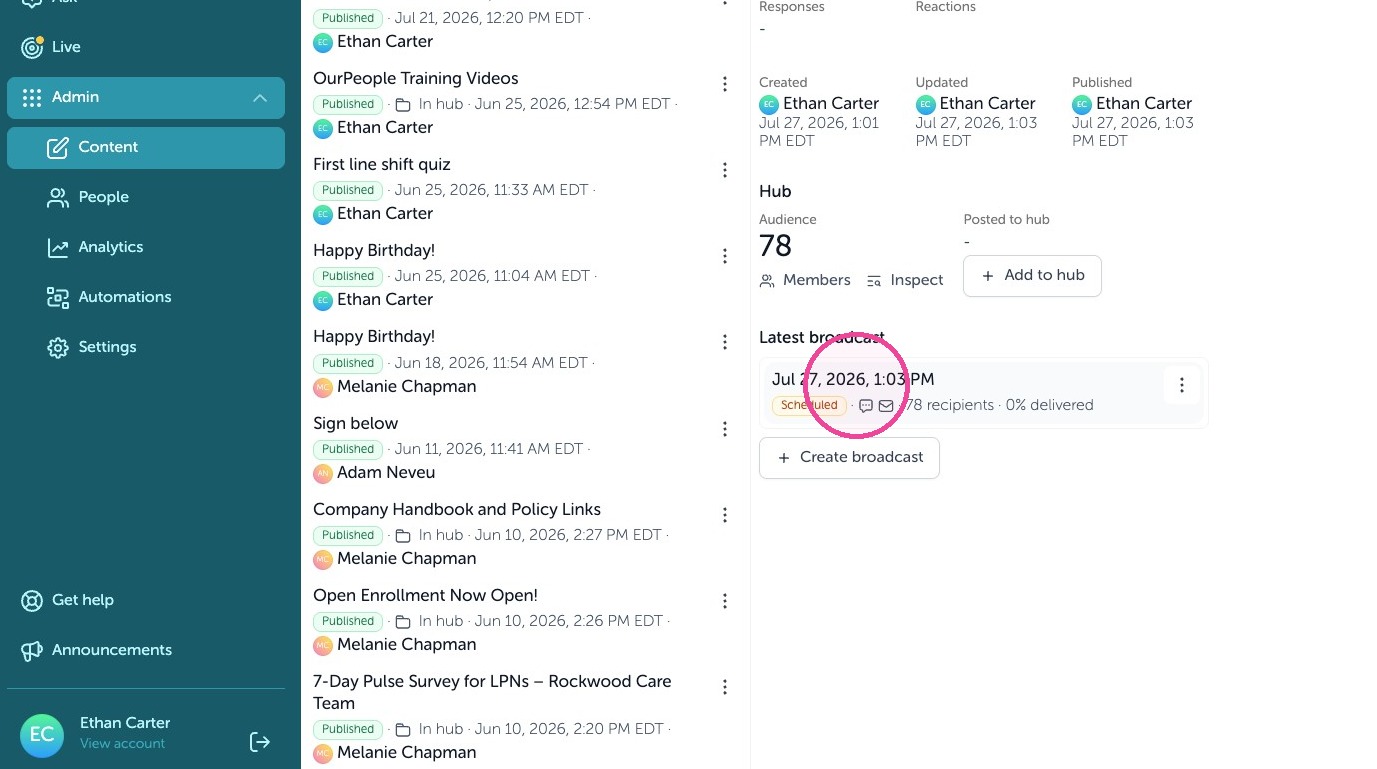
31. If you sent it as a text message or email broadcast, you can see the most recent broadcast report by clicking it here.
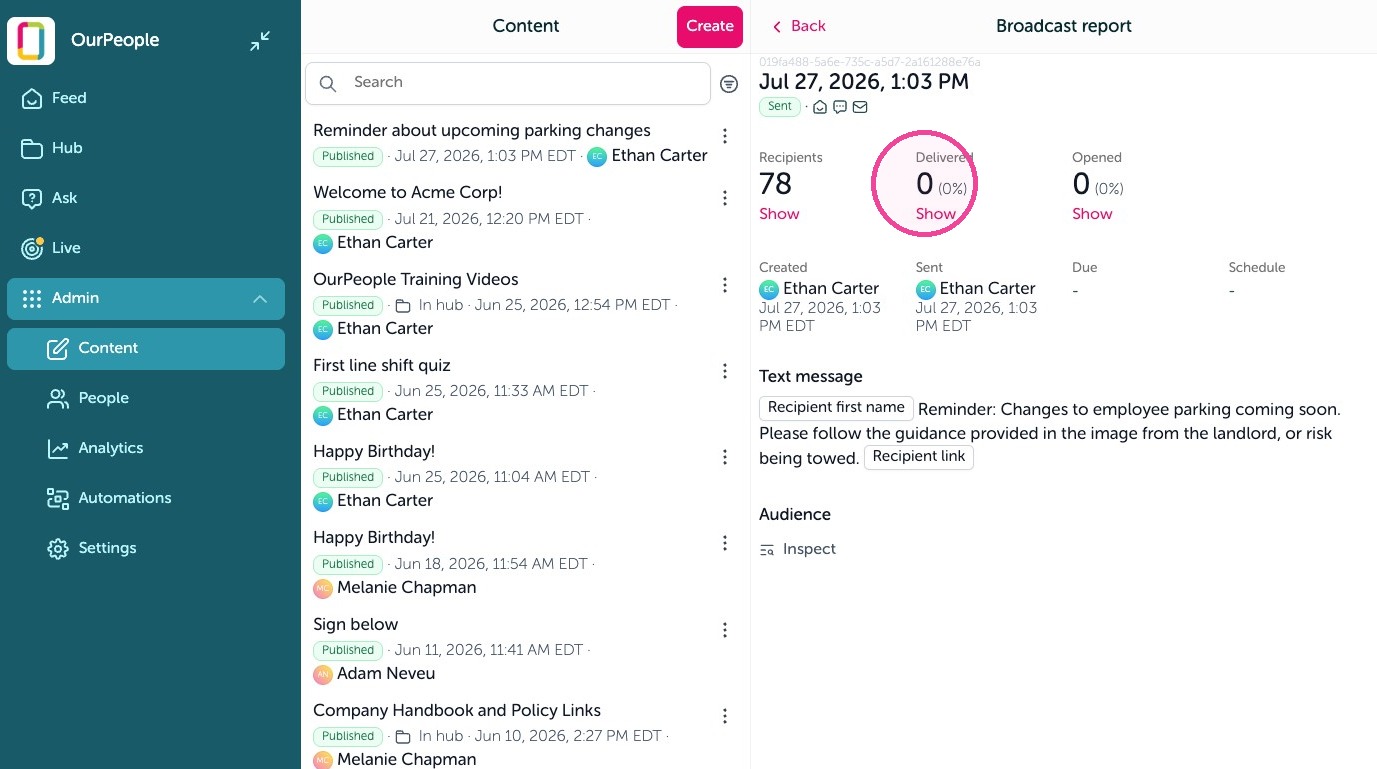
32. The broadcast report shows who sent it, who was included in the recipient list and what the message looked like. From here, as carriers report back successful deliveries and failed attempts, click "Show" to view this.
Tip: And that's it. You've successfully broadcasted your first message in the OurPeople feed.