Learn how to effectively send follow-up broadcast reminders to specific employee groups based on their previous engagement with message.
Resending a broadcast
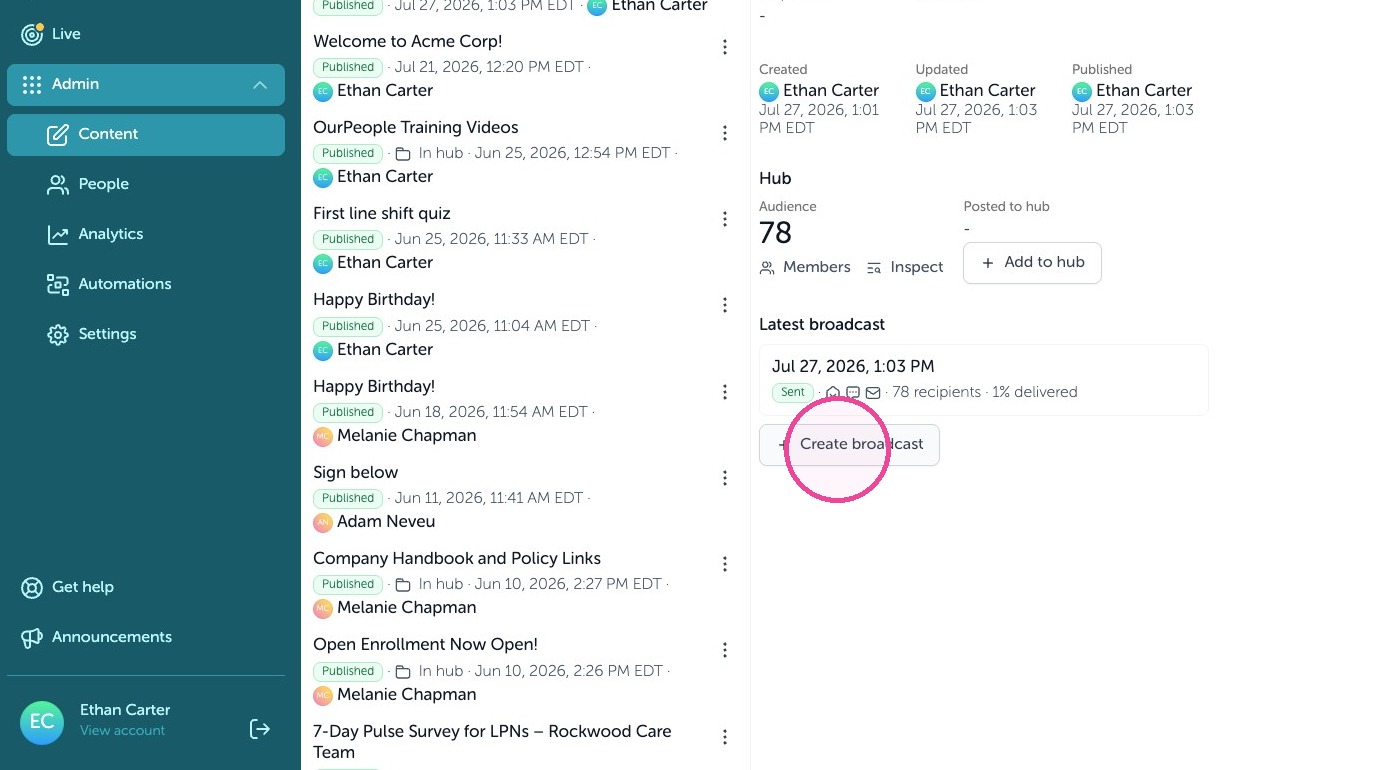
1. Schedule or automate a follow - up to a prior message, find your message you'd like to set up the reminder for. Then select "Create broadcast"
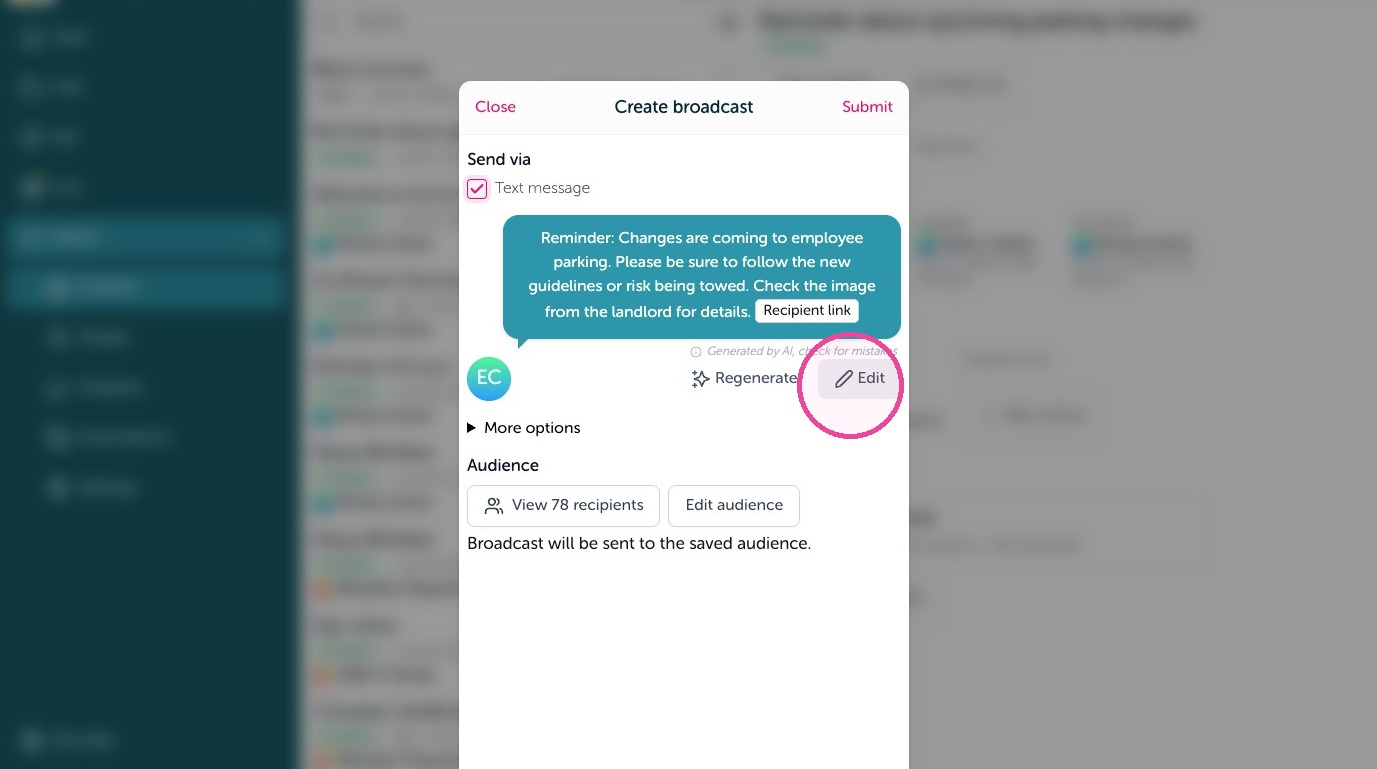
2. You can modify the text message by clicking "Edit"
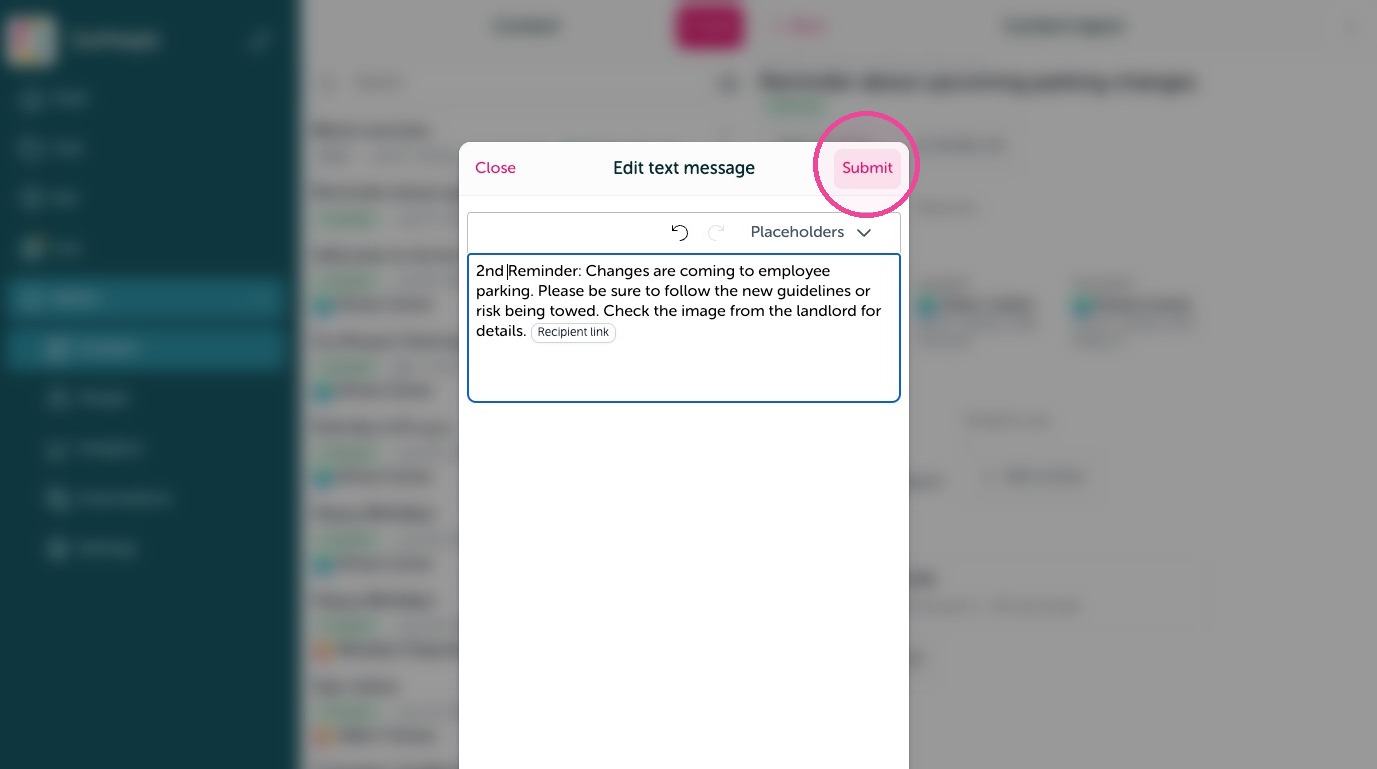
3. To save you text message edit, click "Submit"
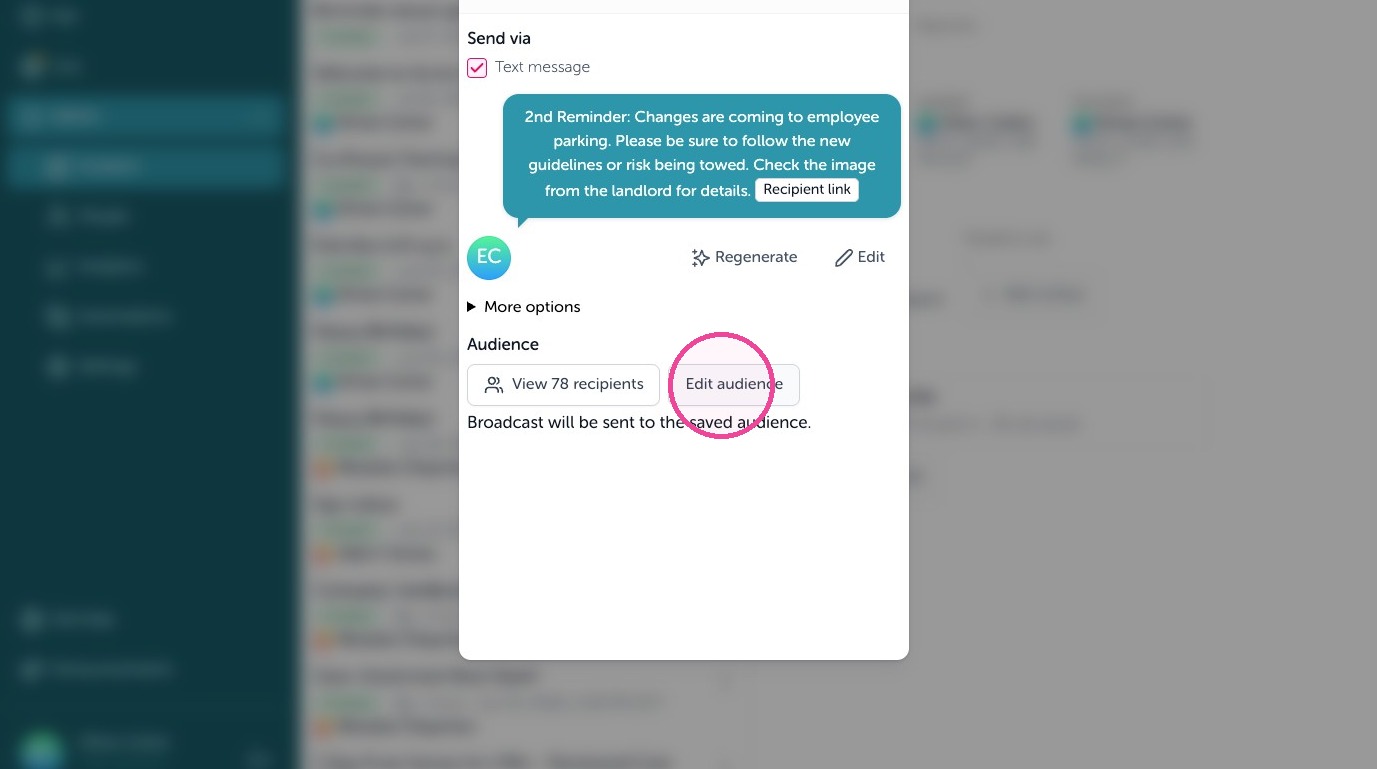
4. To edit who this should go to select "Edit audience"
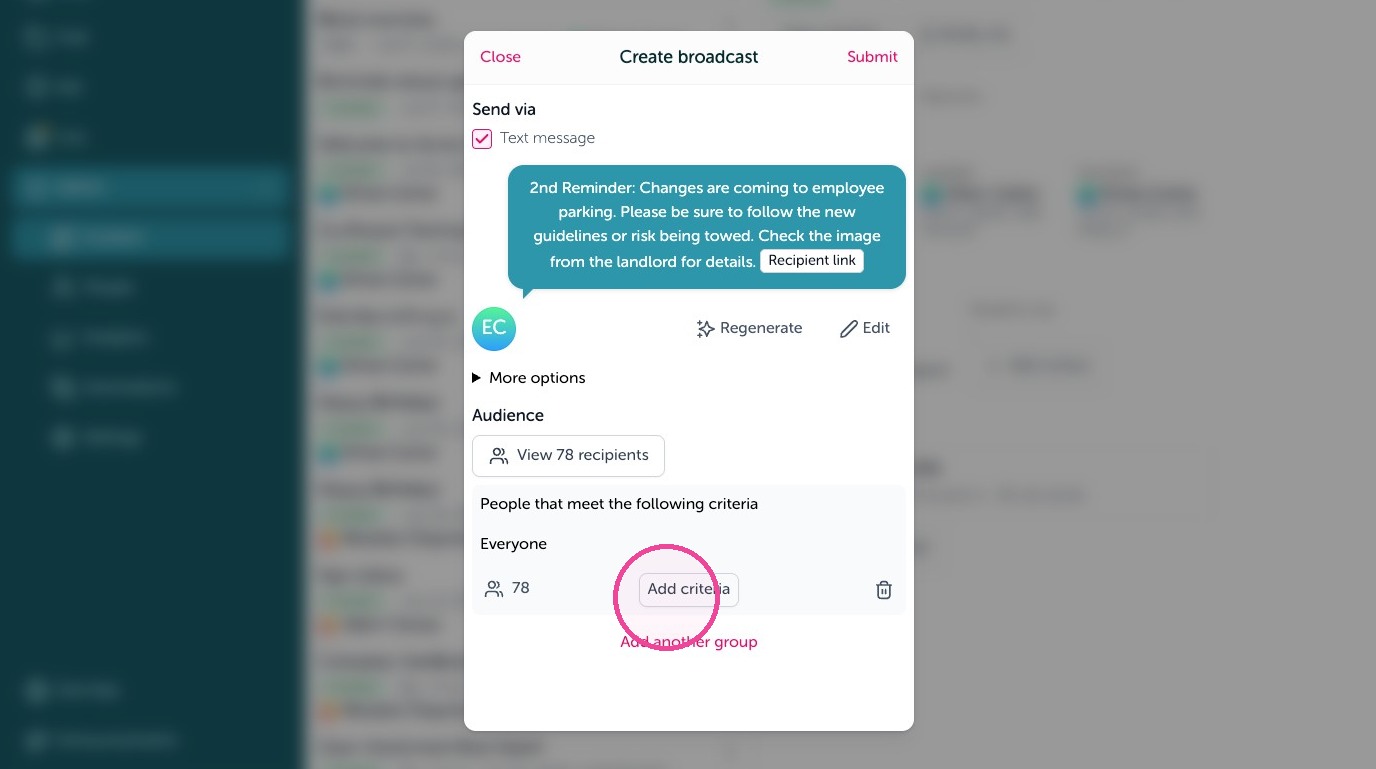
5. Add more filters or send to a new group by clicking "Add criteria" then click the tags or filters and "Submit" to save. Click "Submit" to send.
Repeating a broadcast
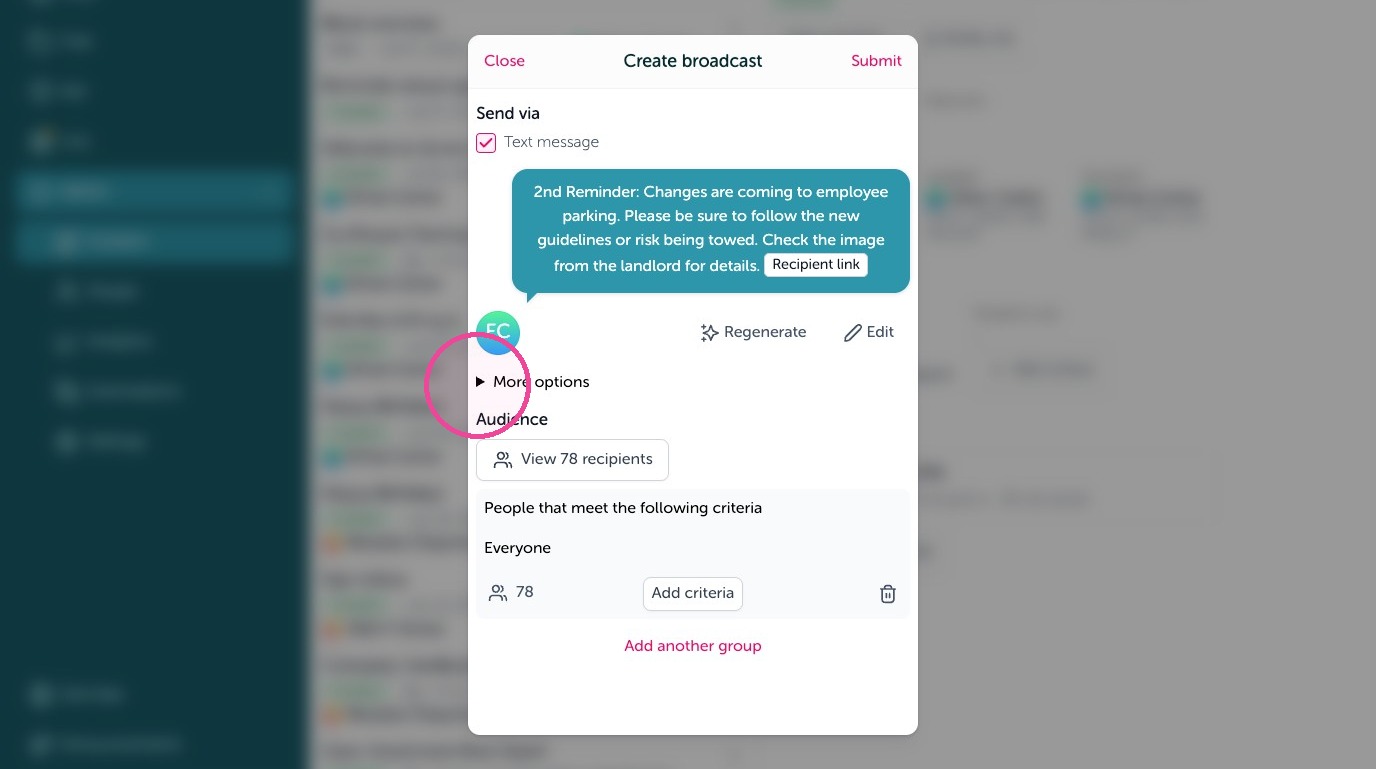
6. Click "More options"
7. Check off "Schedule"
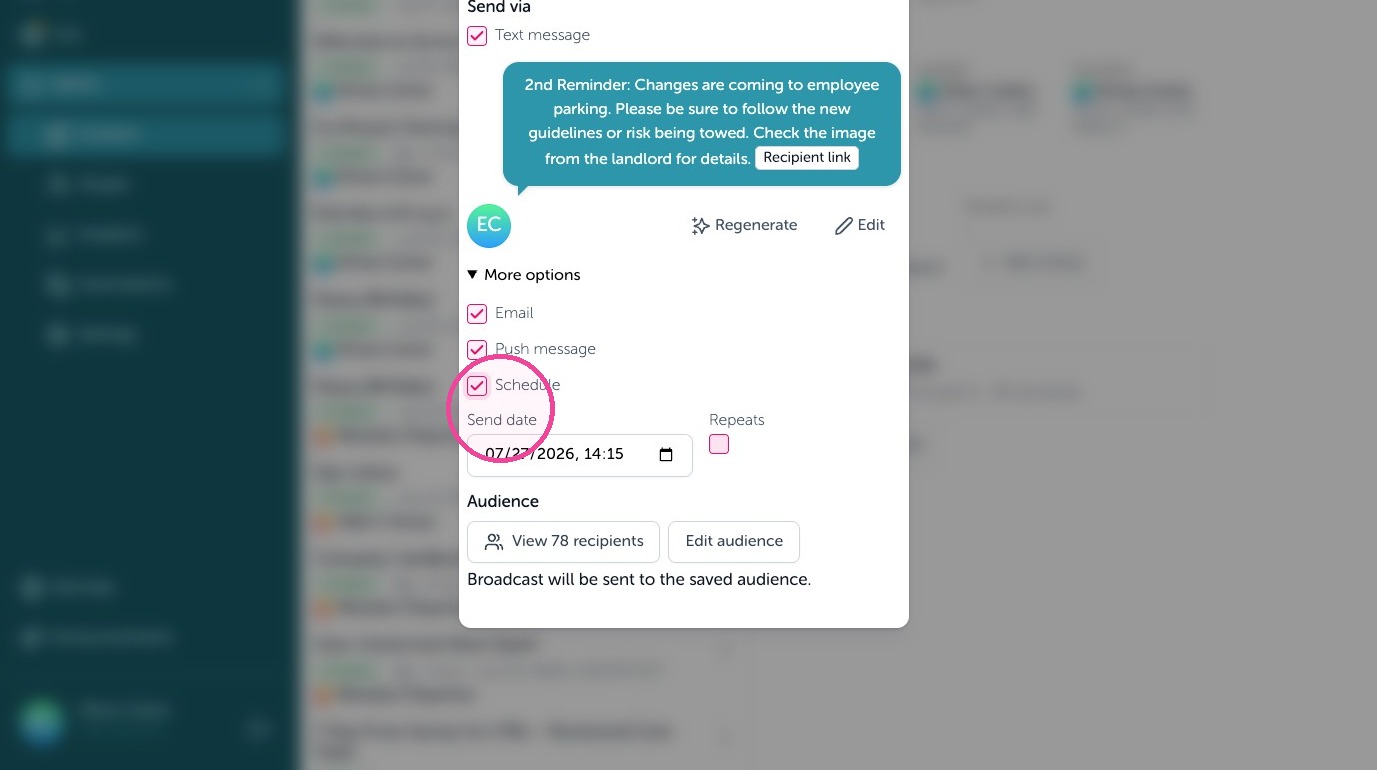
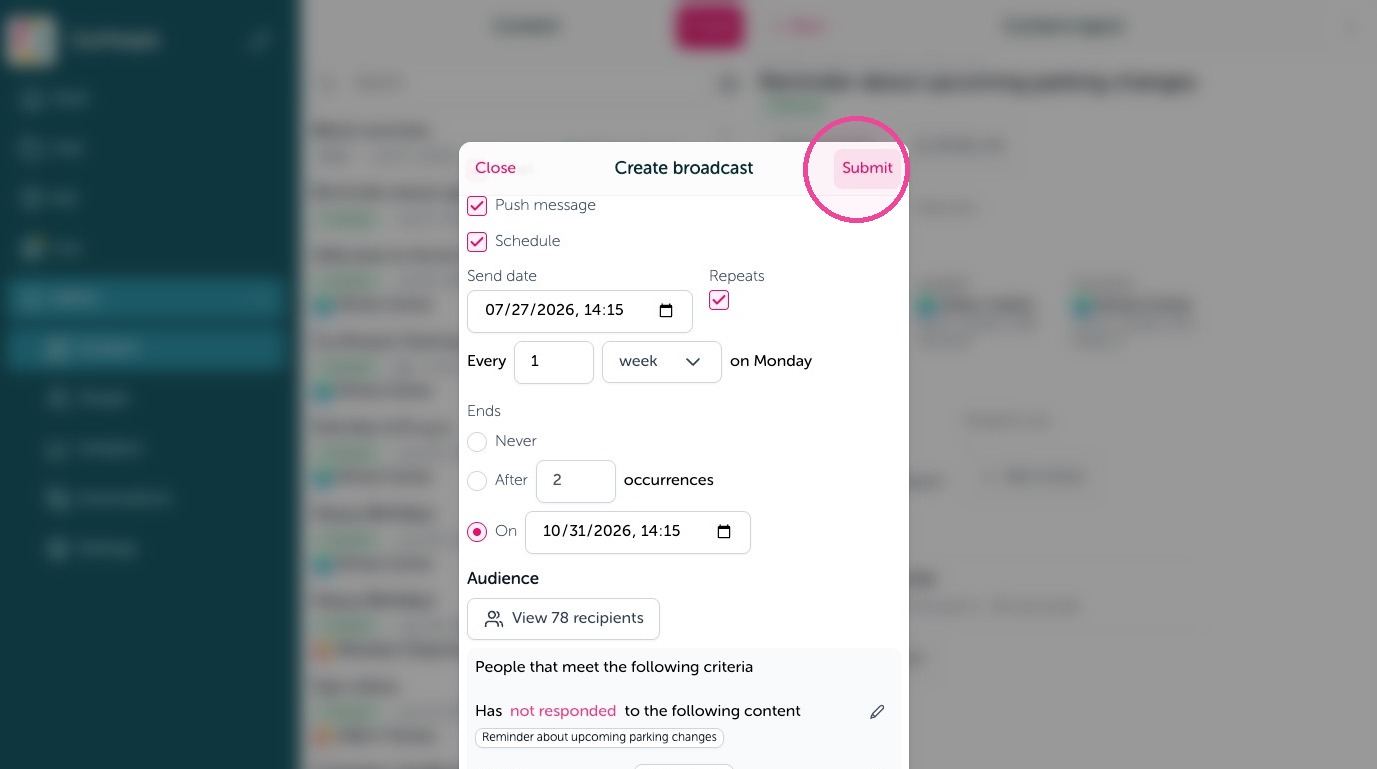
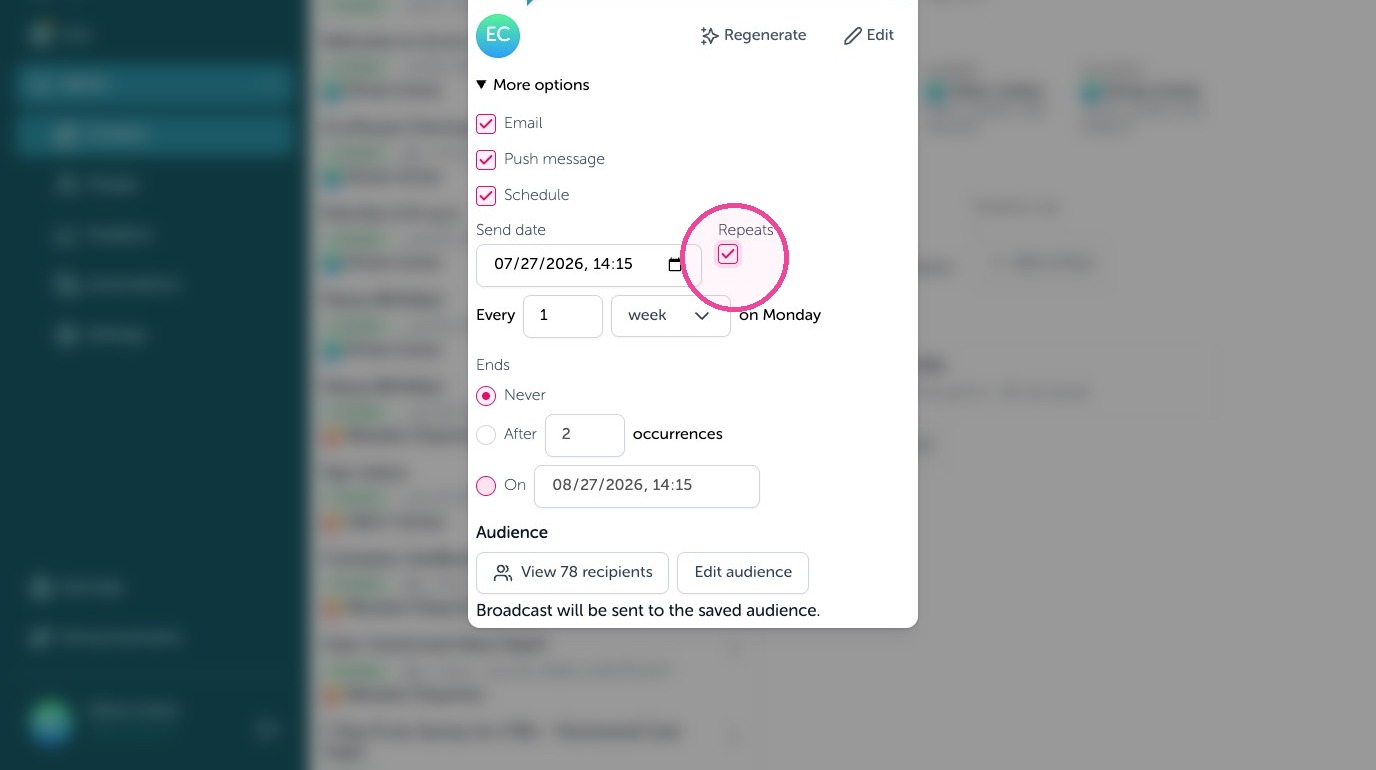
8. Check off "Repeats" then set the settings for the number of how often, how many times, or until what date.
Automating follow ups to non-responded or new employees
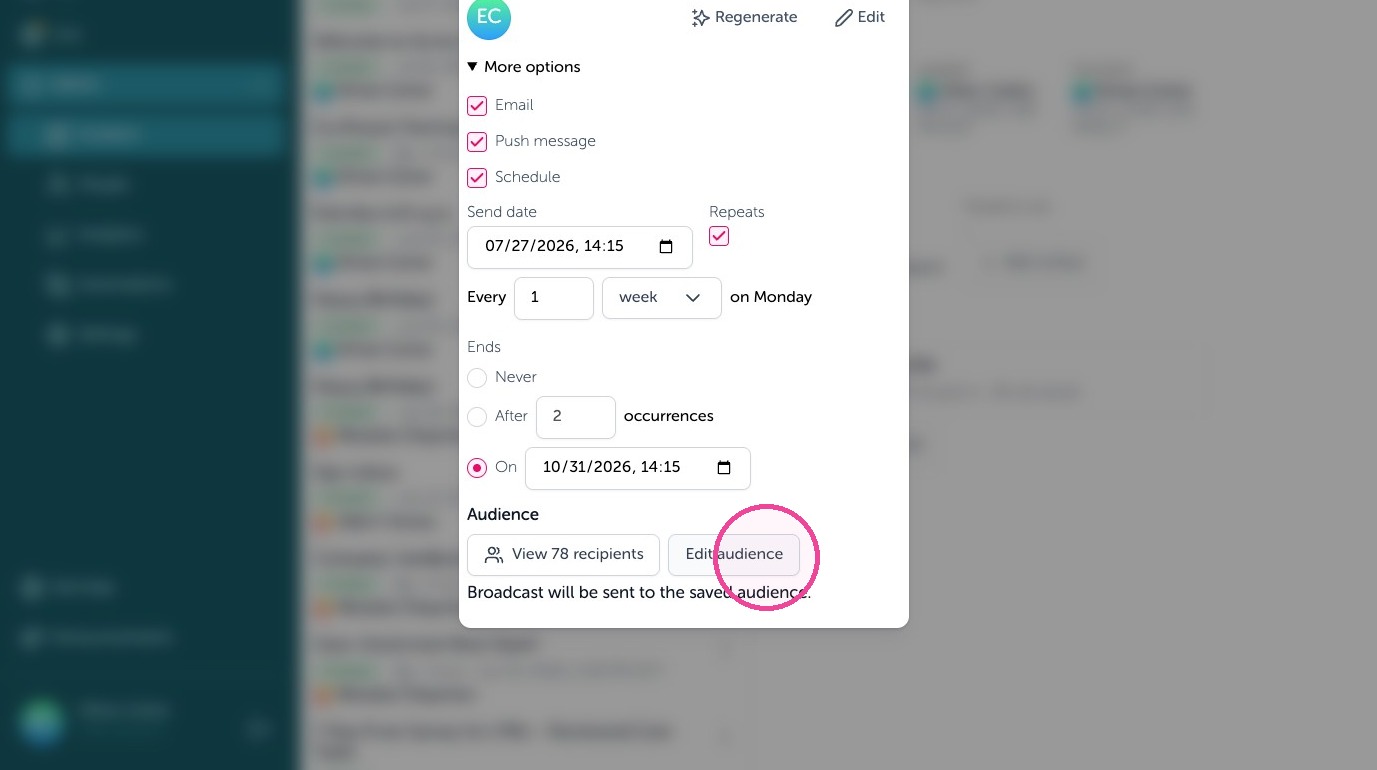
9. Filter to non-responded or new employees by adding this as a filter. Click "Edit audience".
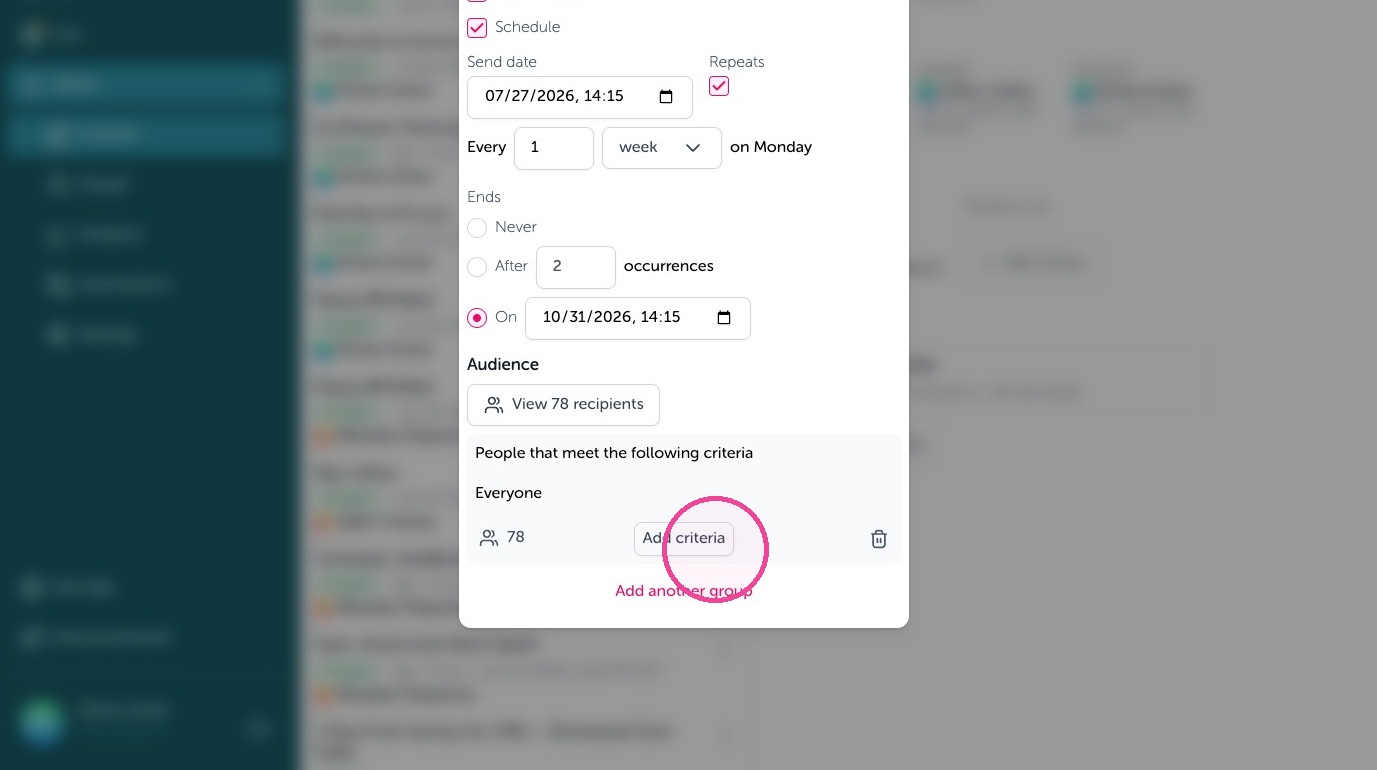
10. Click "Add criteria"
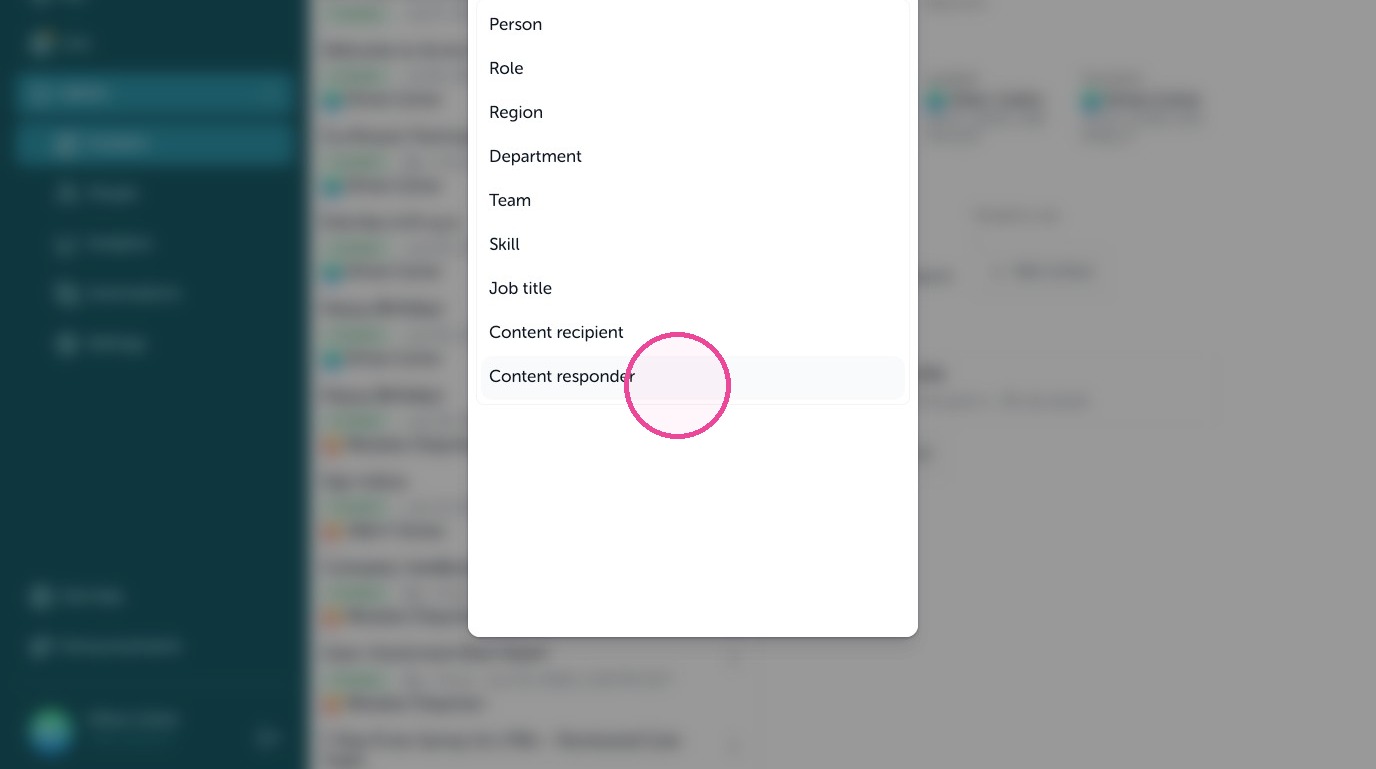
11. If you want to resend to just people who have not responded before use "Content responder" if you want to send it to just people who have not received this before use "Content recipient".
12. Select the message title to have the automation use.
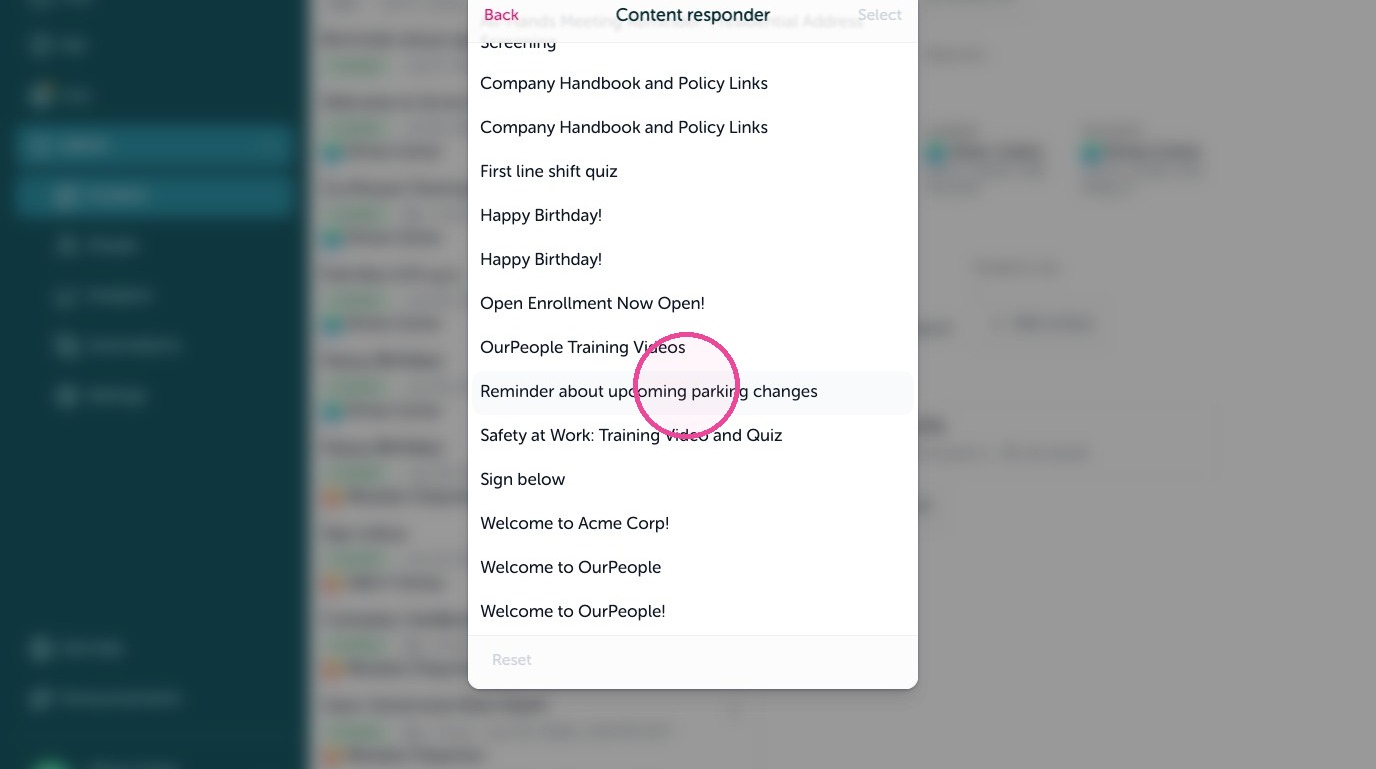
13. Check it then use "Select" to save the filter.
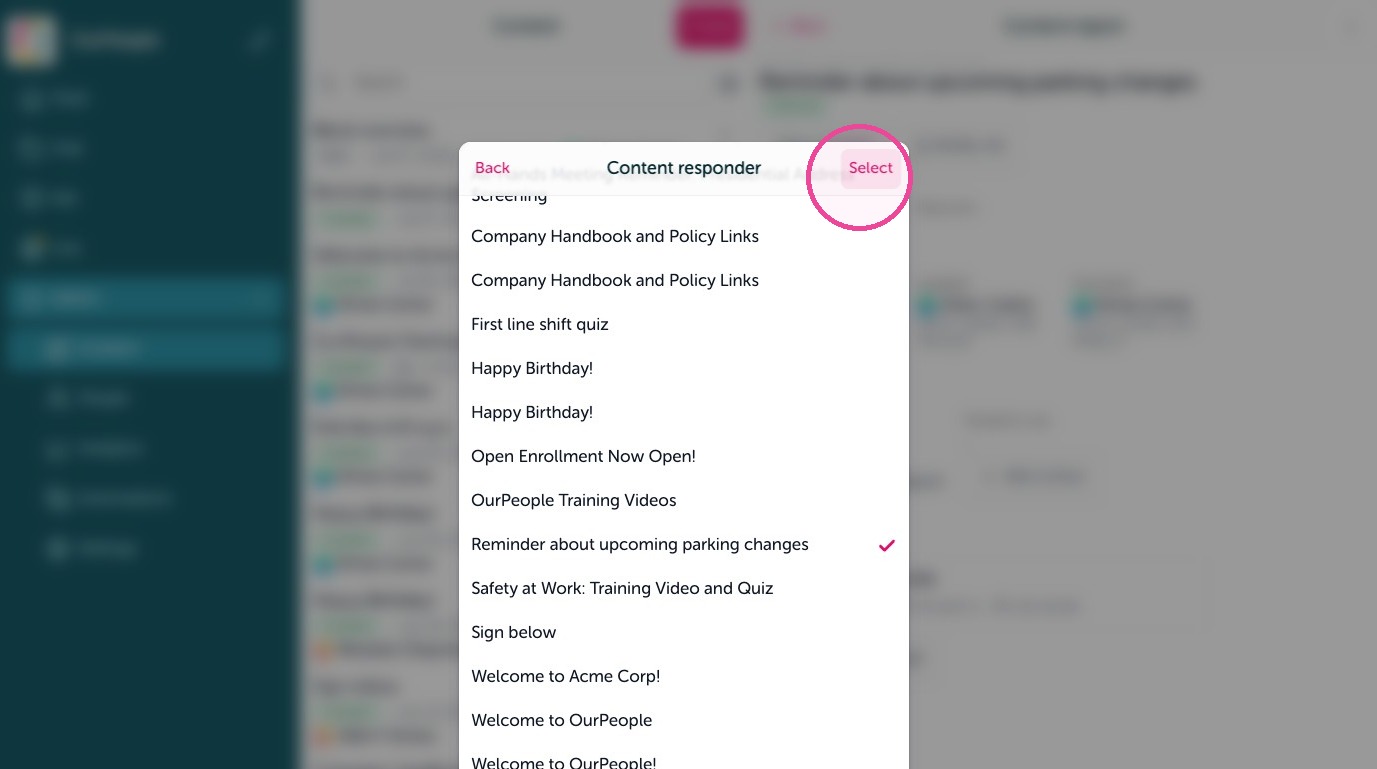
14. Has responded is the default, click the word "responded" to change it to "not responded" filtering to the people who have yet to reply to this message.
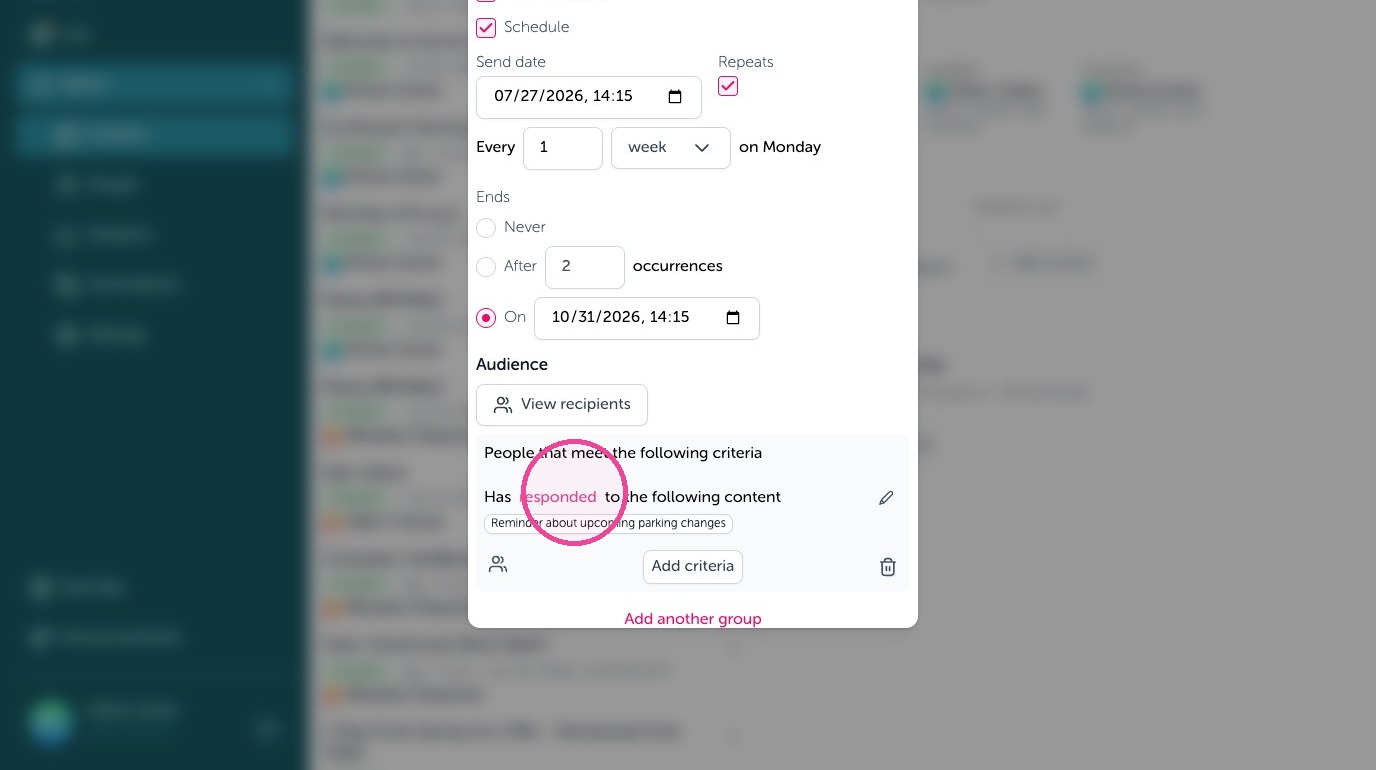
15. And that's it. You can easily reach out to people who have not received or responded to a message. And automate follow - ups to people that have not responded or submitted something back to you. And make it a recurring reminder until a specific number of sends or to a specific date. Select submit to then set up this reminder or automated reminder follow - up to specific audiences or people.