Learn how to effectively share critical emergency alerts and verify employee status using interactive polls with a Choice block. This guide helps managers maintain clear communication and workforce visibility during severe updates.
Sending an alert
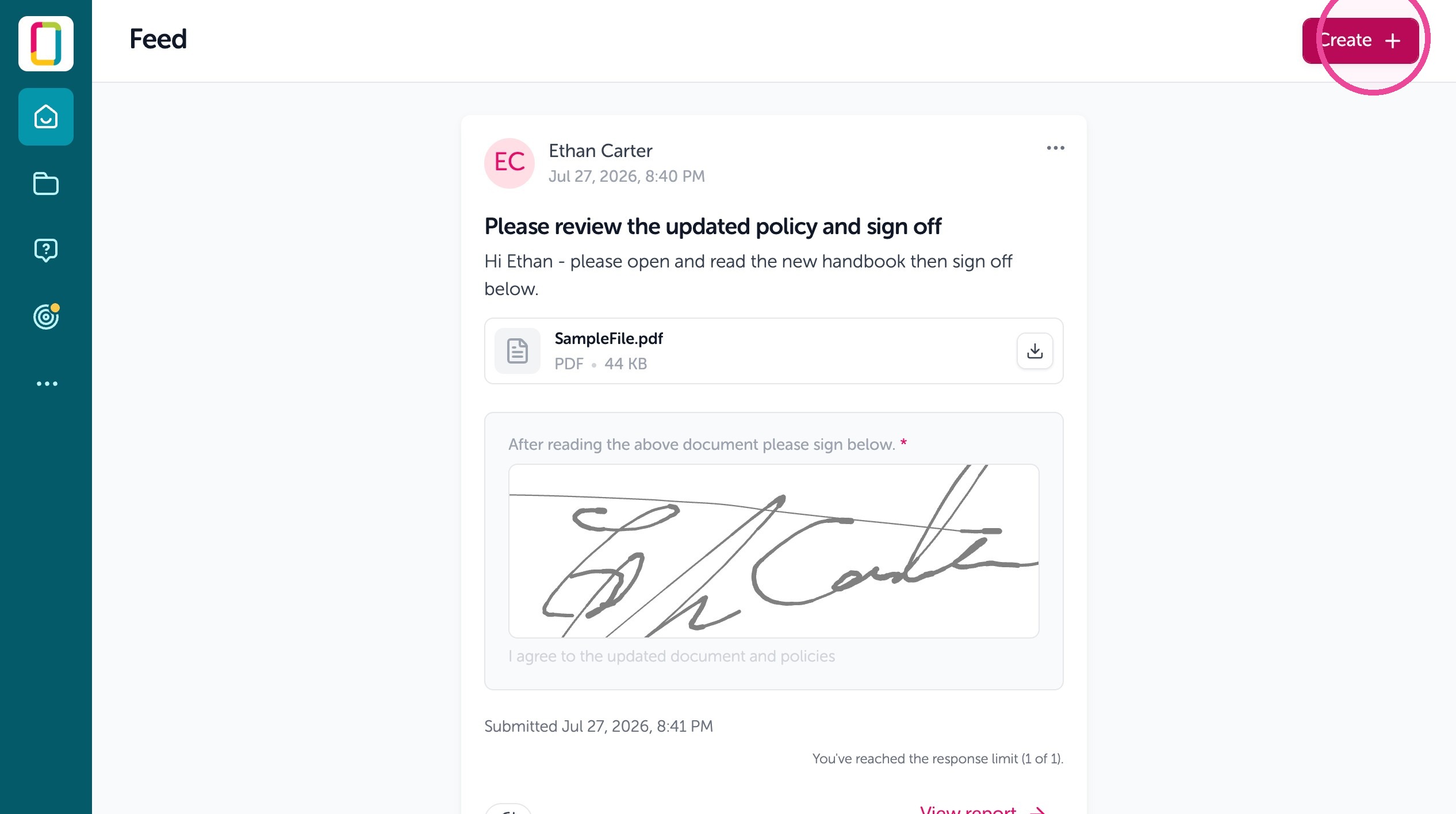
1. Go to the Feed then click "Create"
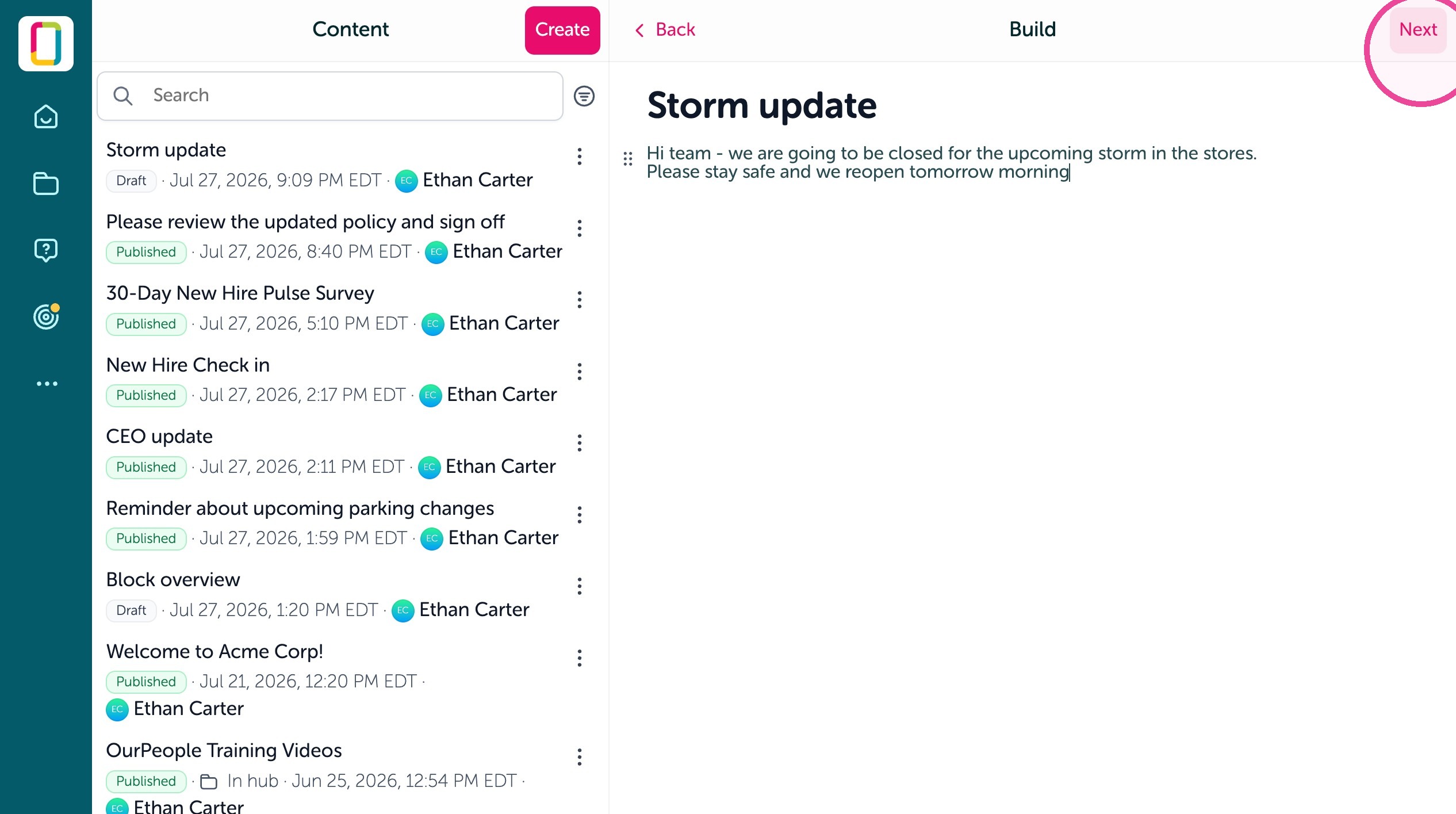
2. Give it a title and some text to send out about the alert then click "Next"
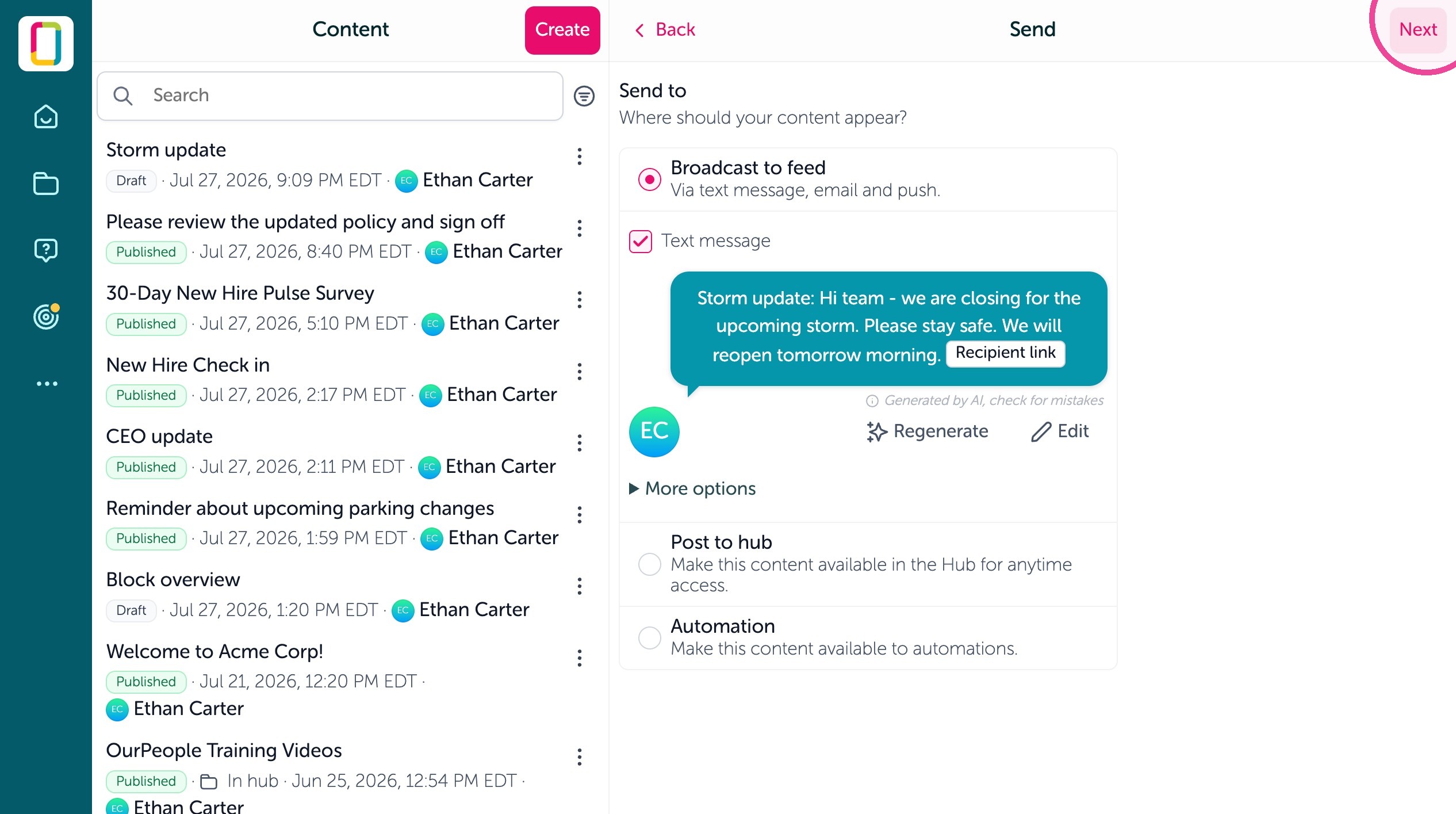
3. You'll see a preview of the text message. Click Next
4. Select who it needs to go to by filtering by tags, just click "Edit audience"
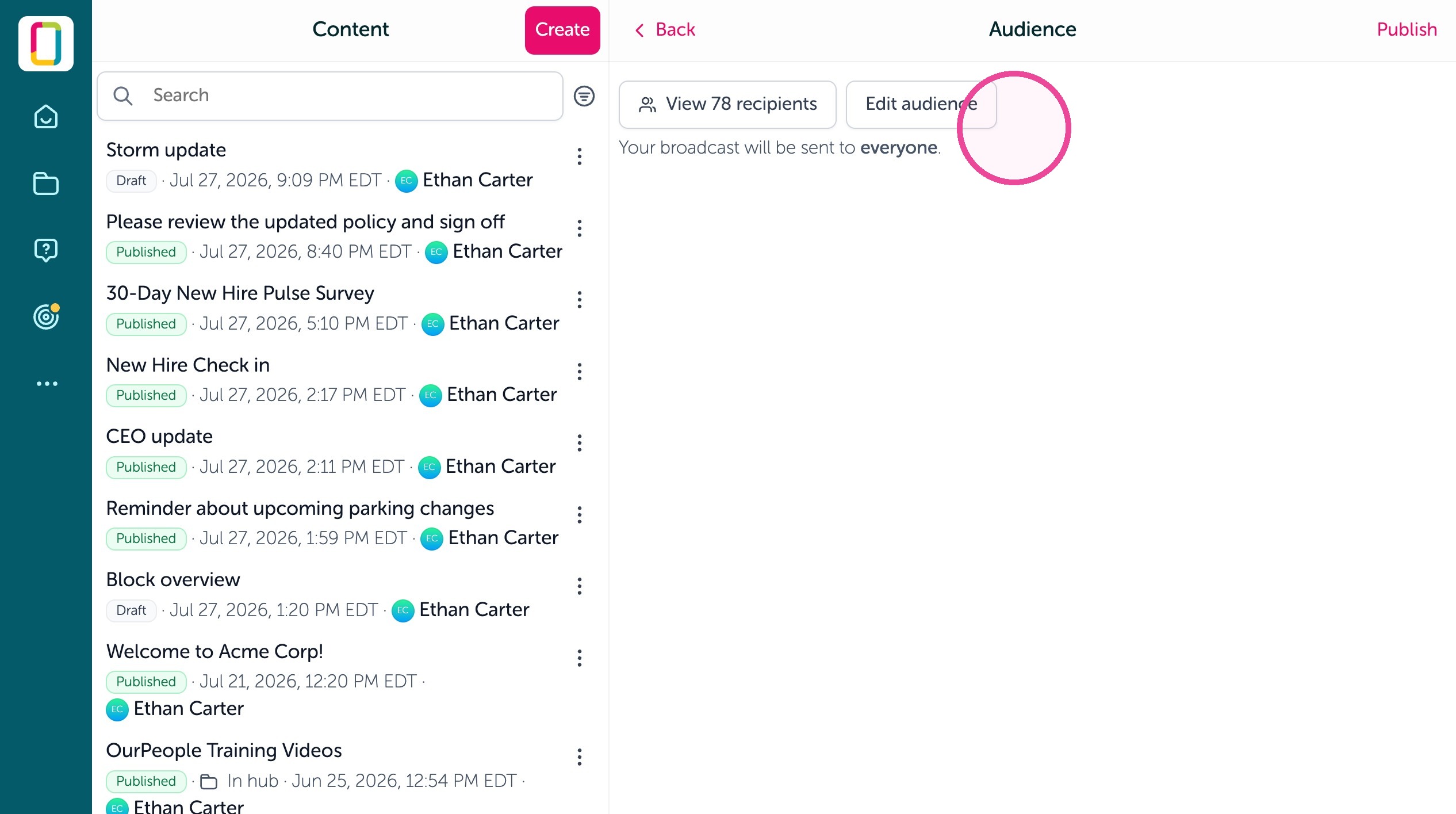
5. When your done filtering click "Publish" to send the alert
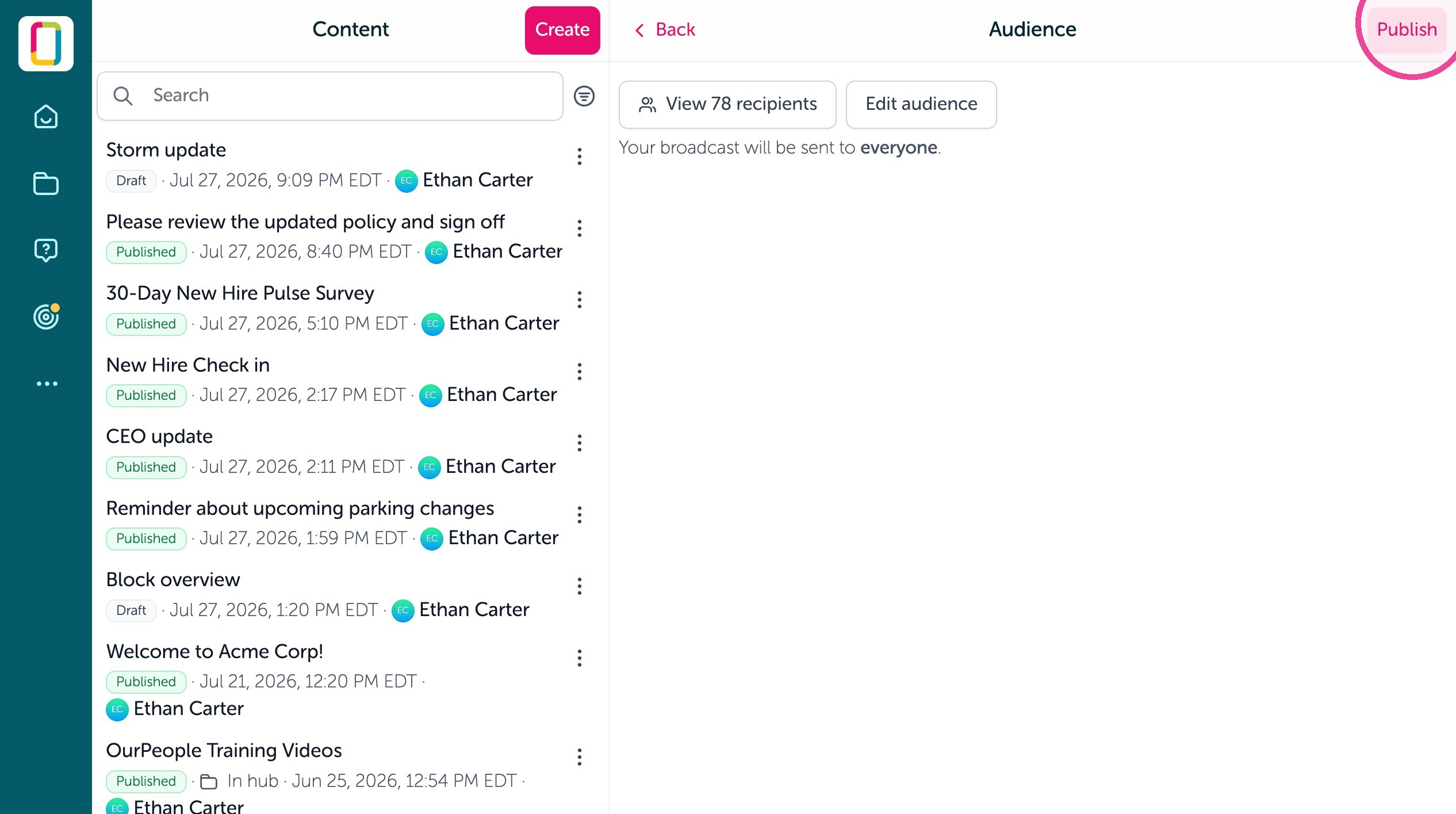
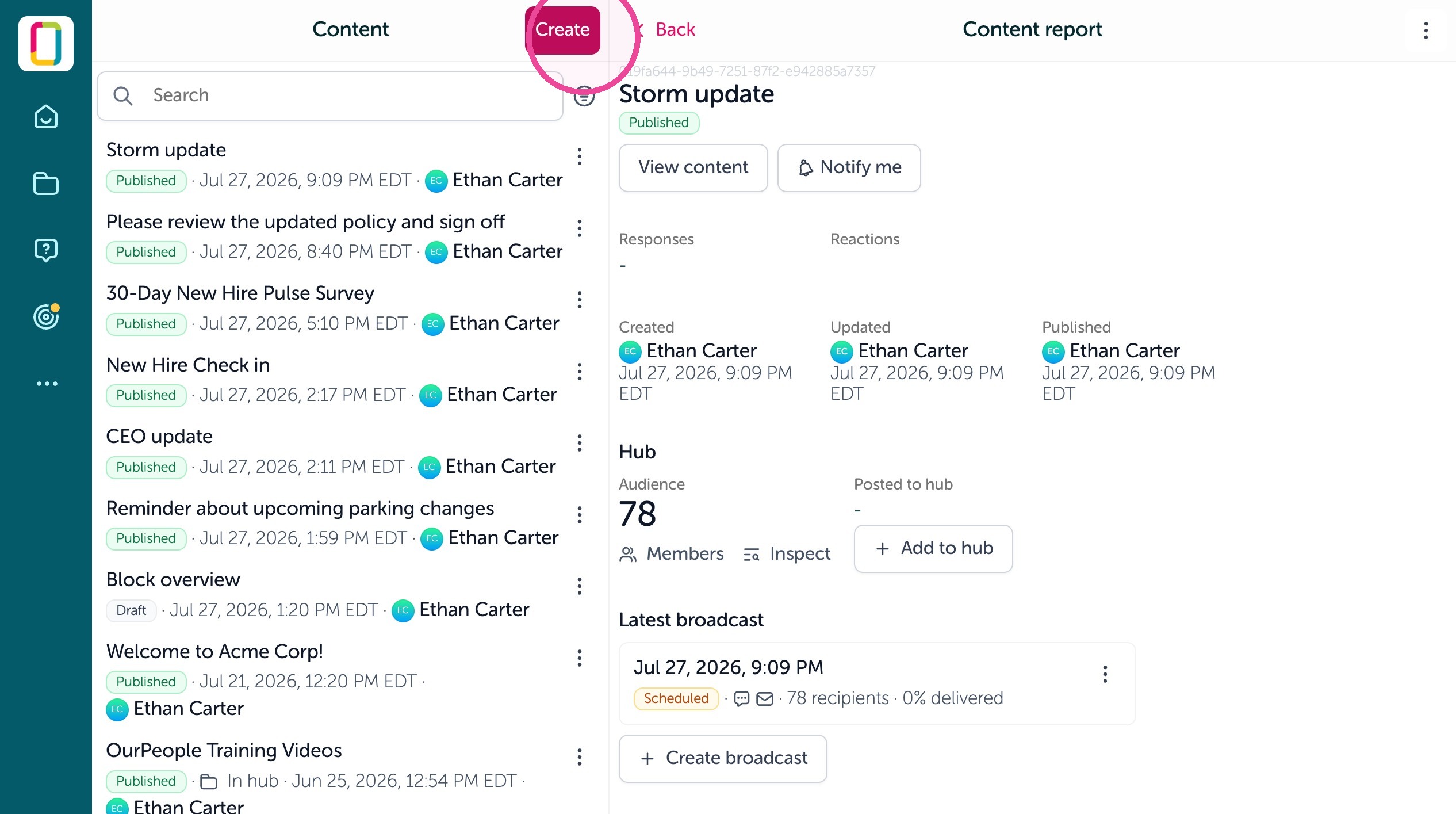
Sending a check in
6. As a follow up you can send a quick poll as a check in, click "Create"
7. Give it a title such as "Storm check in" then hit [[Enter]] to add text to the content body such as, "Hi team - we want to check to see if you are able to make it into the plant today."
8. Give it a way for people to respond using a block, click the + icon.
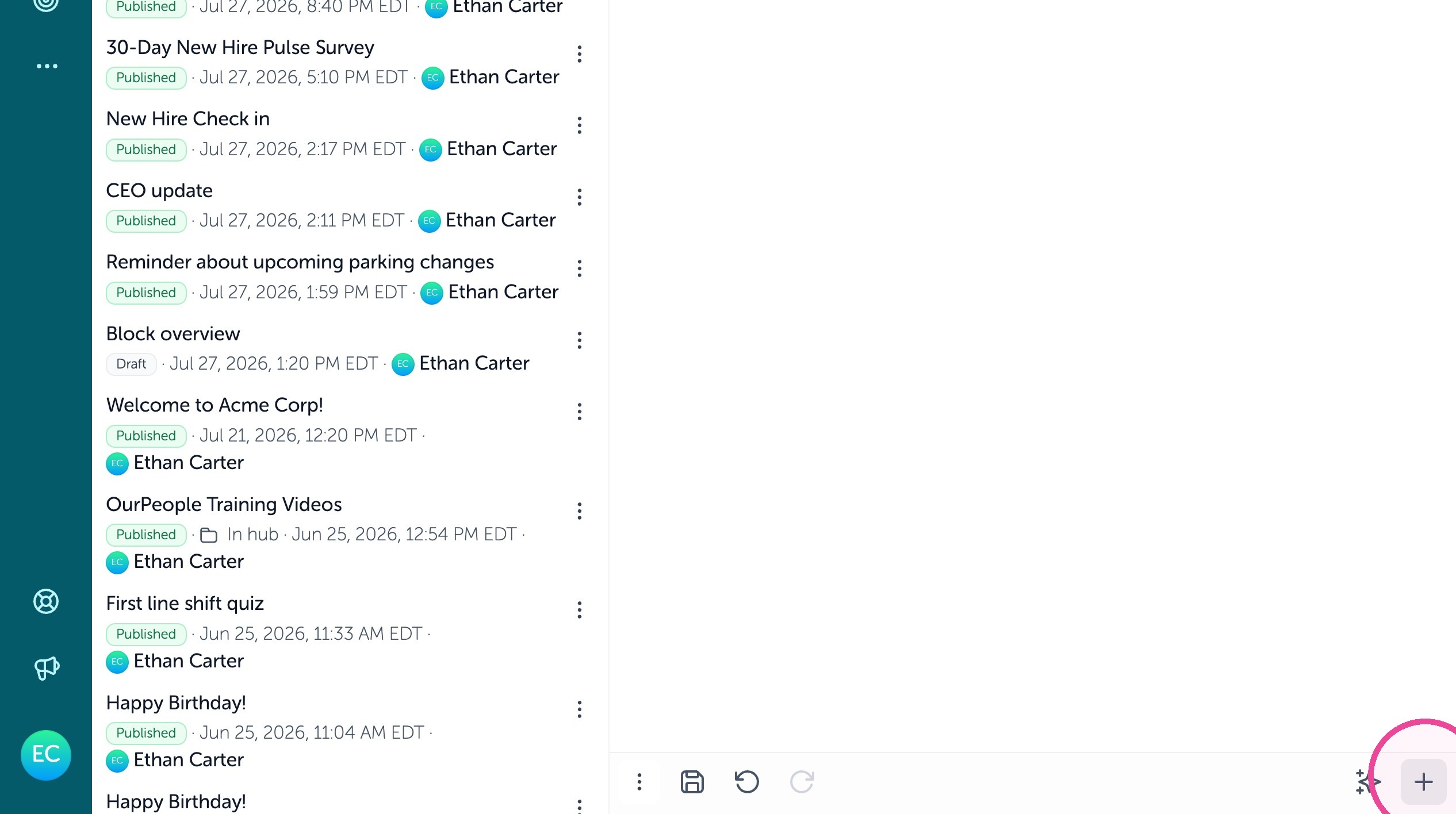
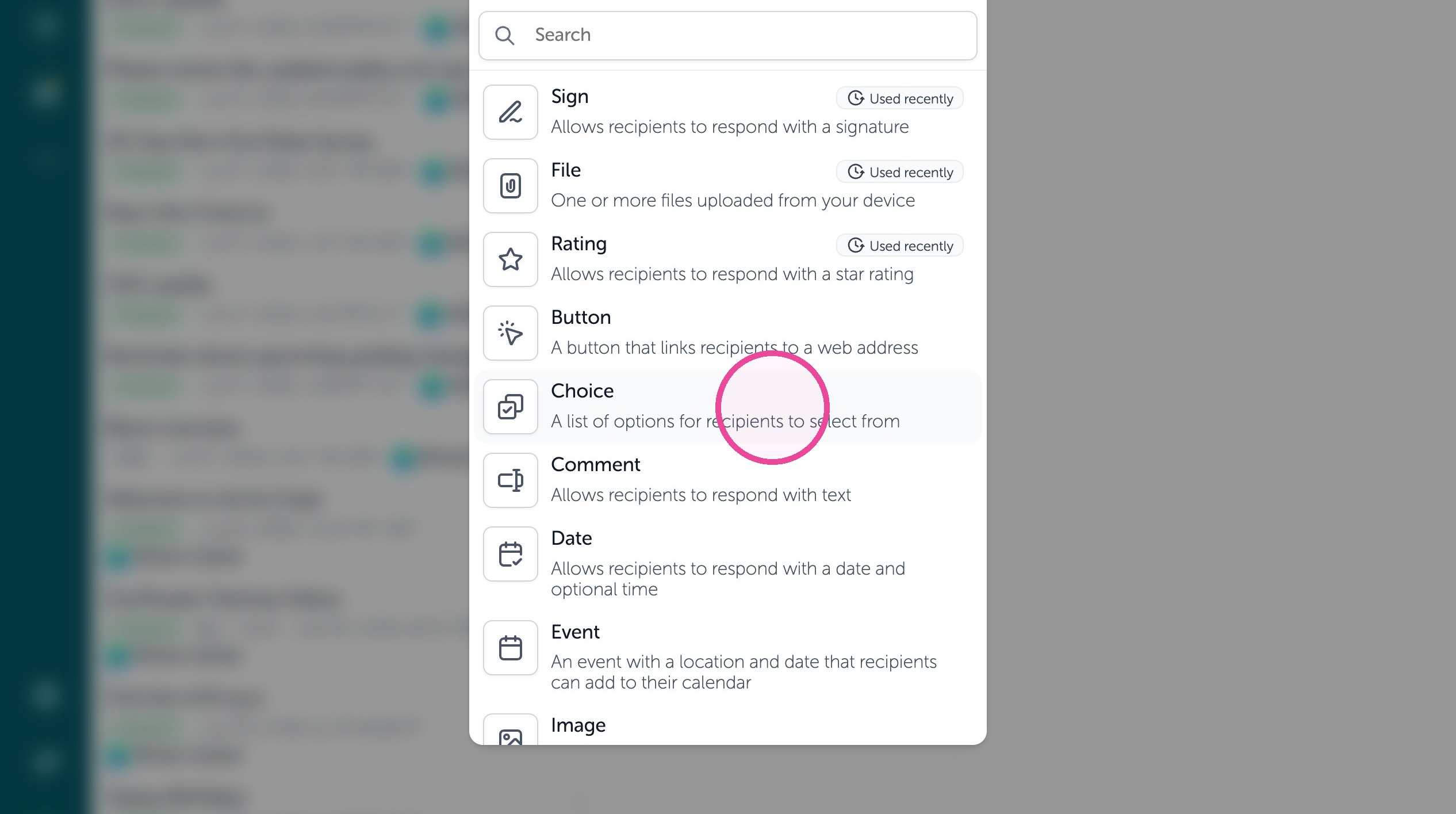
9. Click "Choice" block which is a list of options for recipients to select from
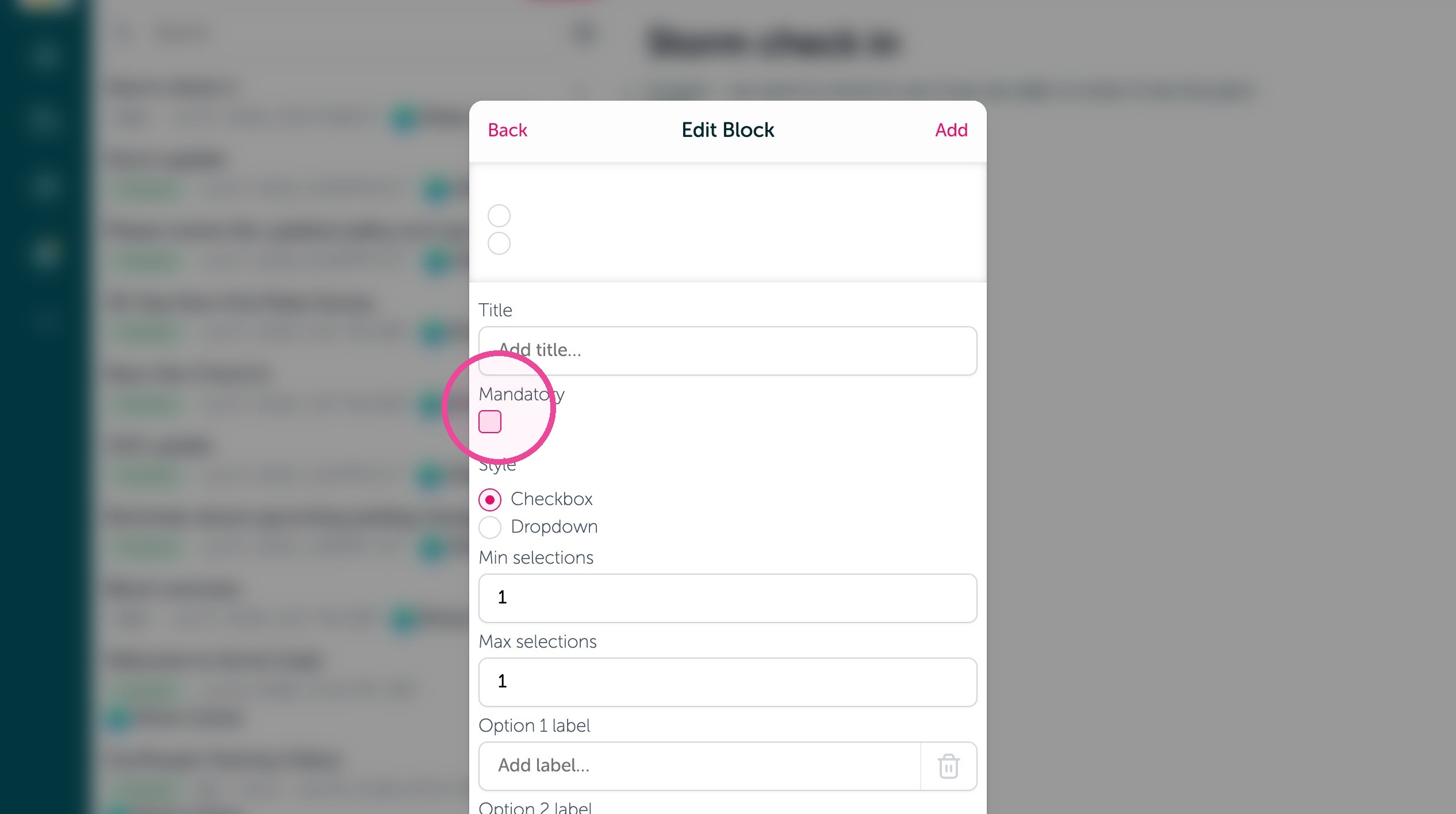
10. Use the "Mandatory" check to require a response to be submitted.
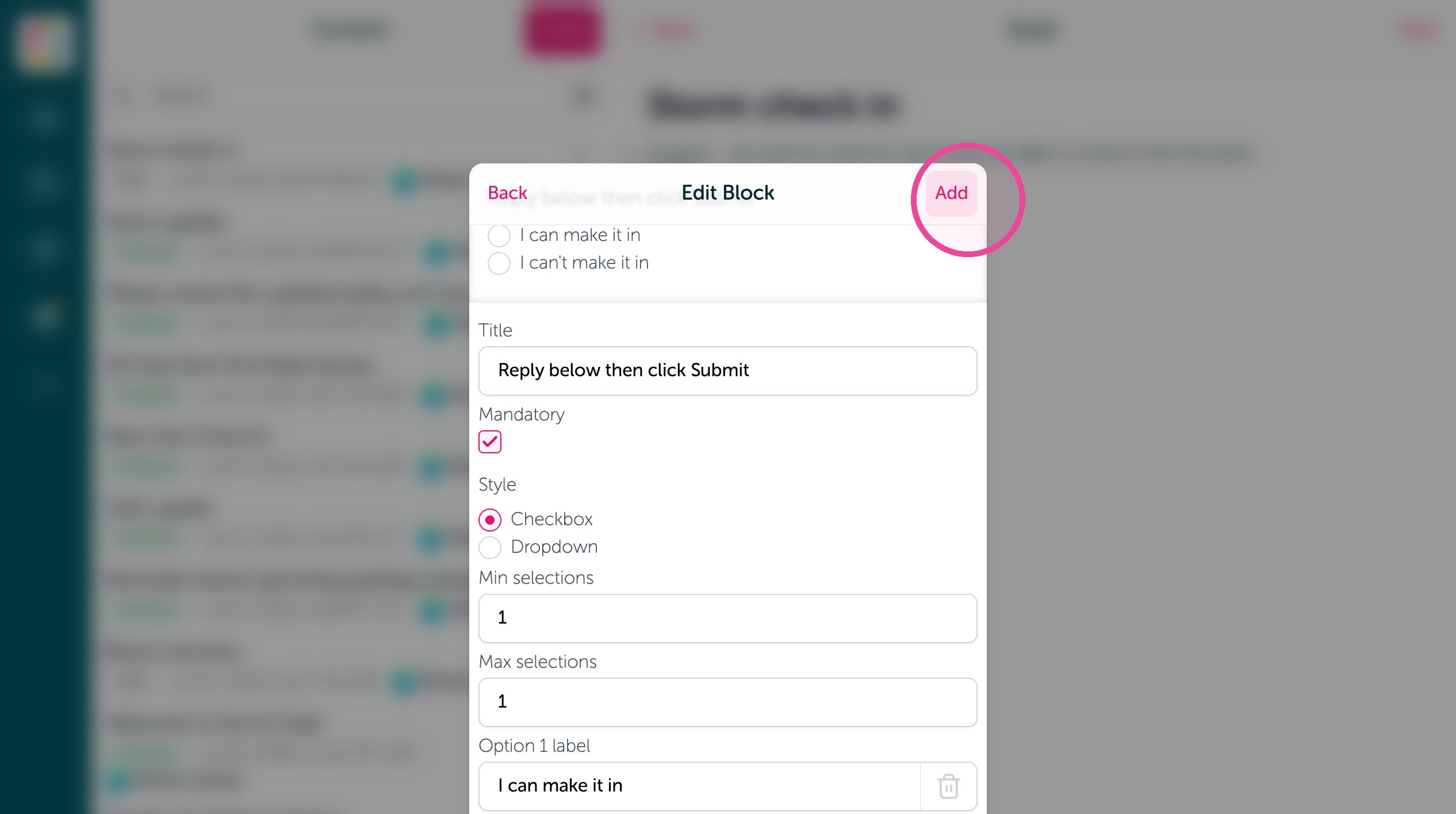
11. Give it a title, and options to pick from then click "Add" to add the block
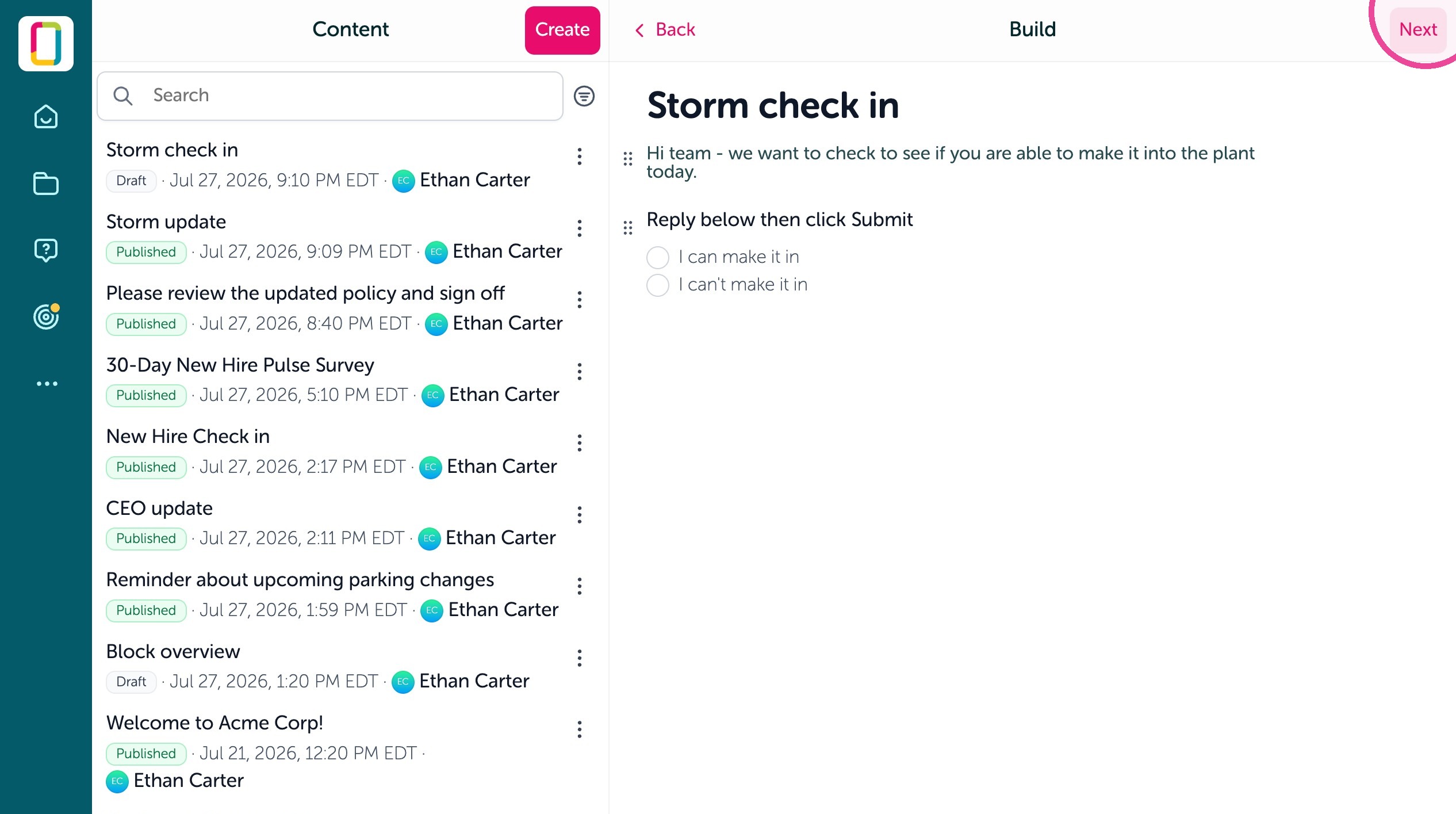
12. Click "Next"
13. You can limit how many times someone can submit the check in.
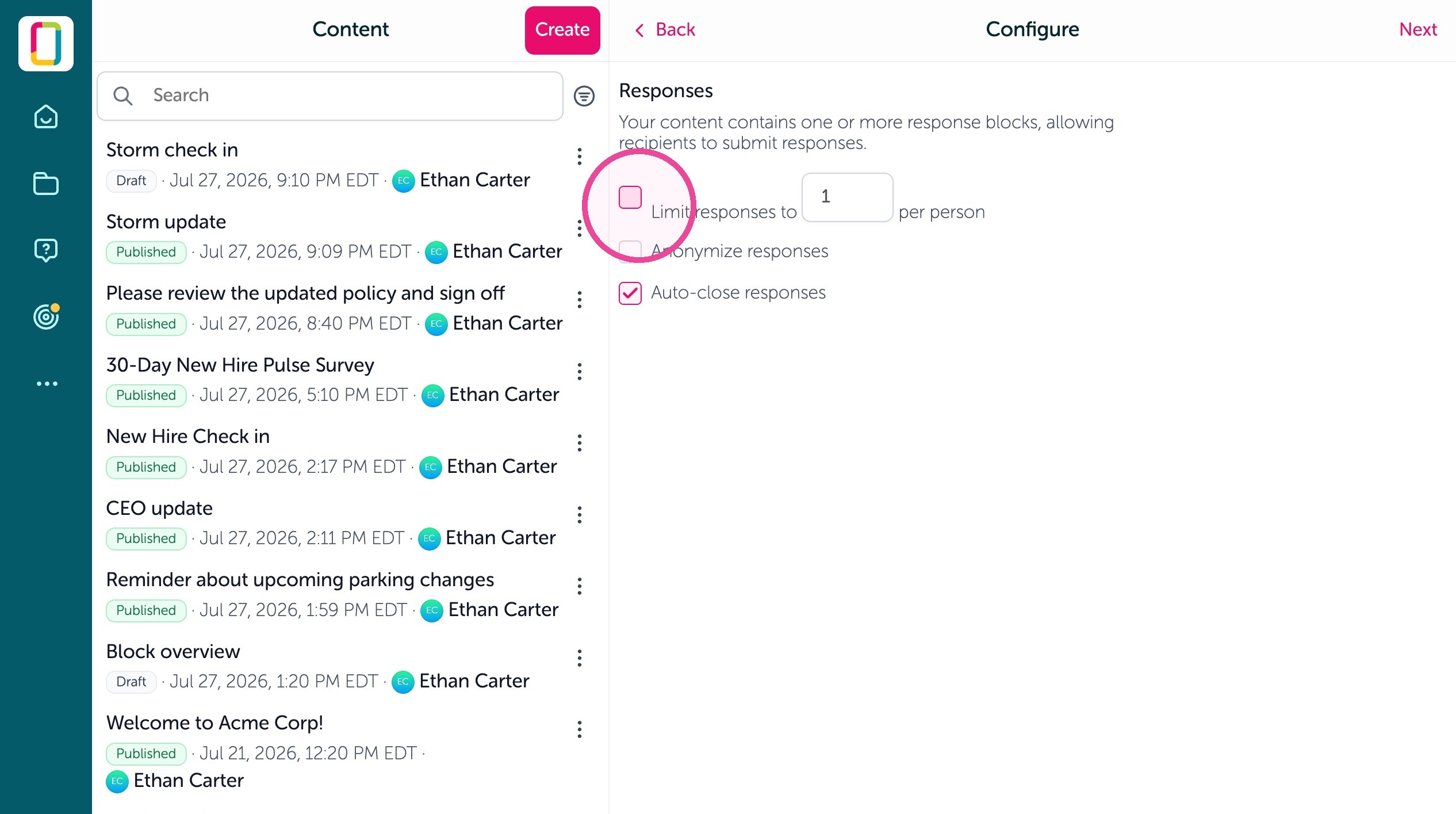
14. Click "Next"
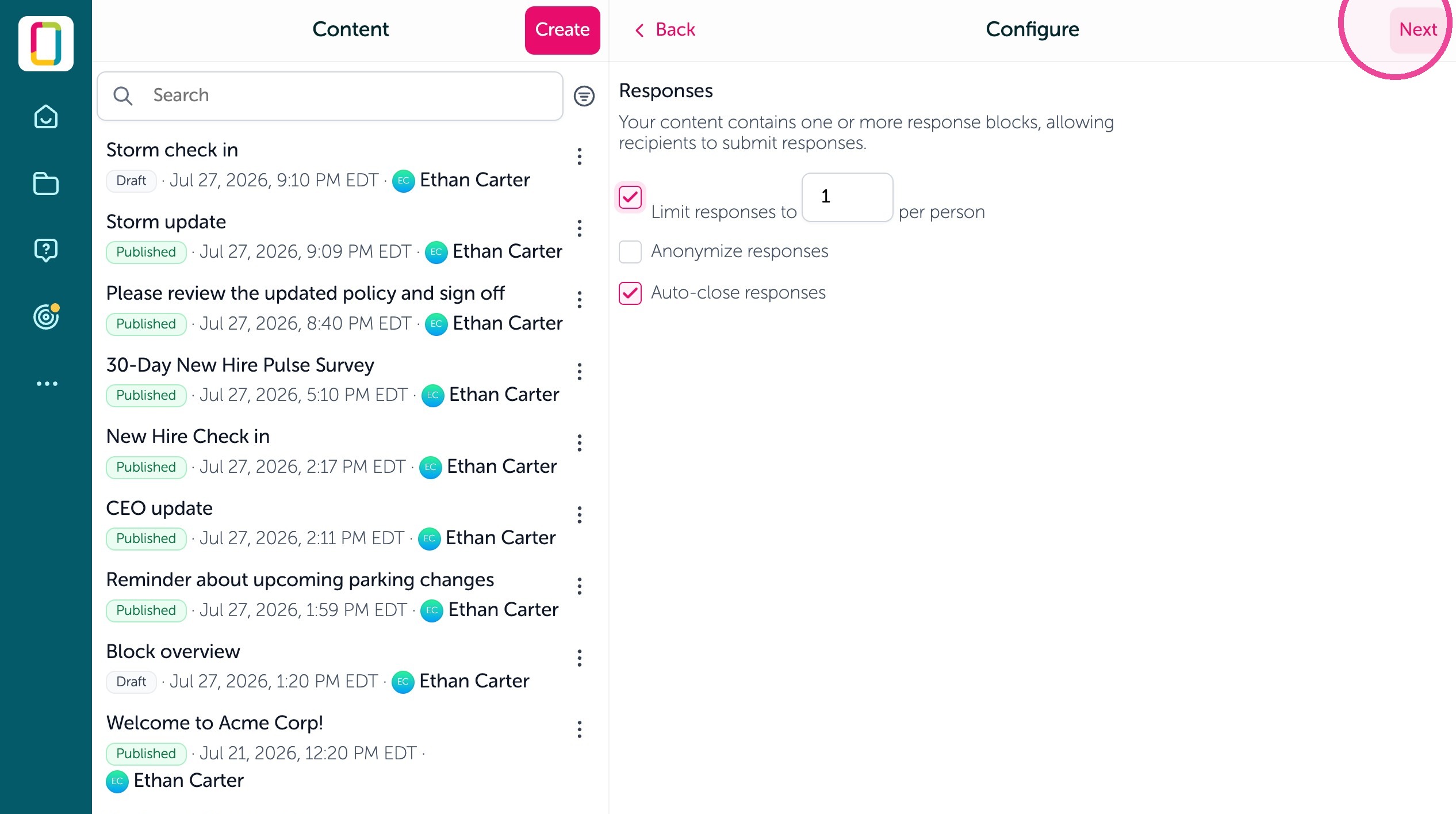
15. You'll see a preview of the text, click "Next" after reviewing, scheduling, or editing the broadcast.
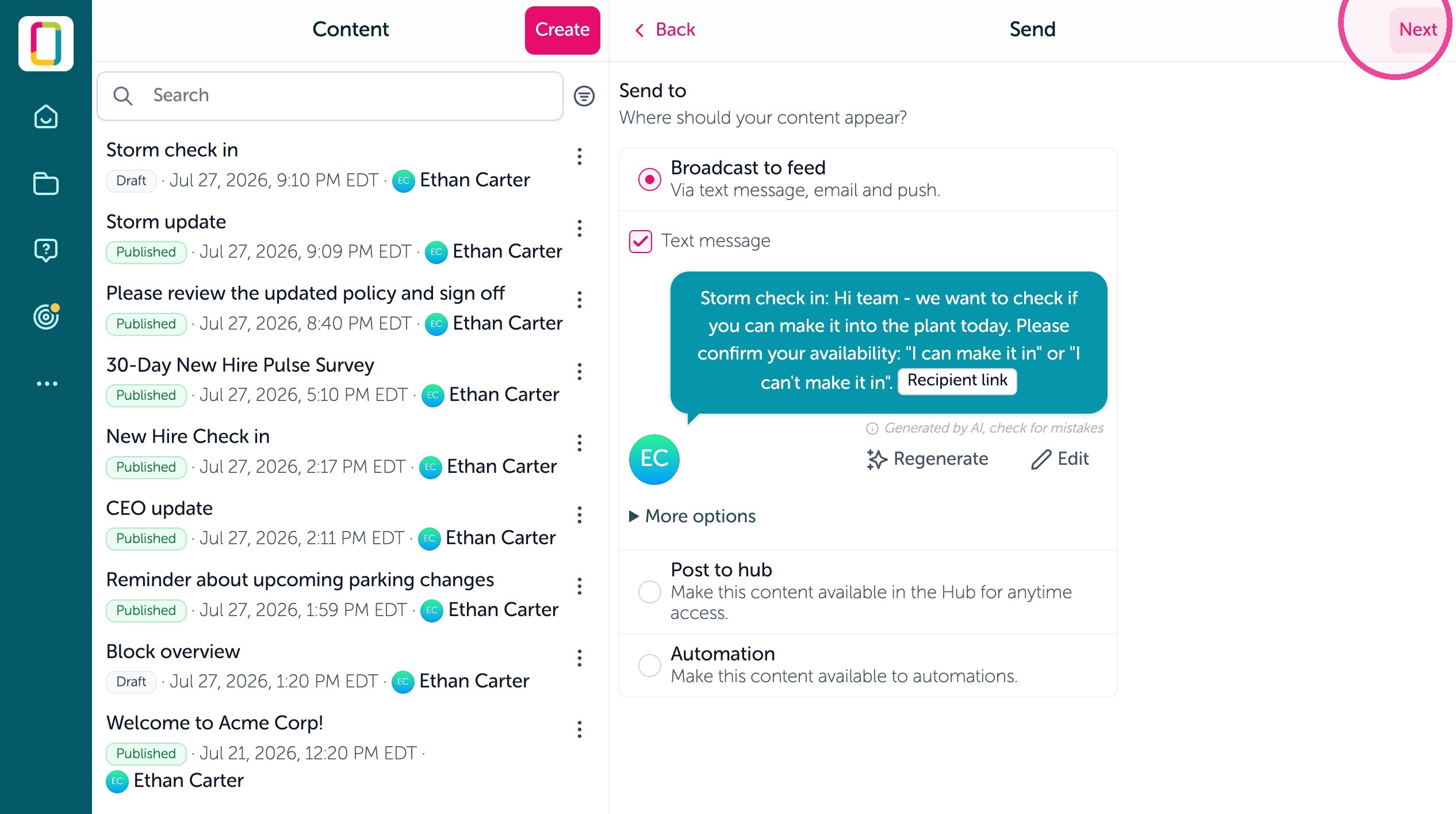
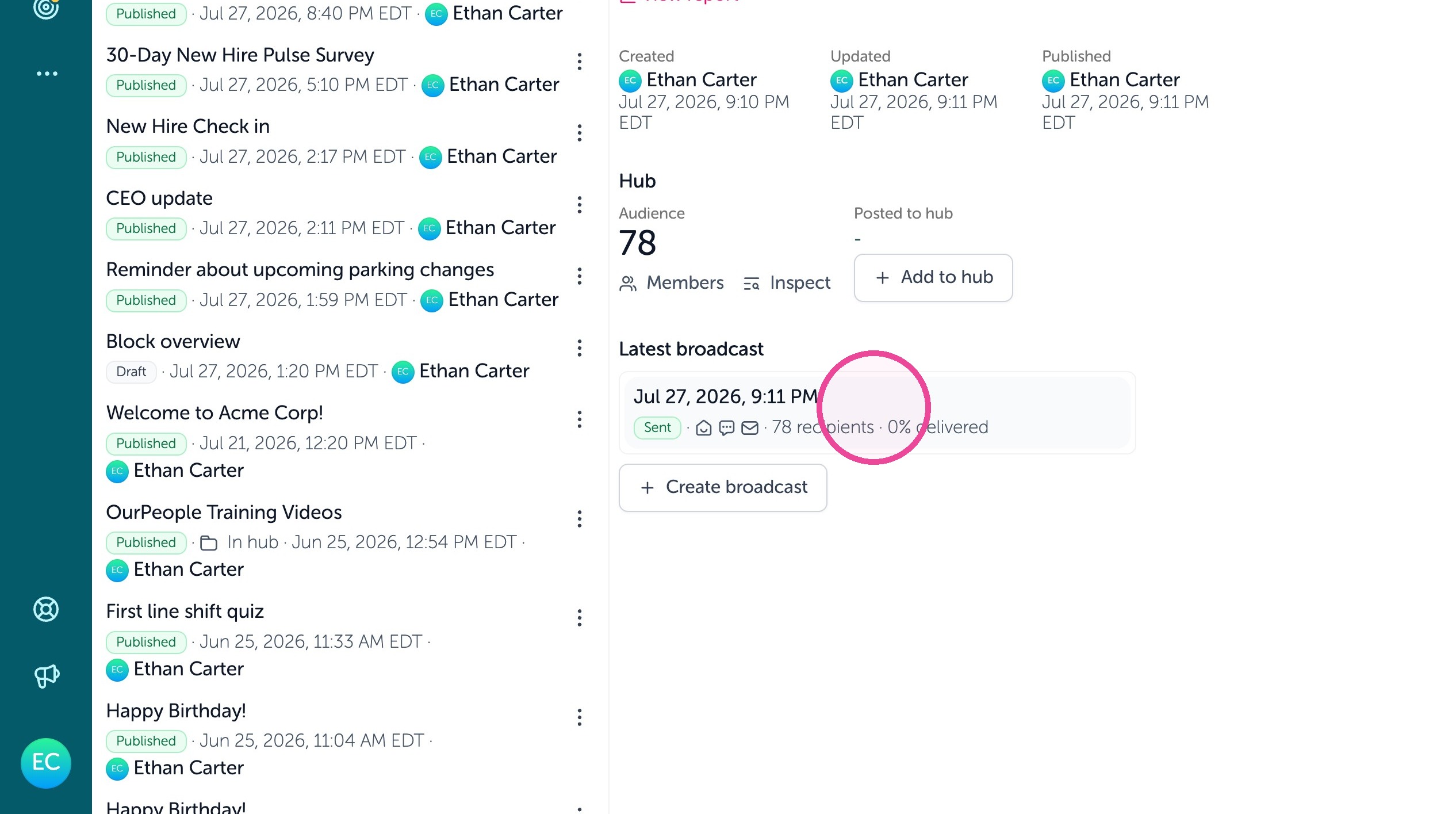
16. You can select who it needs to go to using tags and filters by clicking "Edit audience" and then select "Publish" to send it out.
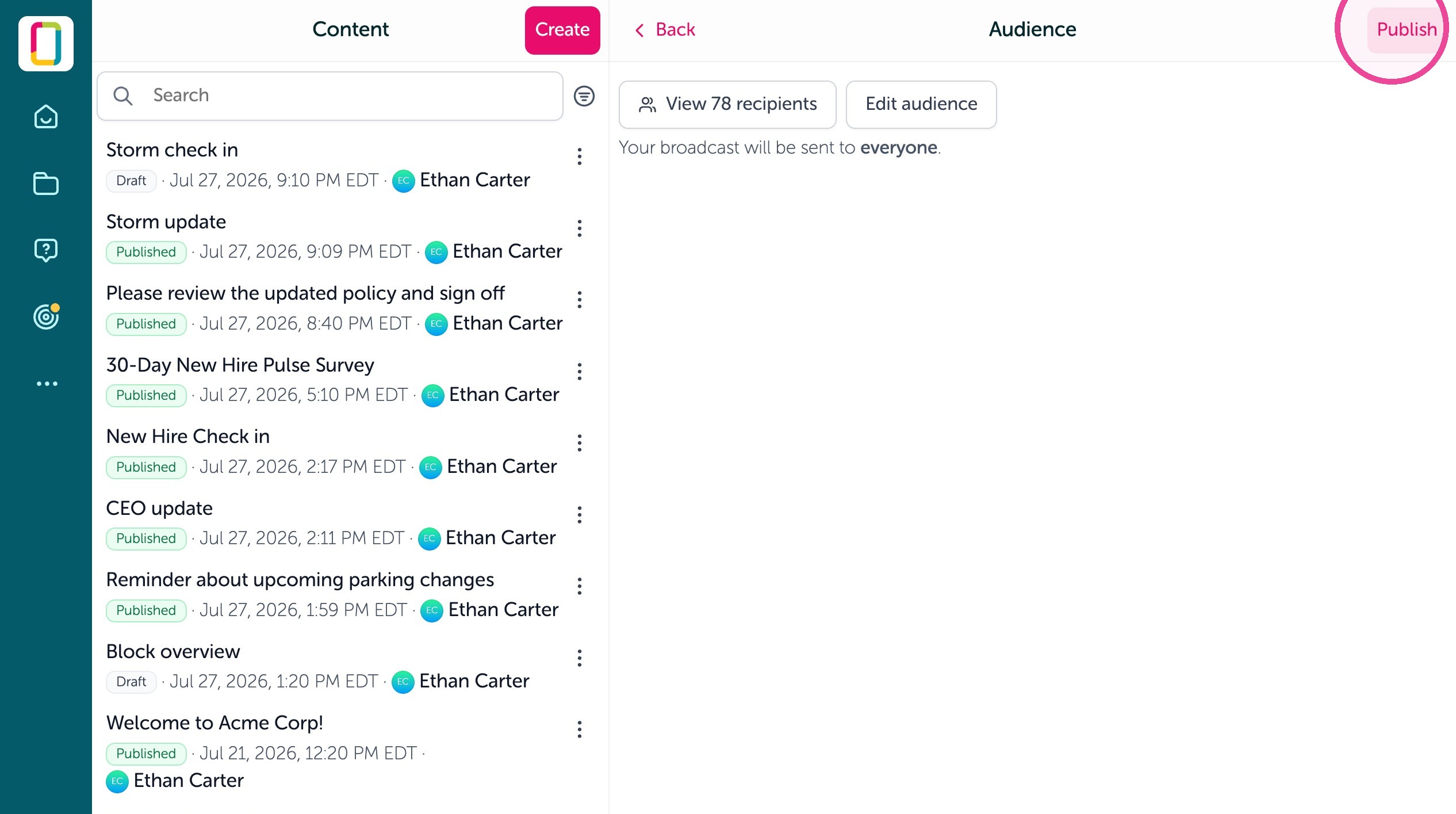
17. You can then view responses in the "Content report" by clicking "View report"
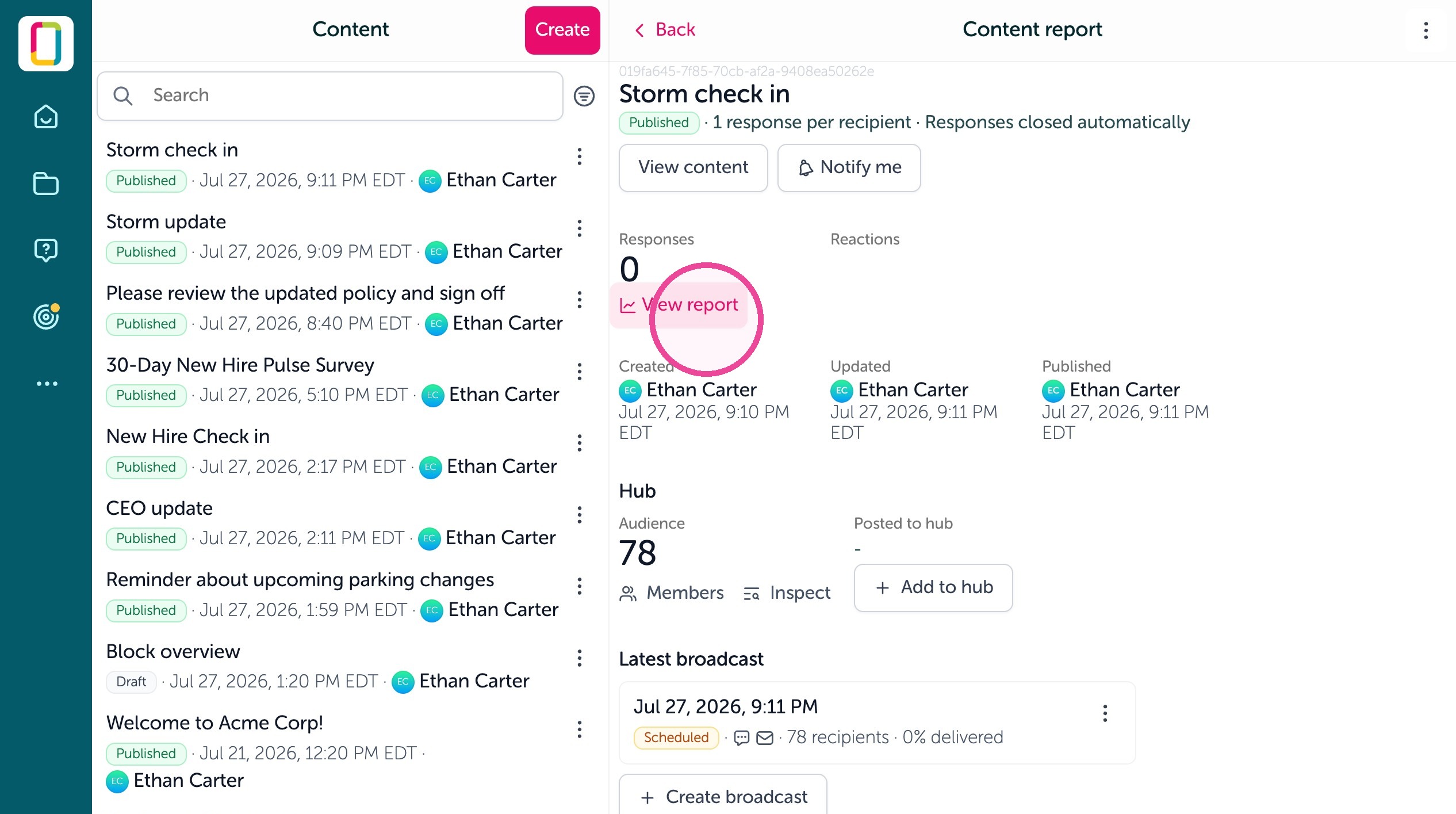
18. And you can see delivery. Success rates under the day and time of the broadcast under "Latest broadcast"