Learn how to share important company announcements by uploading video content directly to your team feed. This guide walks you through the steps to format, customize, and publish your updates to the correct audience.
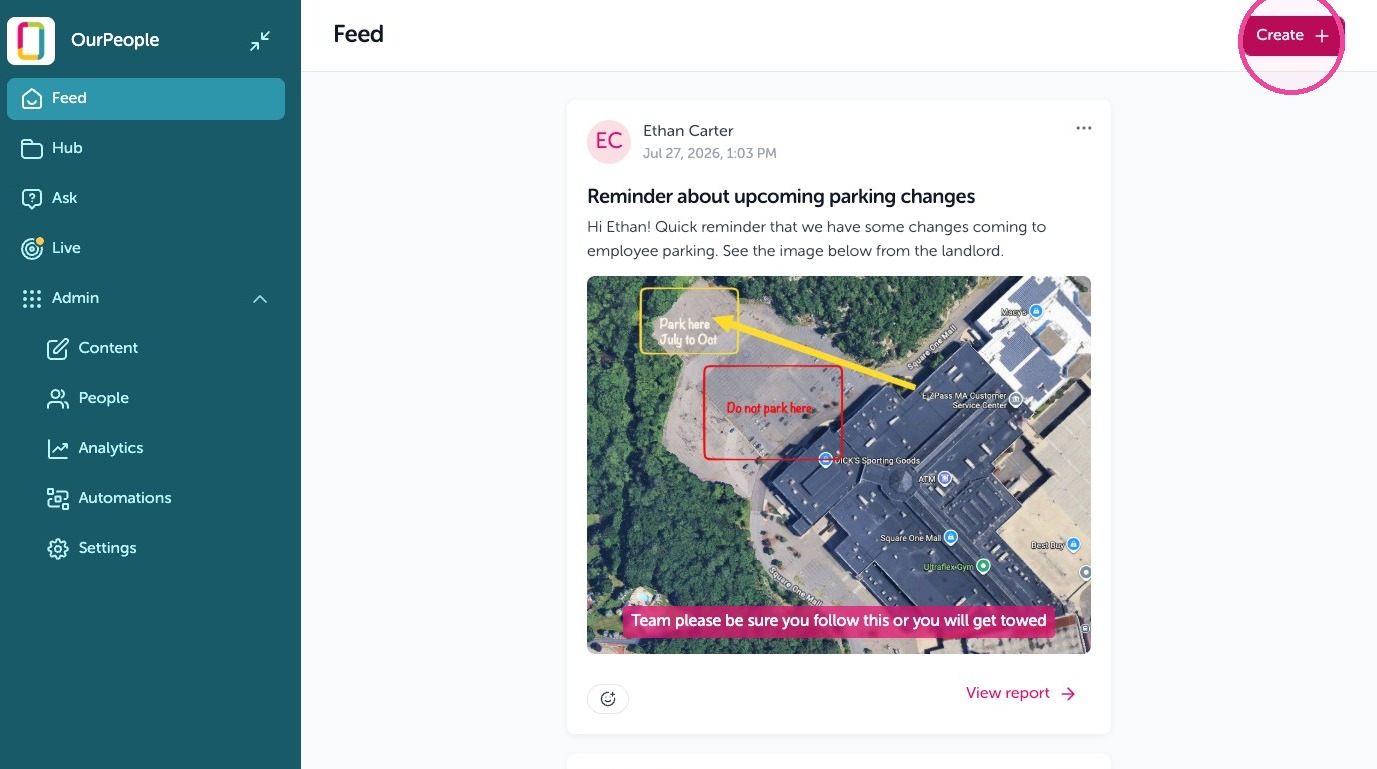
1. Go to your Feed then click "Create"
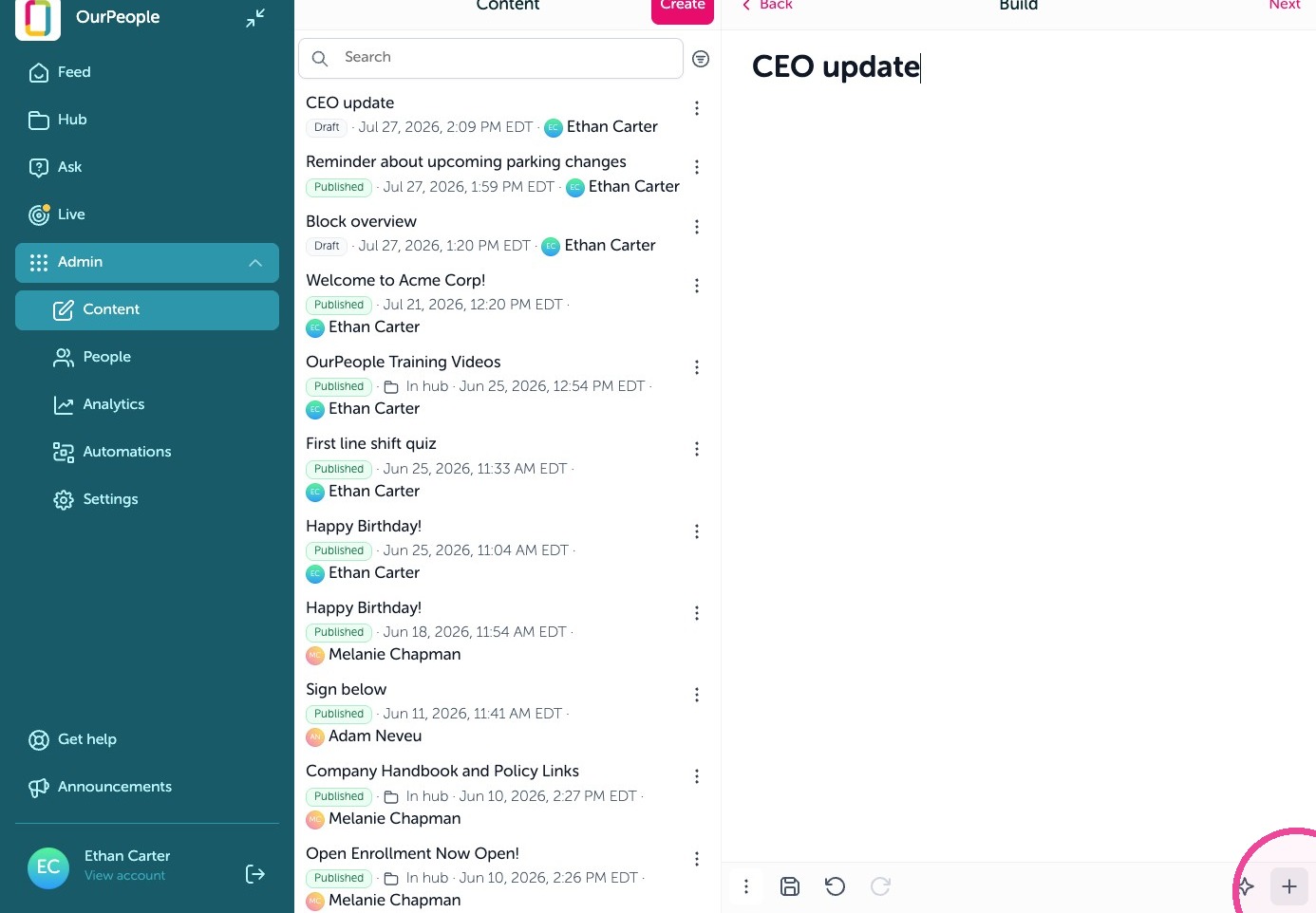
2. And give your message a title then click the + icon to add a Media block
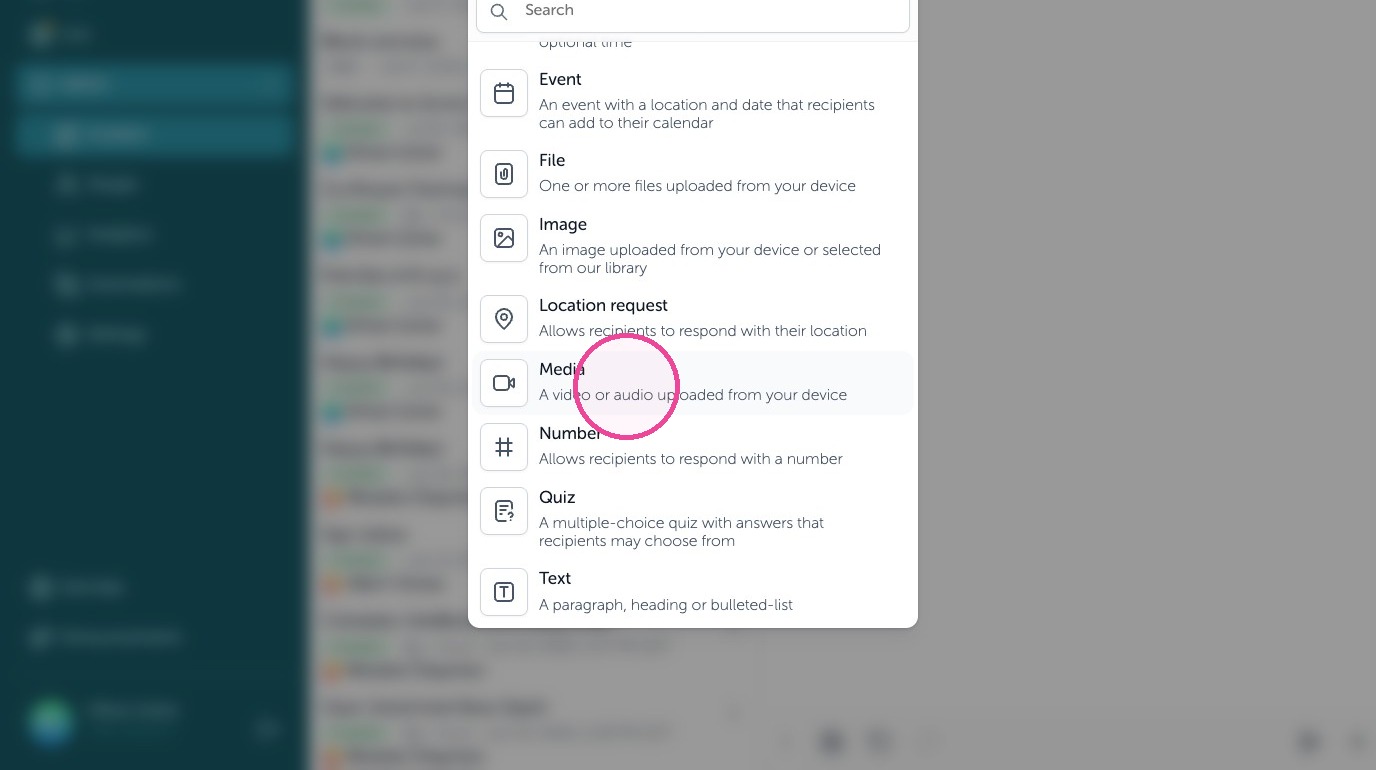
3. Click Media block "A video or audio uploaded from your device"
4. Upload your video
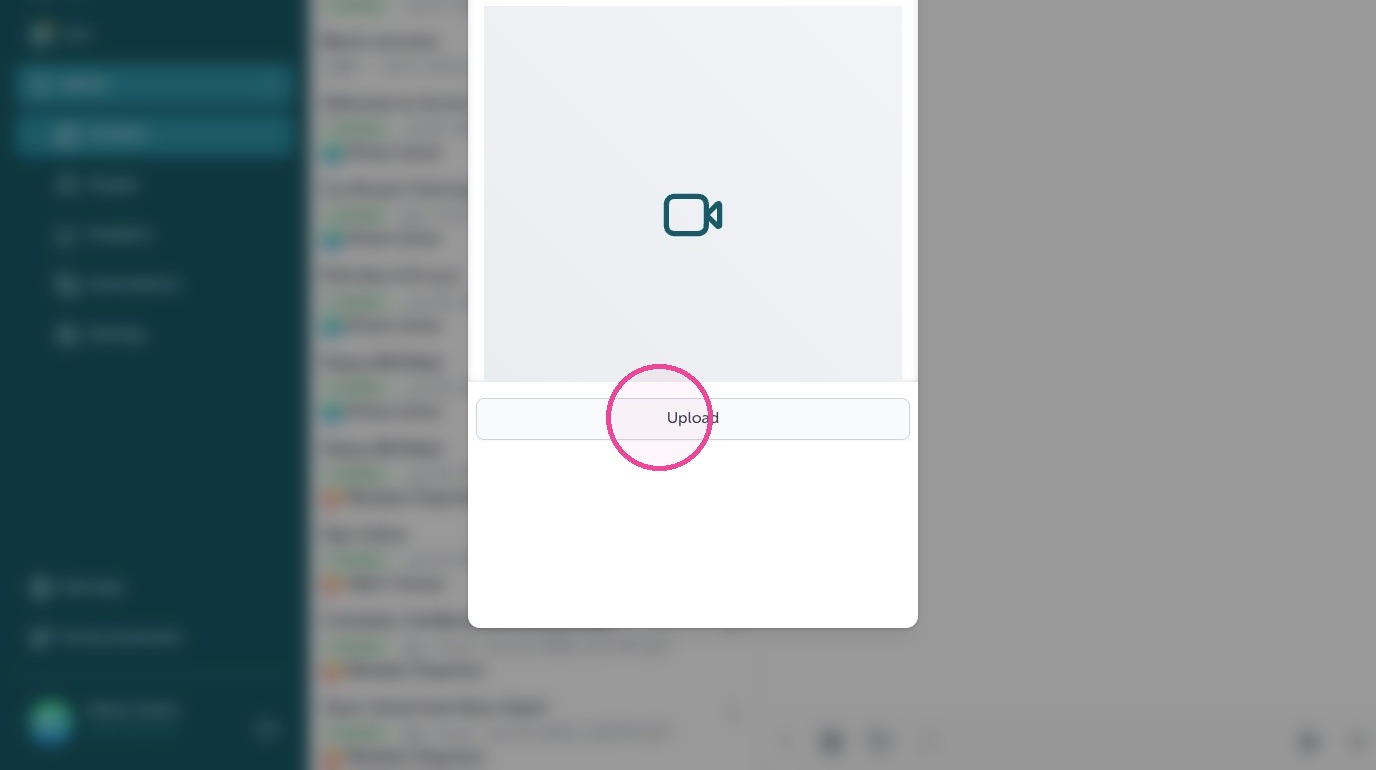
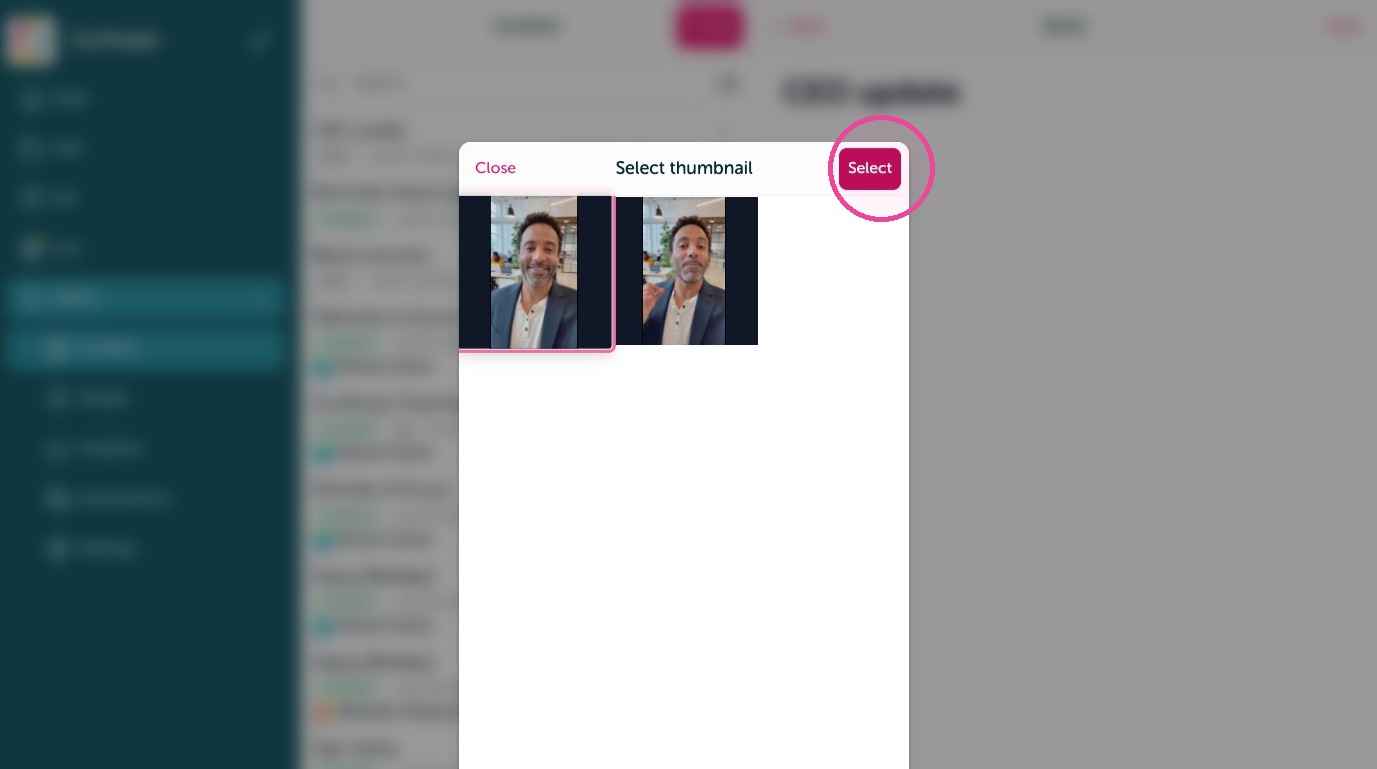
5. You can then select a thumbnail
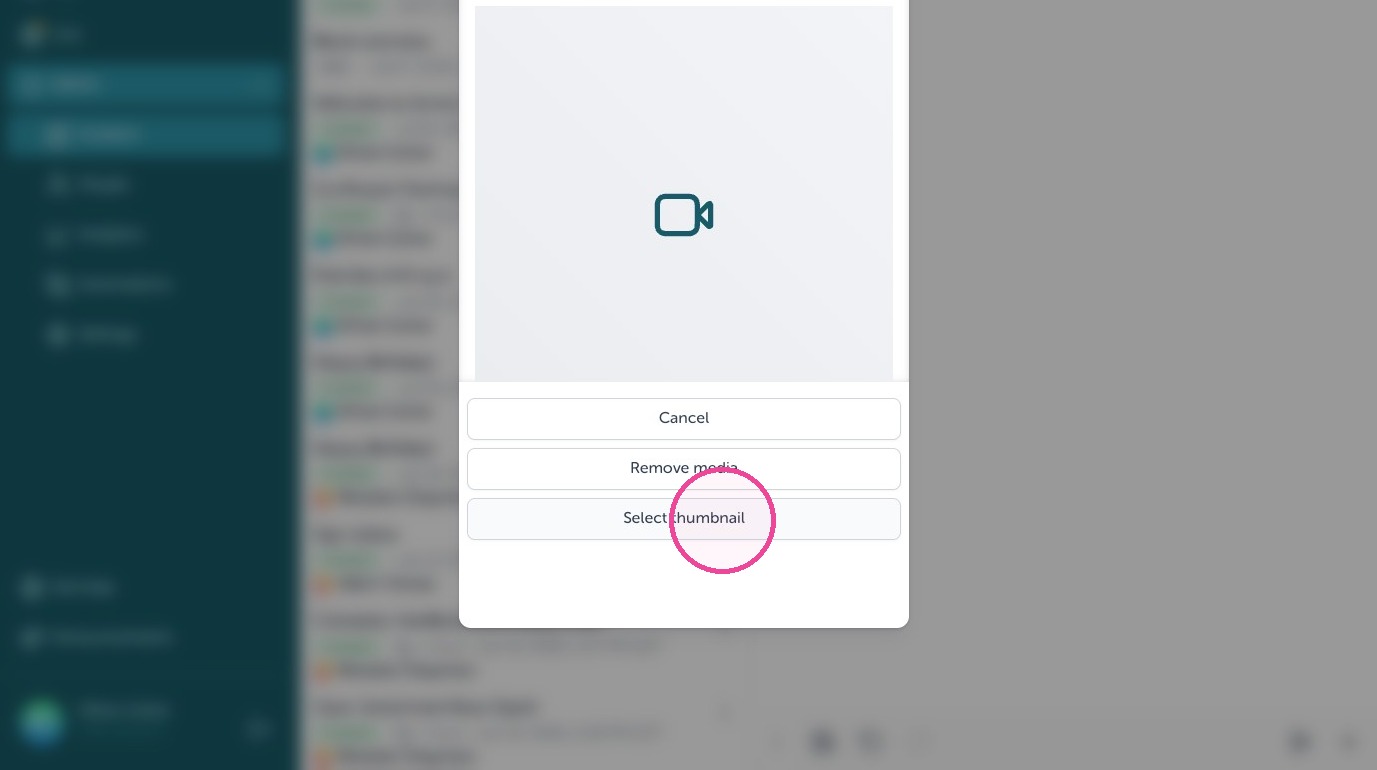
6. If you don't select a thumbnail, a default 1st image is used.
7. Click on "Add" to add the video to the message
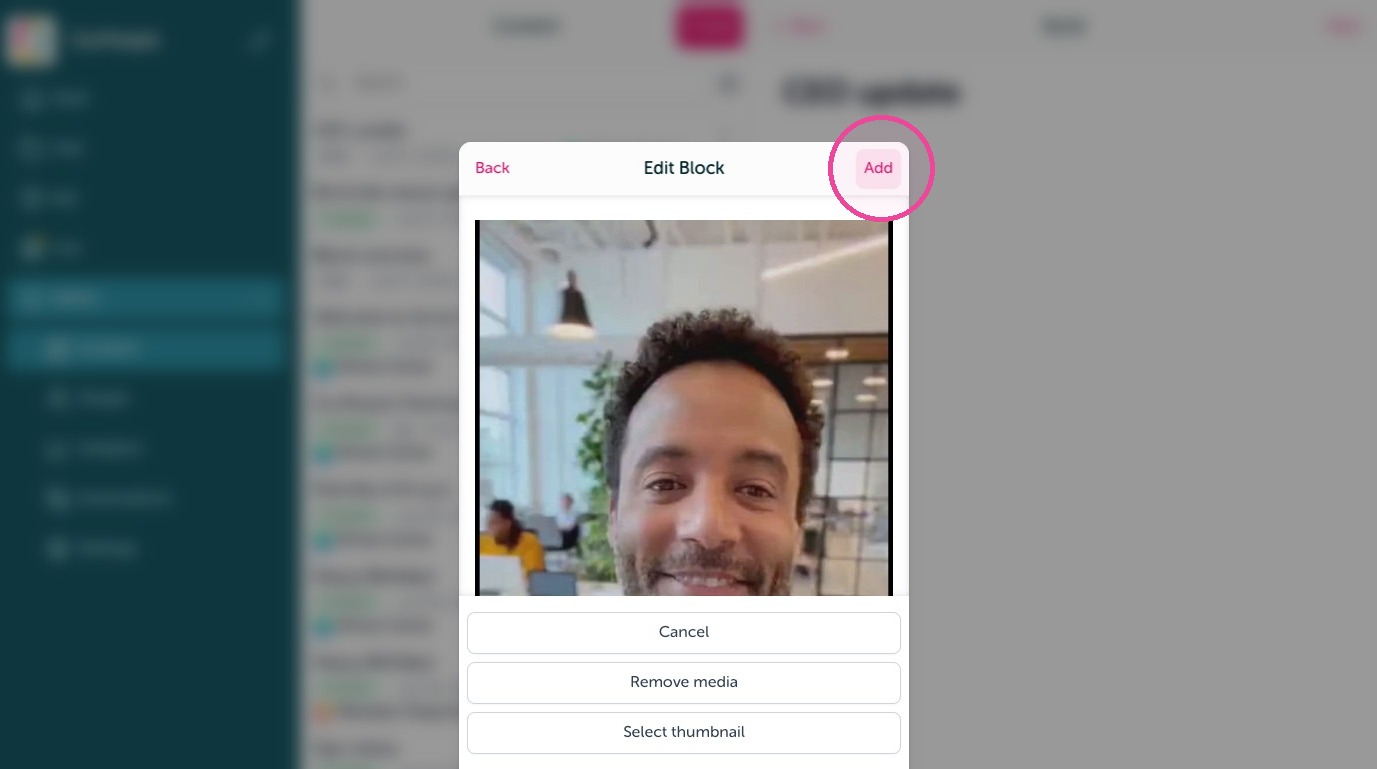
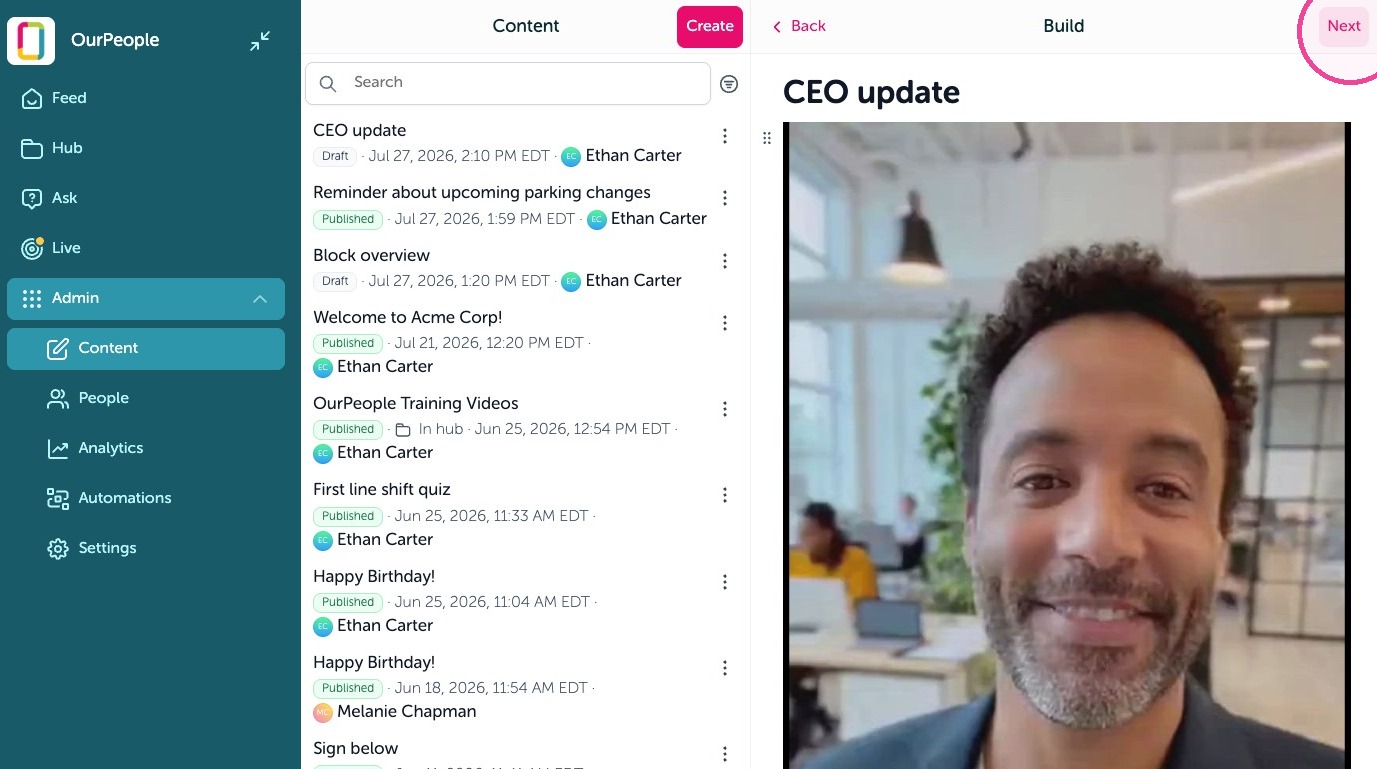
8. If you want to add anything extra, you can add additional blocks with the + icon then click "Next" to continue.
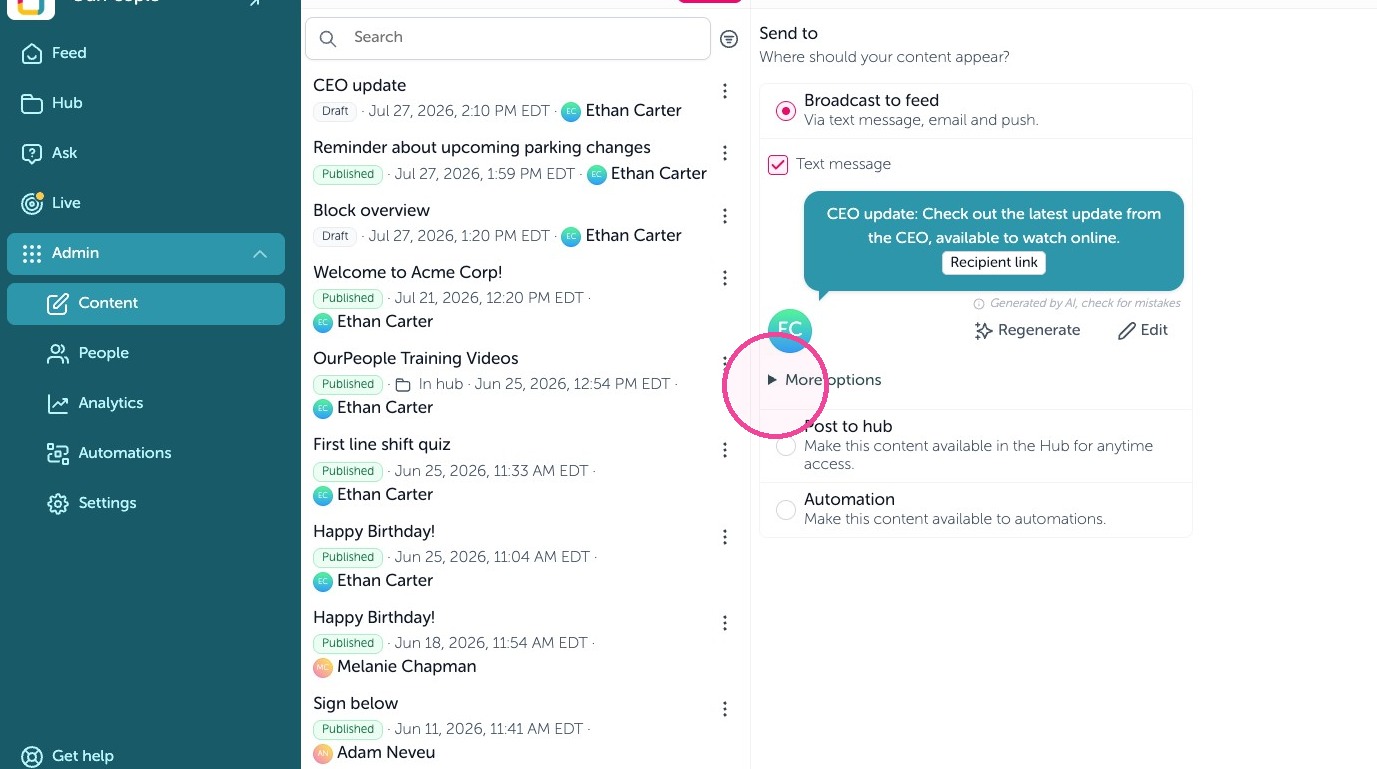
9. From there, you will see the text message preview. You can edit the text message. by clicking "Edit" or schedule the message to go out by clicking "More options" the checking off "Schedule"
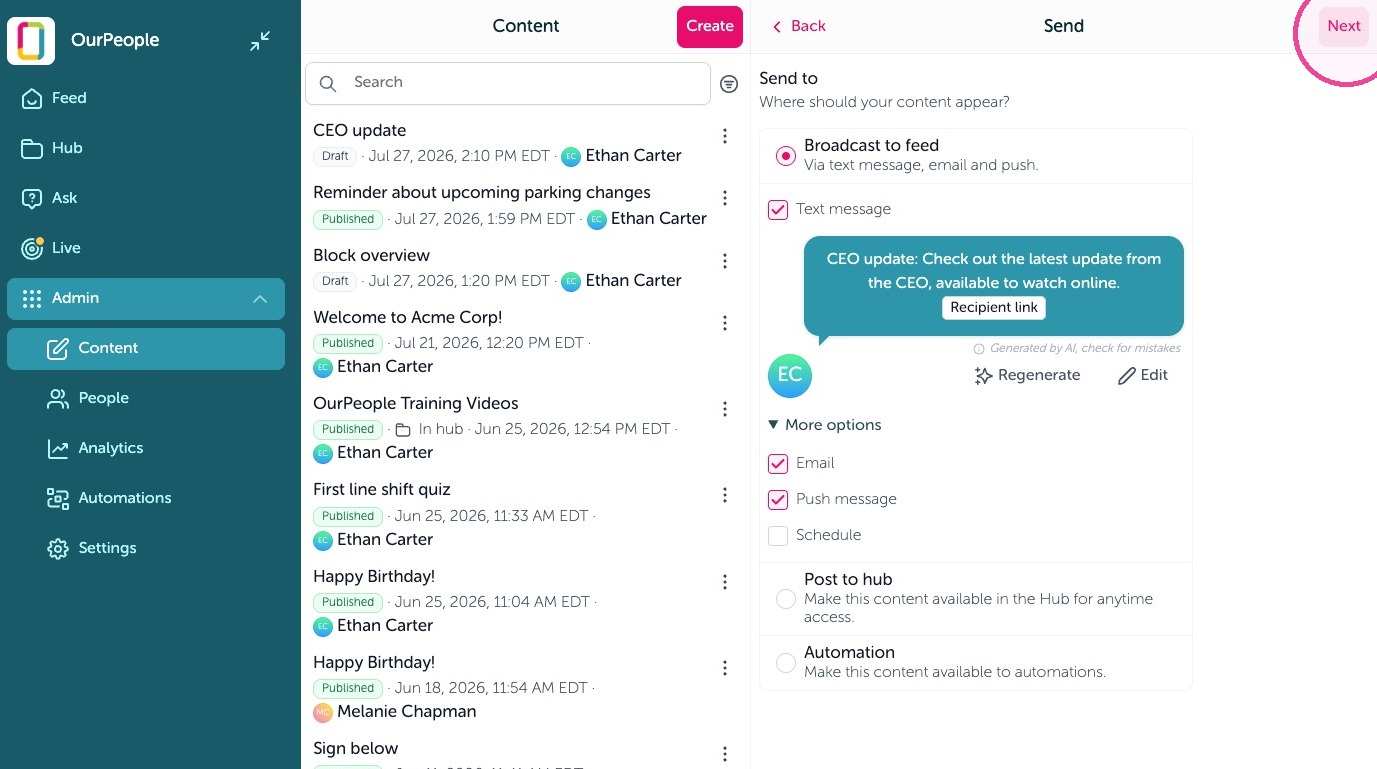
10. Click on Next to continue
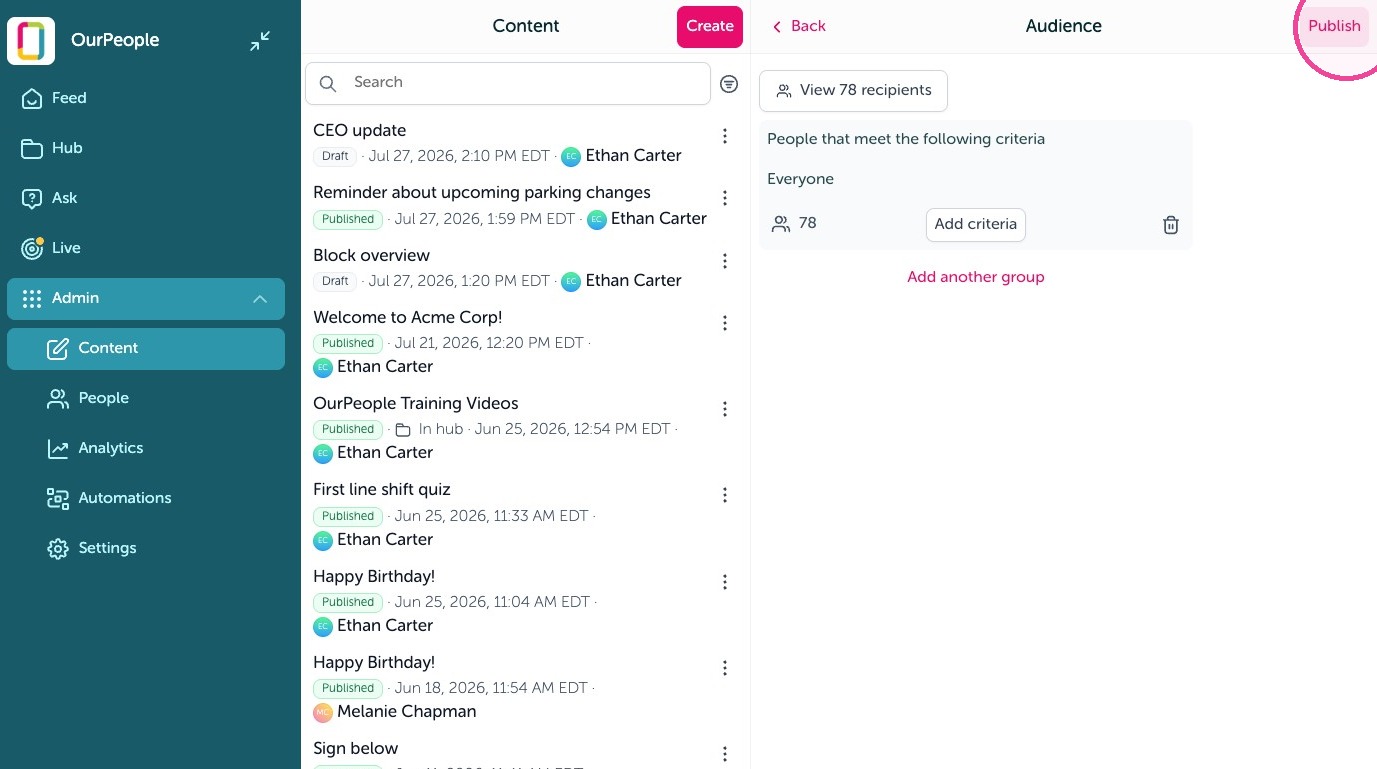
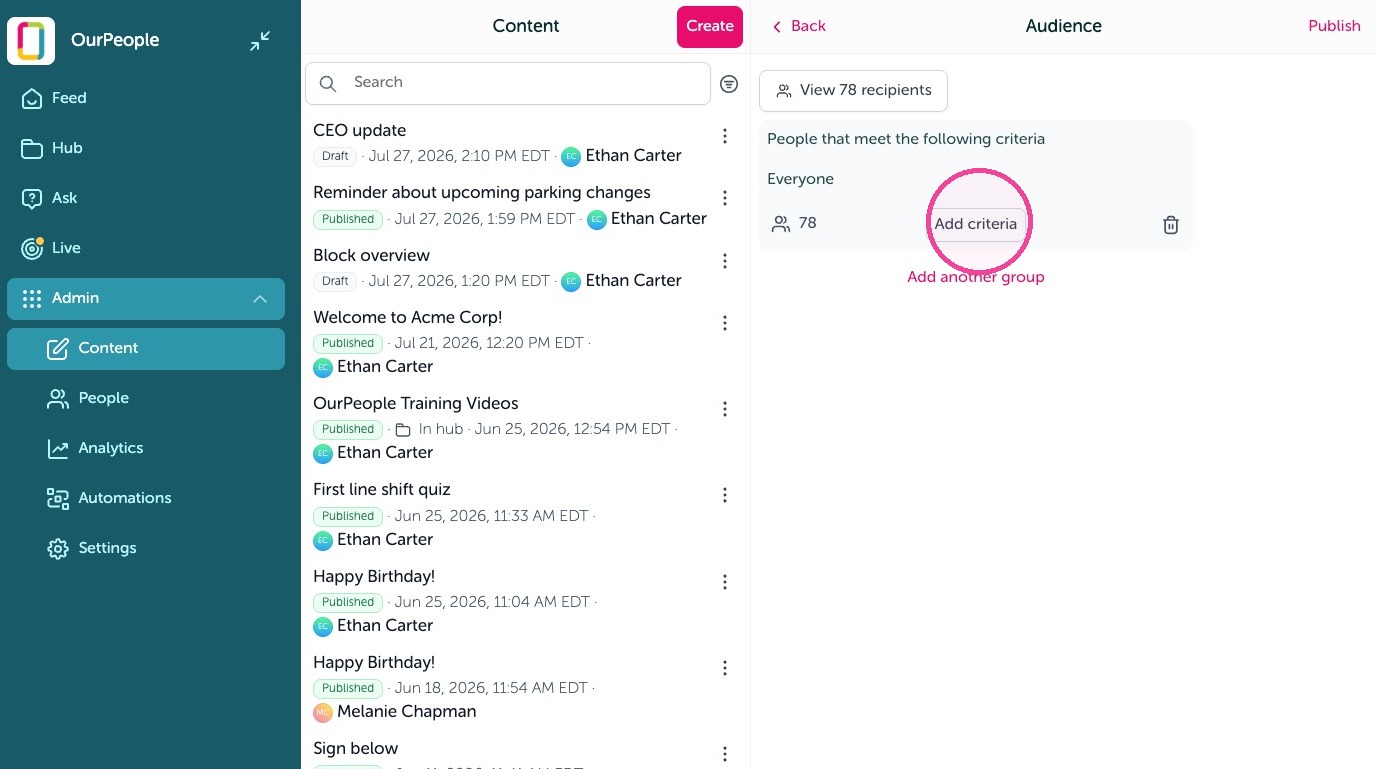
11. Filter down to a specific group by clicking "Edit audience"
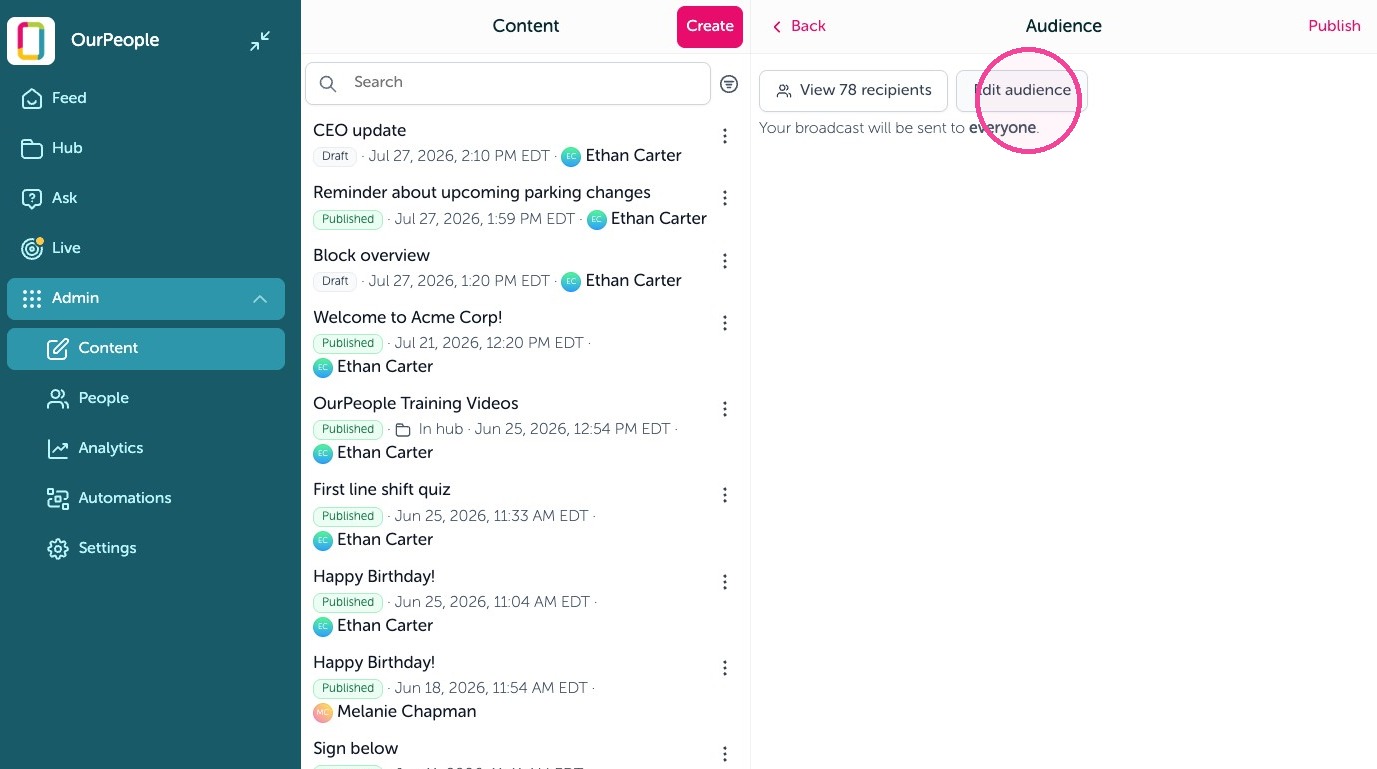
12. Then "Add criteria" to add tags to filter by.
13. Select "Publish" to send your video.