This guide quickly walks mobile users through the exact taps needed to log into the OurPeople mobile site by text, web or the mobile app, removing guesswork and reducing login time. It’s ideal for anyone new to the app, those switching devices, or users who prefer step-by-step visual instructions to avoid mistakes.
Login by text message
1. Tap any link in your texts.
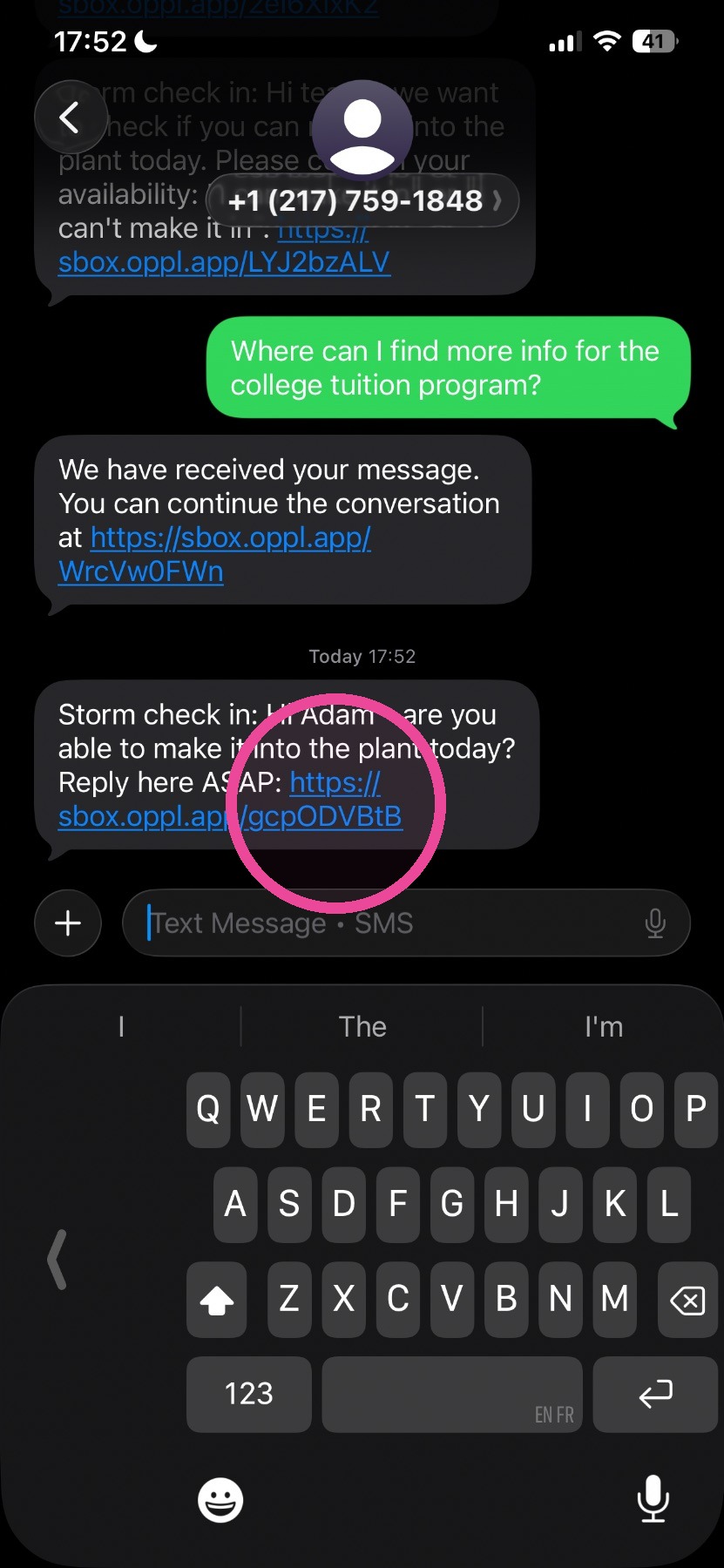
Tip: That is it - if this is the 1st text link you've tapped, you need the next step.
2. Tap Continue.
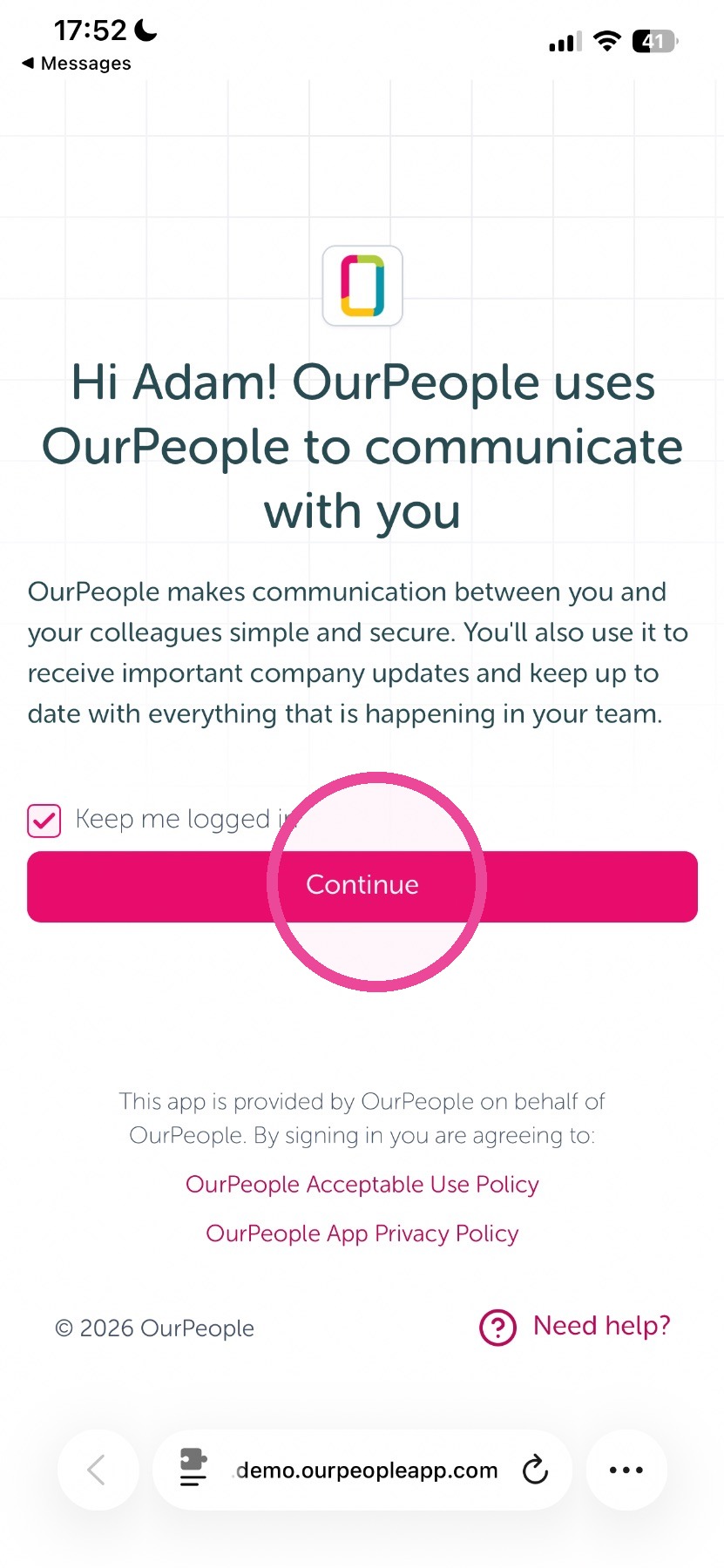
Tip: Done, you are now logged in!
Login on the web on mobile
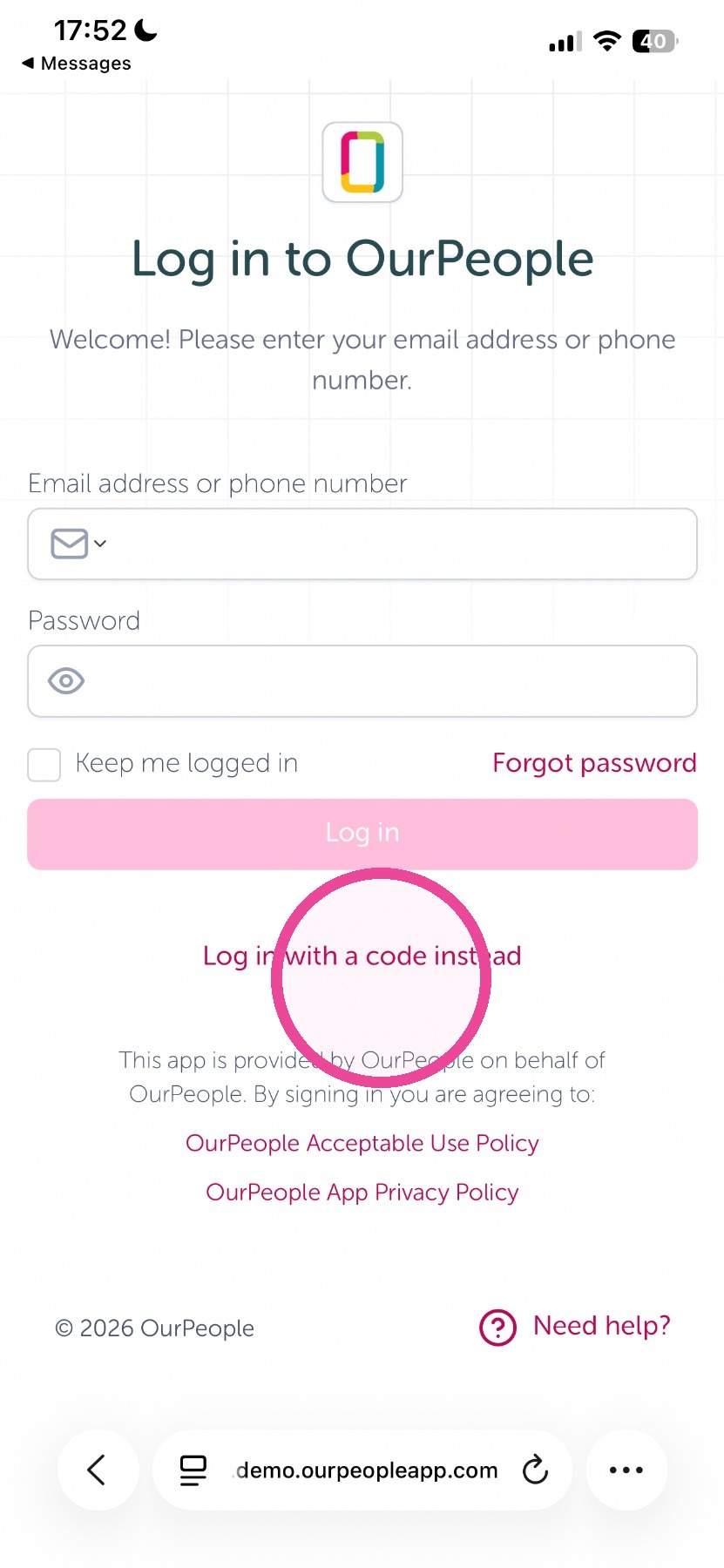
3. Tap "login with a code instead.
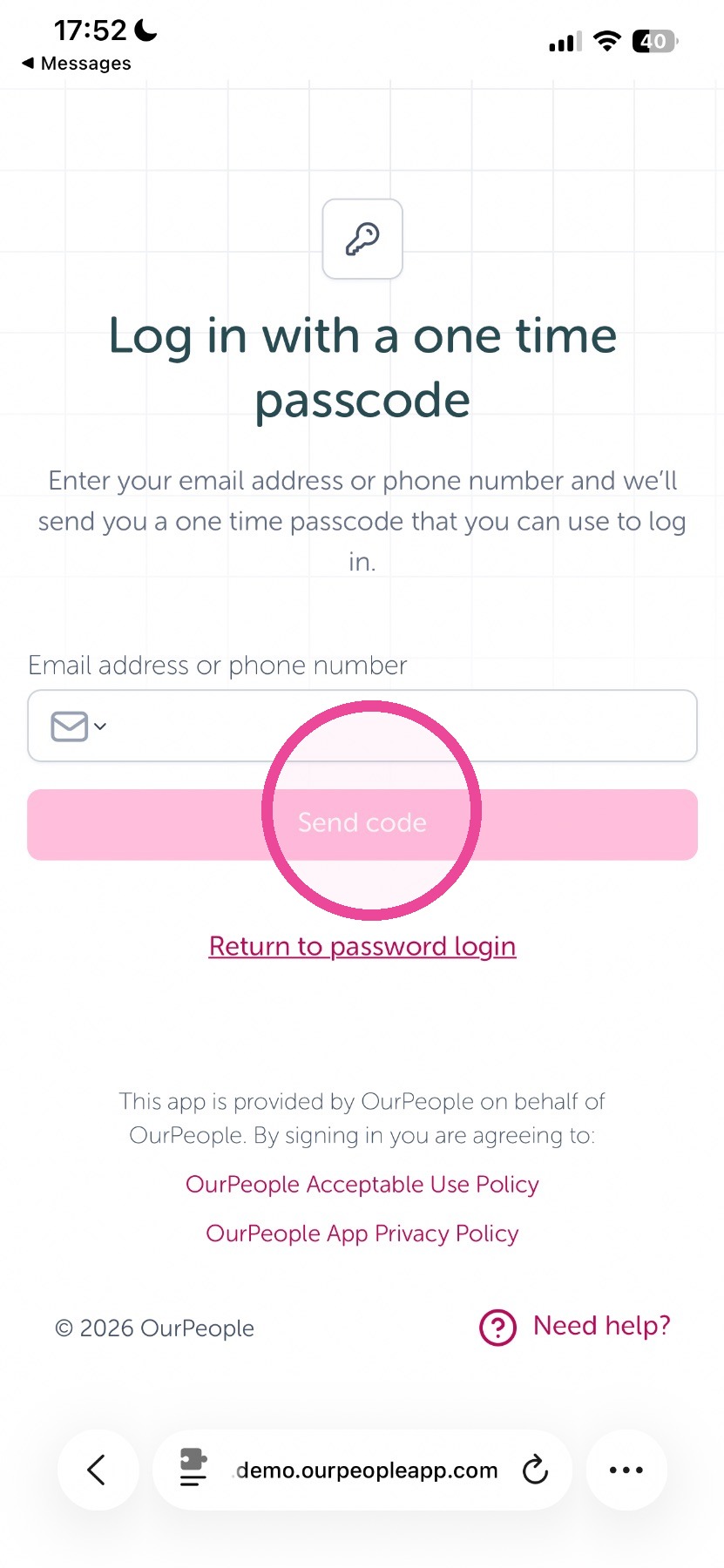
4. Enter your number or email then tap send code
5. Enter it then tap 'verify code'
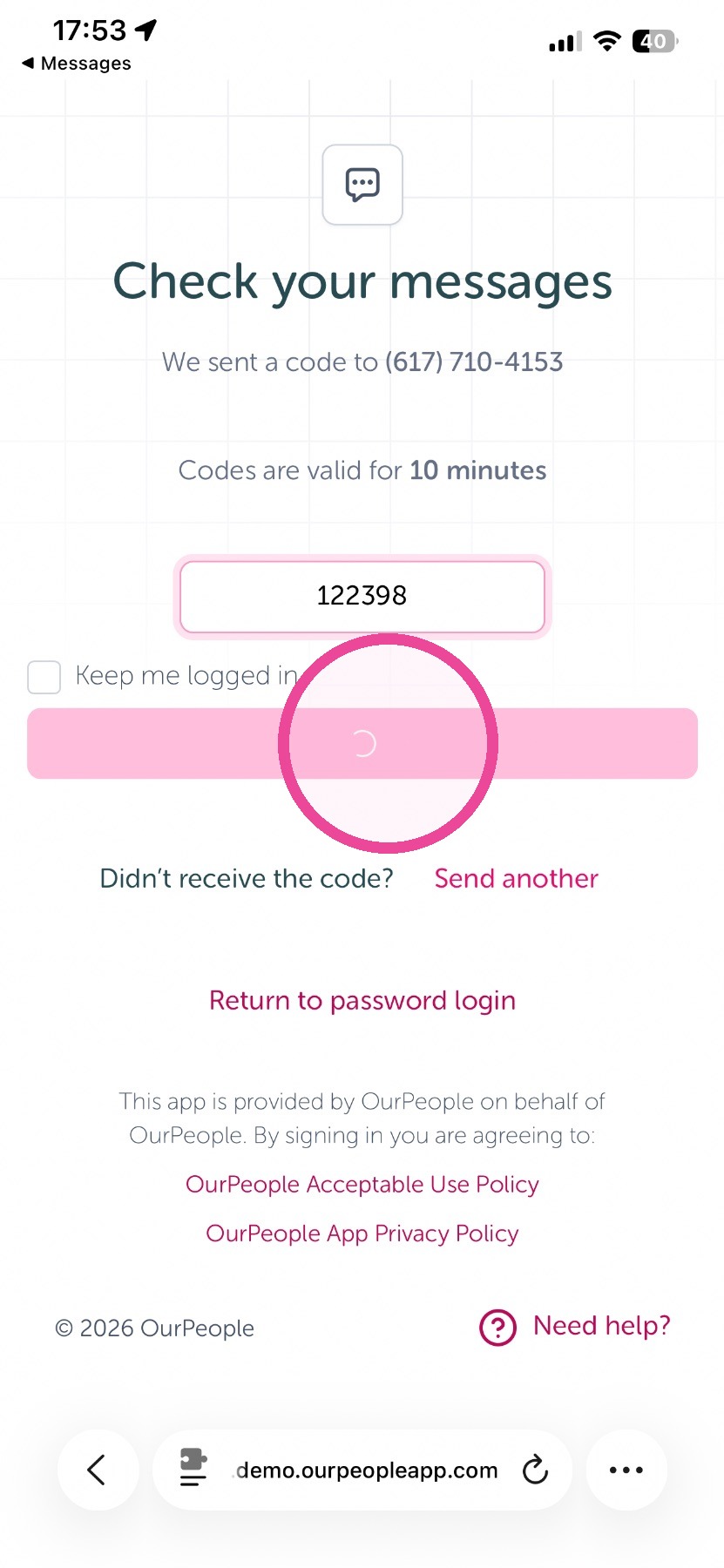
Tip: Done, you are now logged in! To keep logged in check of "keep me logged in" before verifying your code.
Login on the mobile app (legacy)
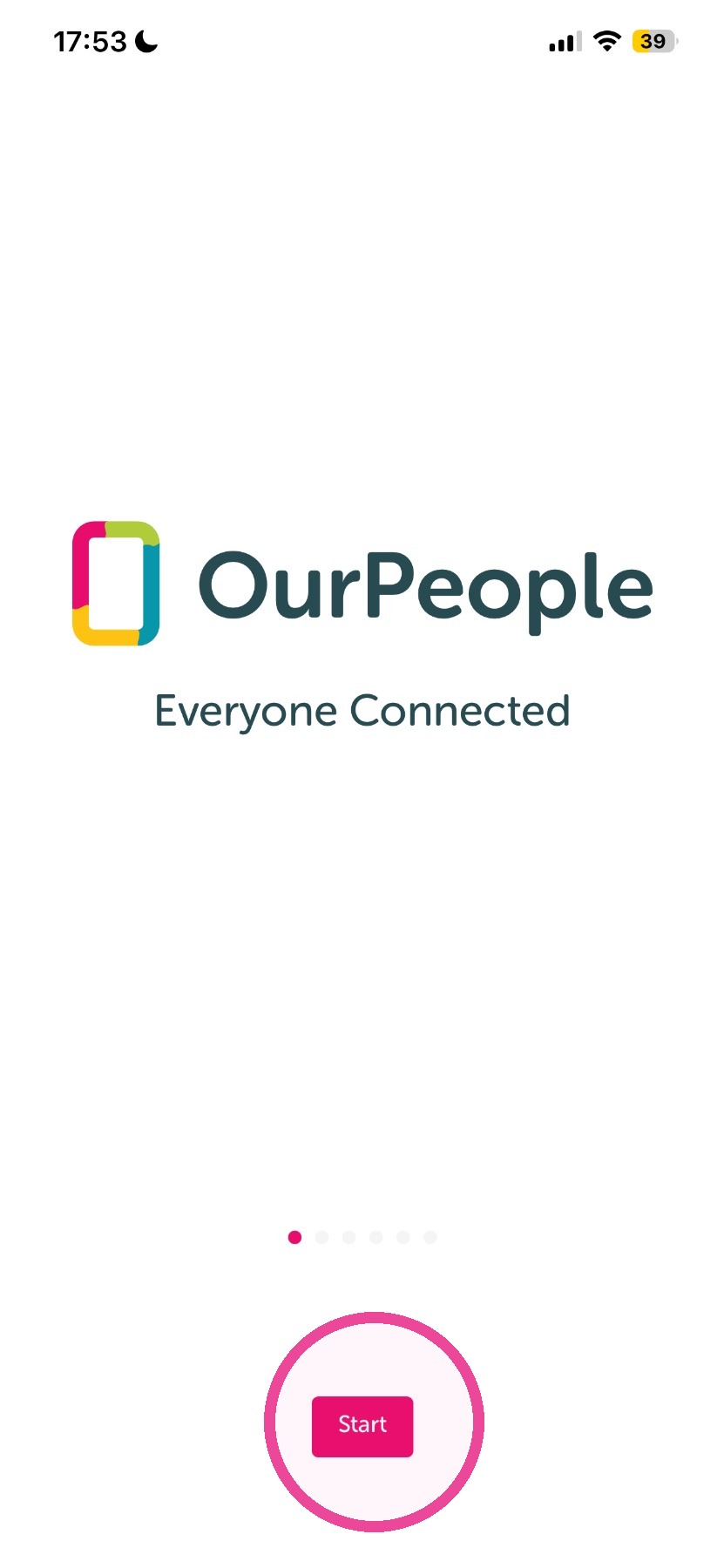
6. Tap Start.
7. Enter your company name
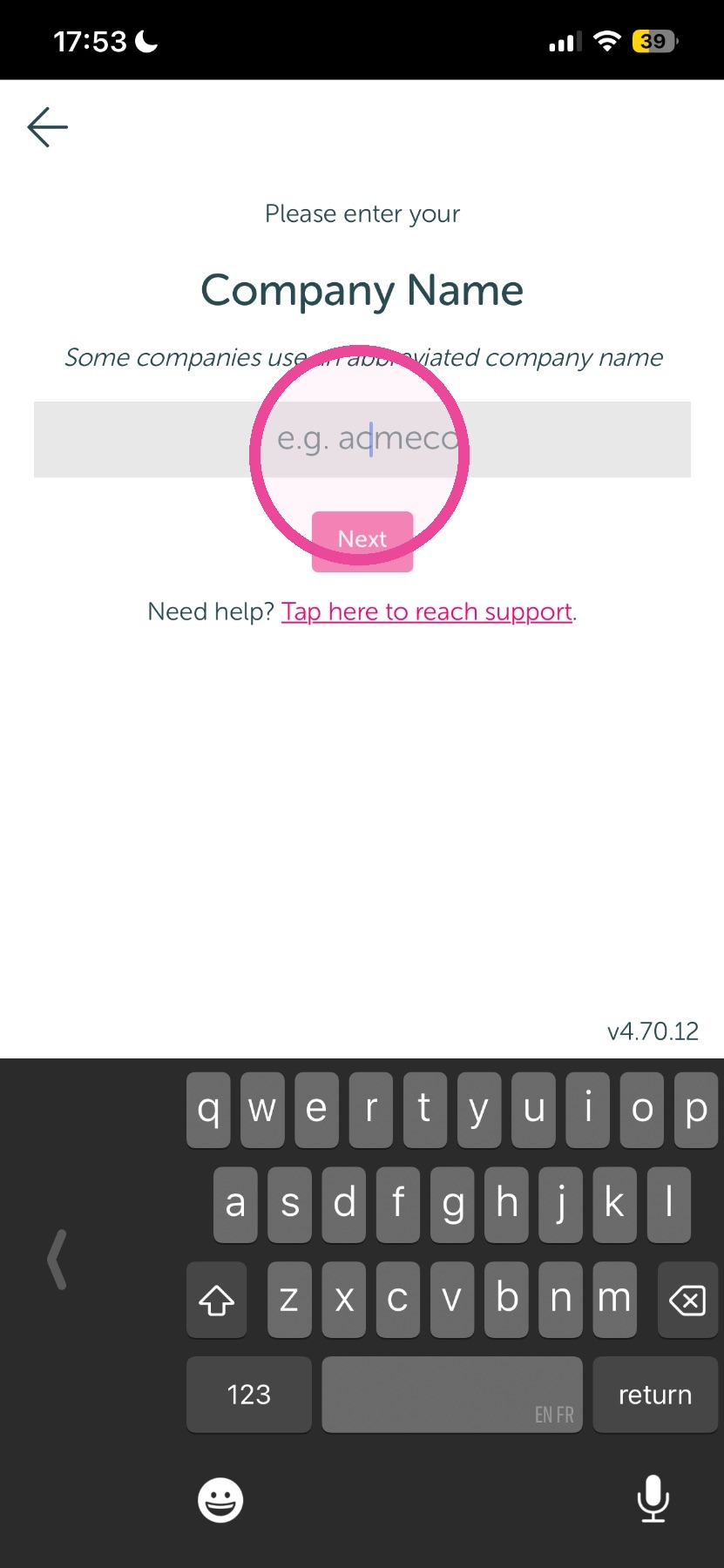
Tip: If you do not know the company name or it is showing it is wrong, chances are good they spelled it differently or shortened it. You can find the company name by going to the OURPEOPLE LOGIN PAGE then looking at the subdomain which is your "Company Name". For example if the website it brings you to after typing in your number or email is https://myworkplace.ourpeople.com, then your mobile app company name is "myworkplace". If you need more support please ask your HR team or Manager to better assist you from there.
8. Enter your number or tap login by email to use an email then click "Next"
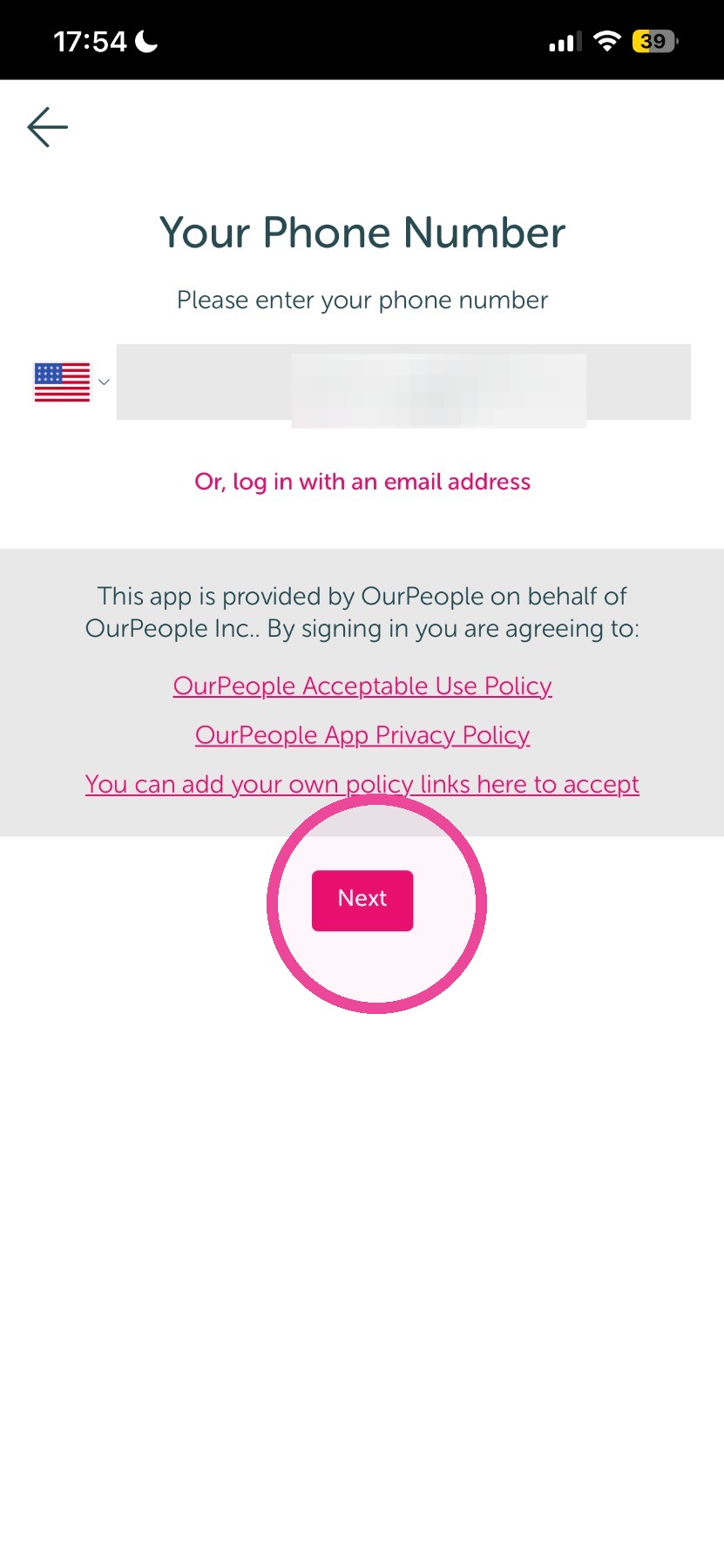
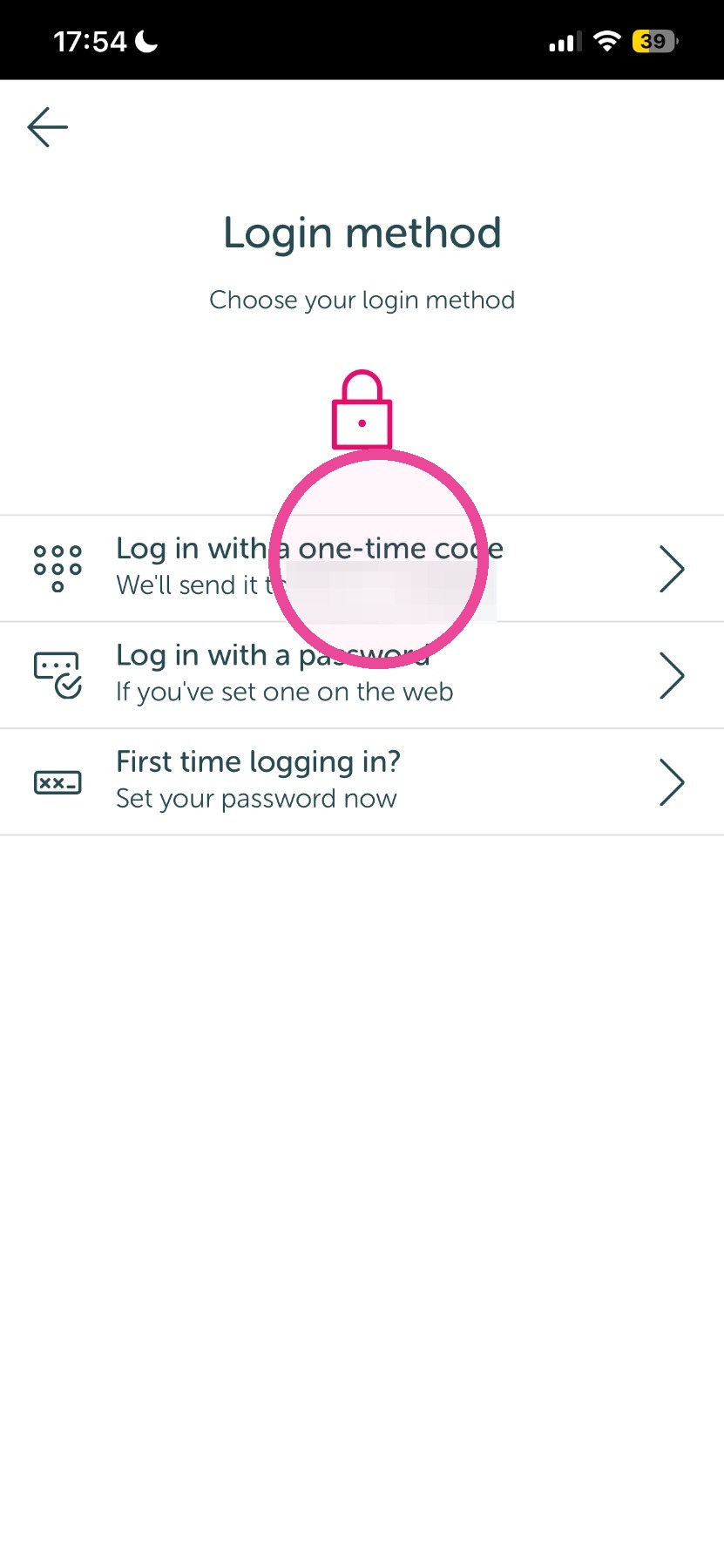
9. Tap "Log in with a one-time-code.
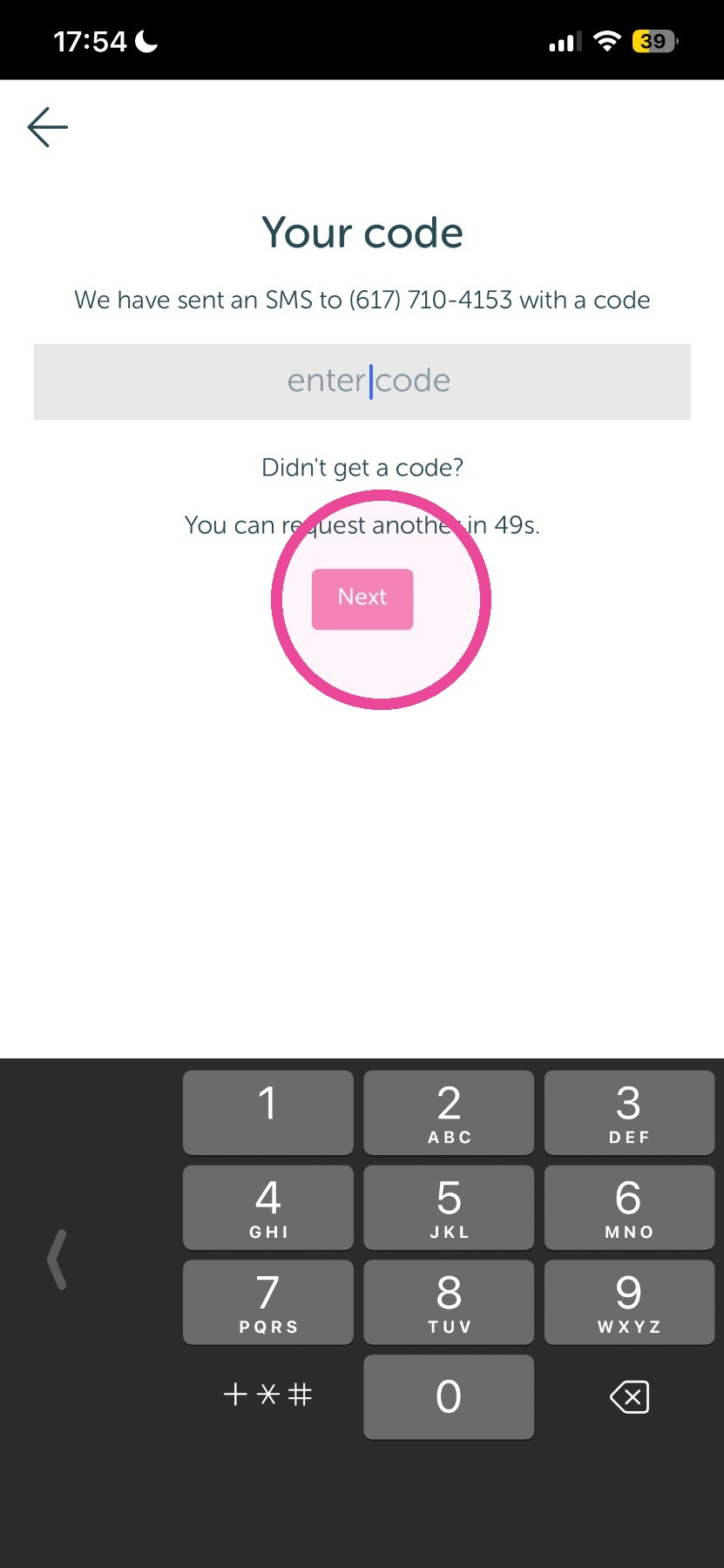
10. Enter the code then tap "Next" finish steps and allow notifications.
Tip: Done, you are now logged in!