Learn how to seamlessly connect your BambooHR account and manage automated employee sync and tag mappings within the platform. This guide walks you through the authorization process and rule configuration to ensure your data stays synced and organized efficiently.
Add the BambooHR Integration in OurPeople
Tip: OurPeople has built in integrations connect to the BambooHR:
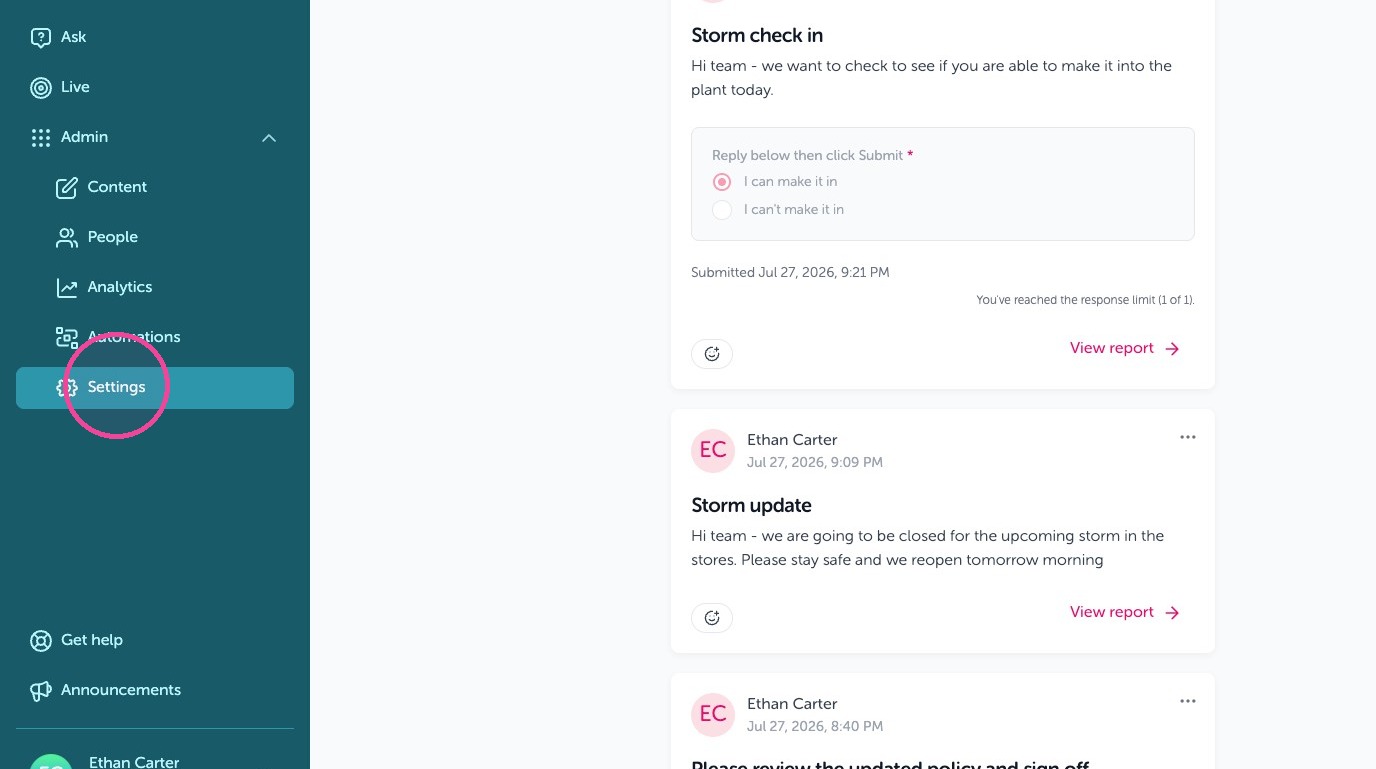
1. As a Global Admin log in then Click "Settings"
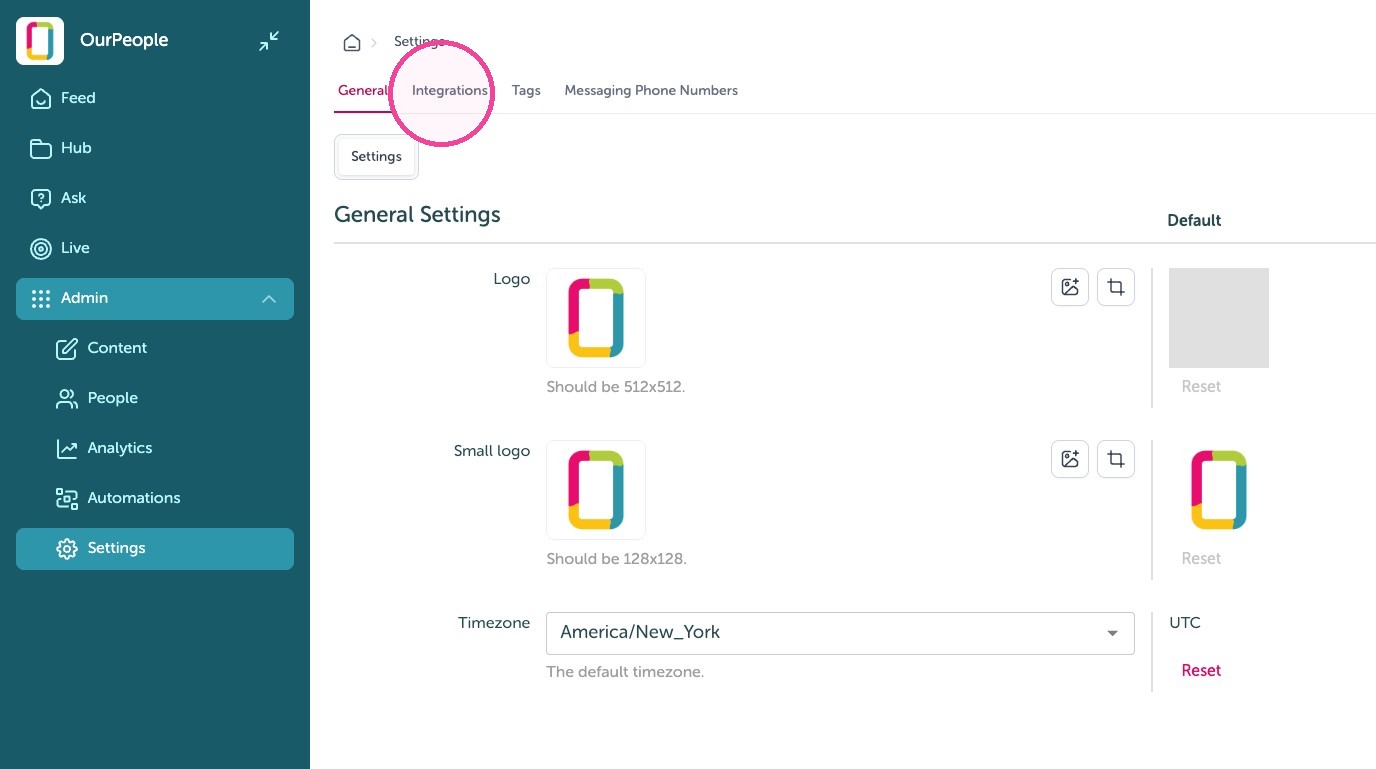
2. Click "Integrations"
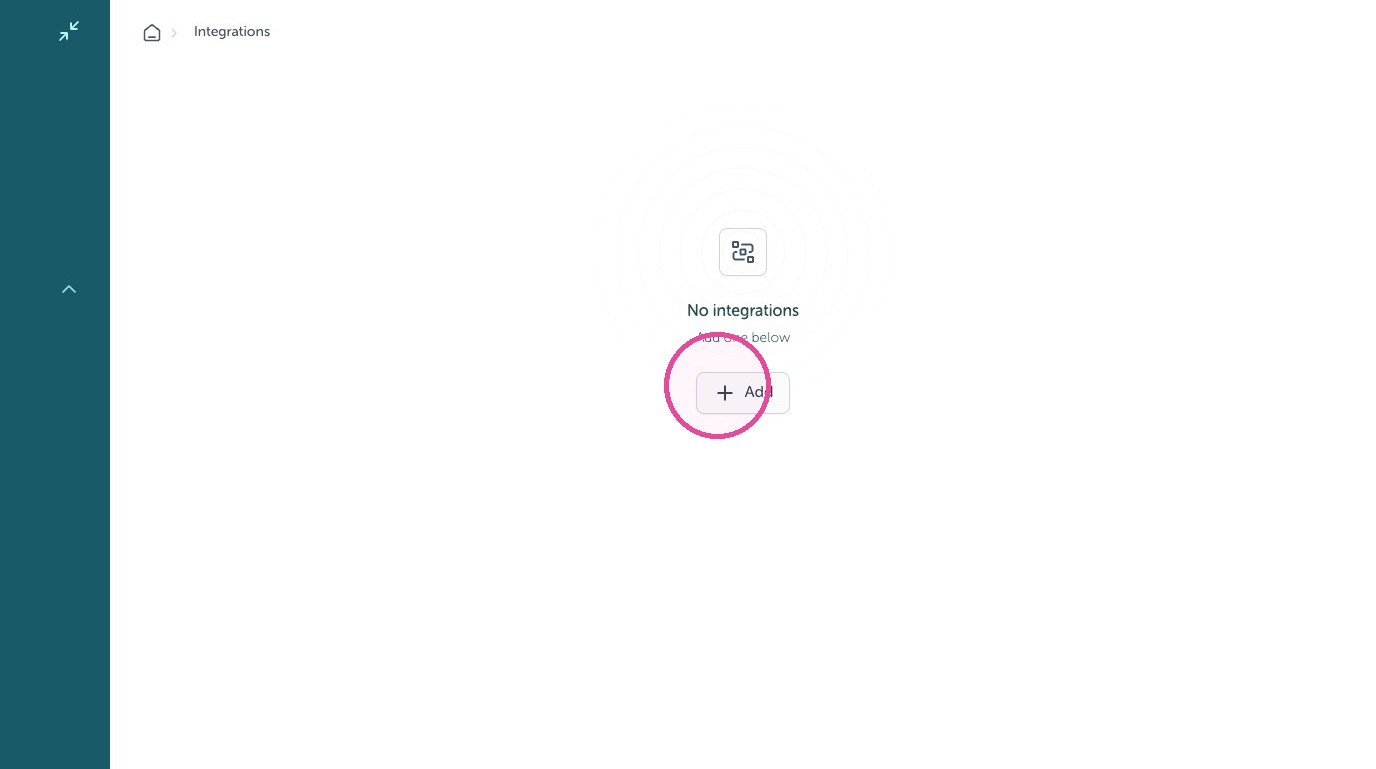
3. Click Add
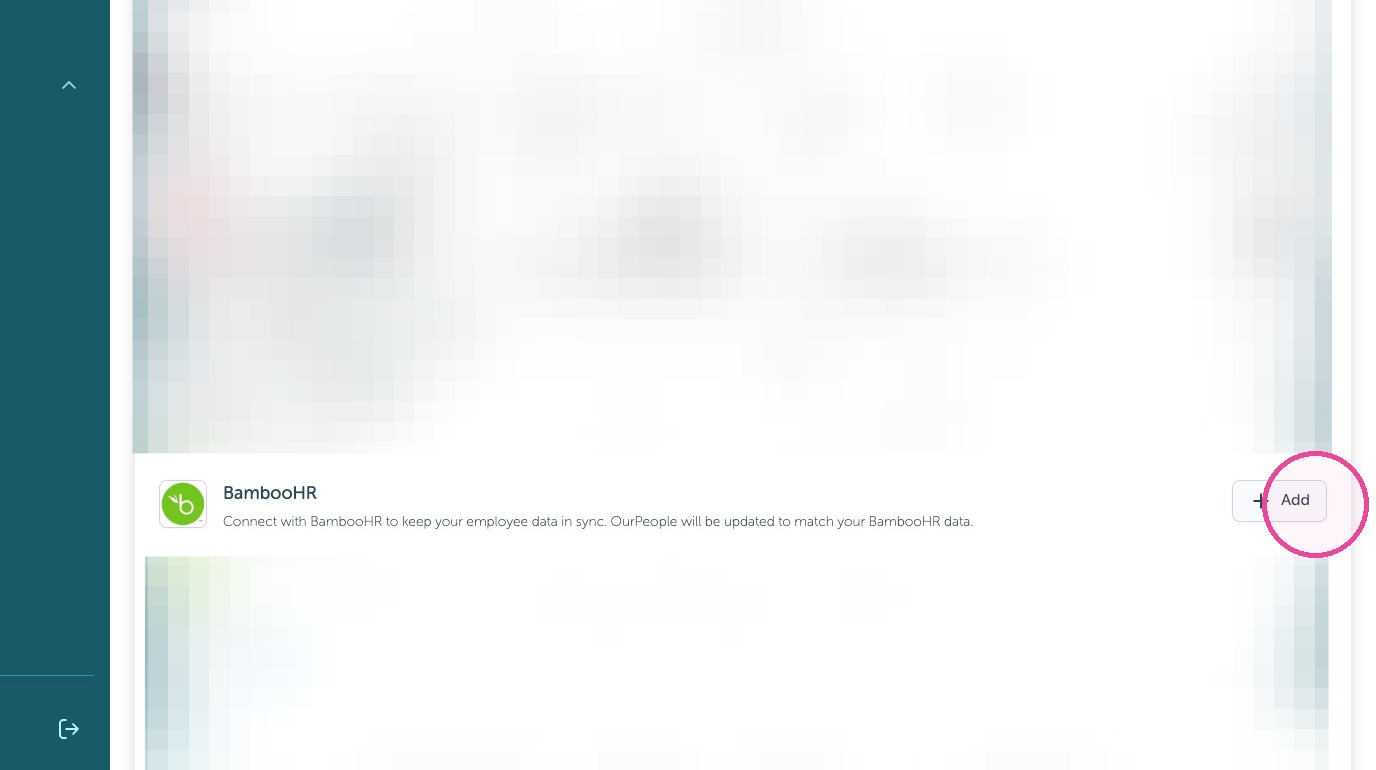
4. Click "Add" next to BambooHR
5. Type your company domain for your BambooHR account into the "Company Domain" field.
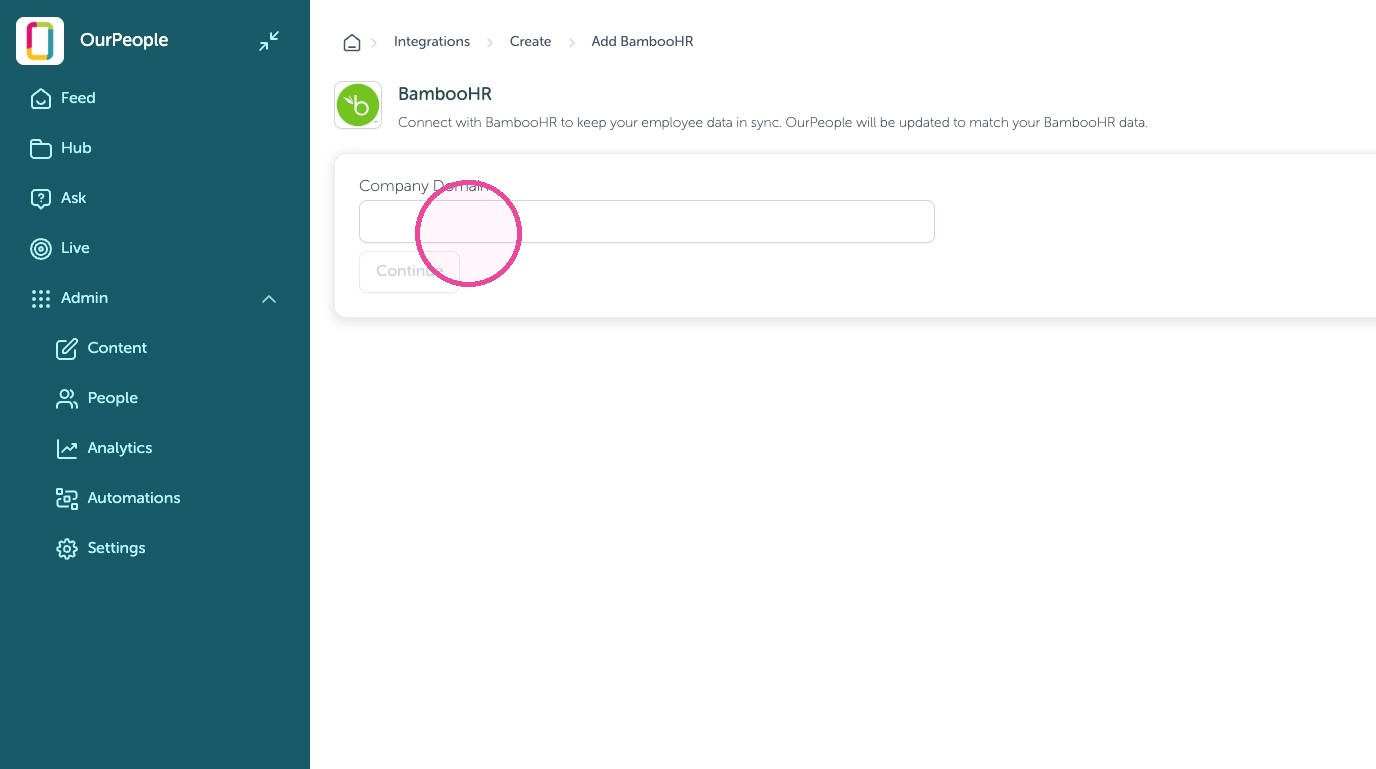
6. Click "Continue"
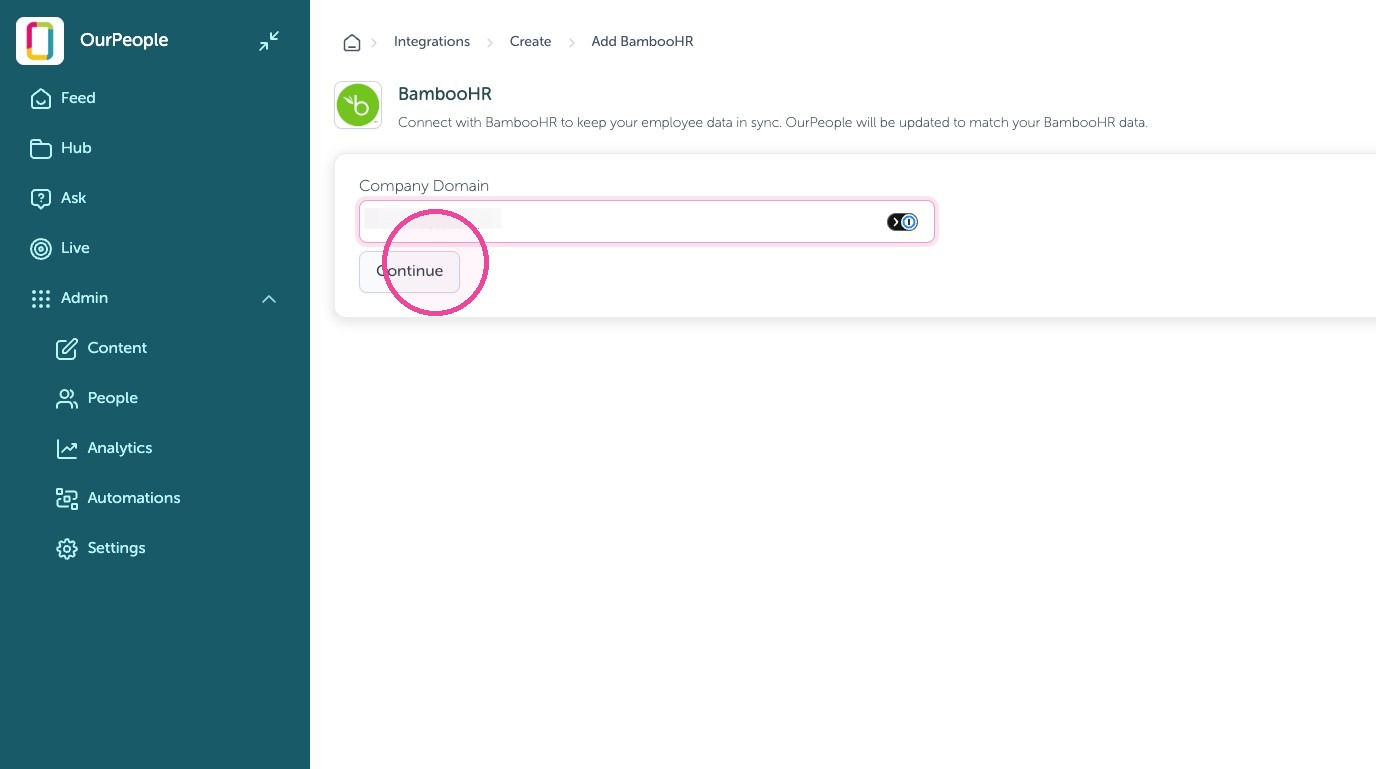
7. Click "Authorize"
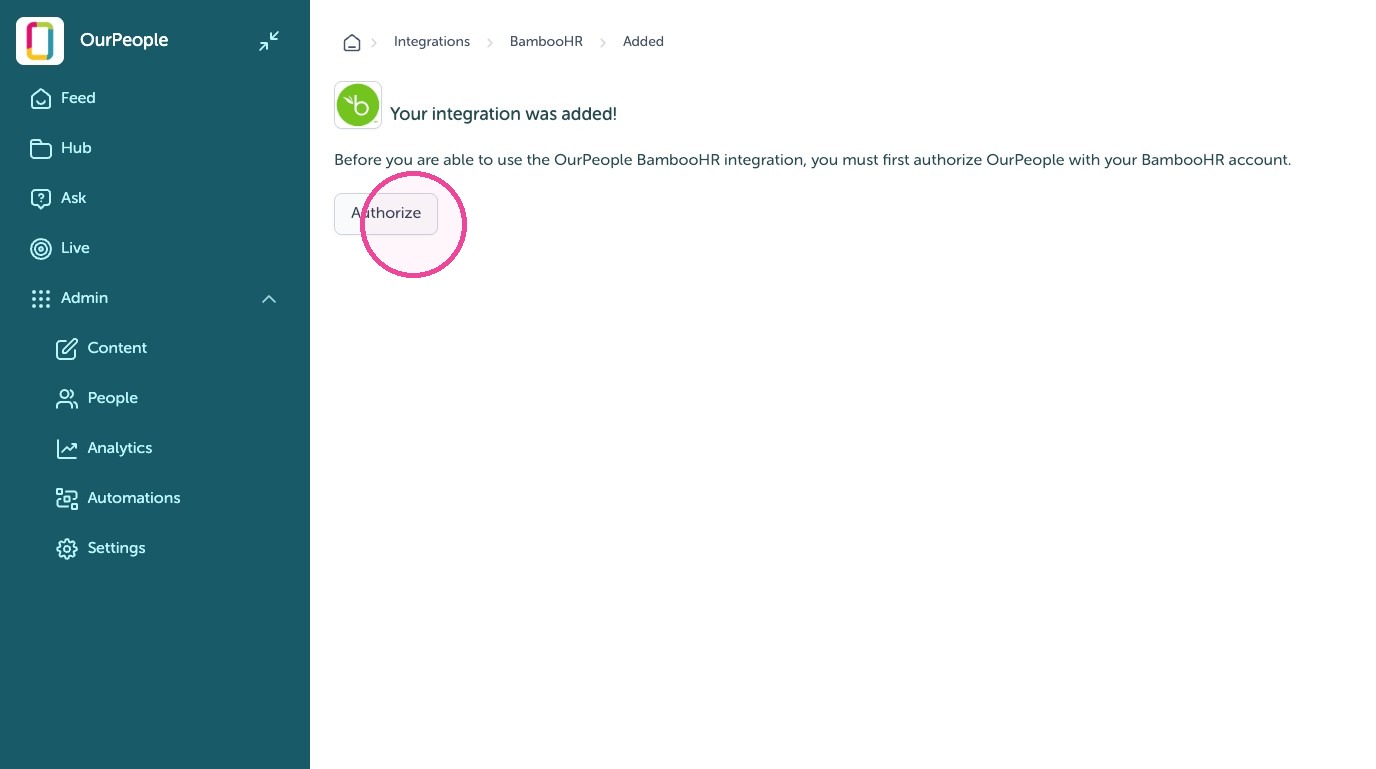
Authorize BambooHR
Tip: Log into BambooHR, follow the prompts and allow all, then you will be brought back to OurPeople
Start 1st sync in OurPeople
8. Click "Sync".
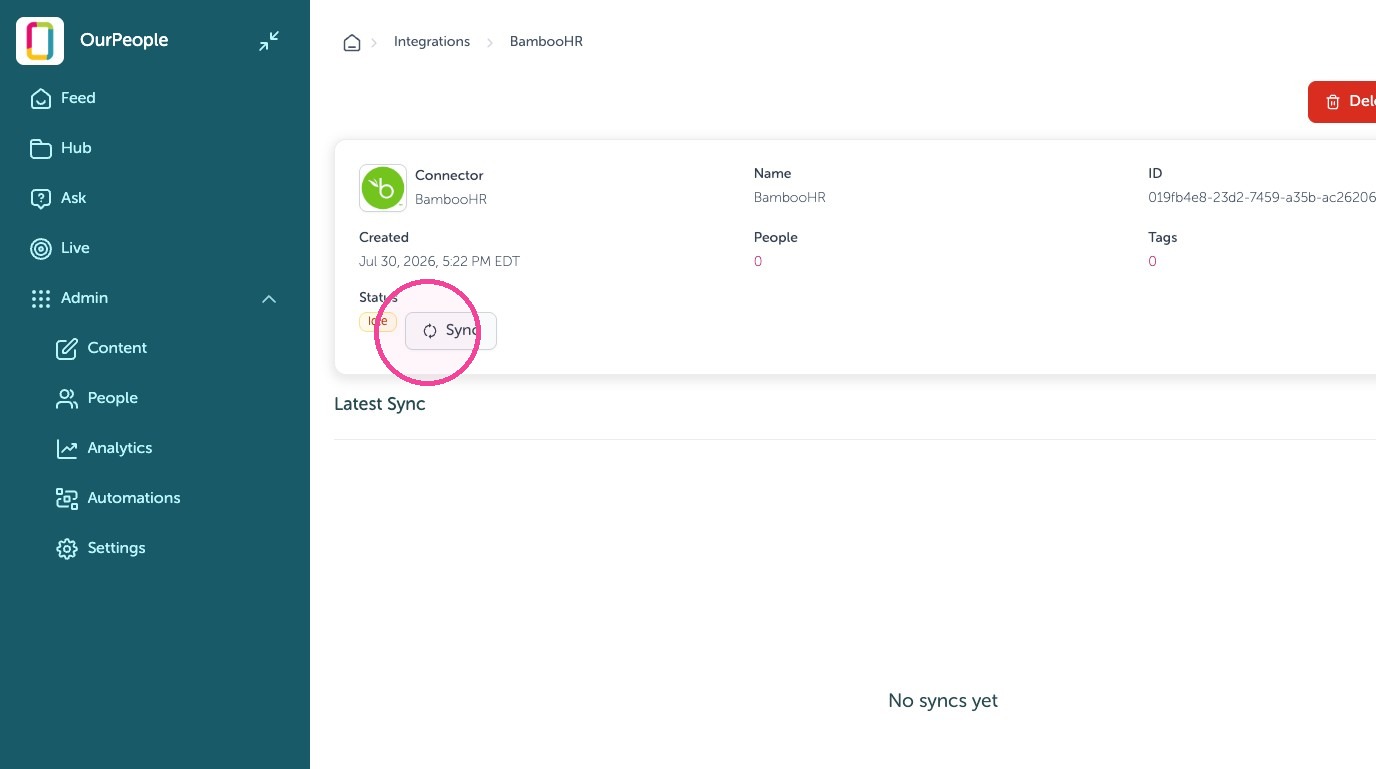
9. Select the "Fresh sync" checkbox.
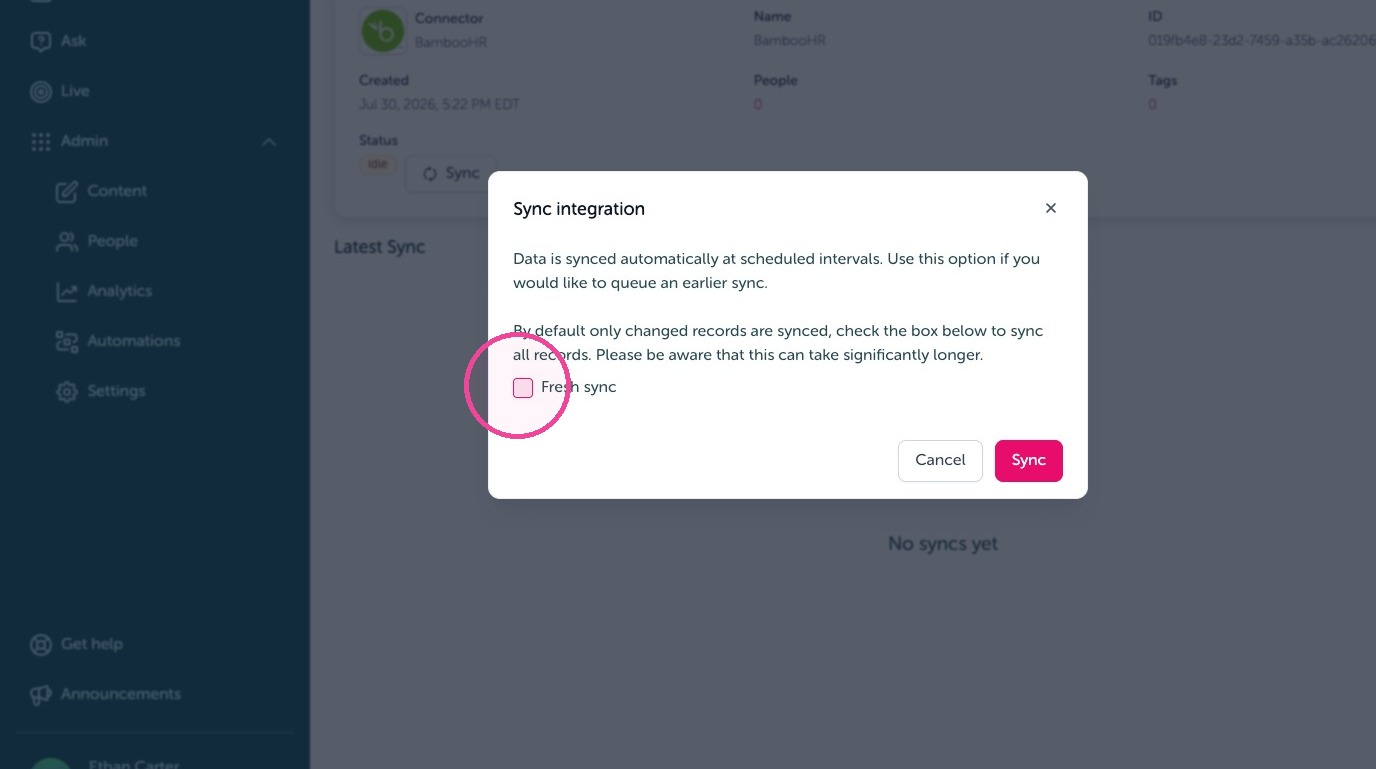
10. Click "Sync"
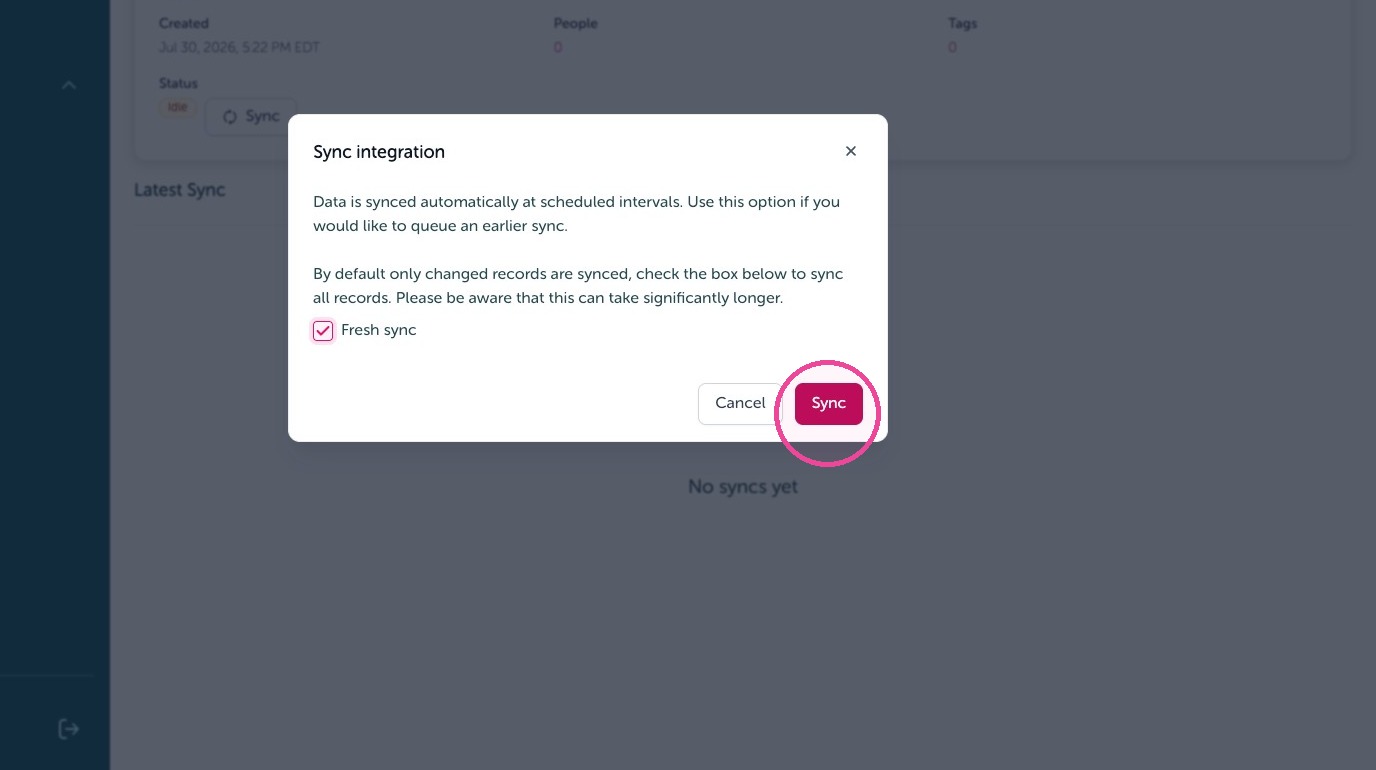
Setting up BambooHR fields to OurPeople tags
11. Click "Configure"
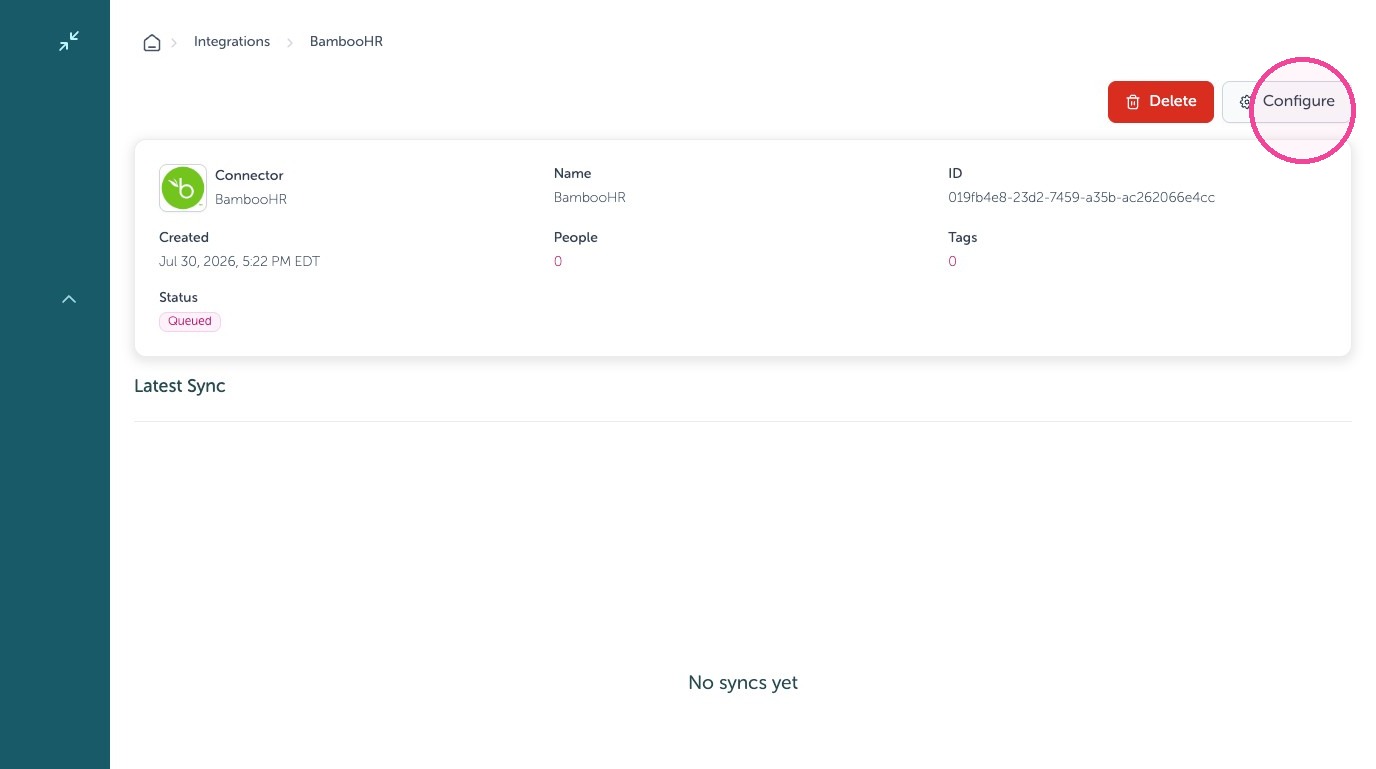
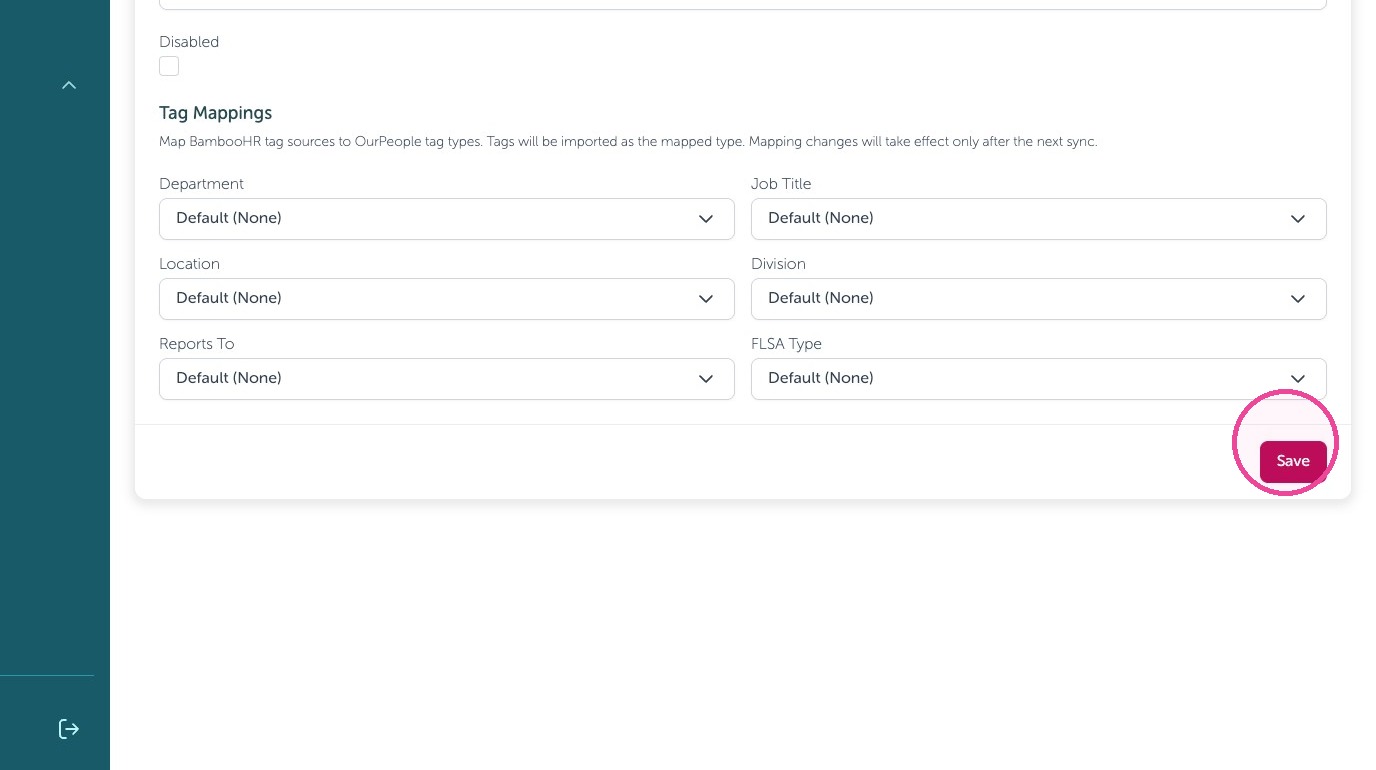
12. Click "Tag Mappings" drop downs and set to the Team, Job Title, etc.
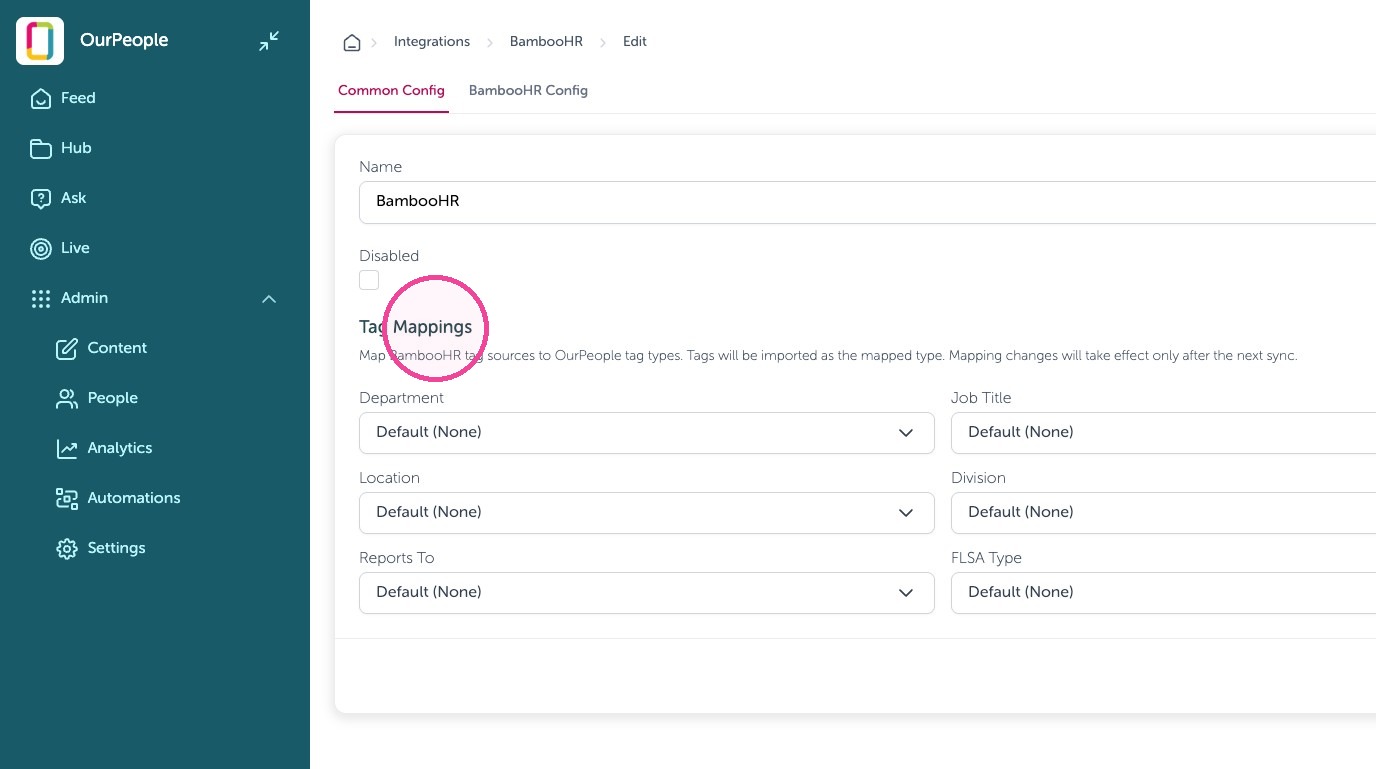
13. Click "Save"
Create Decision Rules
Tip: By default all employees and mapped fields sync, however you can add rules to only allow specific people with specific tags, or specific tags by following this section. If you don't need to limit people, you are done with your BambooHR Connection!
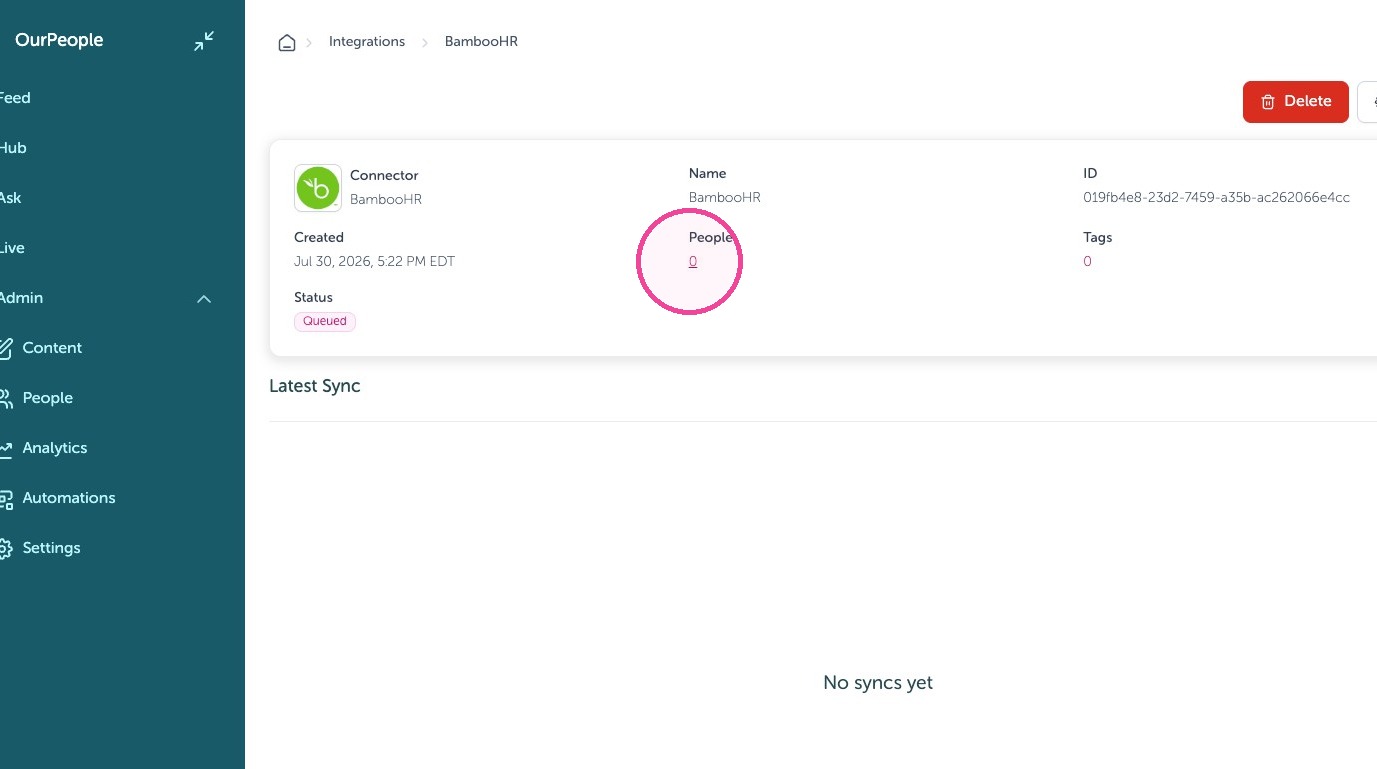
14. Click the number shown
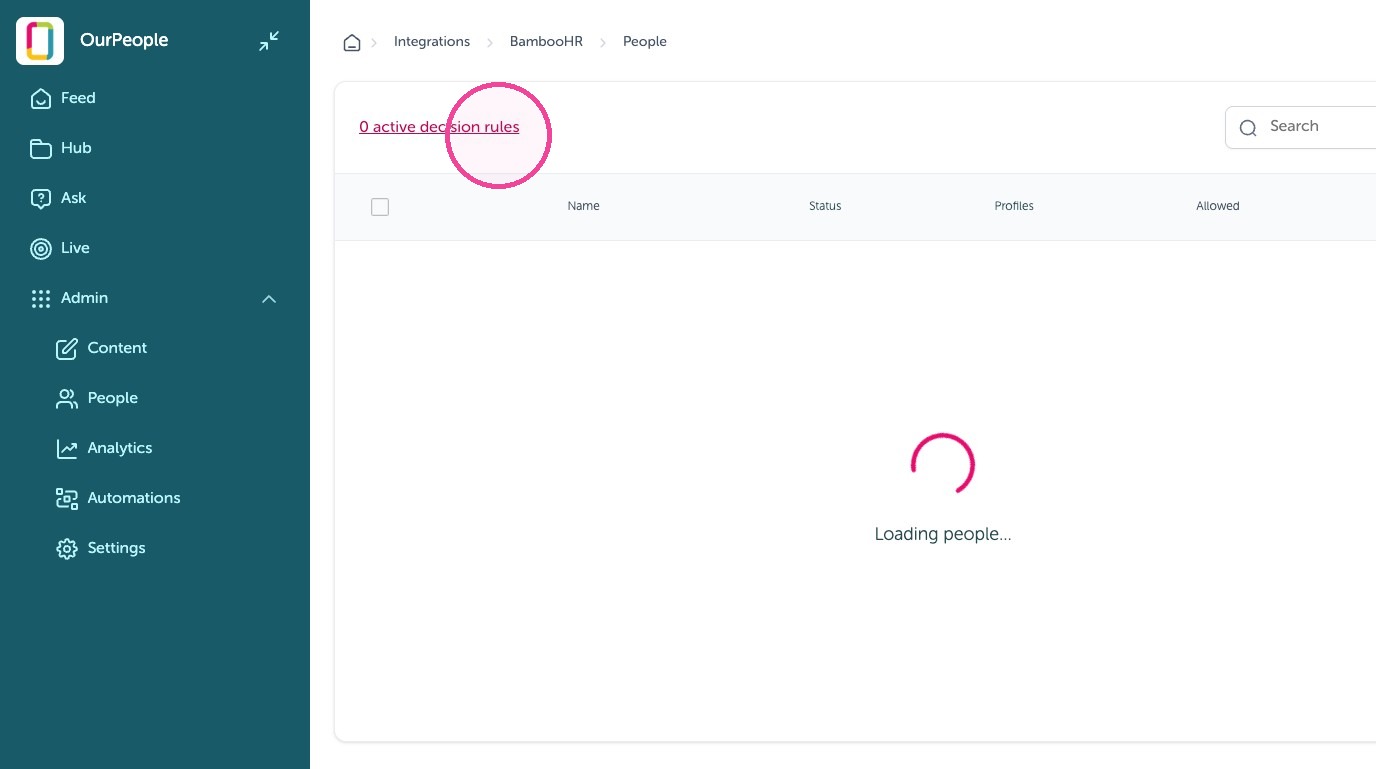
15. Click "1 active decision rules"
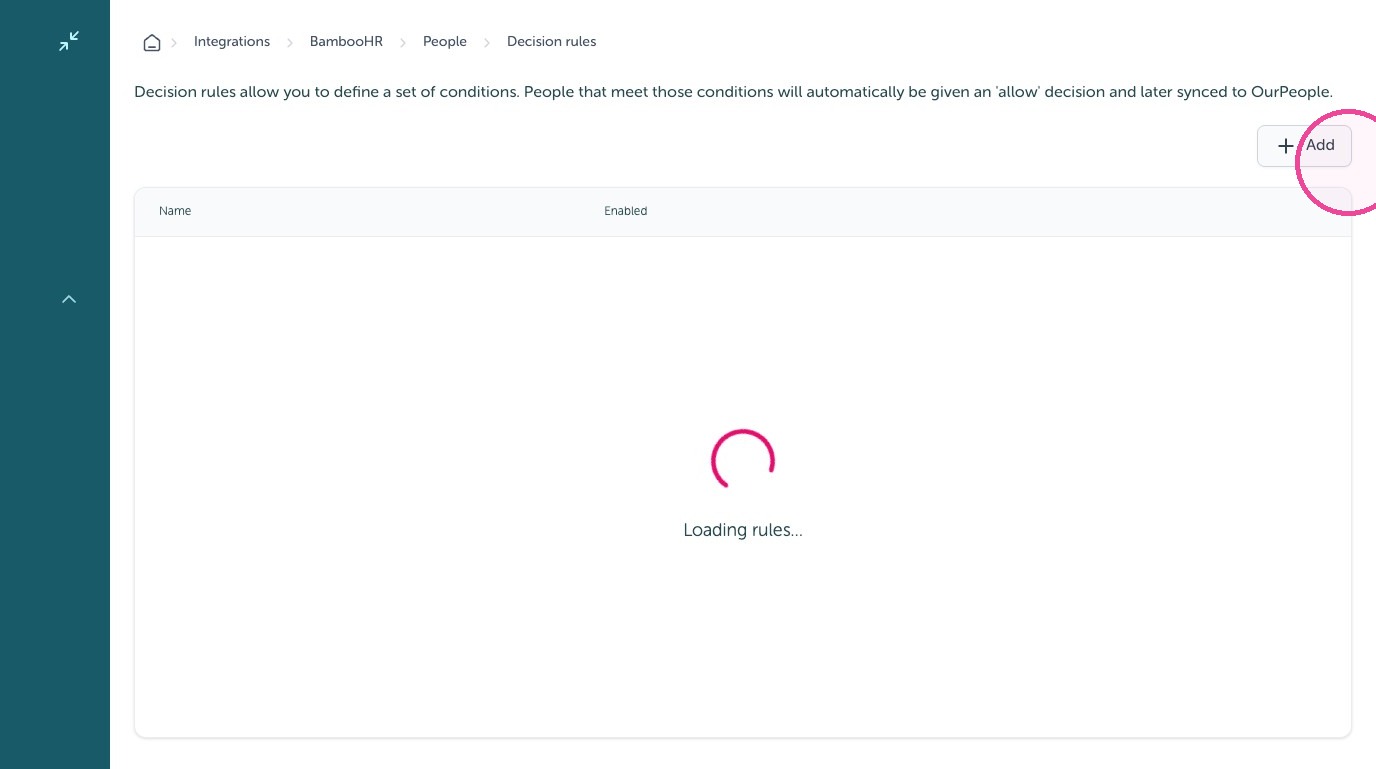
16. Click "Add"
17. Select "People with tags".
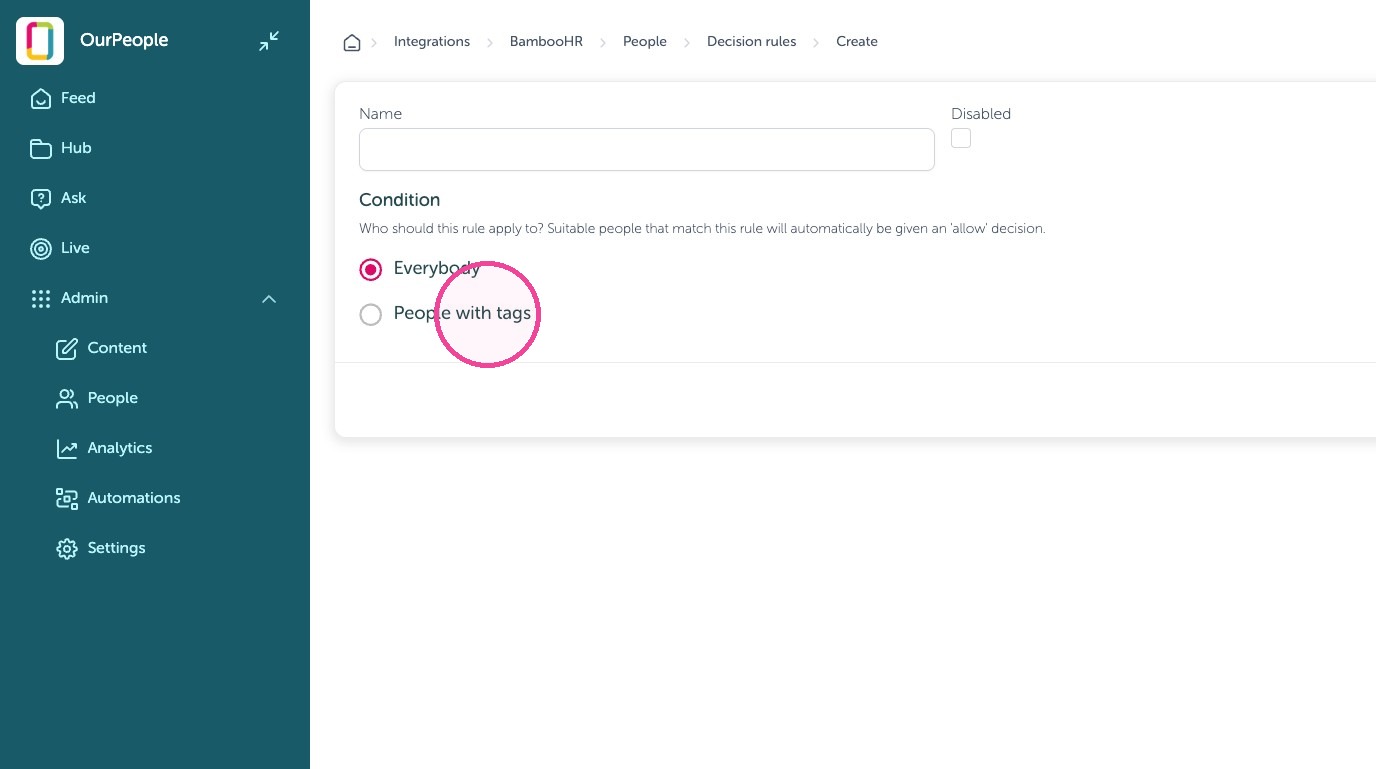
18. Click here to filter to people with specific tags to auto-add and sync
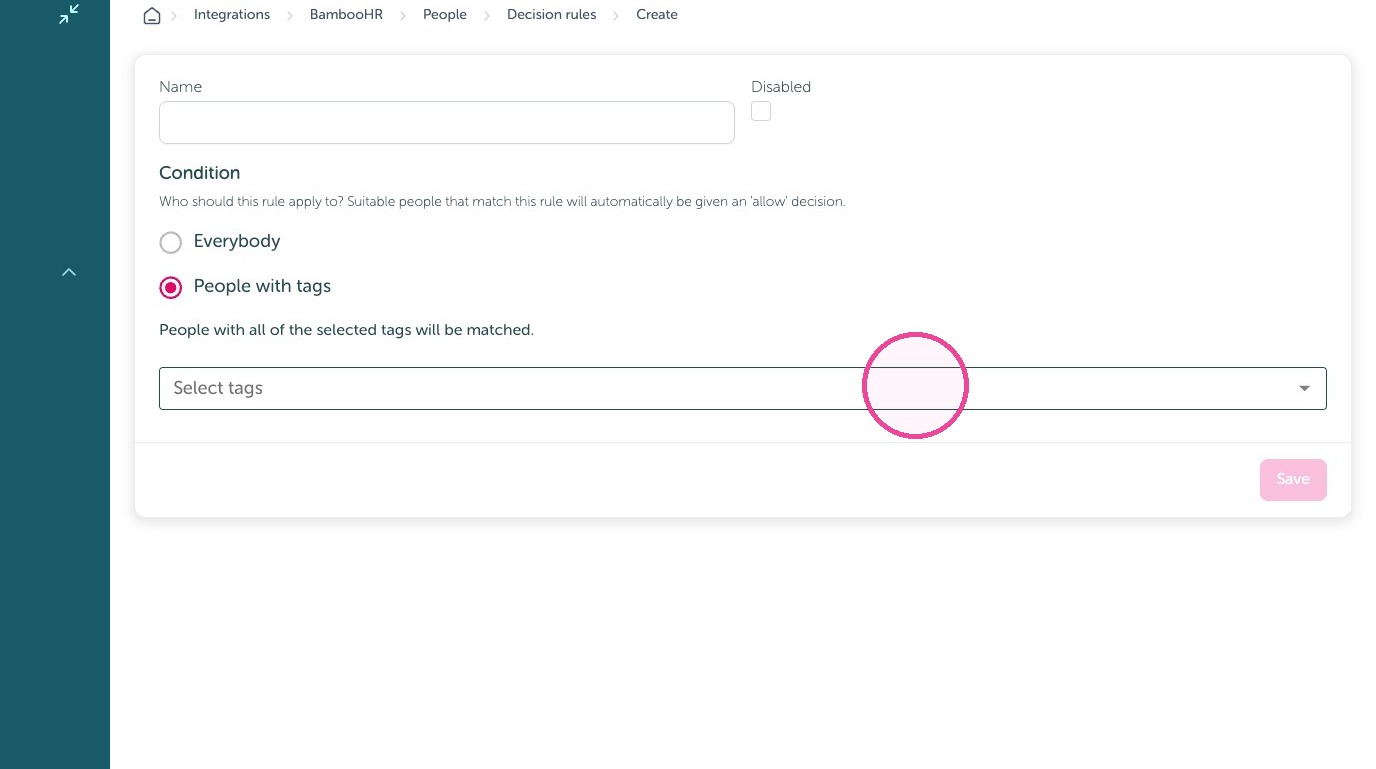
19. Click "Save"
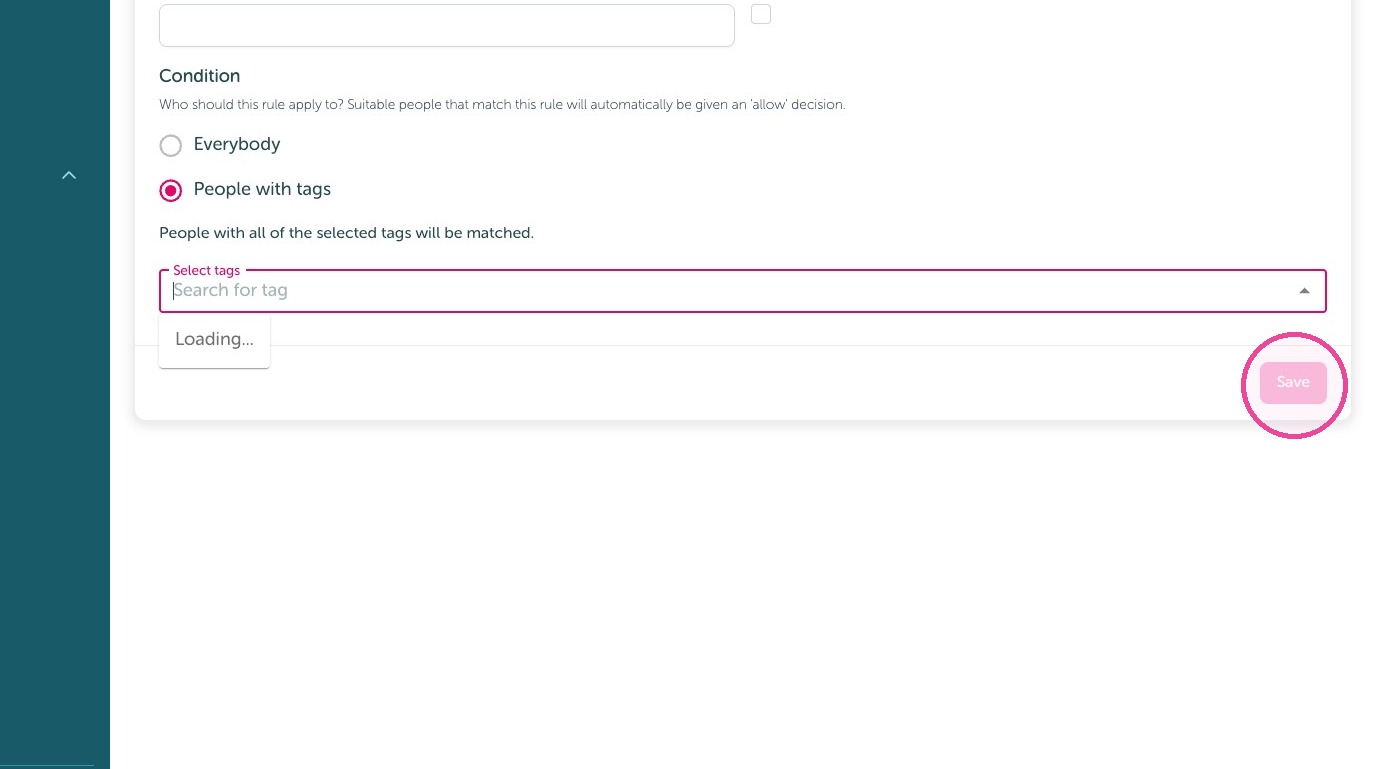
Tip: Repeat for tags if needed otherwise you are done!