
Available with any of the following subscriptions, except where noted:
- OurPeople Reach
- OurPeople Communicate
Learn how to craft and distribute a broadcast to your user's feed on the OurPeople platform. This guide covers creating content, setting audience criteria, and personalizing messages with recipient information for effective communication.
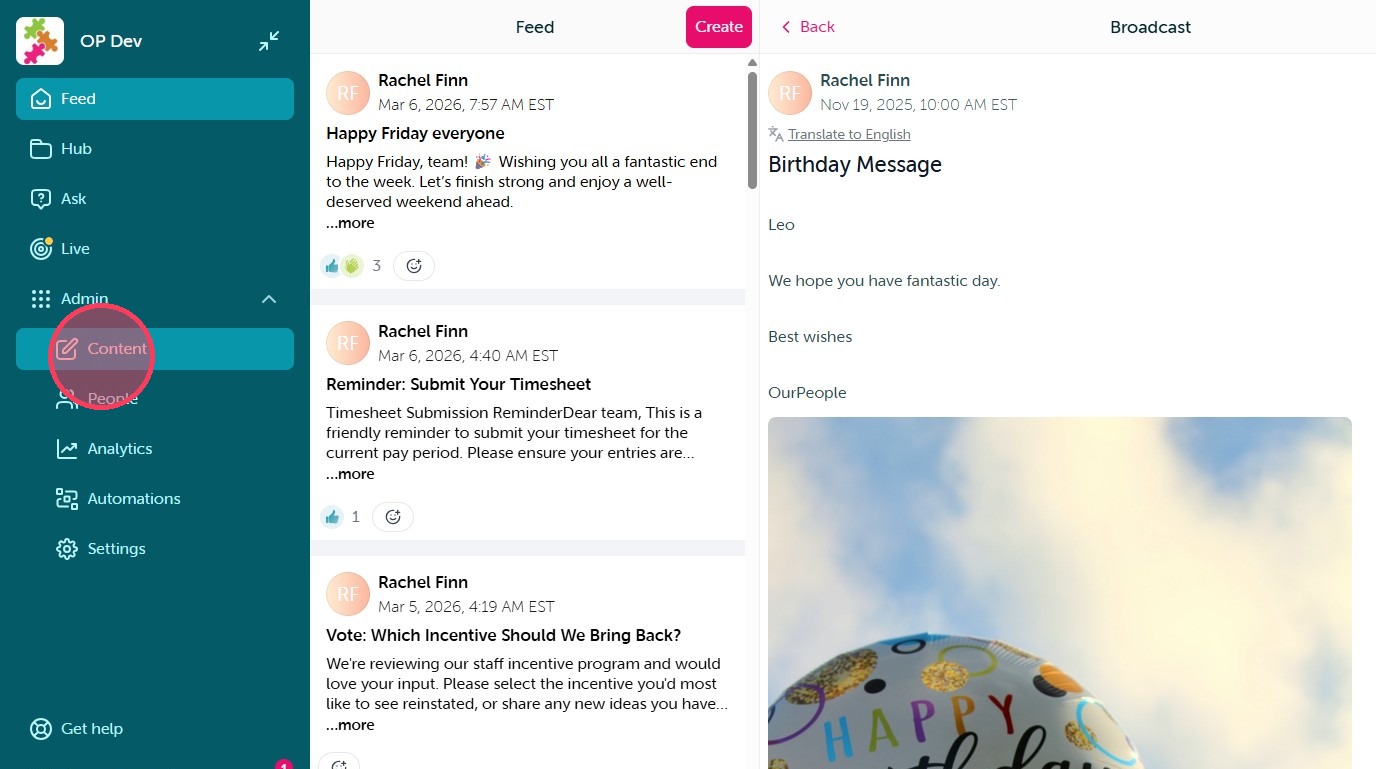
1. Start by selecting "Content" under your Admin dashboard on the left of your screen.
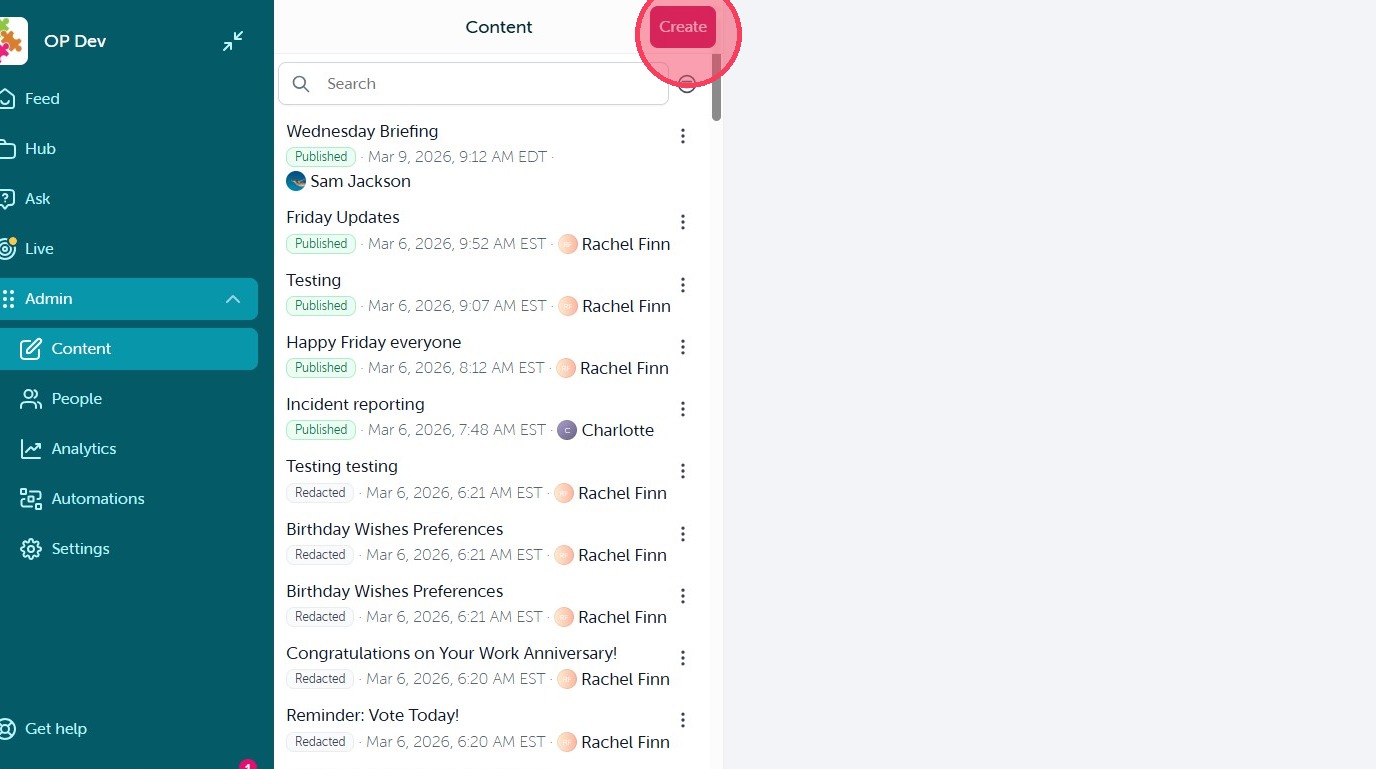
2. Then from there select "Create" to get started.
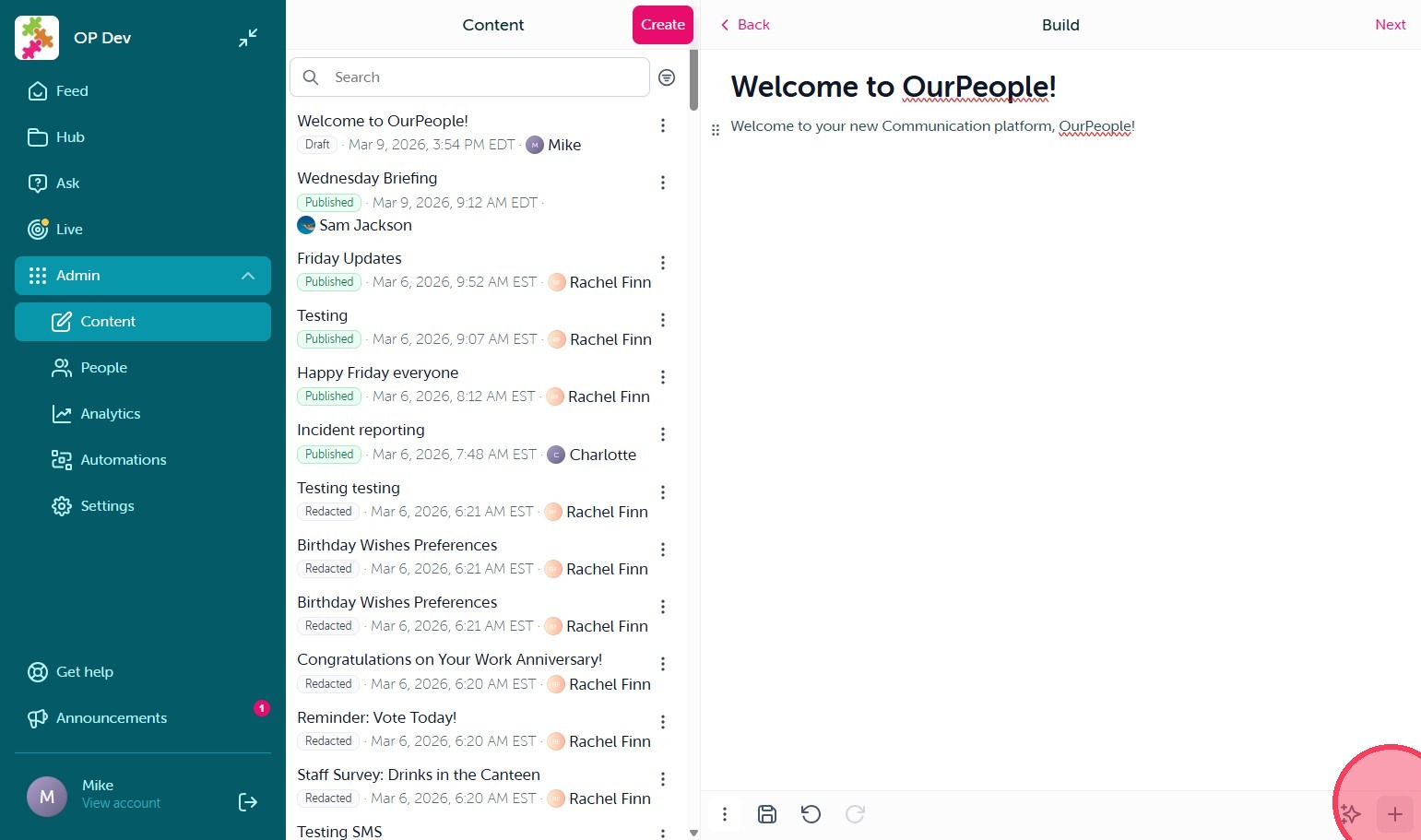
3. From here you are provided with the blank template to begin building your broadcast. Type your title at the top of the screen then press enter to begin typing in the body of the content. In the bottom right corner you will see the (+) icon which allows you to select additional block forms to add to your content. Next to this you will also see the 'Pink Star' icon which will prompt our OurPeople Assistant. To use the Assistant, simply provide it with a prompt and the Assistant will build the draft content for you.
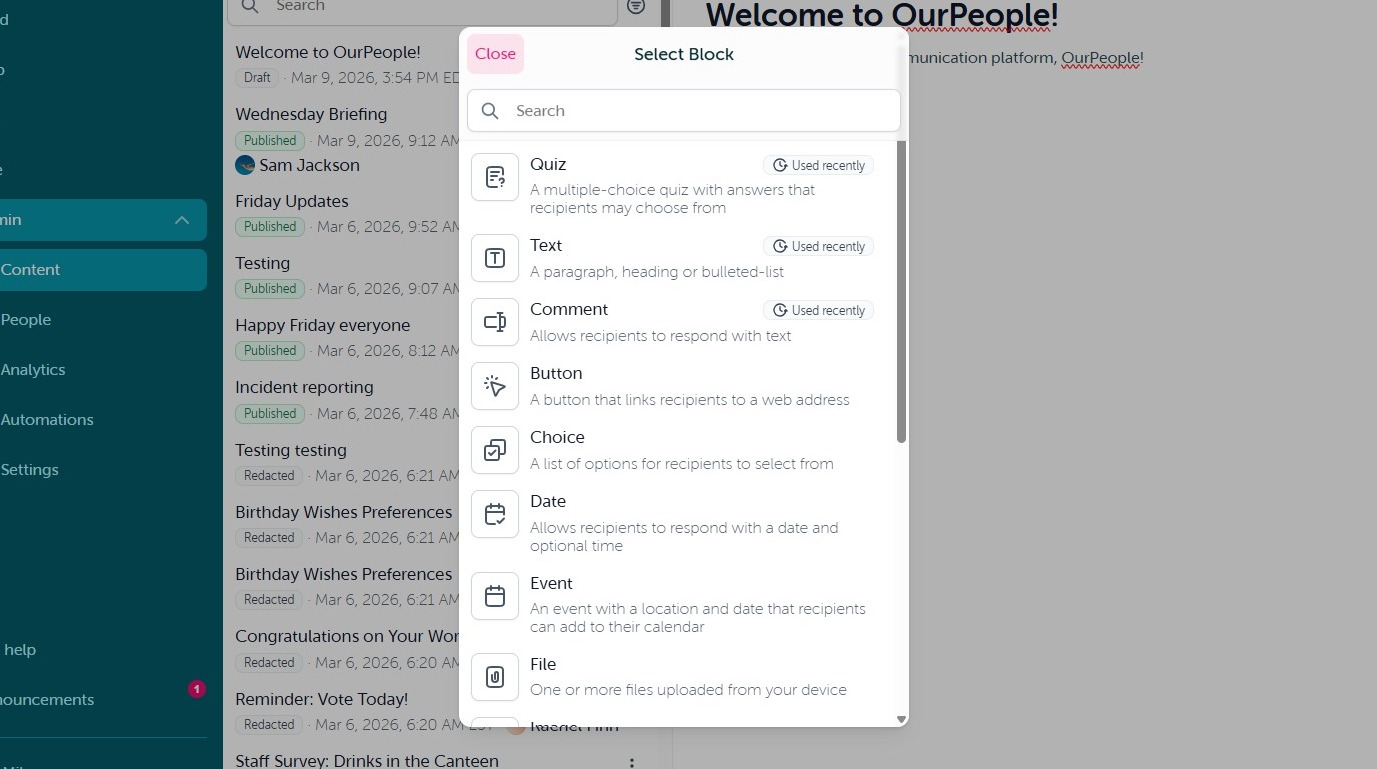
4. The block forms contain multiple options, including image, button (which is used to insert links), as well as multiple feedback options, like choice, comment, and quiz which allow your user's to provide responses to the content in one way or another. Each block form has a brief description beneath it.
5. Once you are happy with your content creation, select 'Next' in the top right corner.
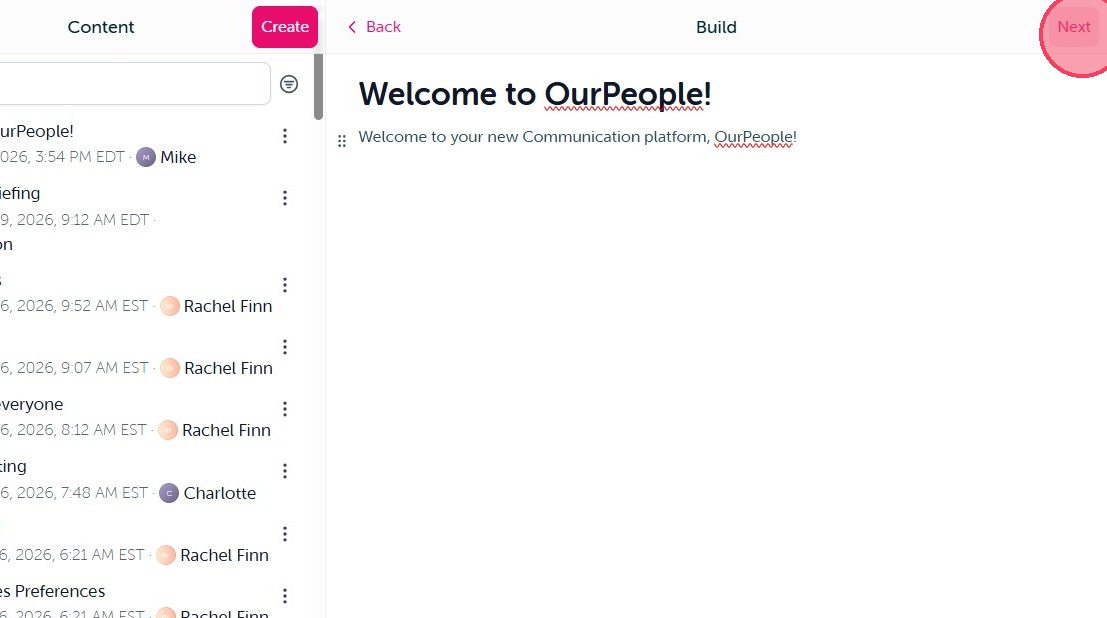
6. The next screen will allow you to narrow down the Audience you are planning to send this content to. Simply select 'Edit Audience'.
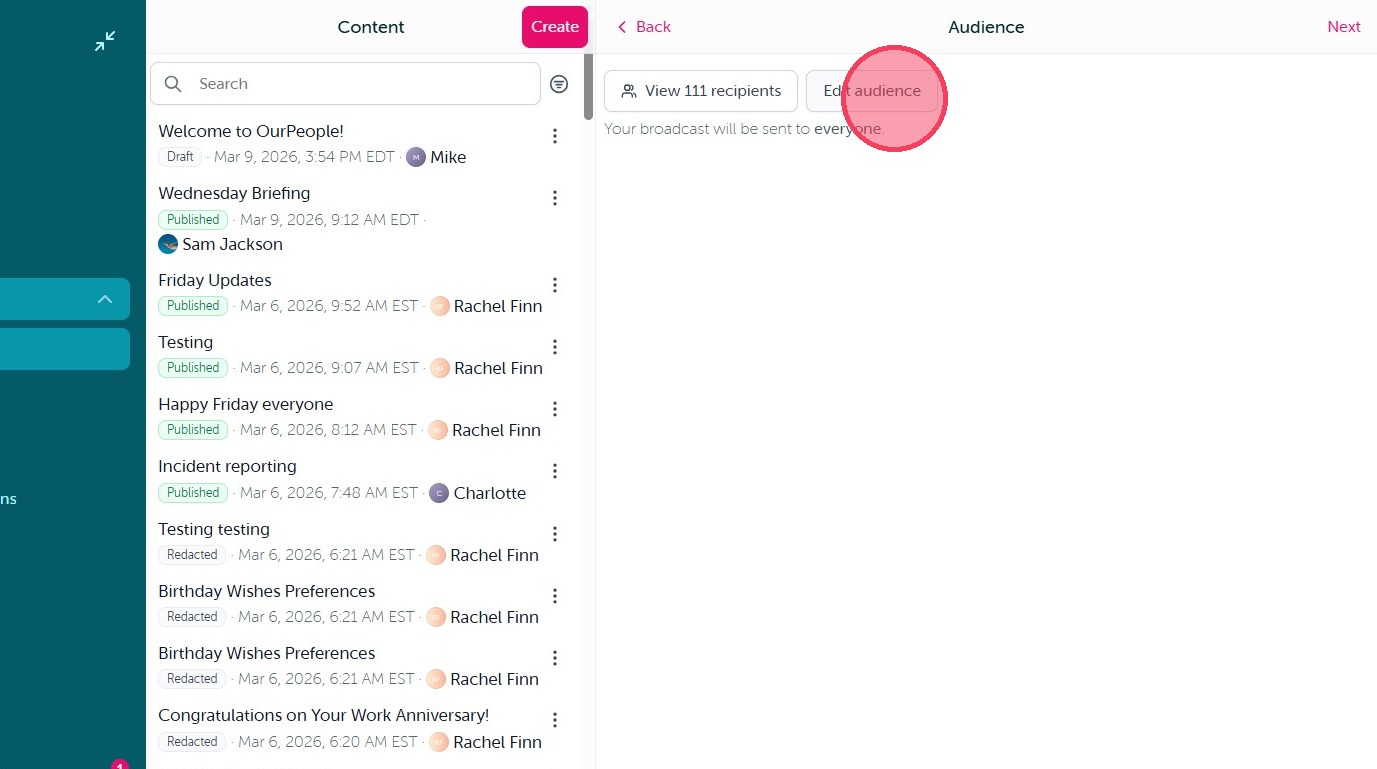
7. Then select "Add criteria".
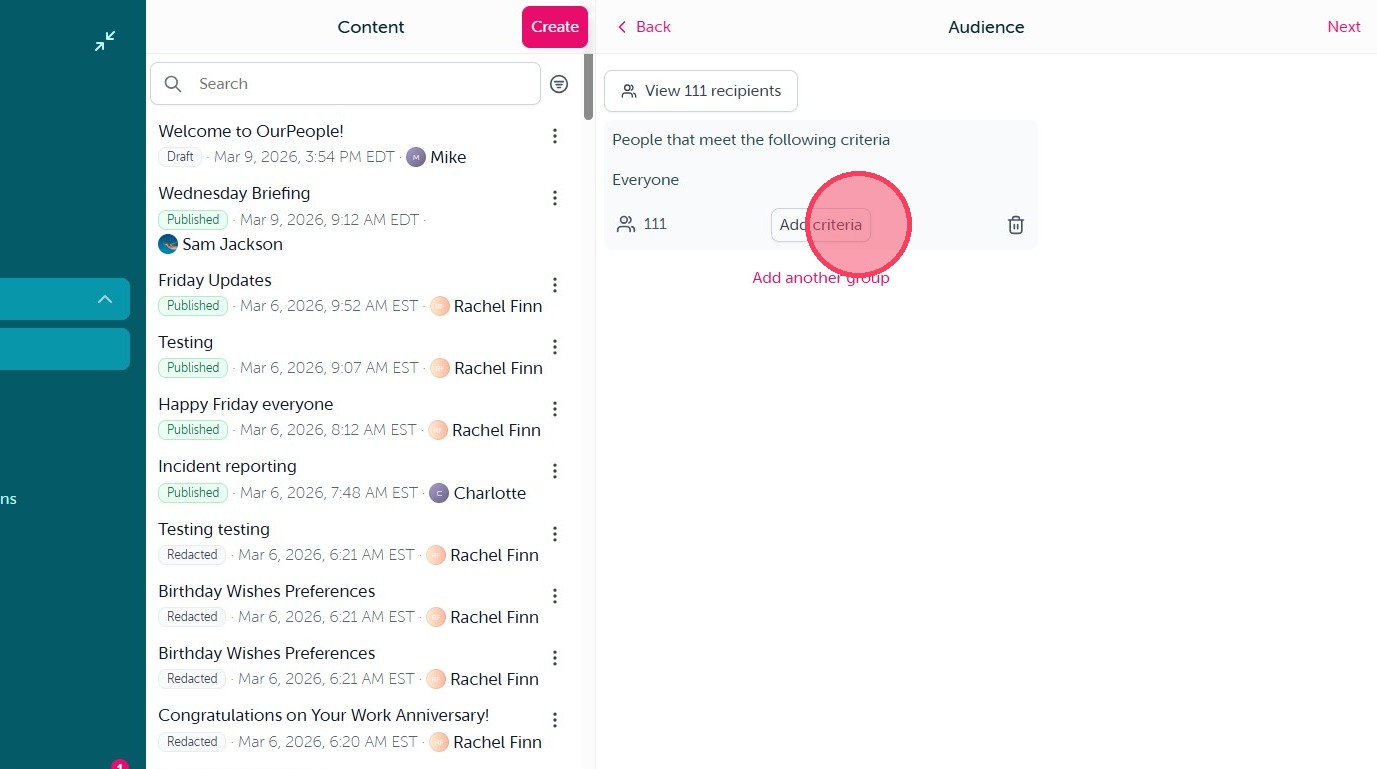
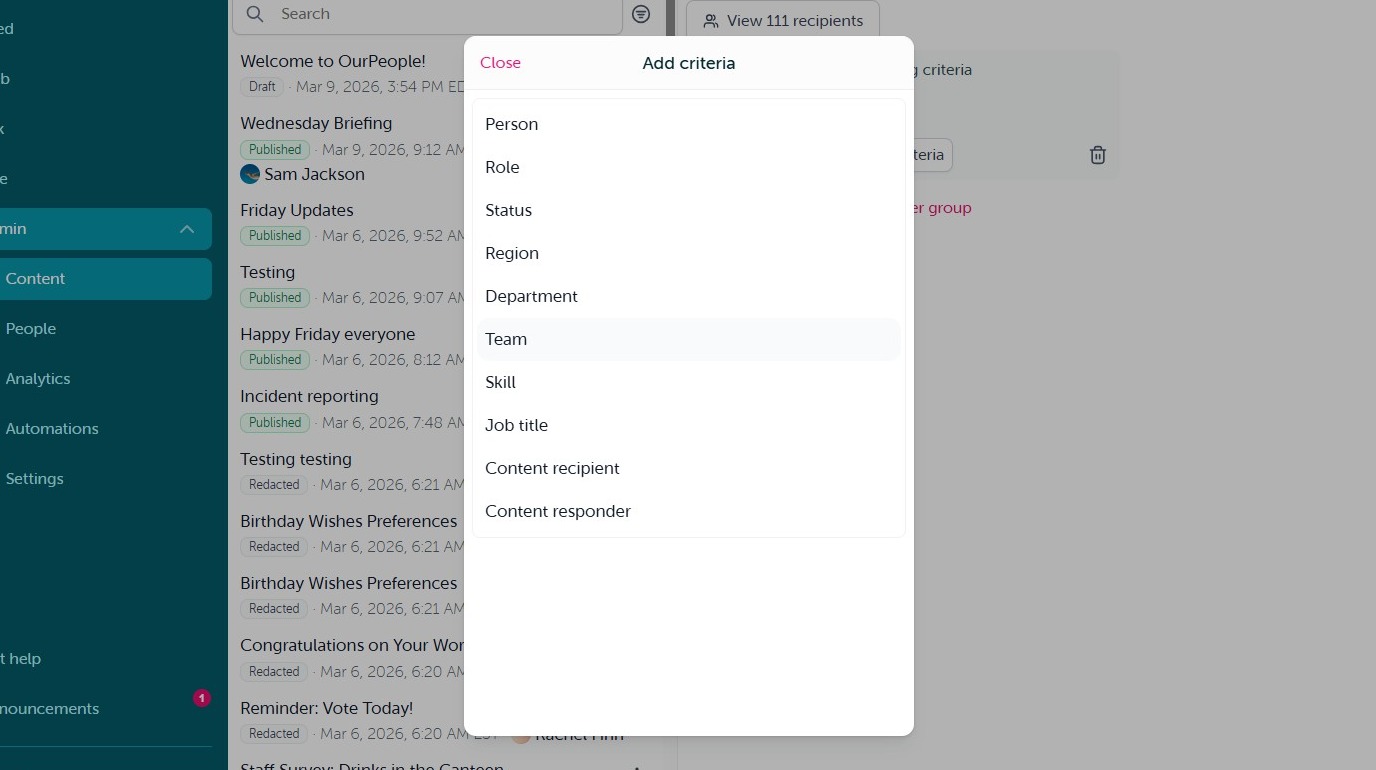
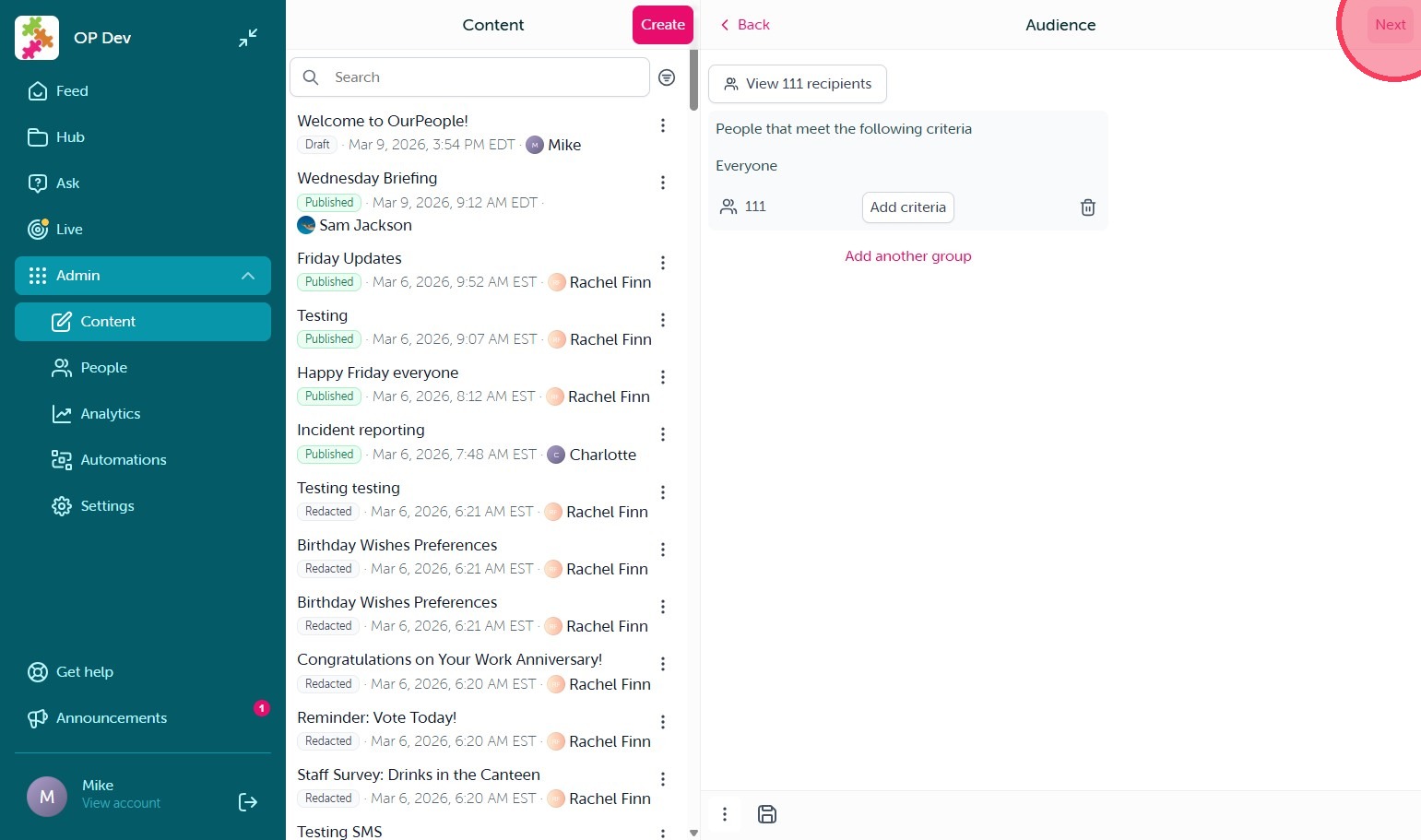
8. From here you will be able to select individual user's by name or specific tags to outline the audience of your broadcast. Once you have outlined your audience select 'Submit' in the top right corner of the 'Add Criteria' screen.
9. Click "Next"
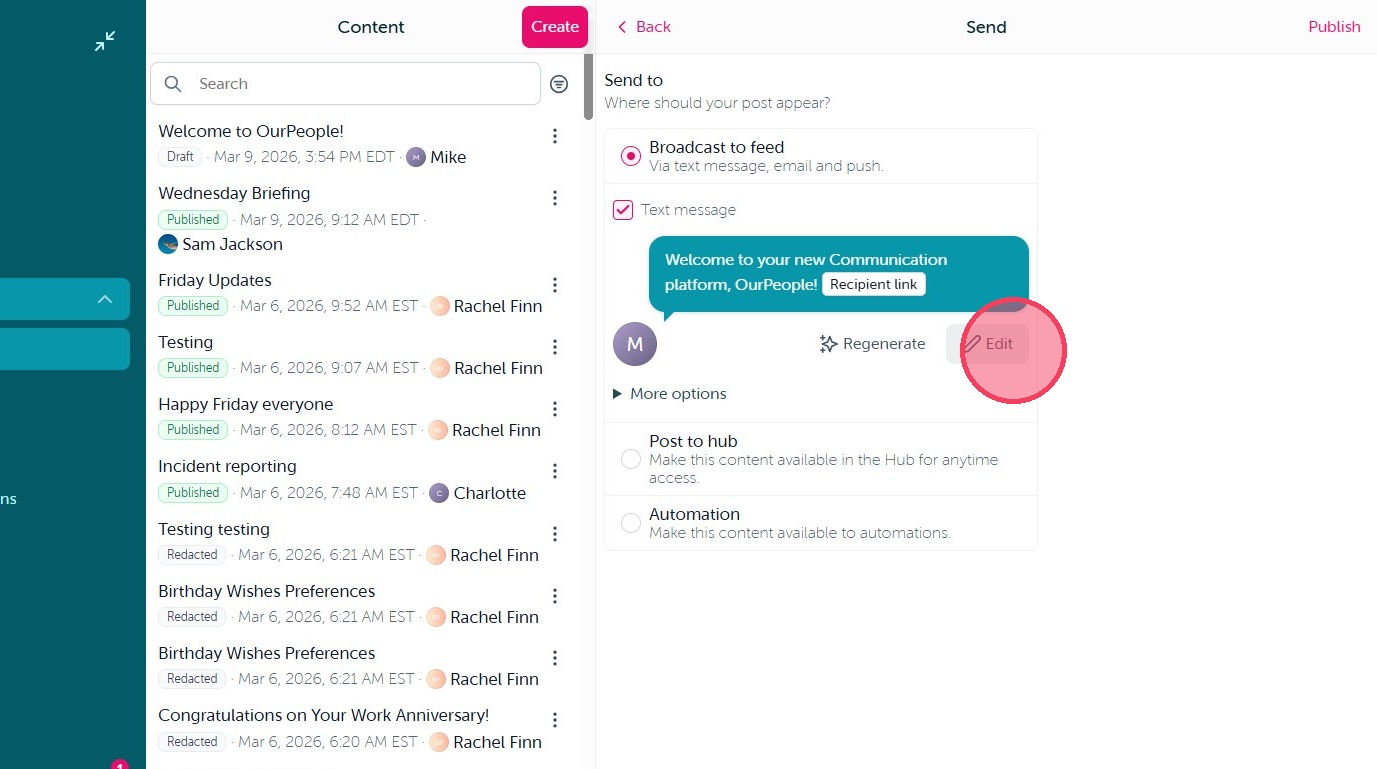
10. On the next screen is where you outline how you would like to publish this content. The default will always be as a 'Broadcast to feed' which will send notifications to your audience (via text and email) to view the content in full in their OurPeople feed. The green text bubble is where you can alter the text message notification that will be sent. To make changes simply select 'Edit'.
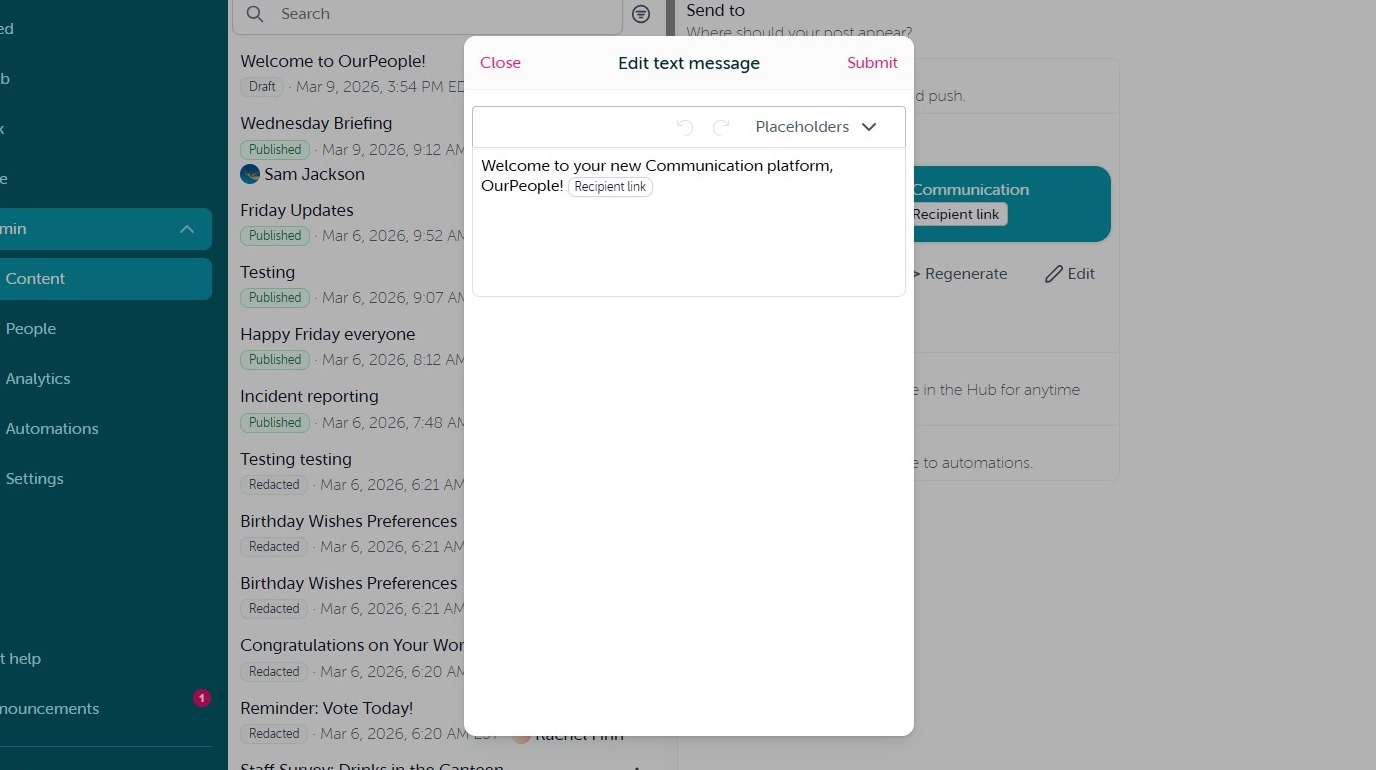
11. From here you can make any changes to the text message notifications you need to, including adding addition placeholders, like user or company name. Please note that the 'Recipient Link' is the actual link for user's to select within the notification to view the broadcast in full within their OurPeople feed. The Recipient link is always included in the text message by default.
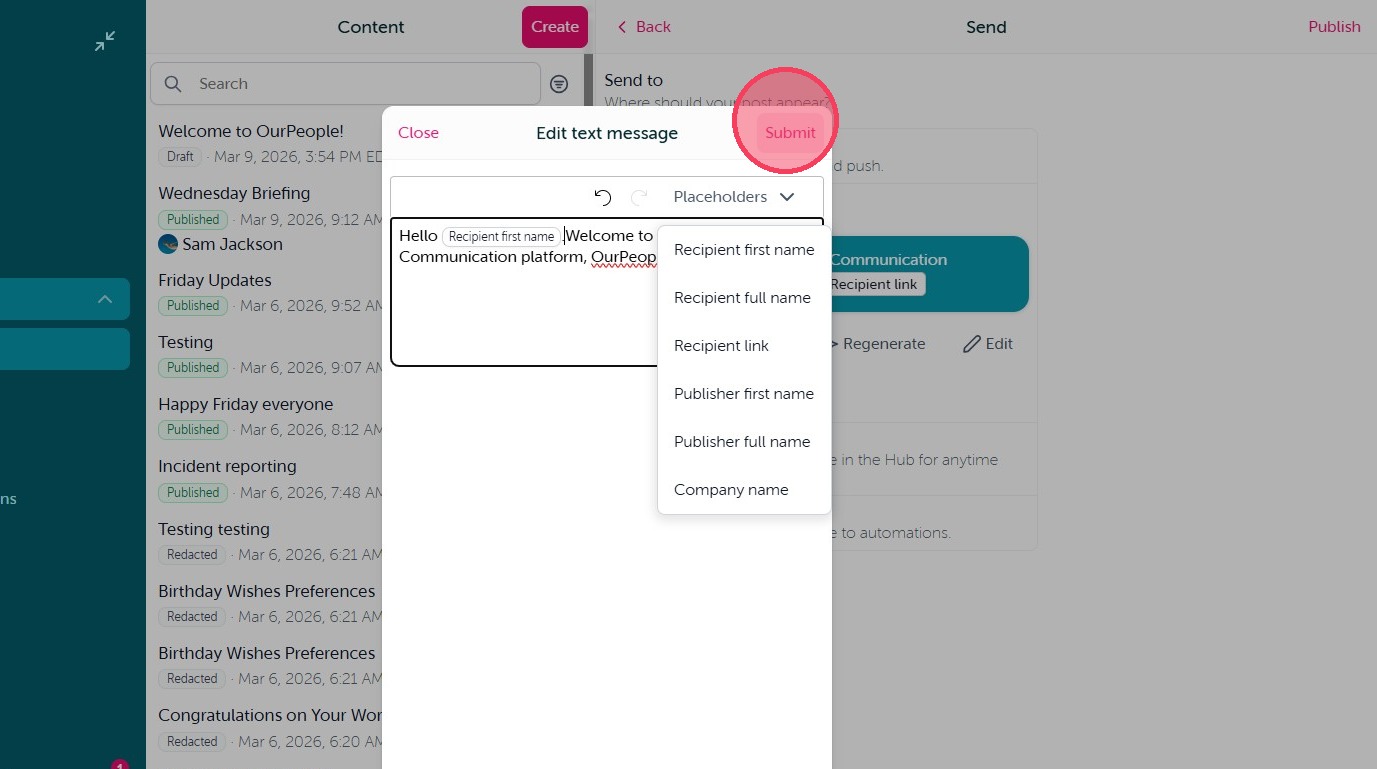
12. When you are happy with the text message notification text click "Submit"
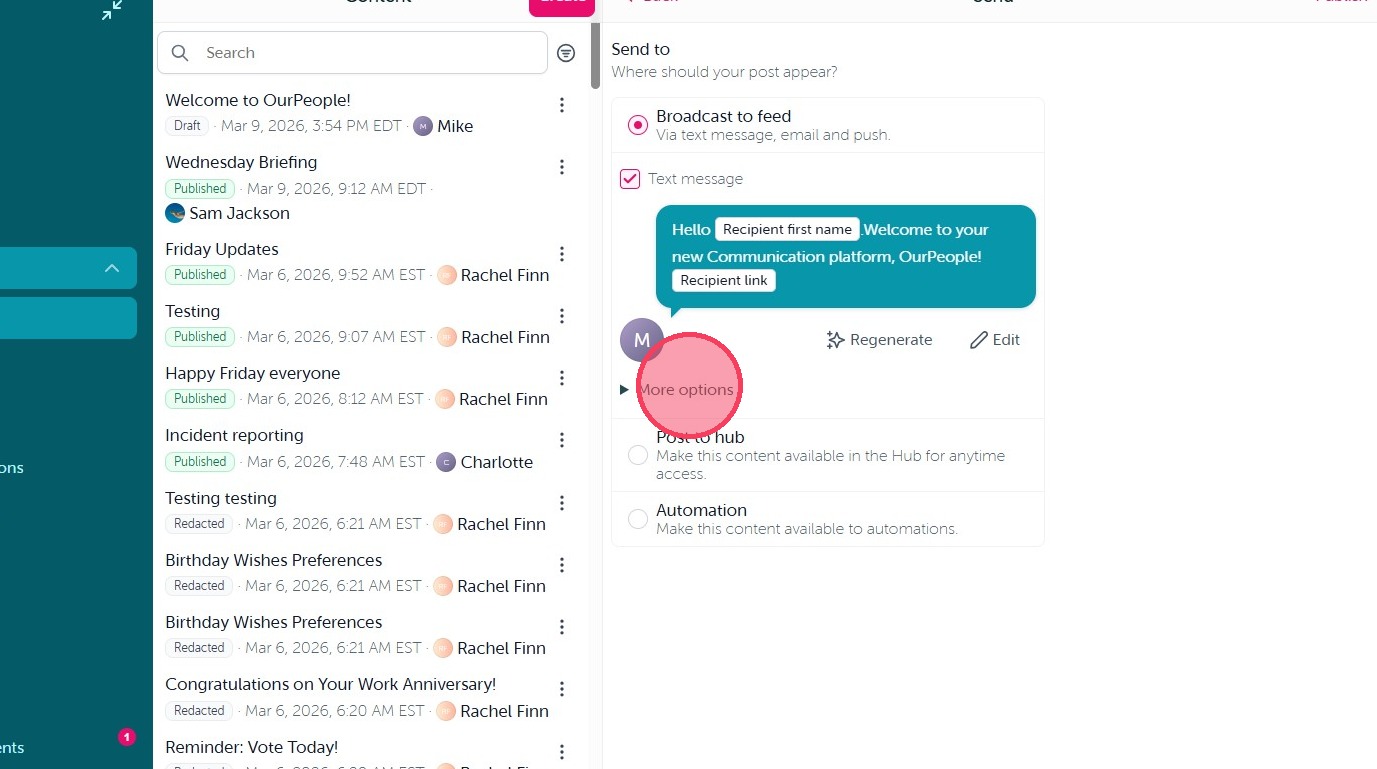
13. Click "More options" to manage the notifications that will be sent with this Broadcast. By default Email and Text will always be enabled initially.
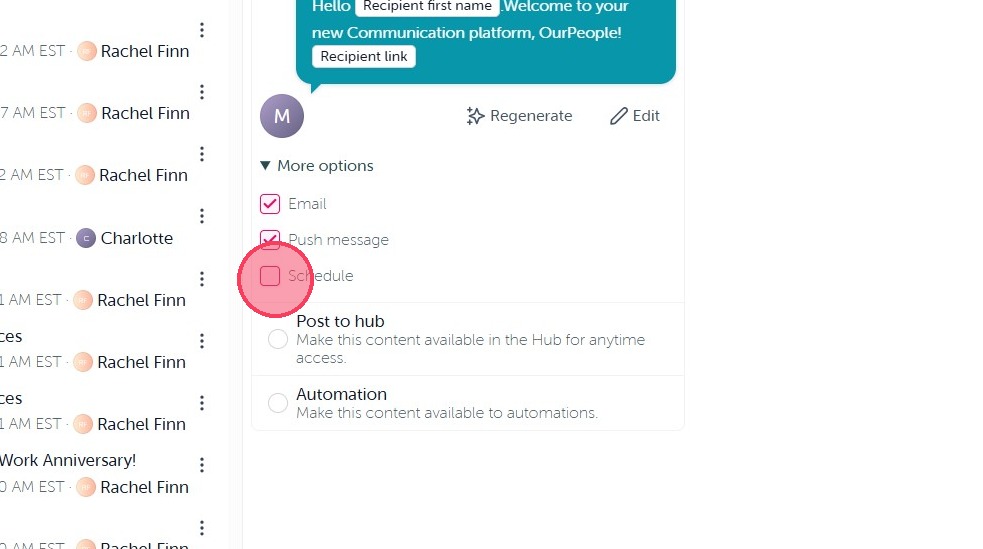
14. You will also see the option to 'Schedule'. By selecting this option you can schedule the broadcast to be sent at the outlined date/time.
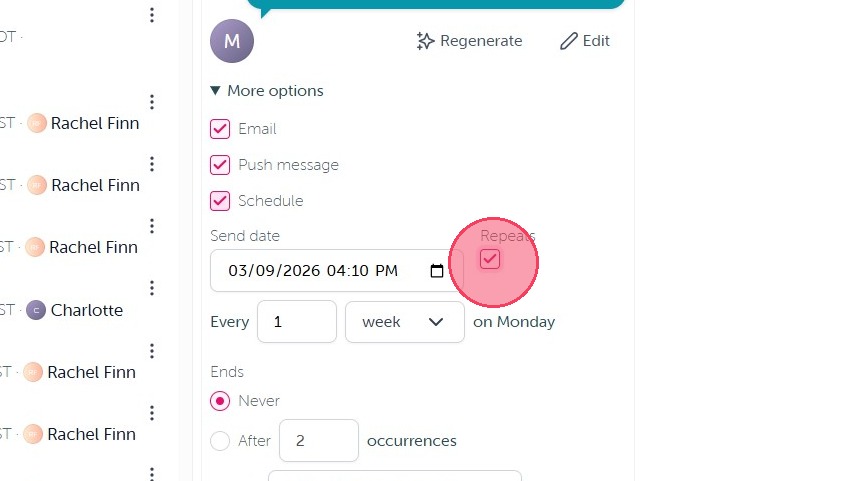
15. You can also set the broadcast to be sent on a recurring schedule by selecting "Repeats", simply outline the frequency and timing of the recurring broadcast from there.
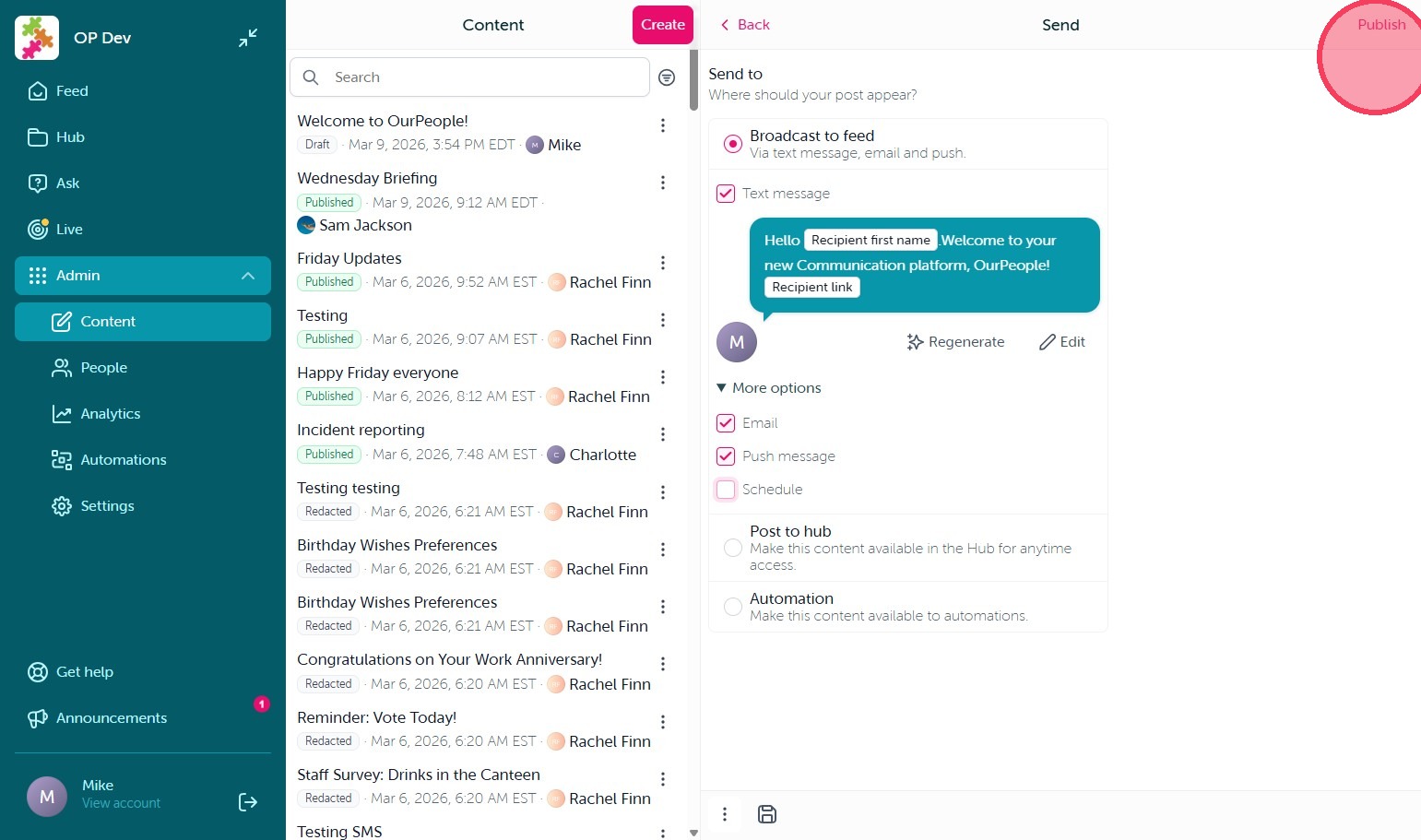
16. Once you are happy with the notifications or scheduling, select "Publish" in the top right corner to send your Broadcast to the outlined Audience. The broadcast will then be outlined as Published in the Content tab and reporting for the broadcast will be visible by simply selecting the broadcast under the Content tab.
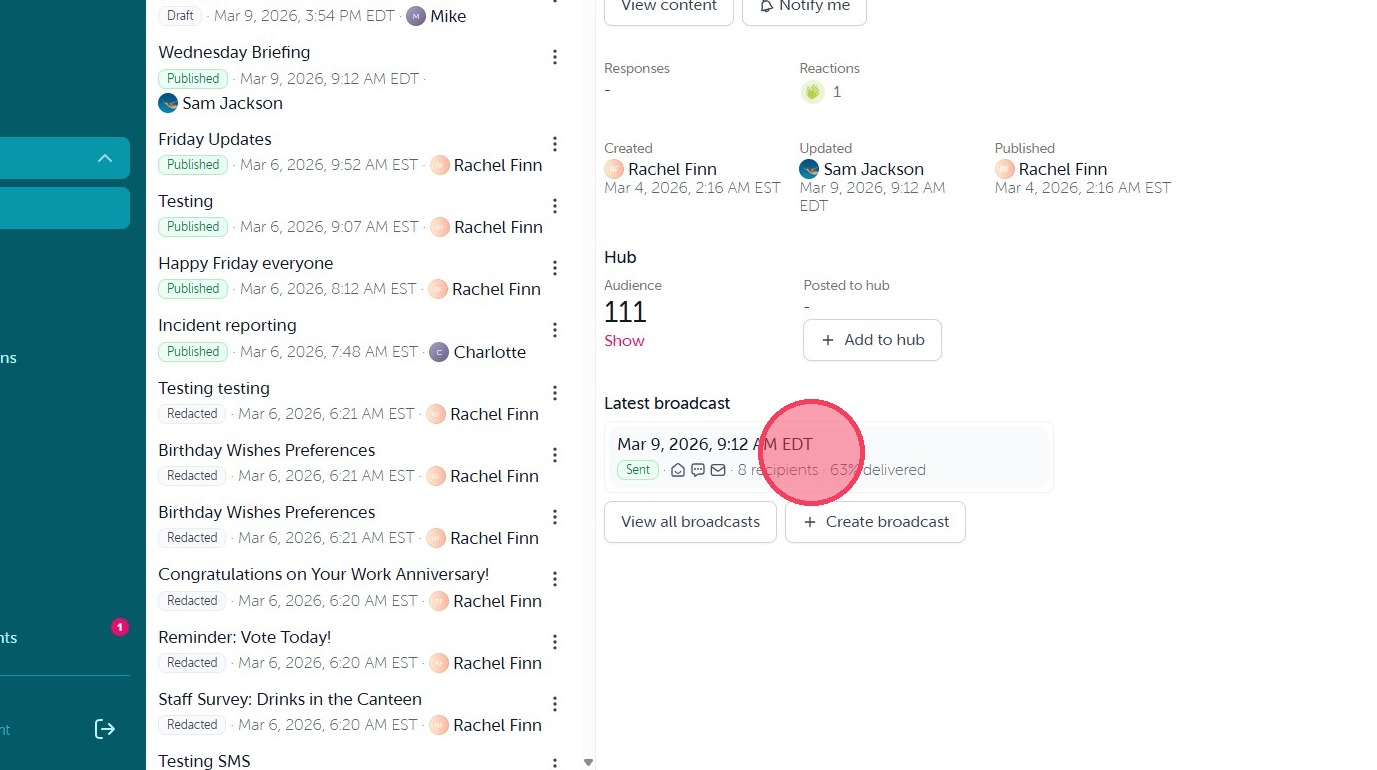
17. To view the delivery data for a published broadcast, select the Content and then select the broadcast under 'Latest Broadcast' as outlined below.
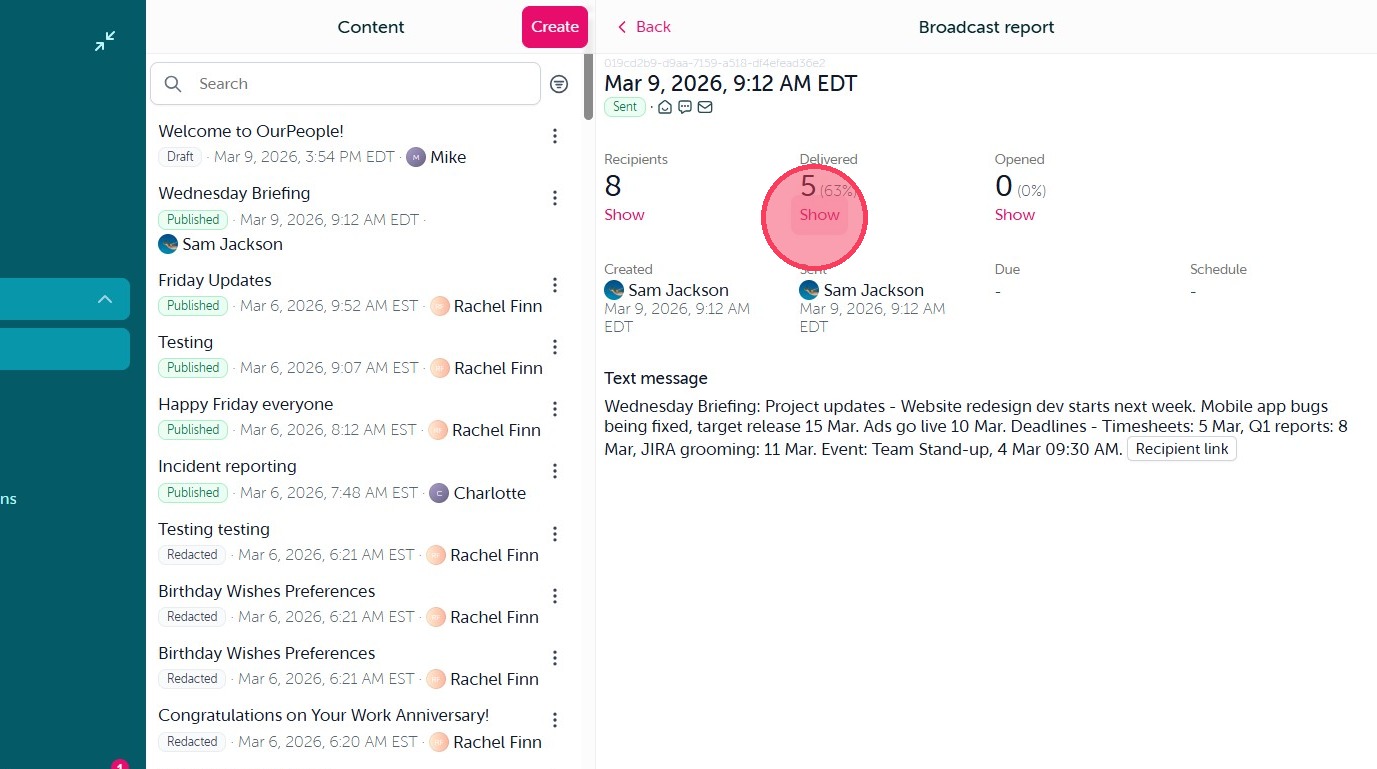
18. This will then show you the basic delivery metrics for the broadcast, including Recipients, Delivered, and Opened. Select 'Show' to view any metric in full.
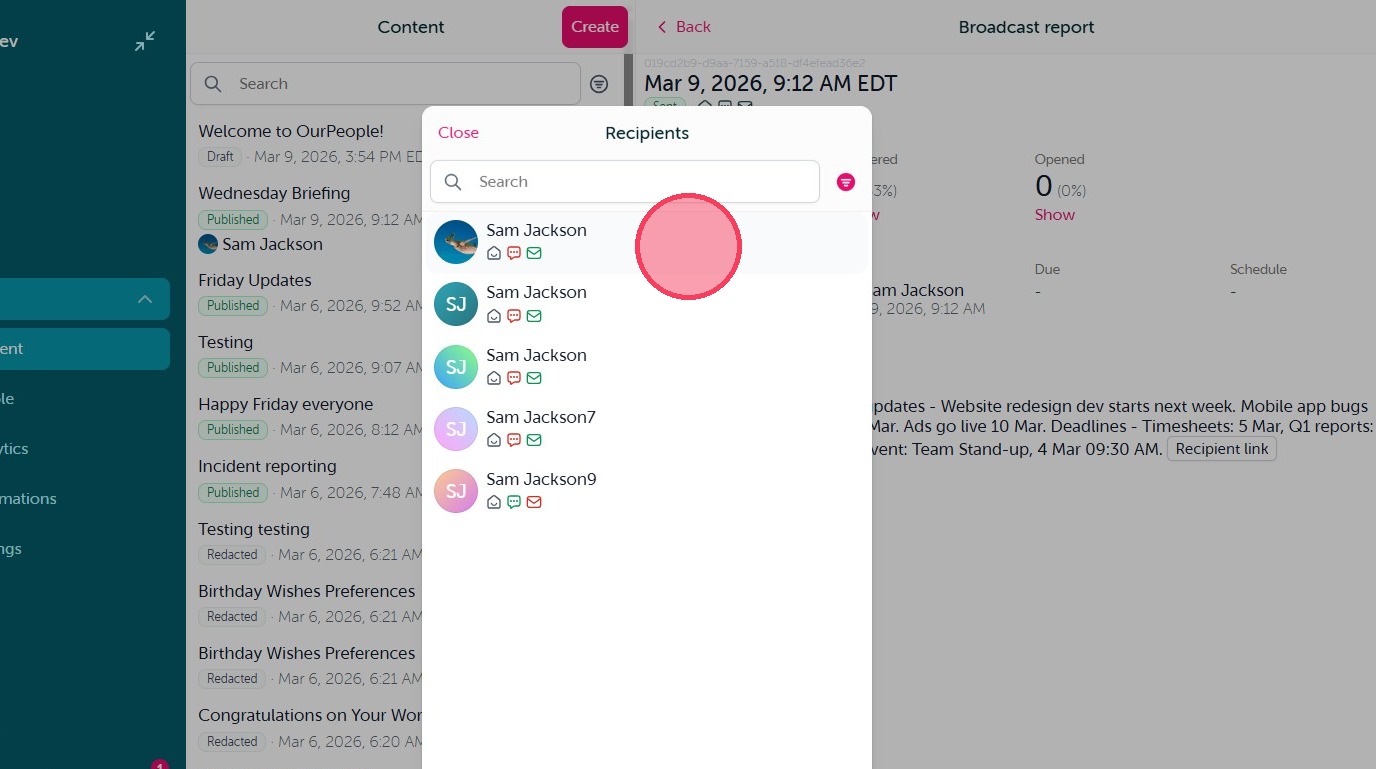
19. Click on an individuals name in any metric report to see the full delivery data for that individual.
Comments
0 comments
Article is closed for comments.