
1. To View Reporting data on your published Content, select the Content tab under your Admin dashboard.
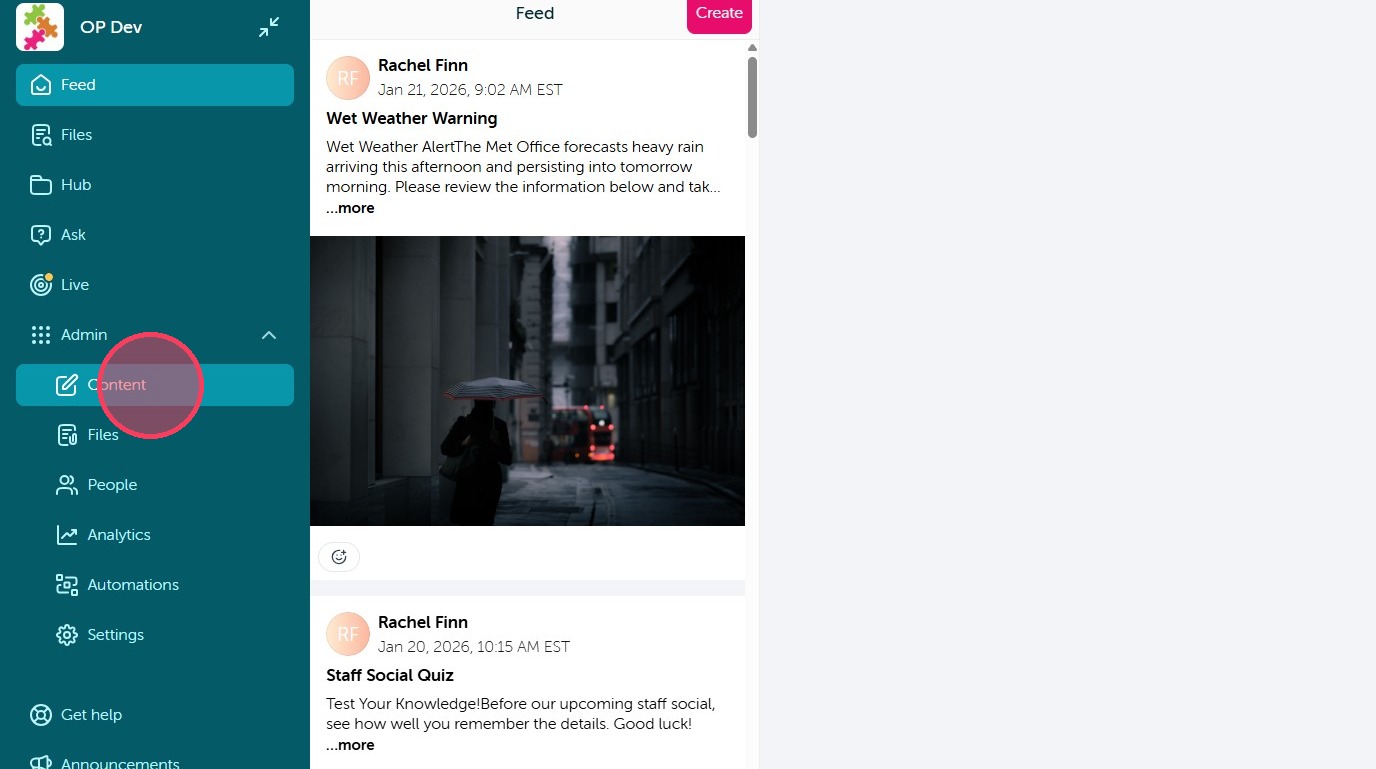
2. Select the Content you would like to review the reporting for.
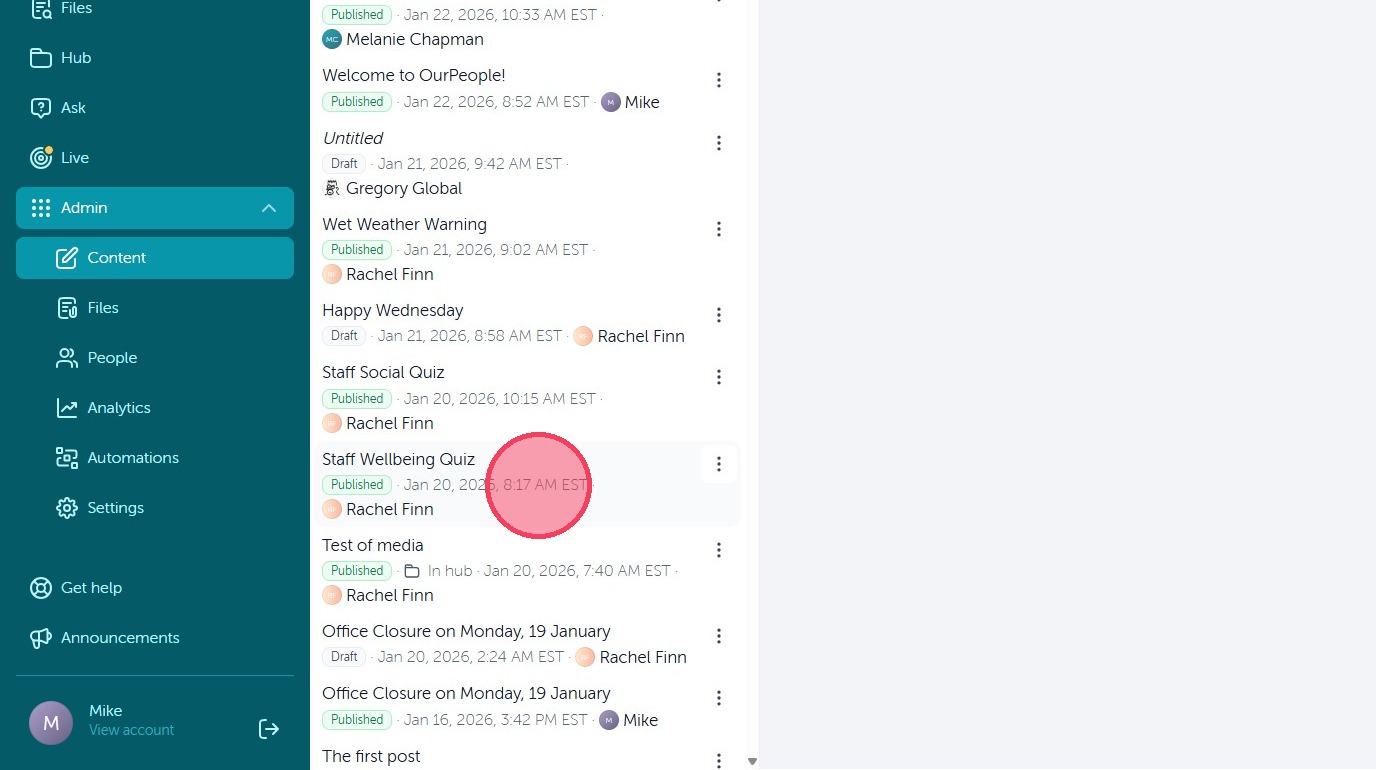
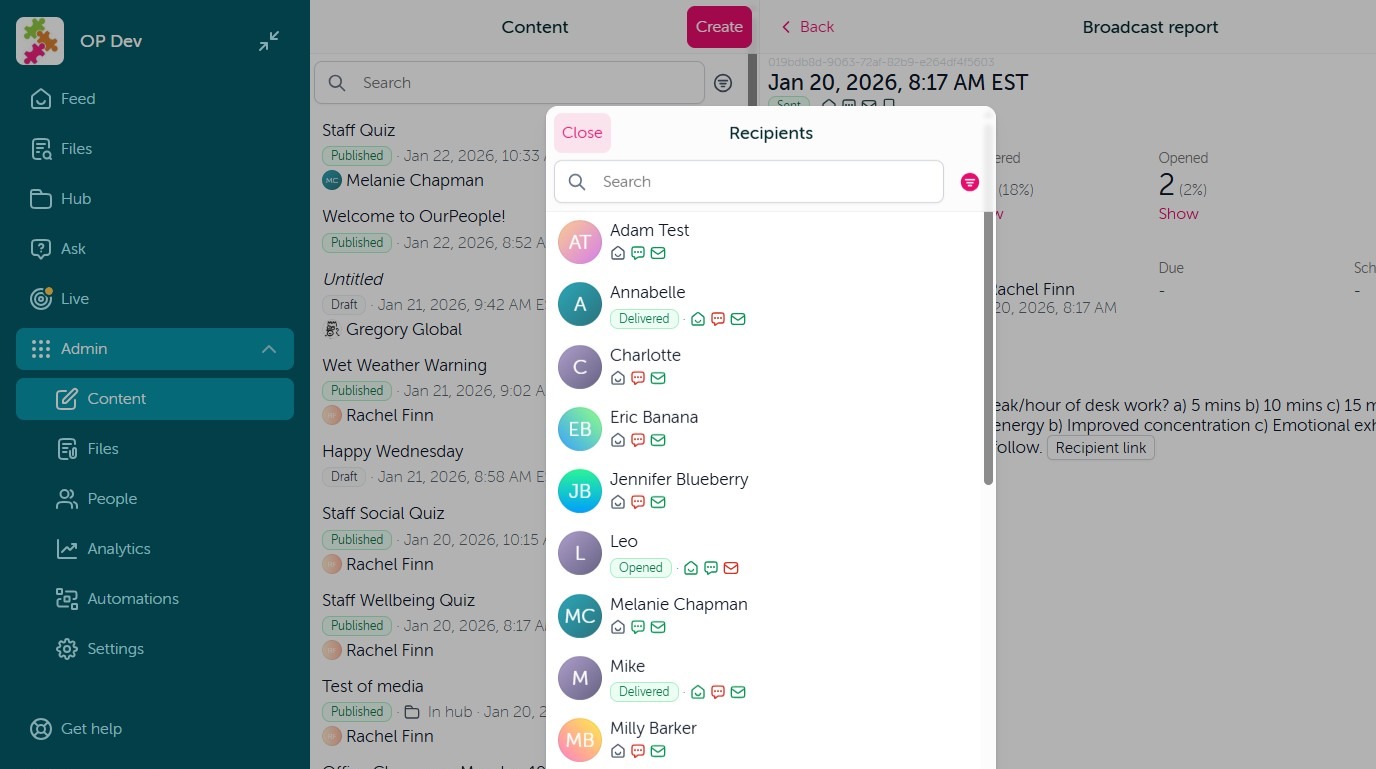
3. If the Content was sent as a Broadcast you will see the 'Latest Broadcast' option at the bottom. To view delivery metrics for this Broadcast simply select the Broadcast.
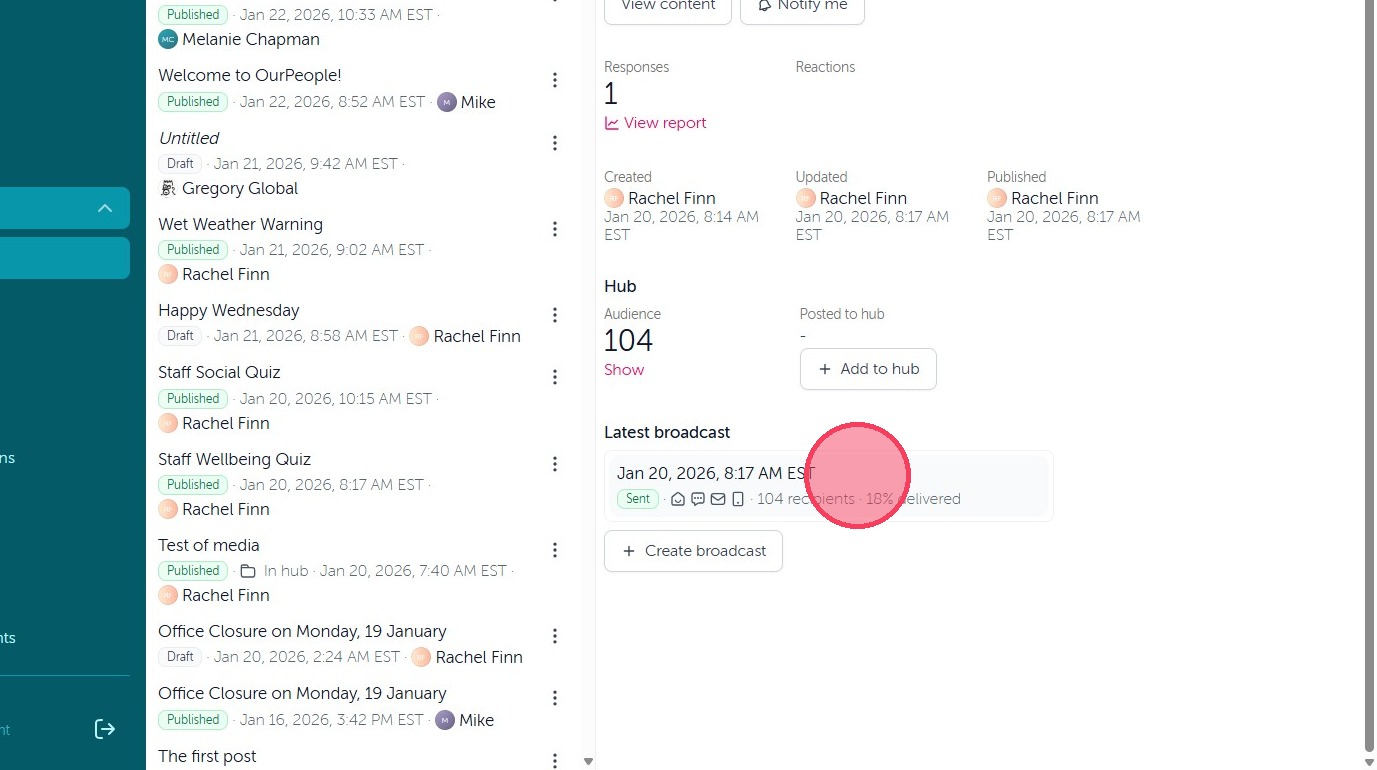
4. From there you can select 'Show' under the Delivered metric to view the full Delivery report.
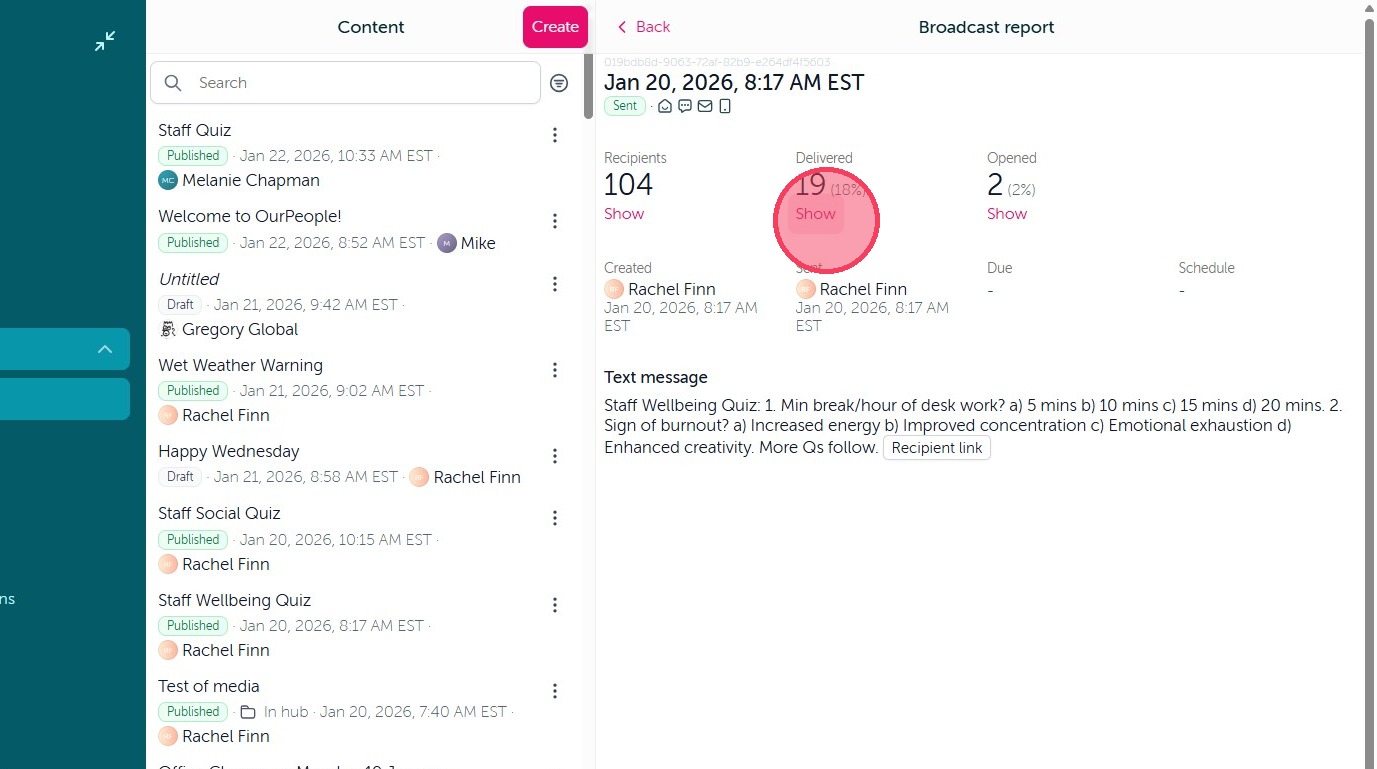
5. This will show you if there were any delivery errors via the various notification channels used on the Broadcast.
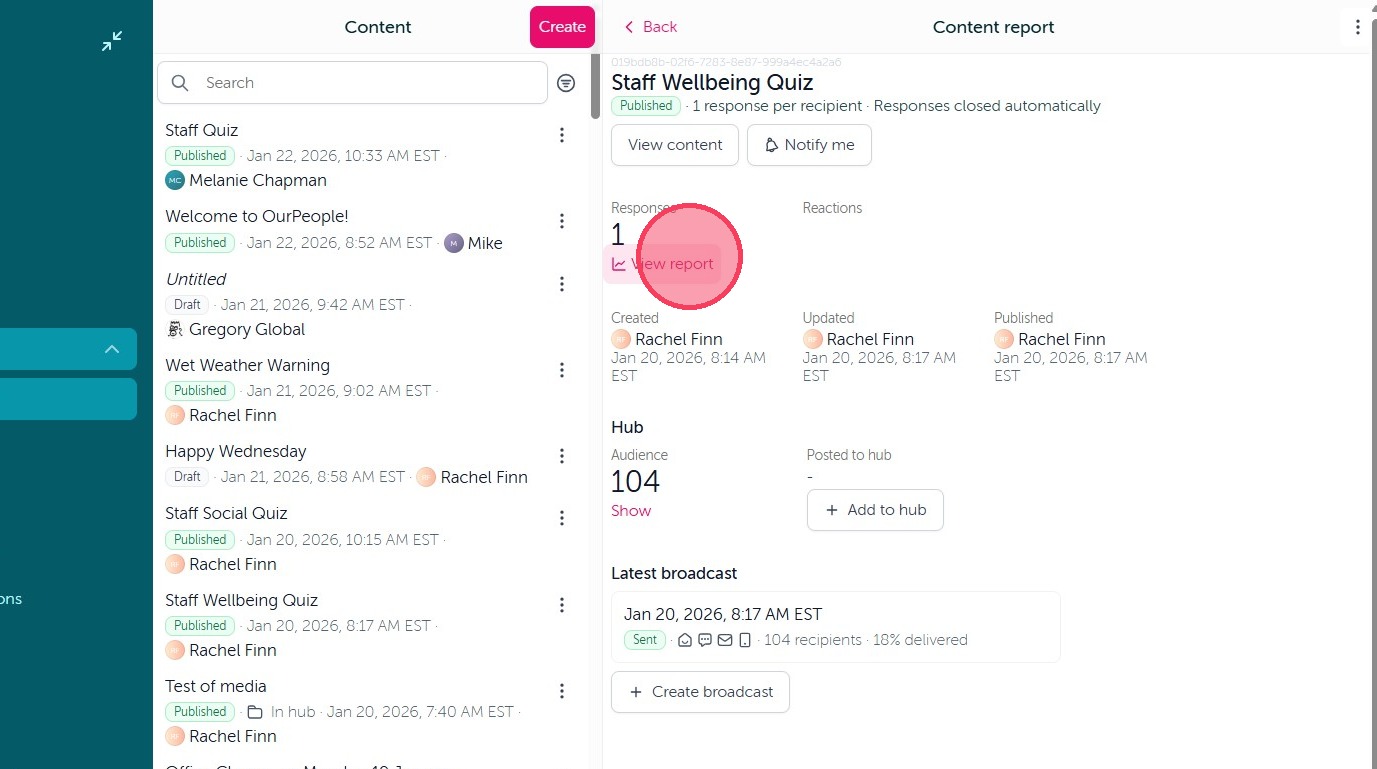
6. If a feedback block was used on the published Content you will have the option to 'View Report' under the 'Responses' field.
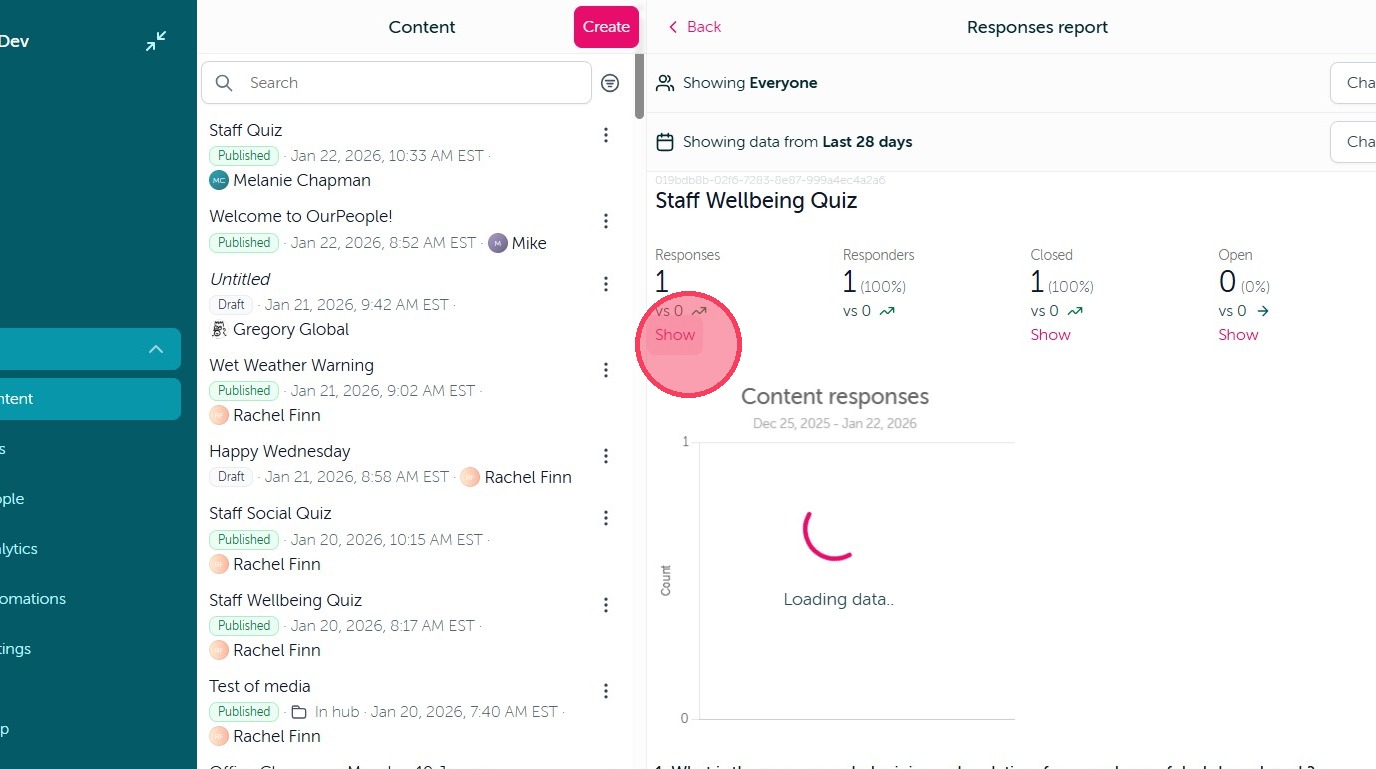
7. To view all Responses, select 'Show' under the total Responses option.
8. This will then outline all user's who have responded to the feedback content. If multiple responses were an option, simply select the individual user to see their full responses.
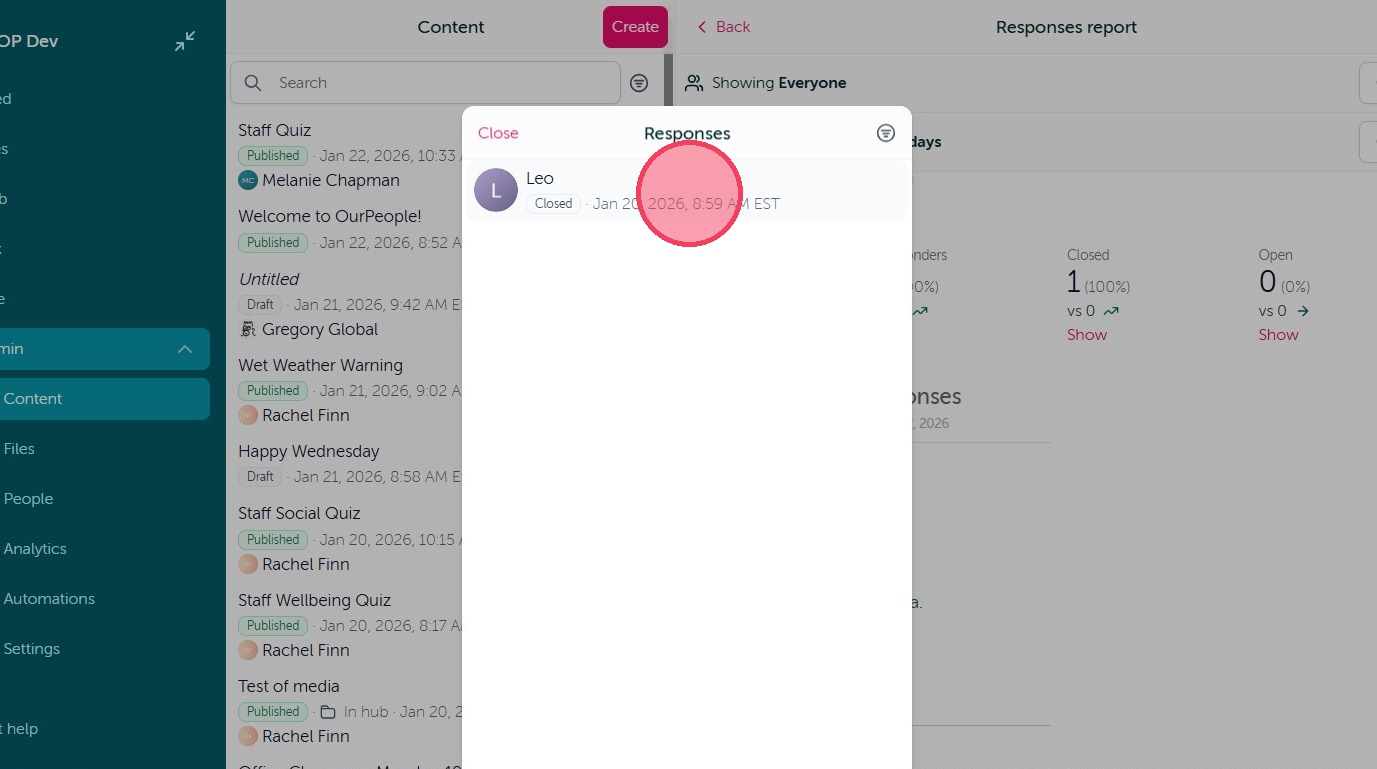
9. This will show you all responses for the selected user.
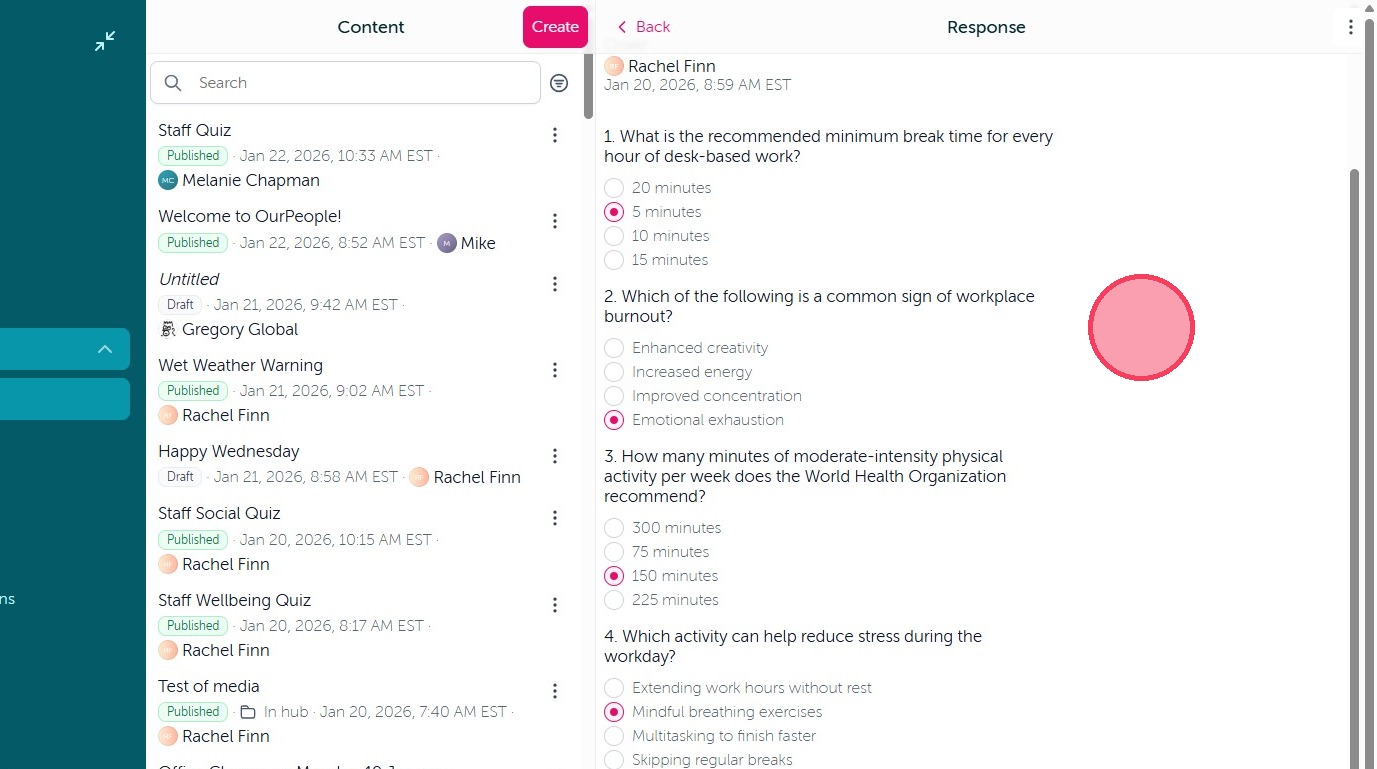
10. If the content was published outside of the default 28 day window, you will want to adjust the time frame to ensure it is outlining all possible responses.
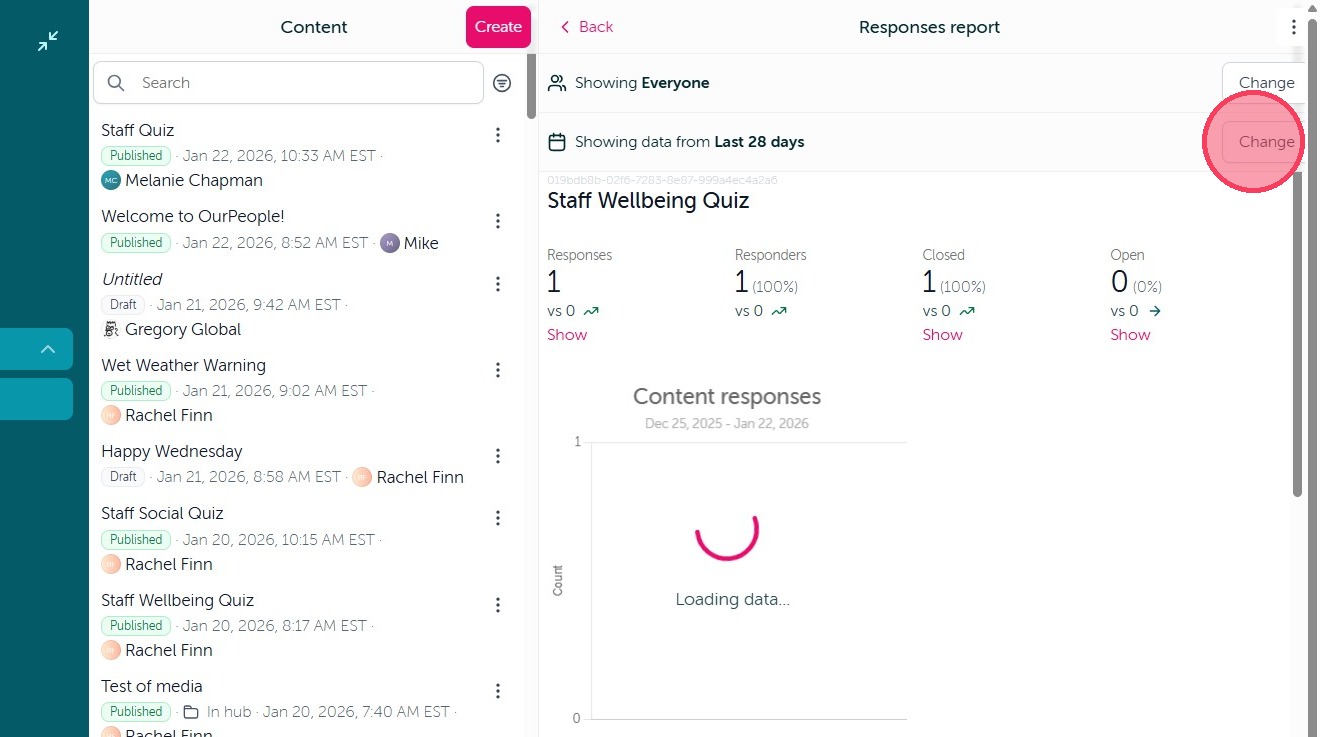
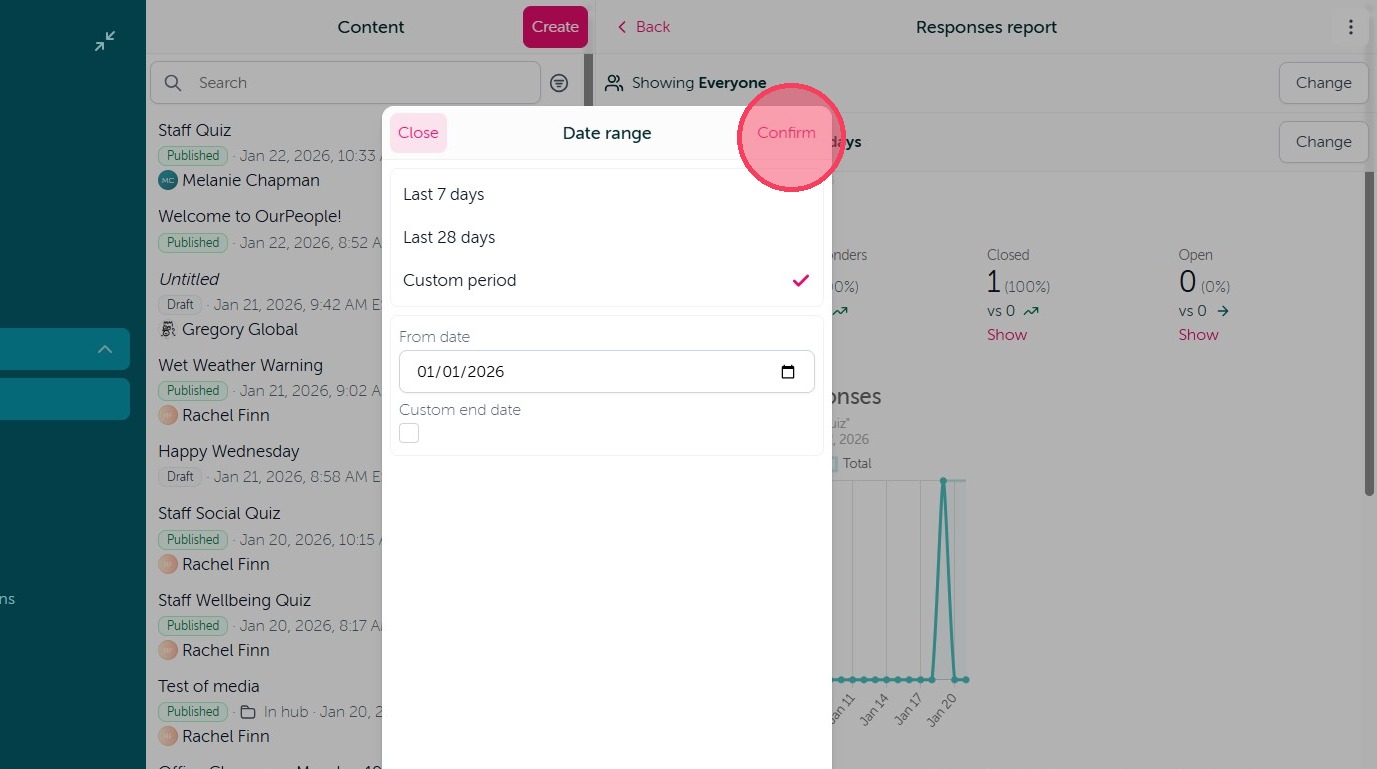
11. Adjust your timeframe accordingly and select Confirm when done.
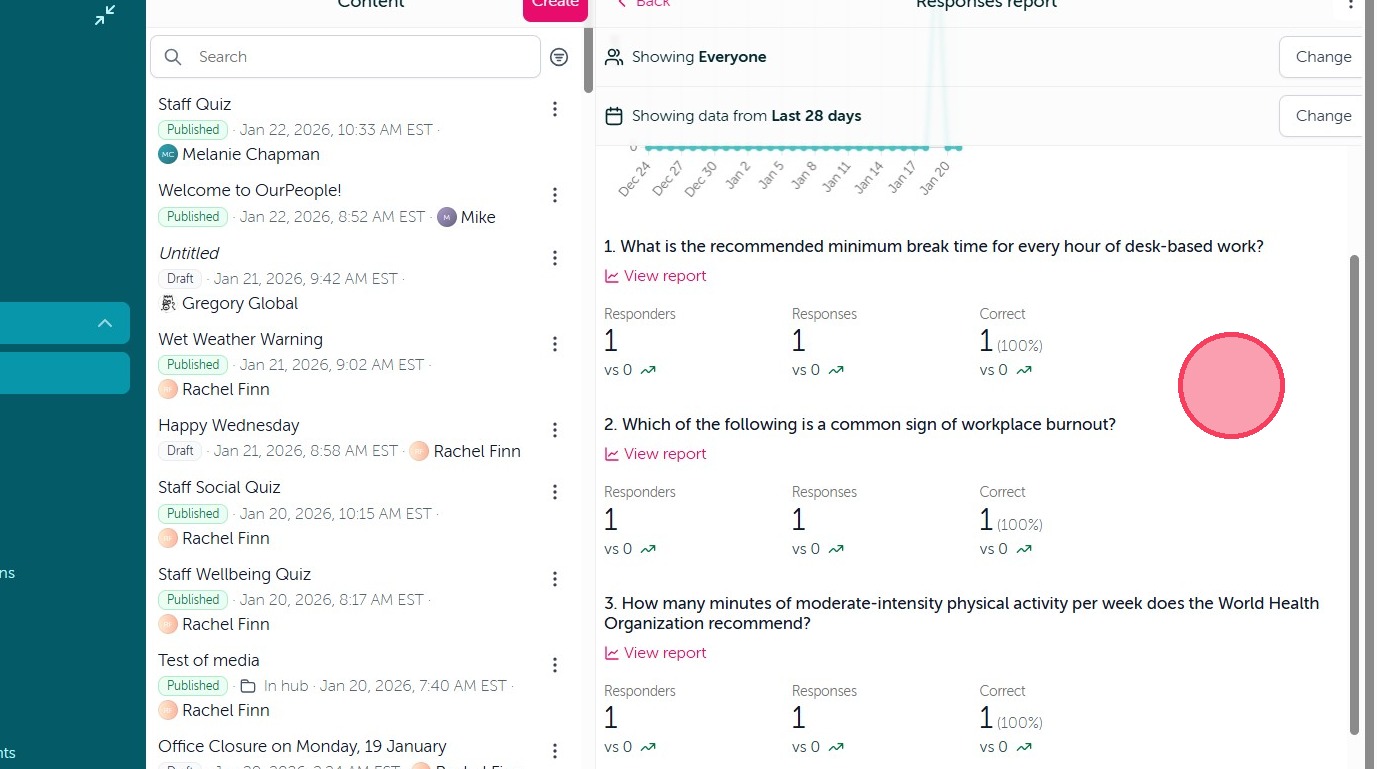
12. If multiple feedback options were used on the content you can scroll down to view the Response data on each feedback option.
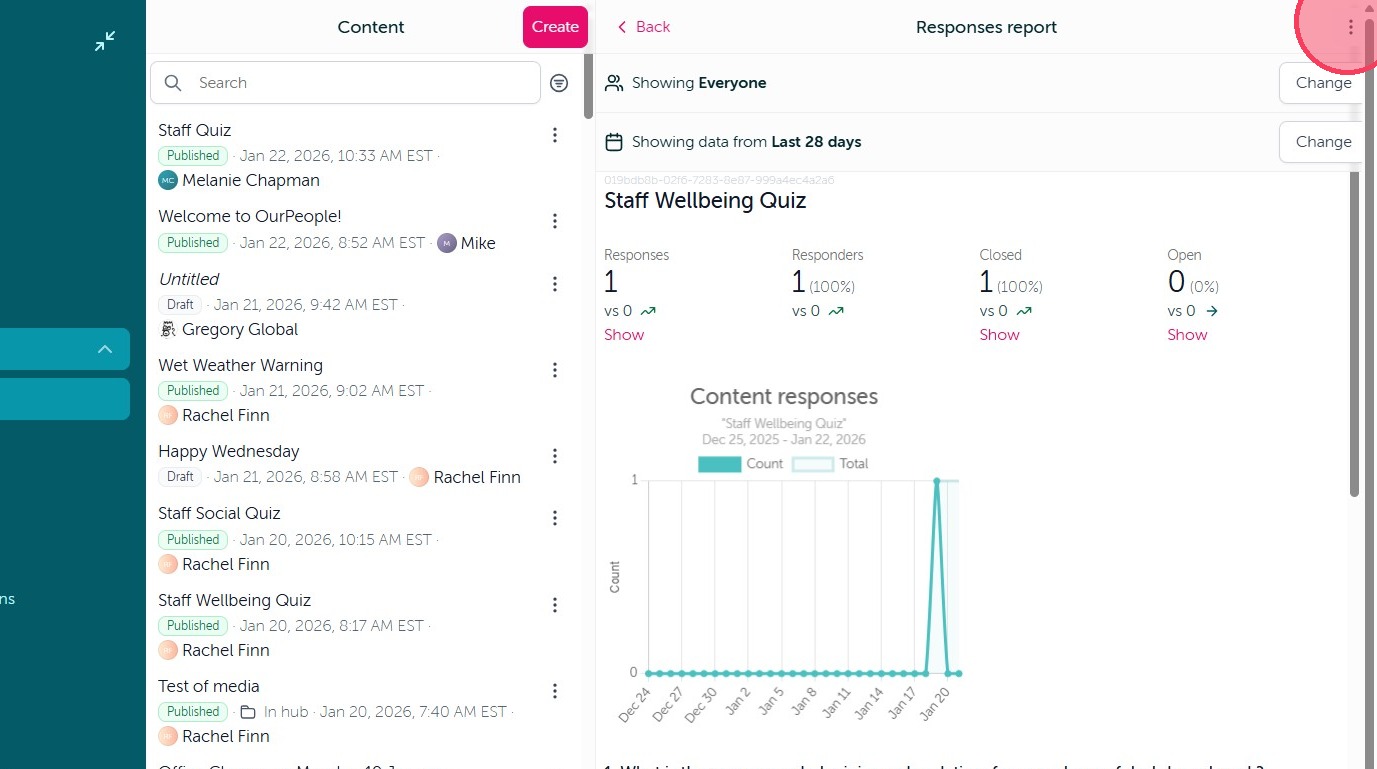
13. If you would like to export your response data, simply select the three dots in the upper right corner.
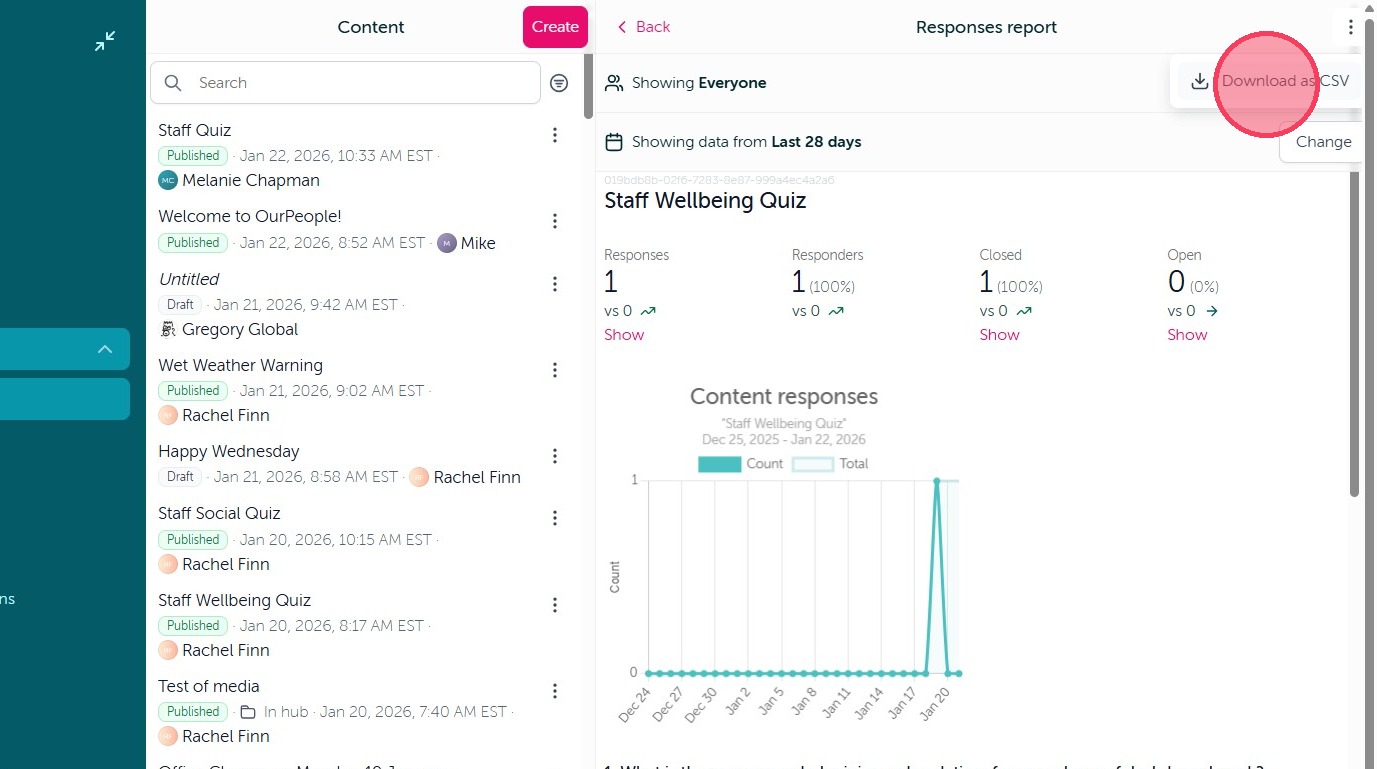
14. Then select "Download as CSV"
Comments
0 comments
Article is closed for comments.