Learn how to create engaging content and set up automated broadcasts to employees. This guide provides a seamless walkthrough for configuring your automation settings to ensure every new team member receives a timely greeting.
Creating an automation template
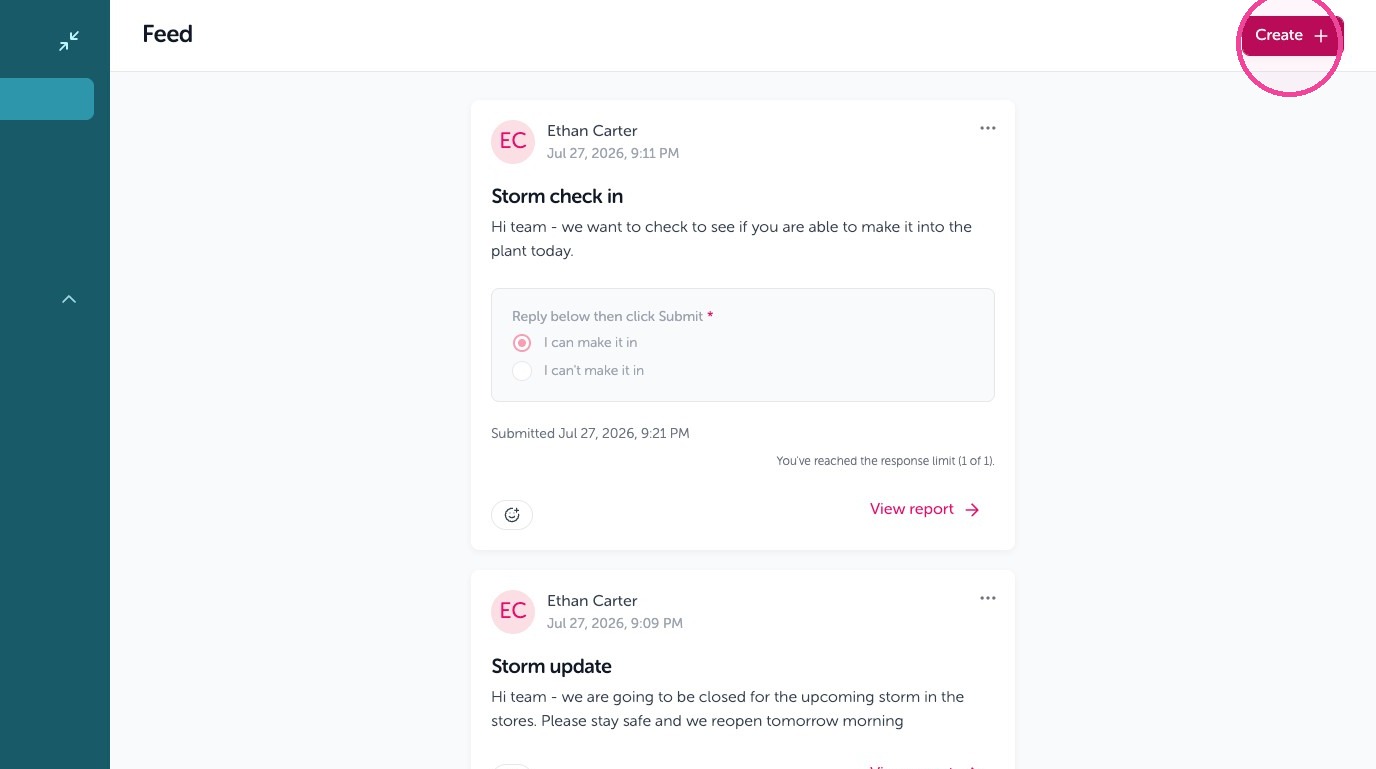
1. To create an automation, the first thing you want to do is go to your Feed, then click "Create"
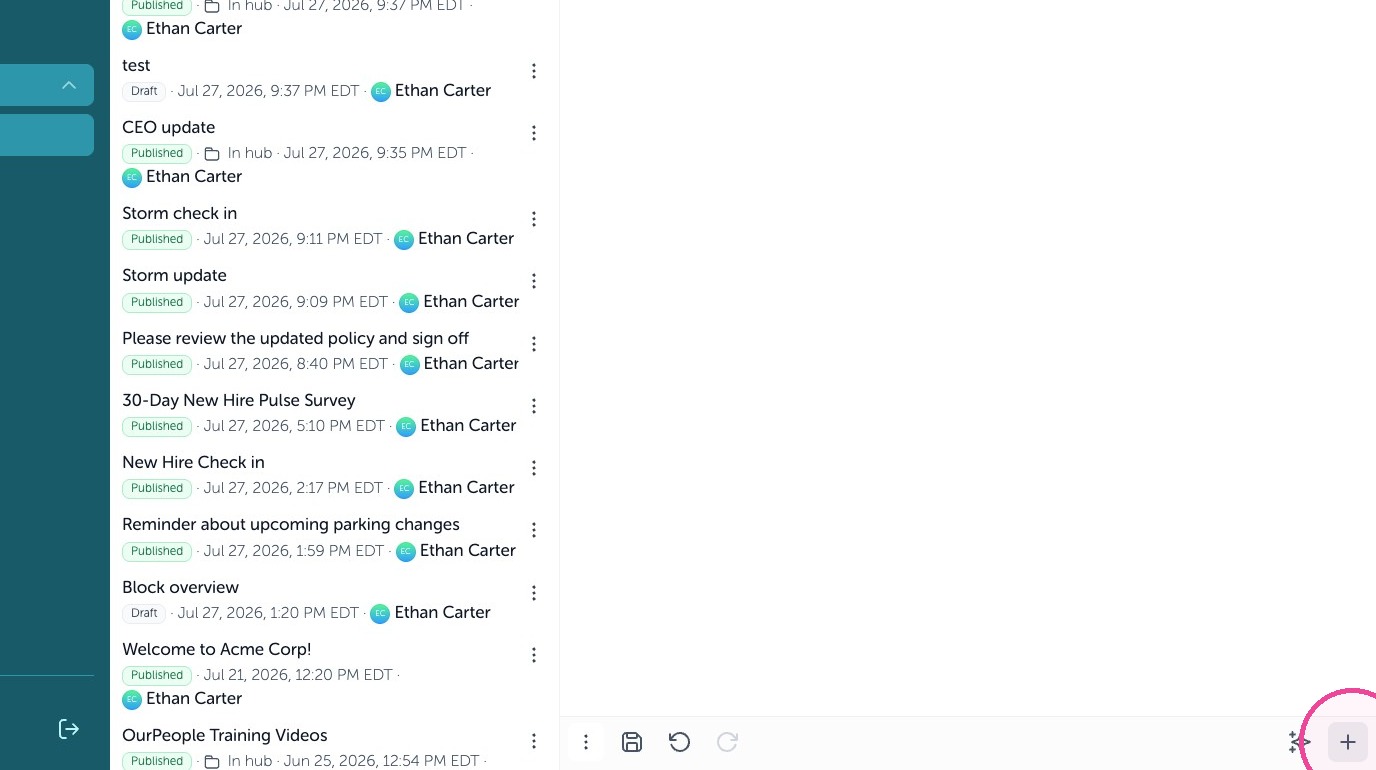
2. Give your new content a title then click the + icon to add some blocks
3. Such as an image
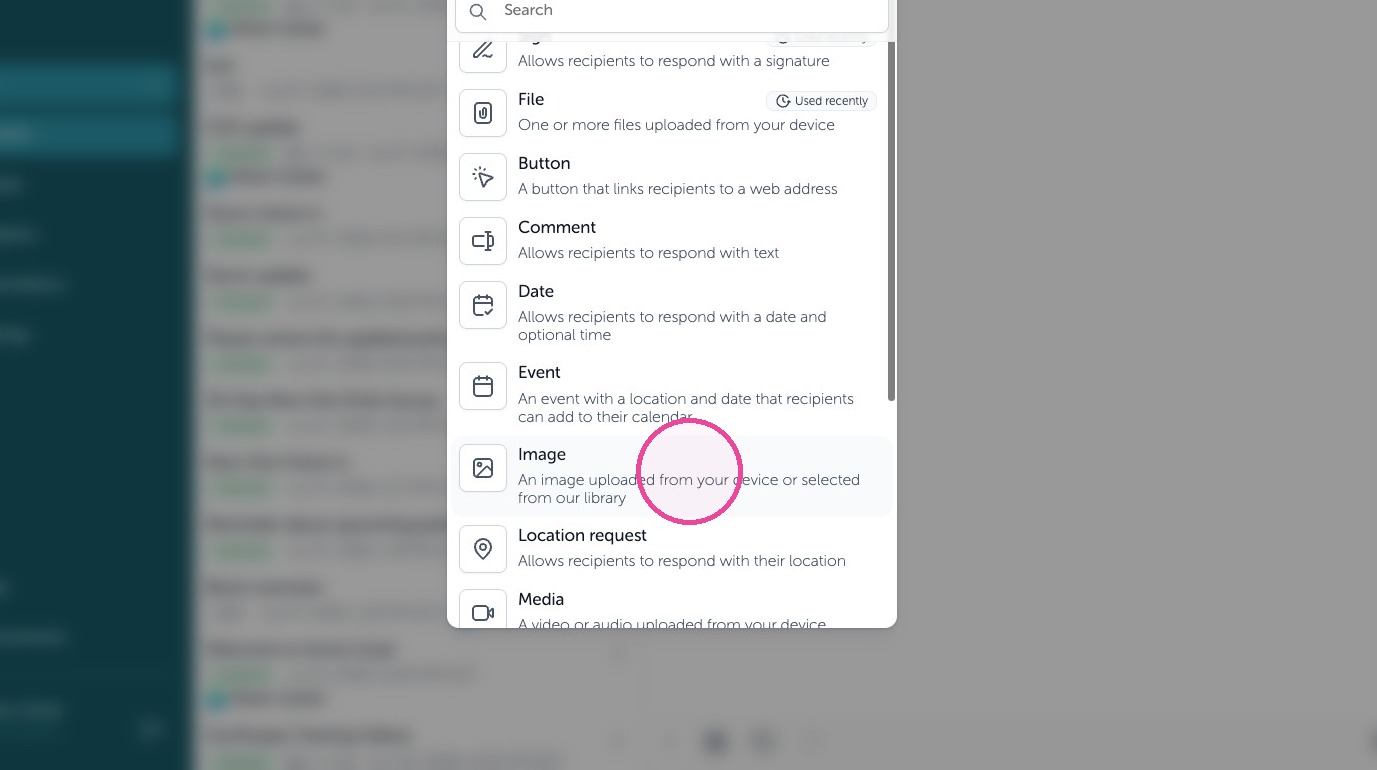
4. Click "Text"
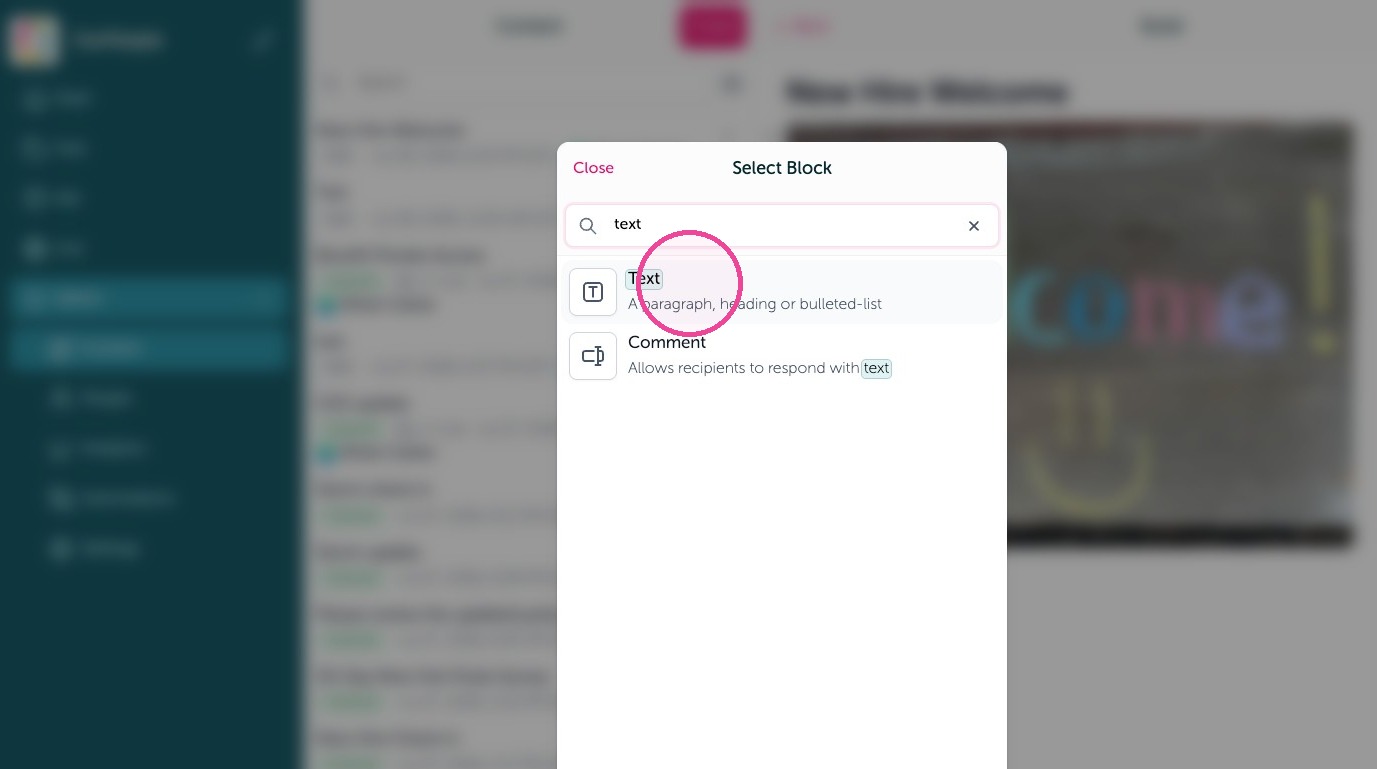
5. Click here.
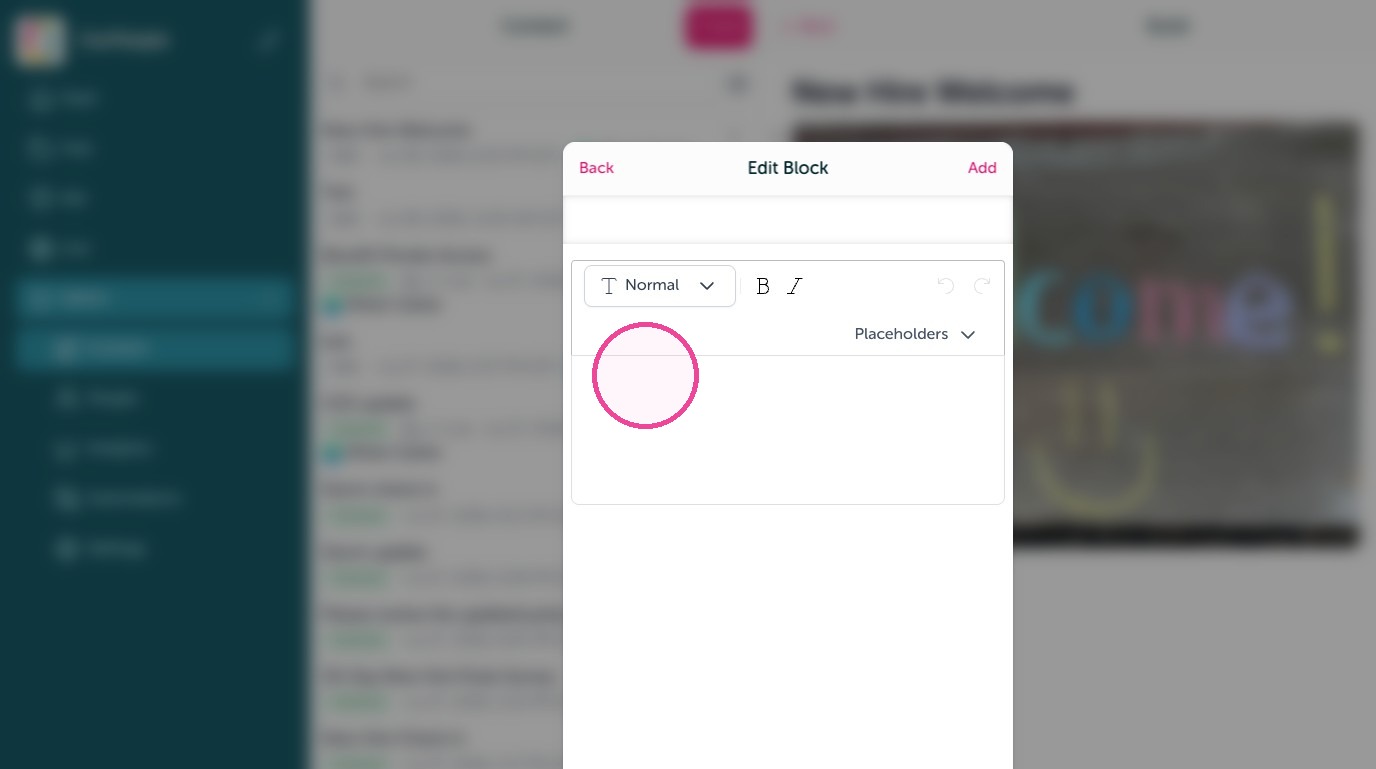
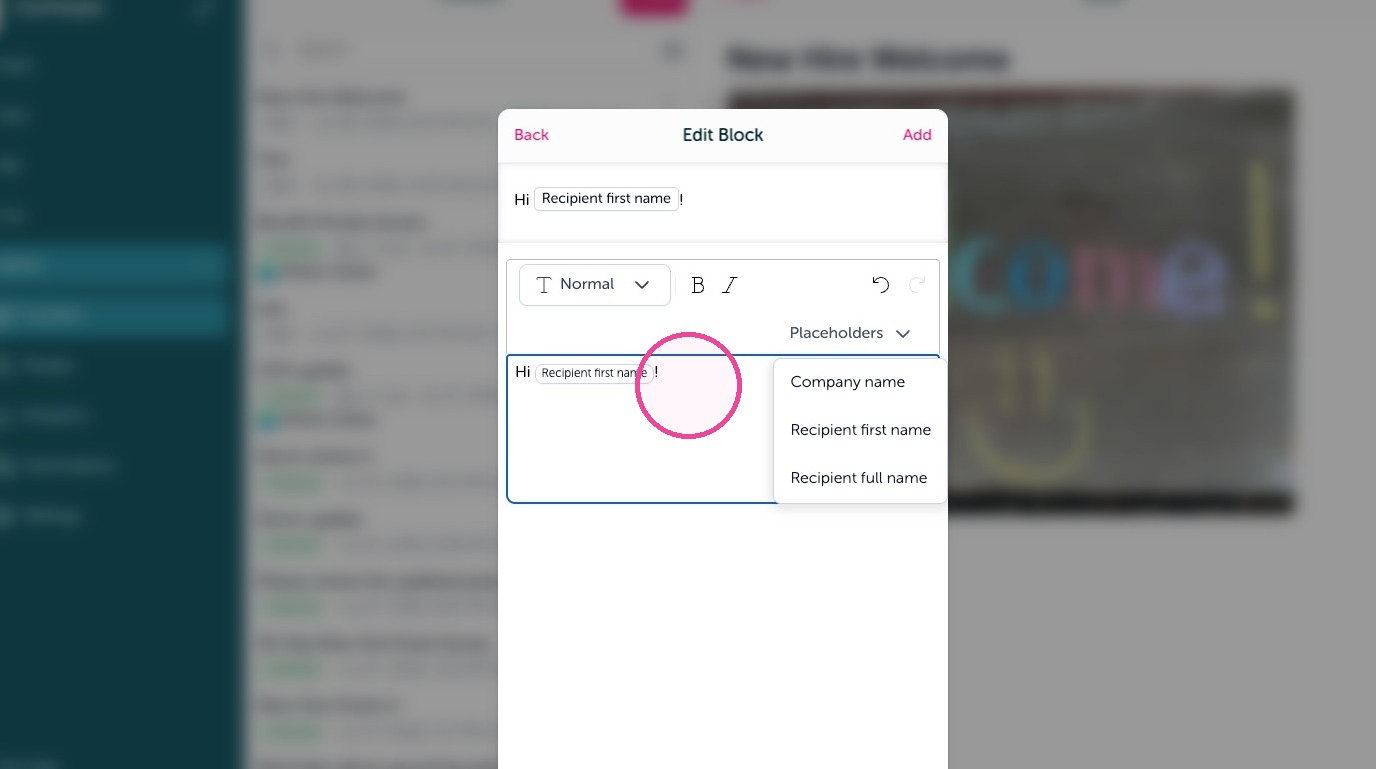
6. Type "Hi"
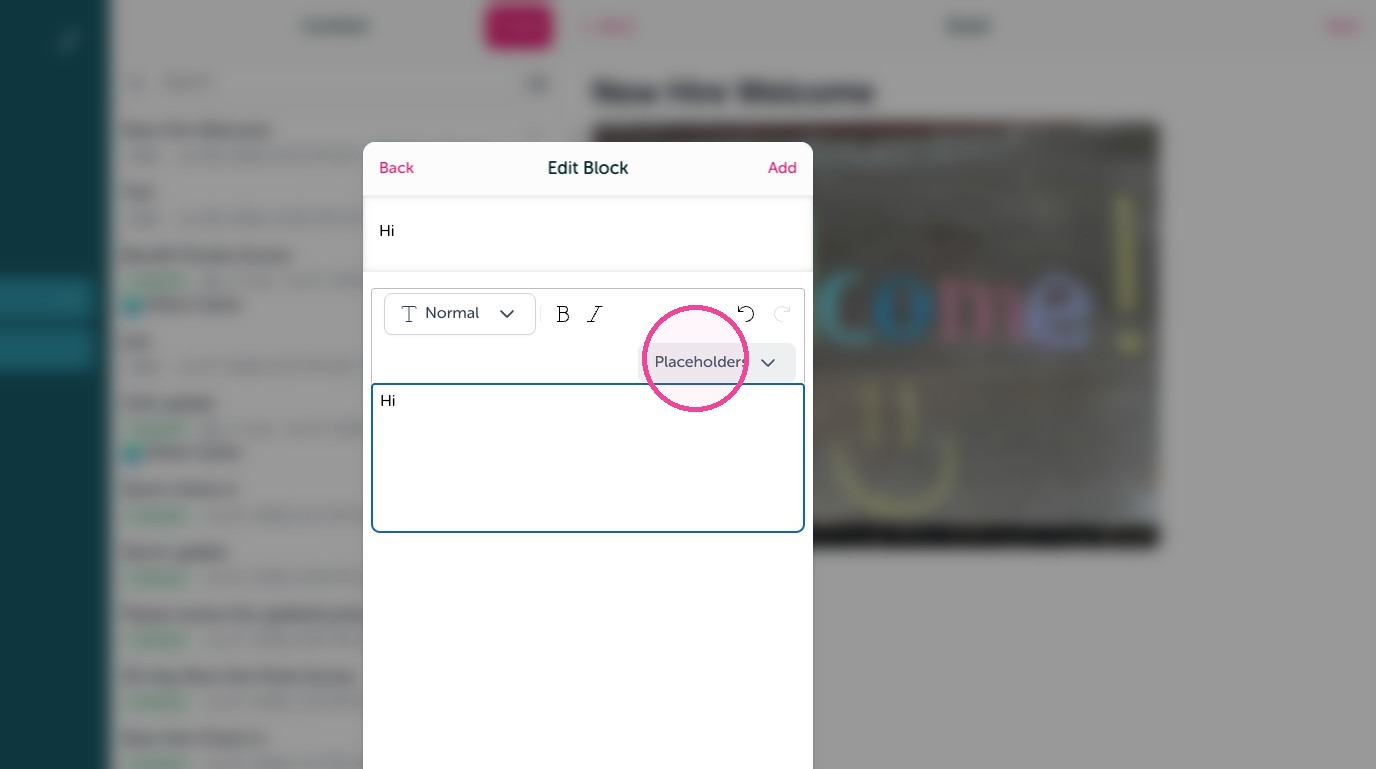
7. Click "Placeholders"
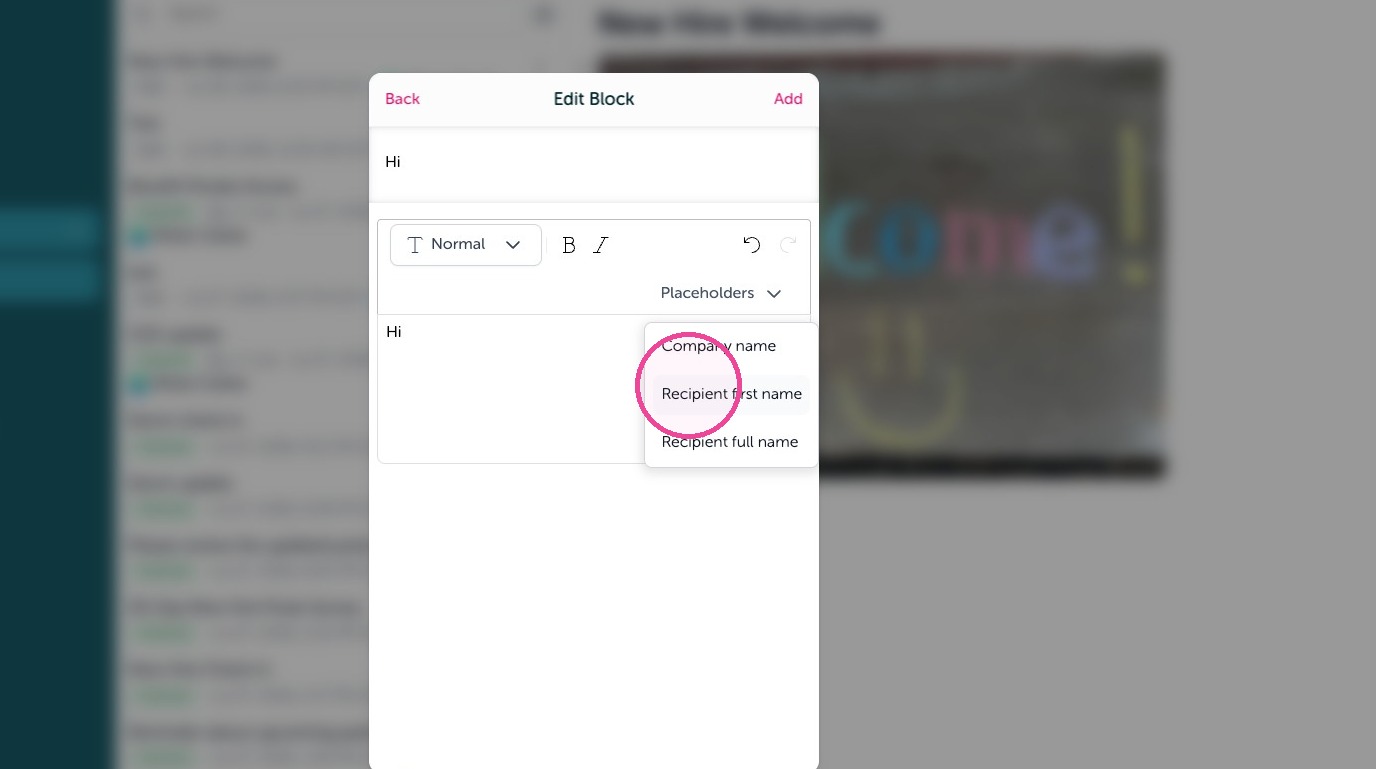
8. Click "Recipient first name"
9. Type "!"
10. Click "Hi Recipient first name!"
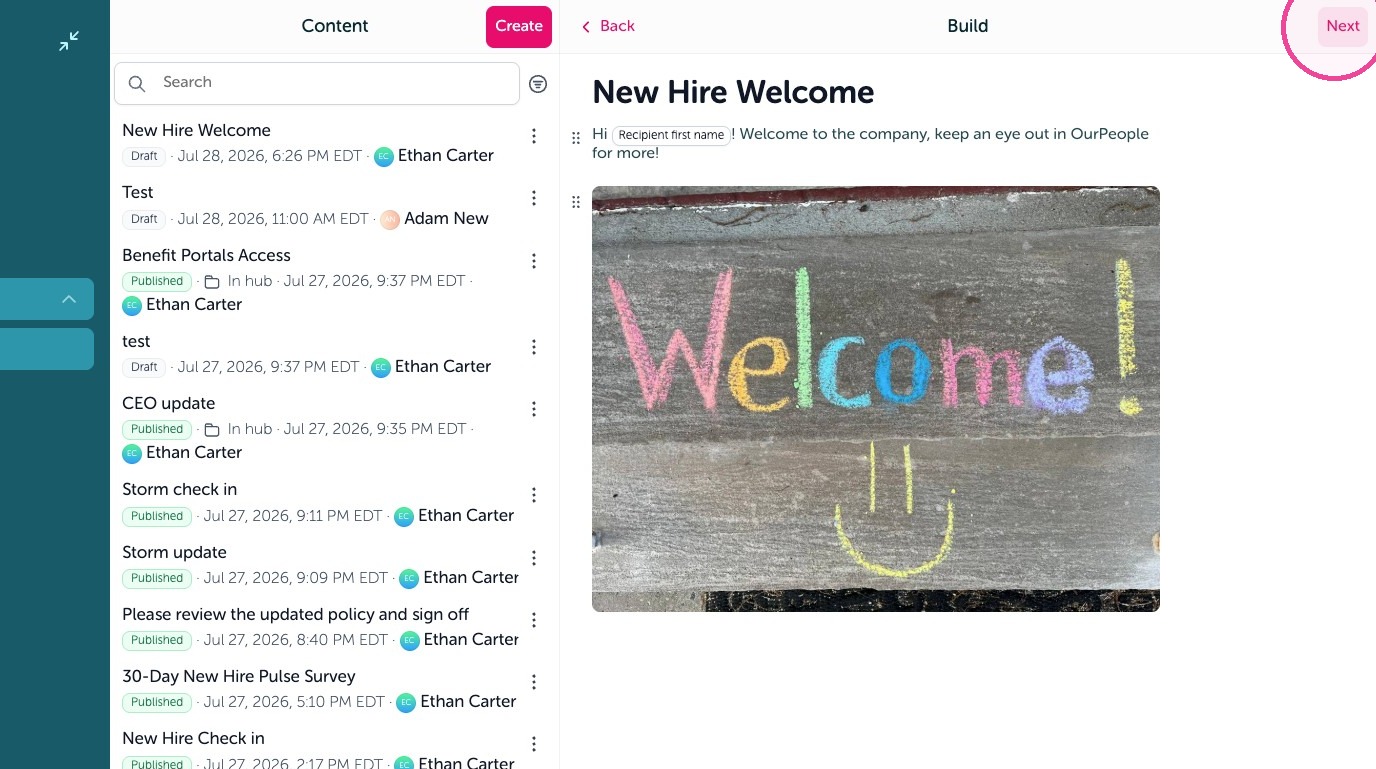
11. Click "Next" when your ready
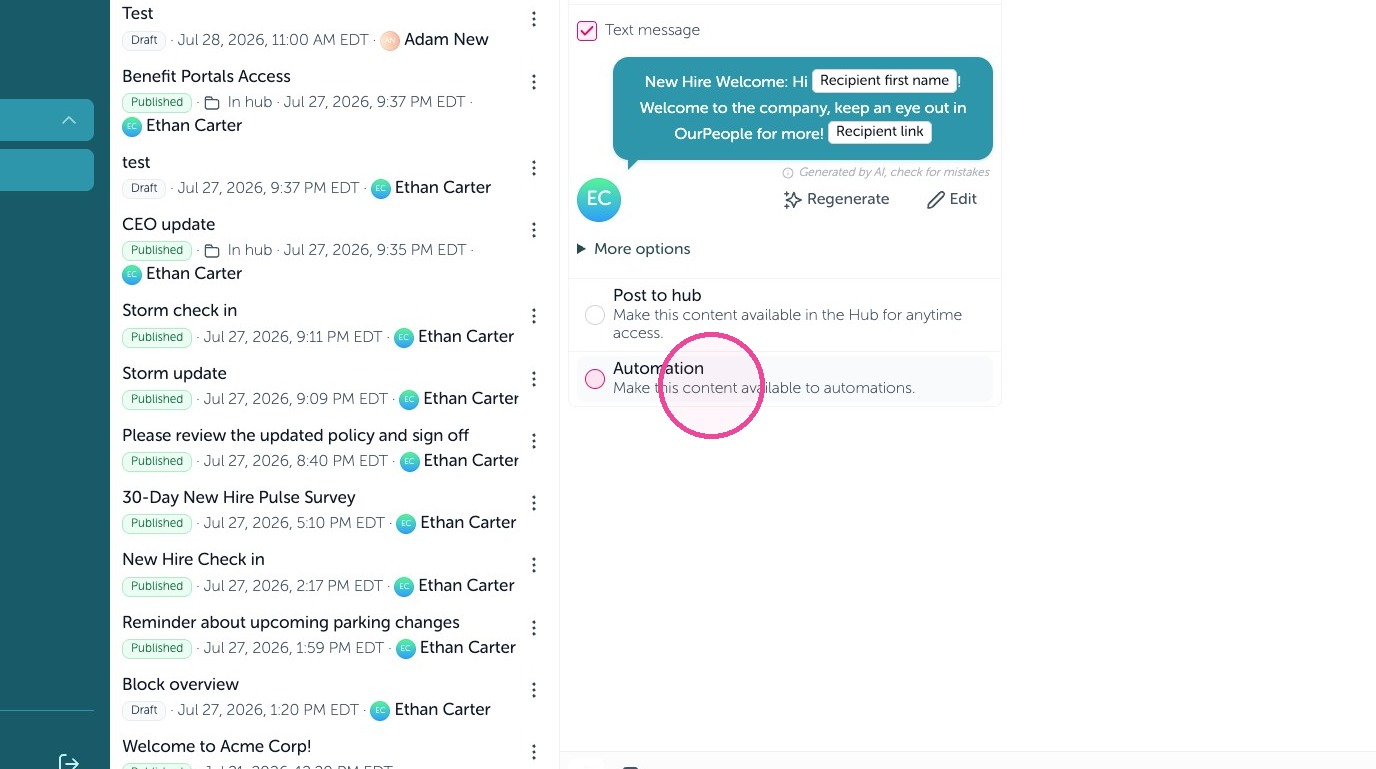
12. And instead of broadcasting it to the feed or posting it to hub, you need to select "Automation"
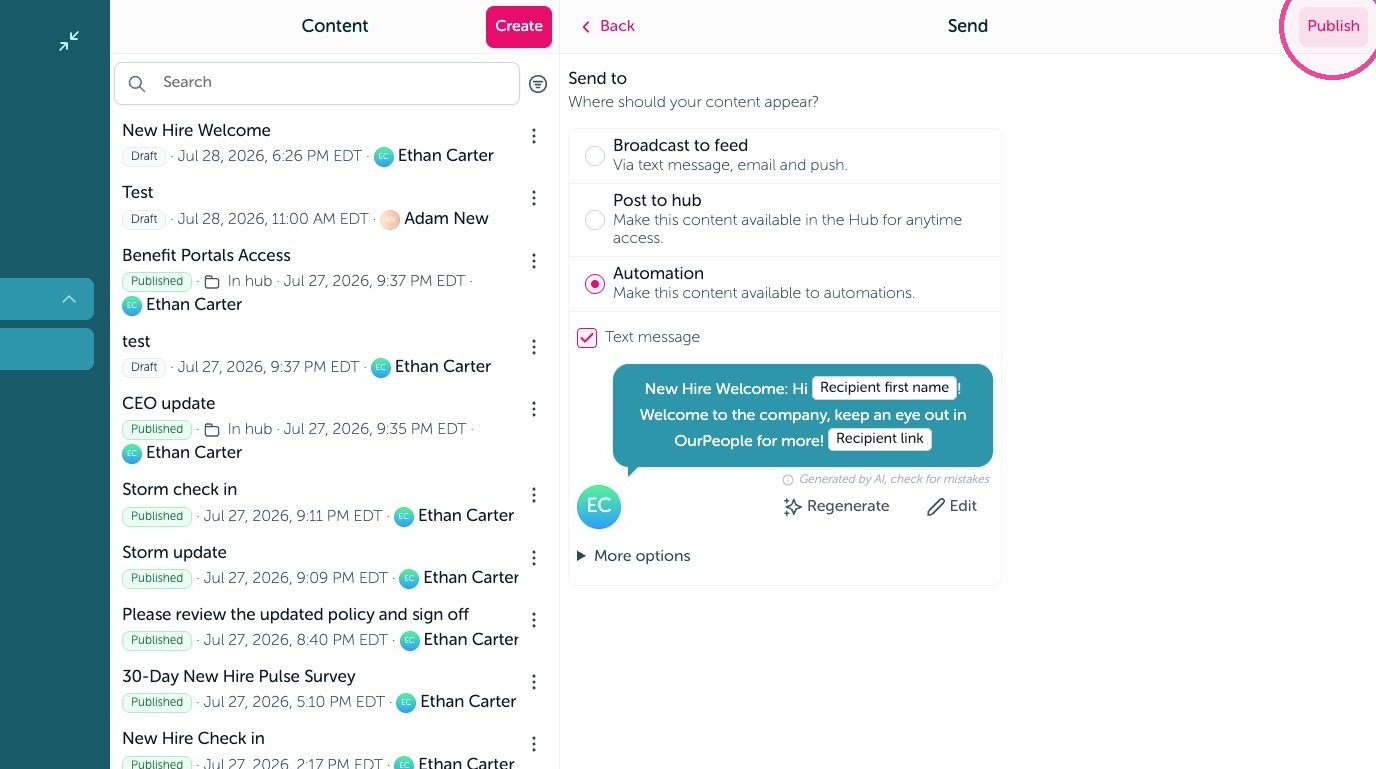
13. Click "Publish" to save this as an automation template
Setting up the automation
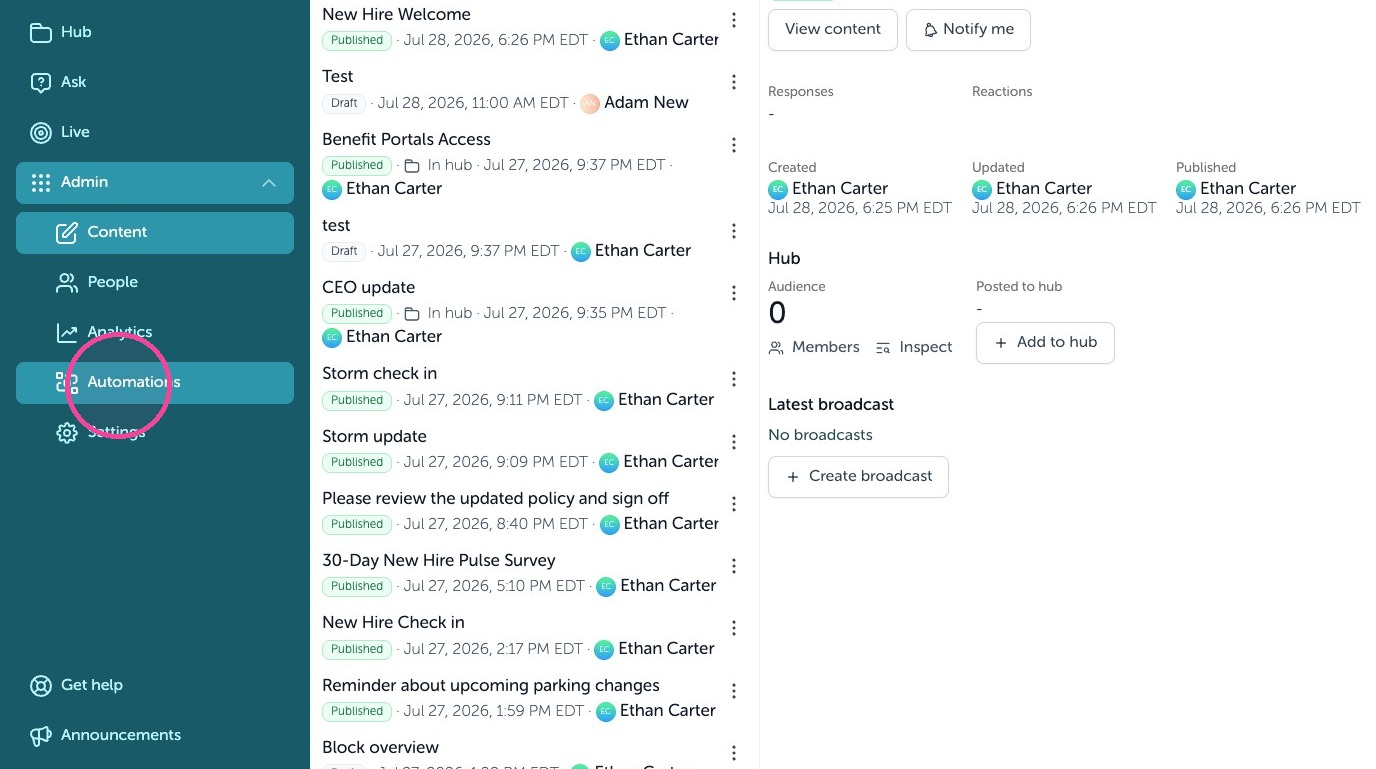
14. Click "Automations"
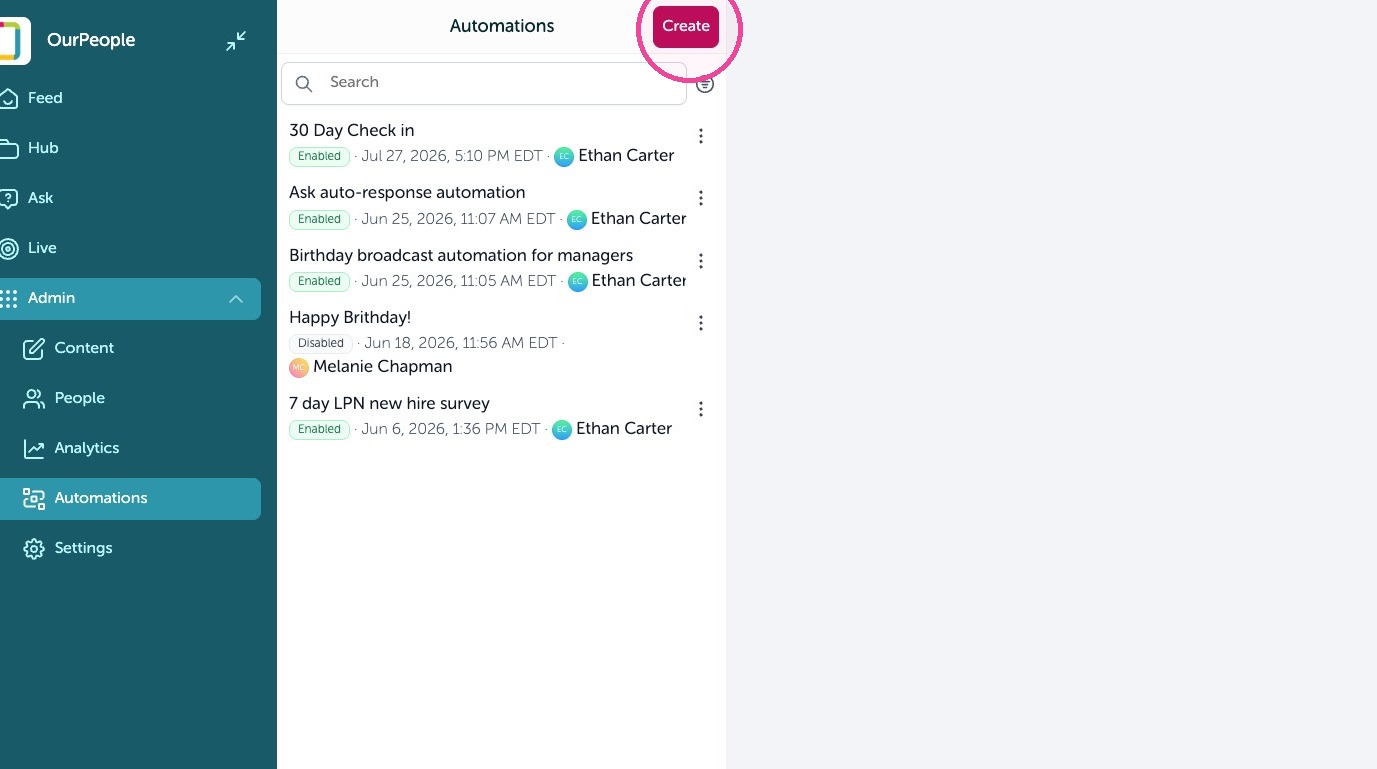
15. Click "Create"
16. And then select from the various automations we have available.
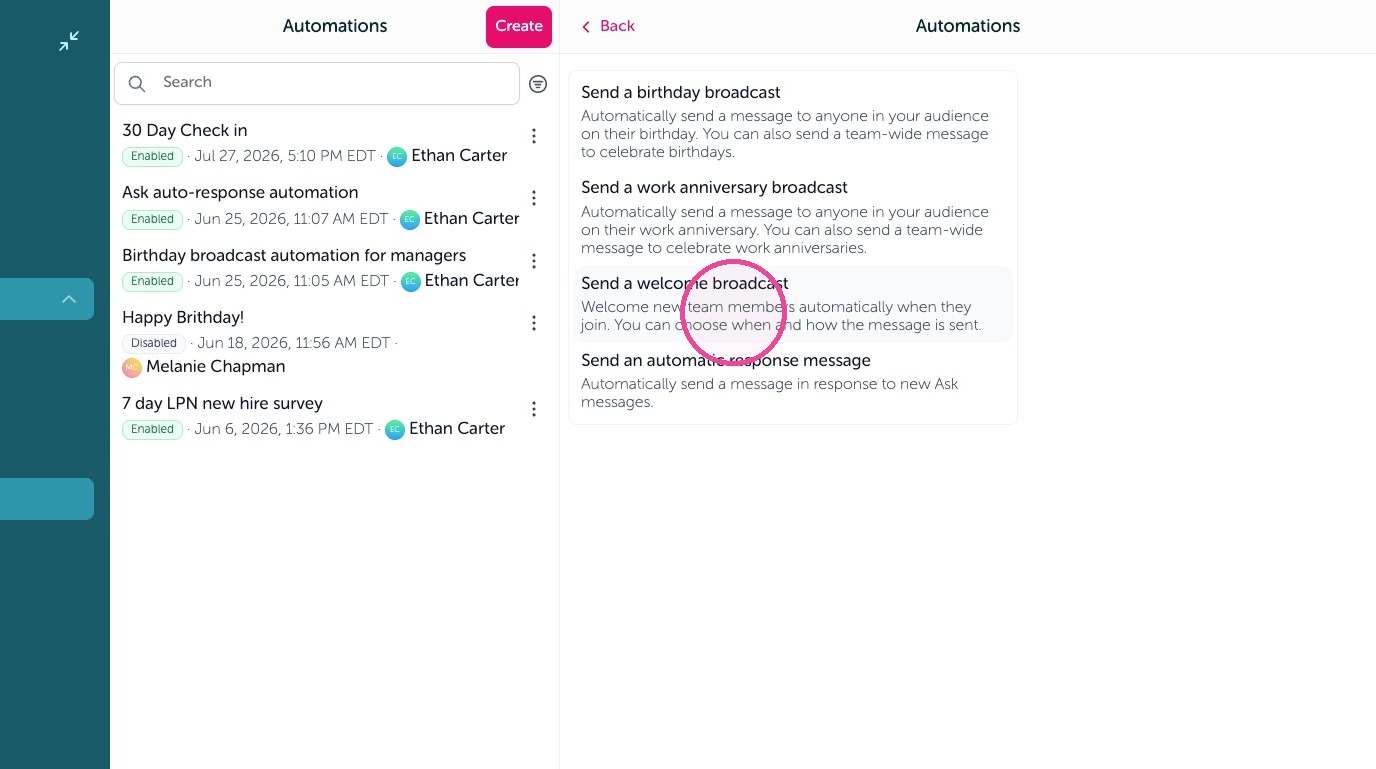
17. In this case, we will send a welcome broadcast to any new person.
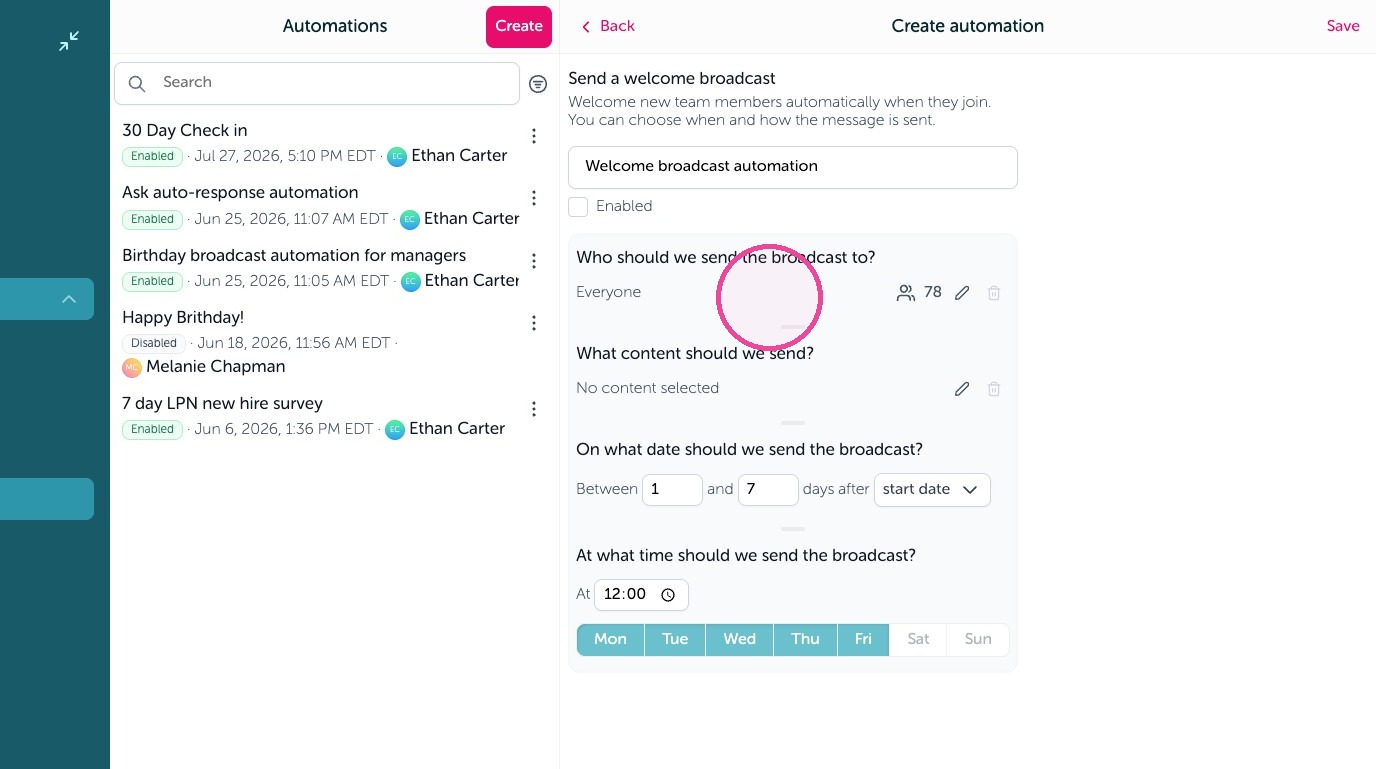
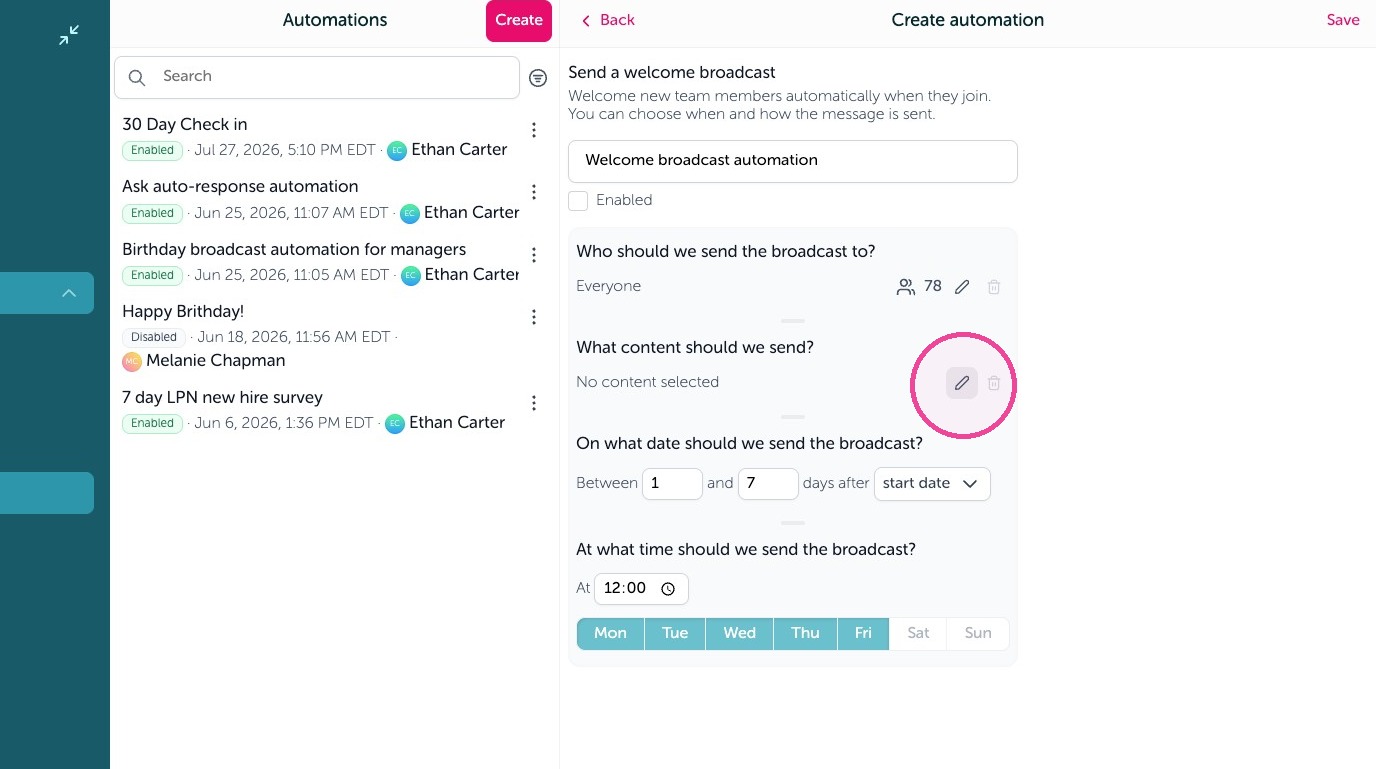
18. Then select the content you recently made available to automations by clicking the pencil icon
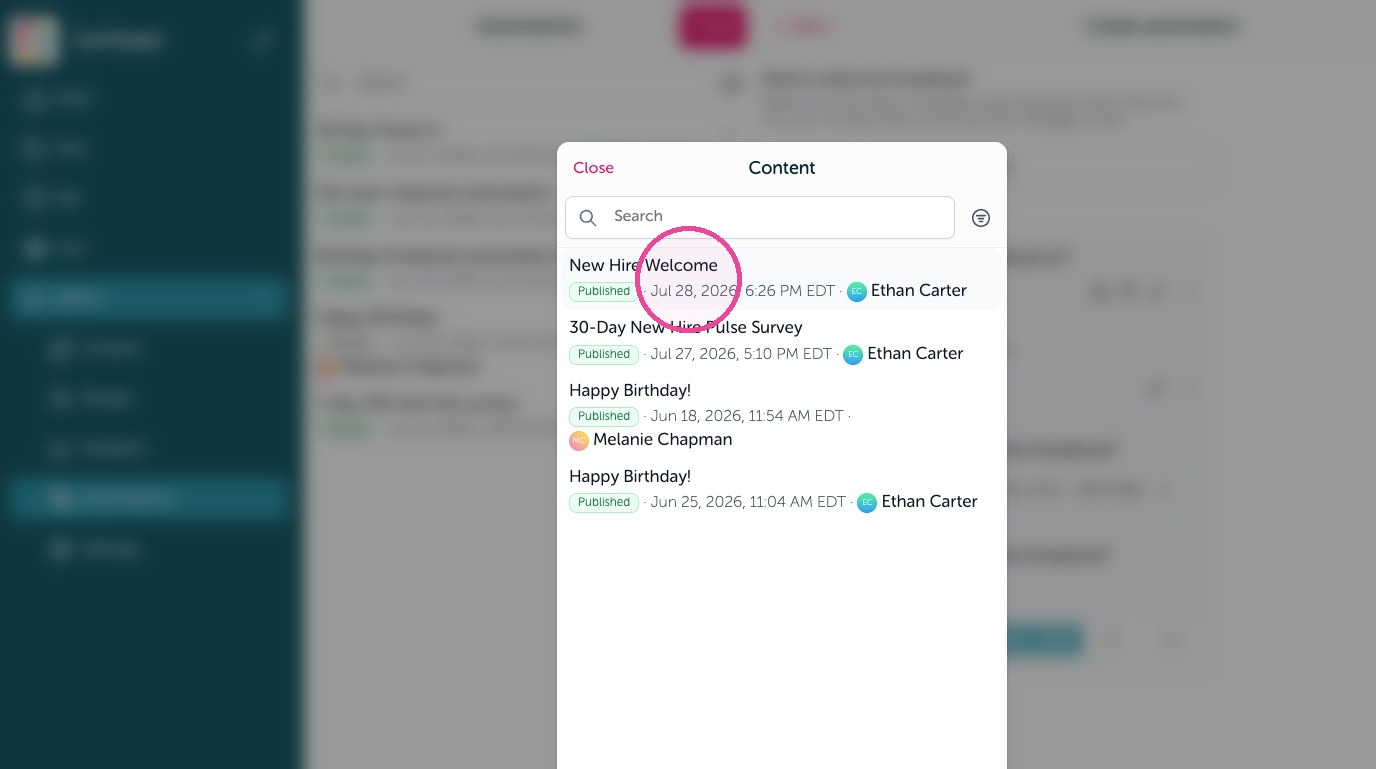
19. Select the content you just made
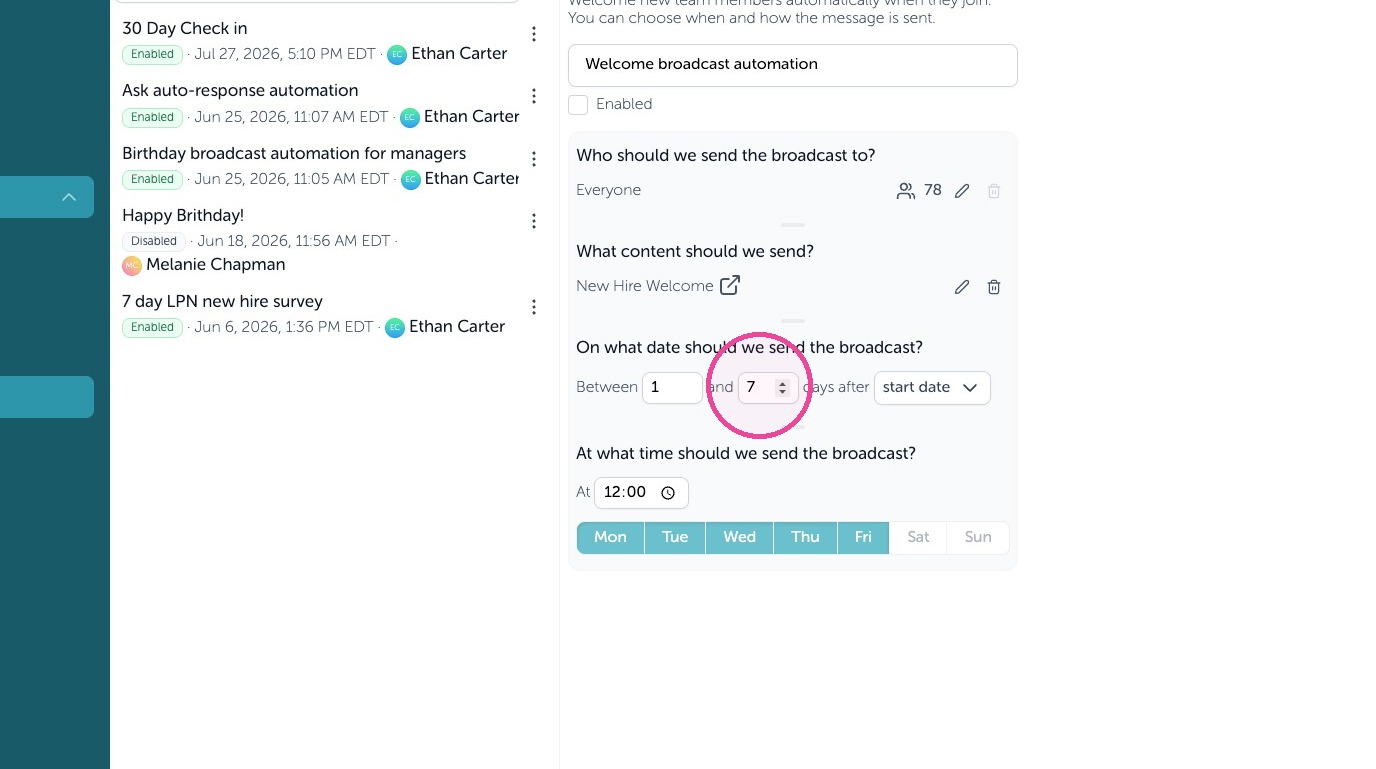
20. Finish your settings such as who it should go to using tags, and when using either an added date (to OurPeople) or start date (from HR system integrations)
21. Enable this automation
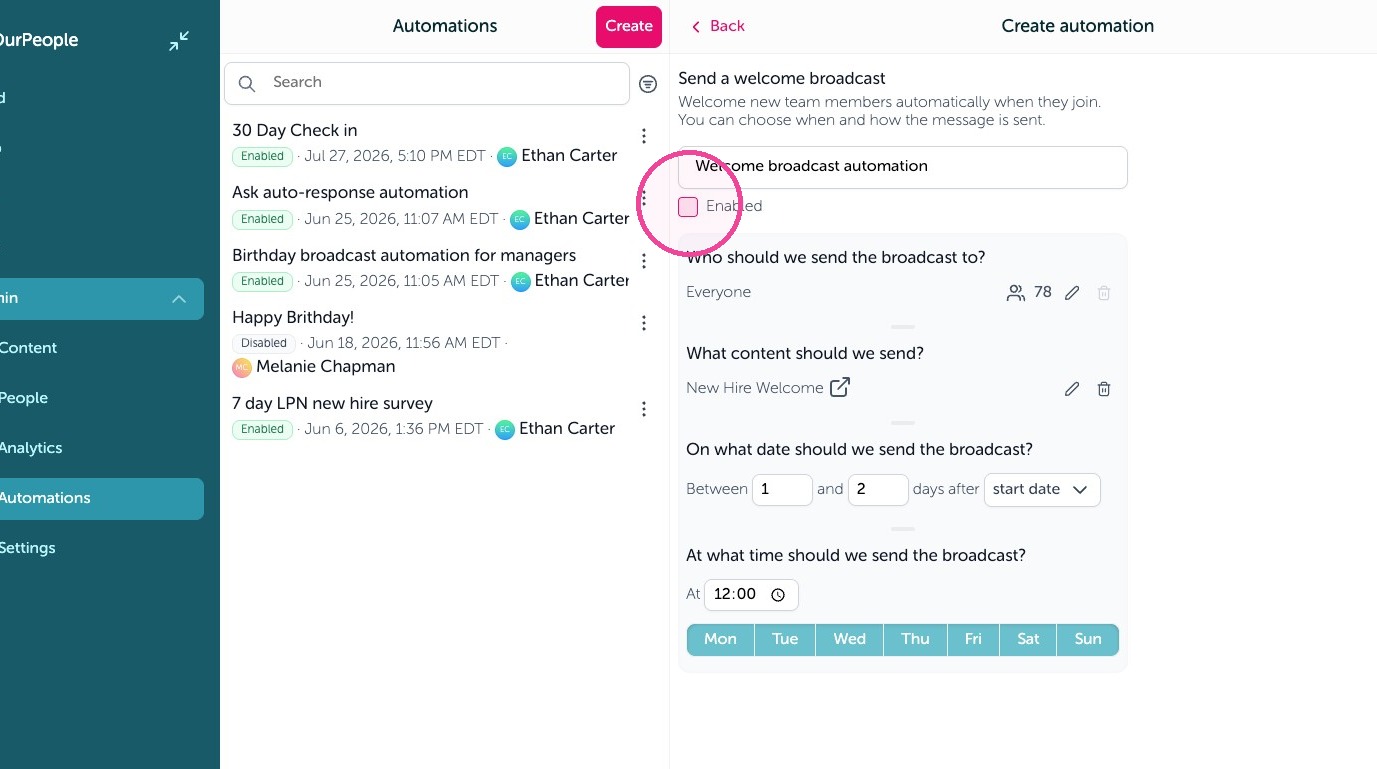
22. Click "Save"
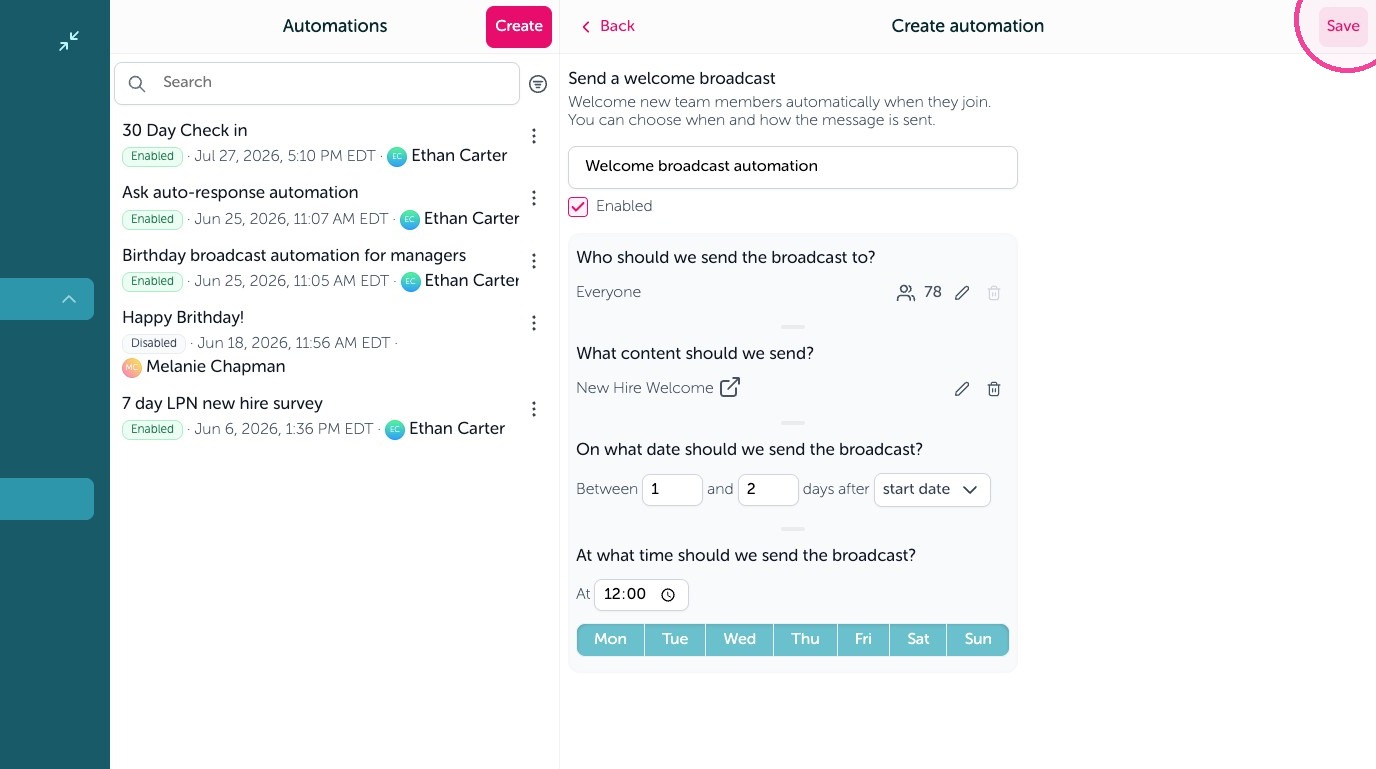
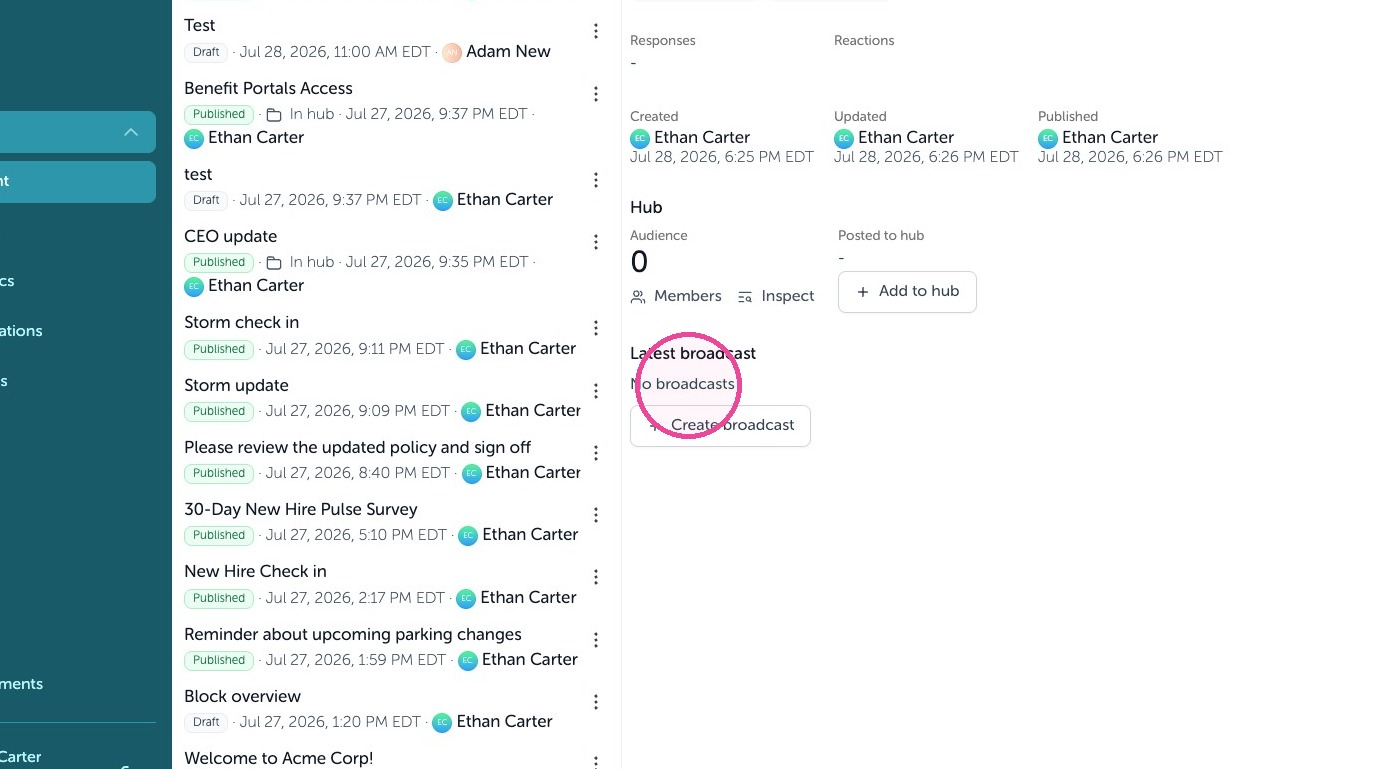
23. To view the automation's content and broadcast reports click the link top open the content.
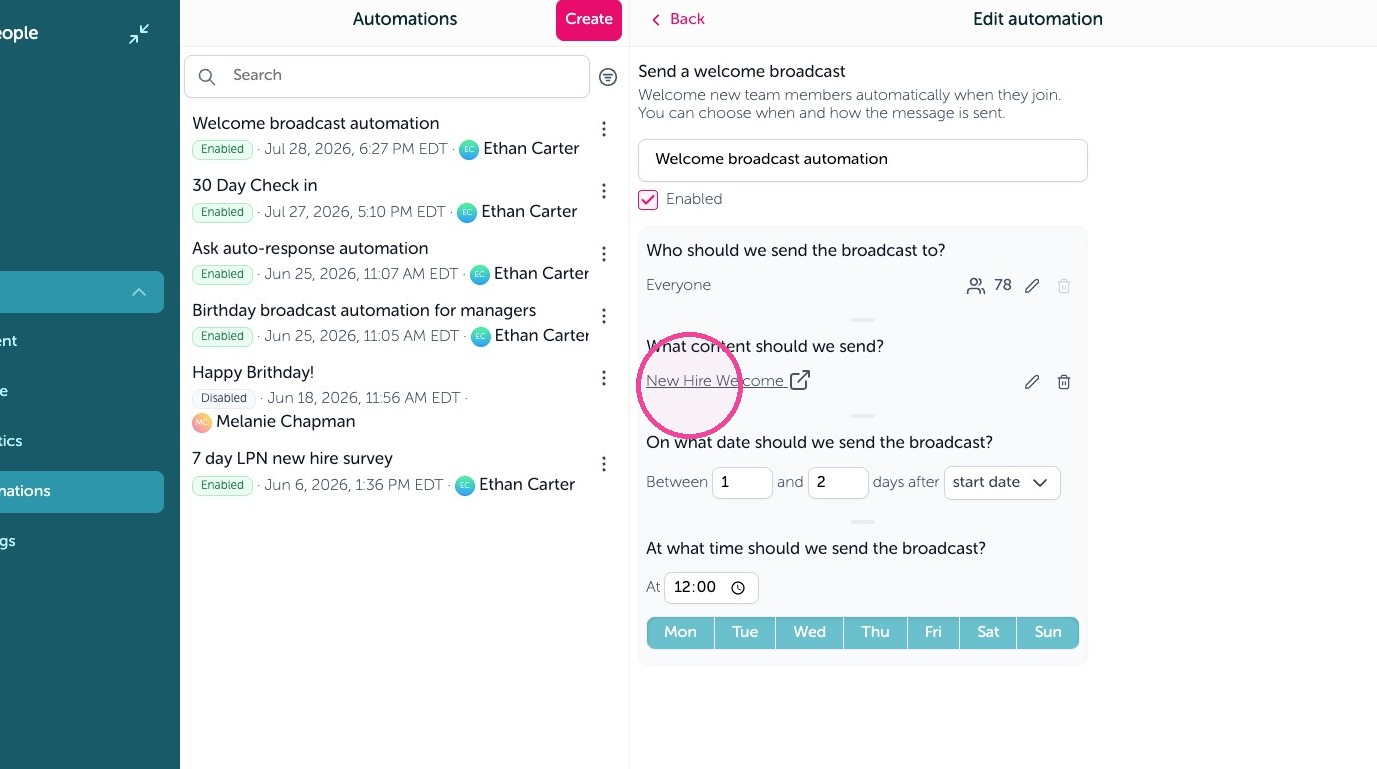
24. You'll see recent delivery reports under "Latest broadcast"