
Learn how to efficiently set up and customize an automated welcome message for new team members. This guide provides a clear walkthrough to ensure your onboarding essential broadcasts are saved and ready for deployment.
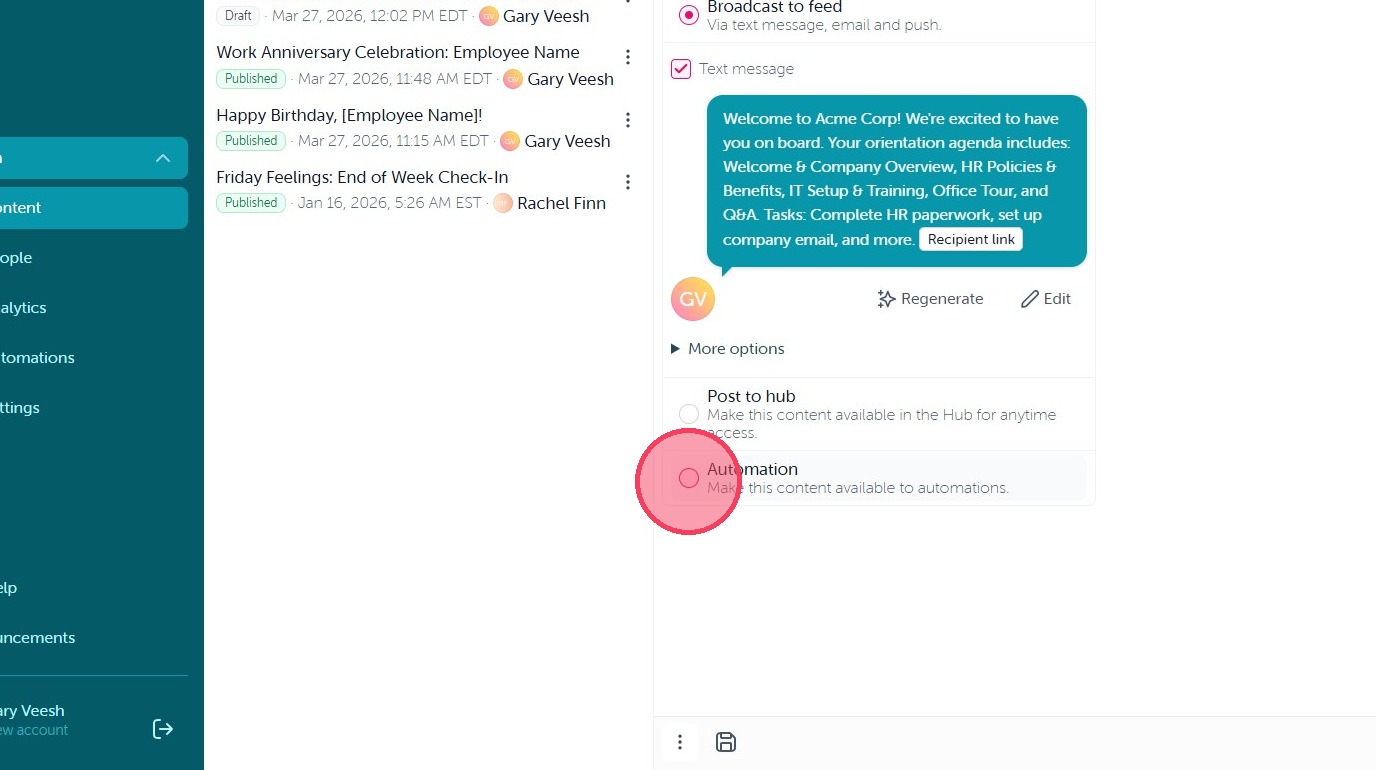
1. As with all automations, the first step is publishing your content to Automations. Simply select the Automation option on the final screen of your Content and make any desired changes to your text message notification.
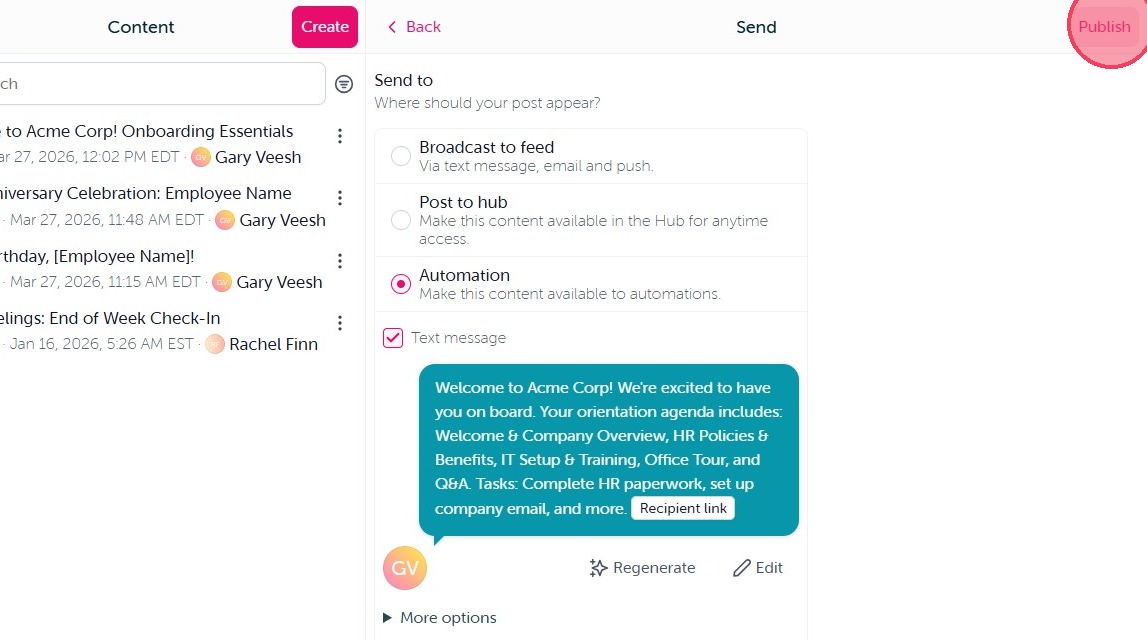
2. When you are happy with your content and notification click "Publish" in the top corner.
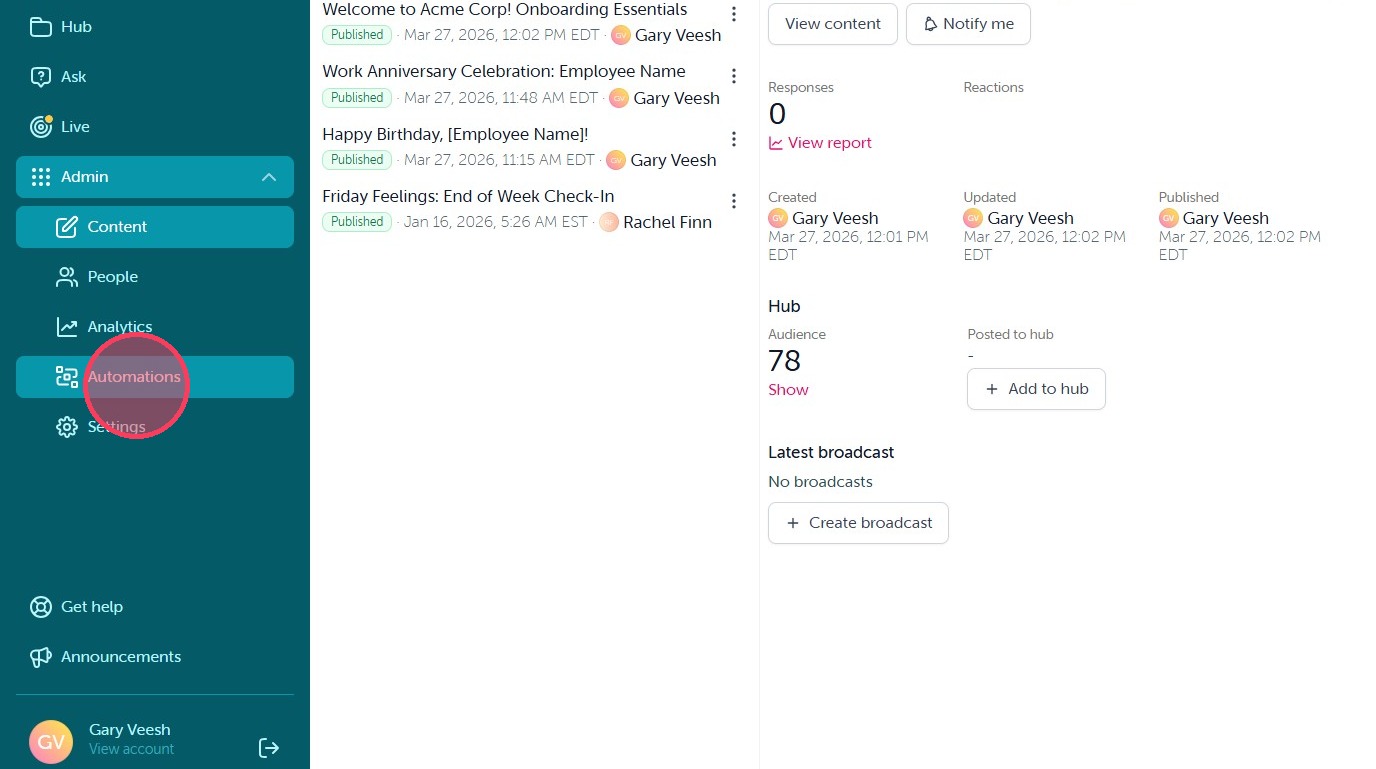
3. Click "Automations" in your Admin dashboard to build your automation.
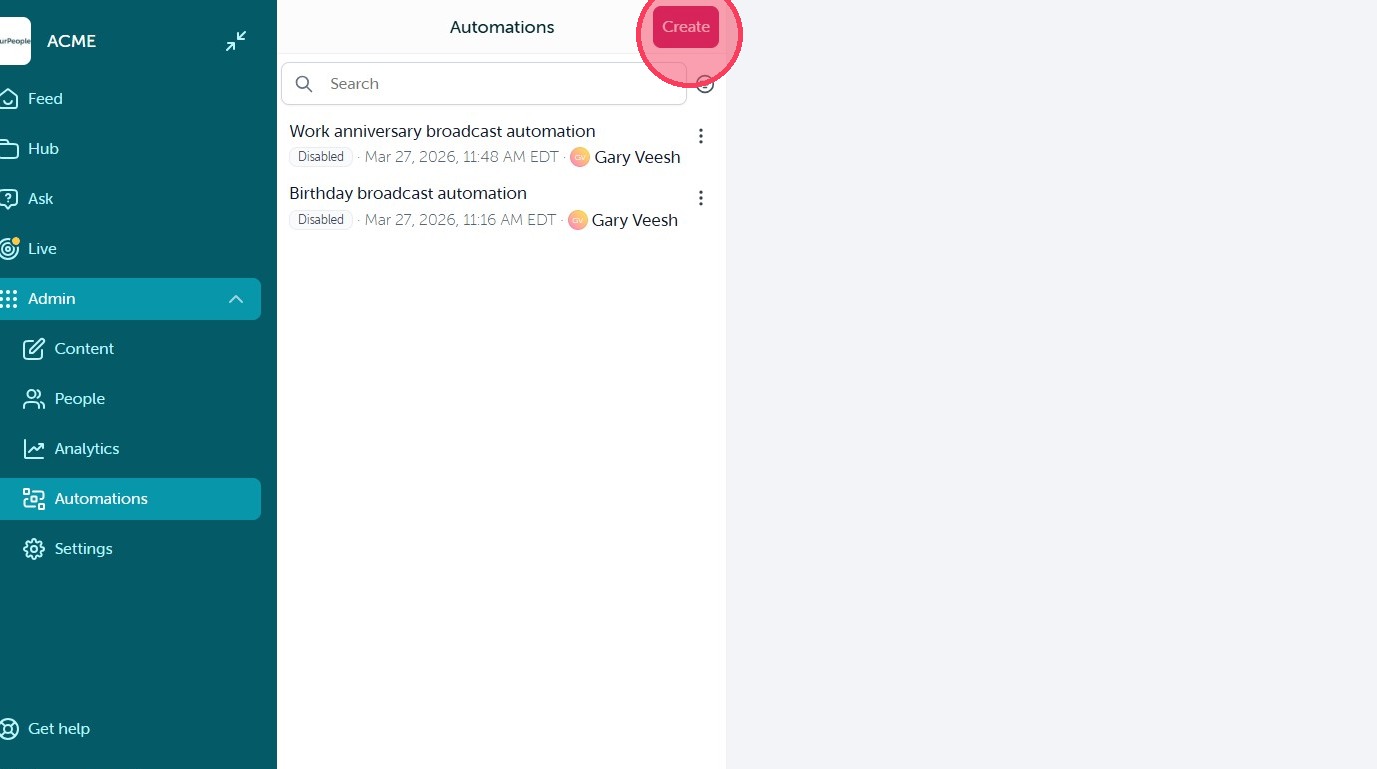
4. Click "Create" to get started.
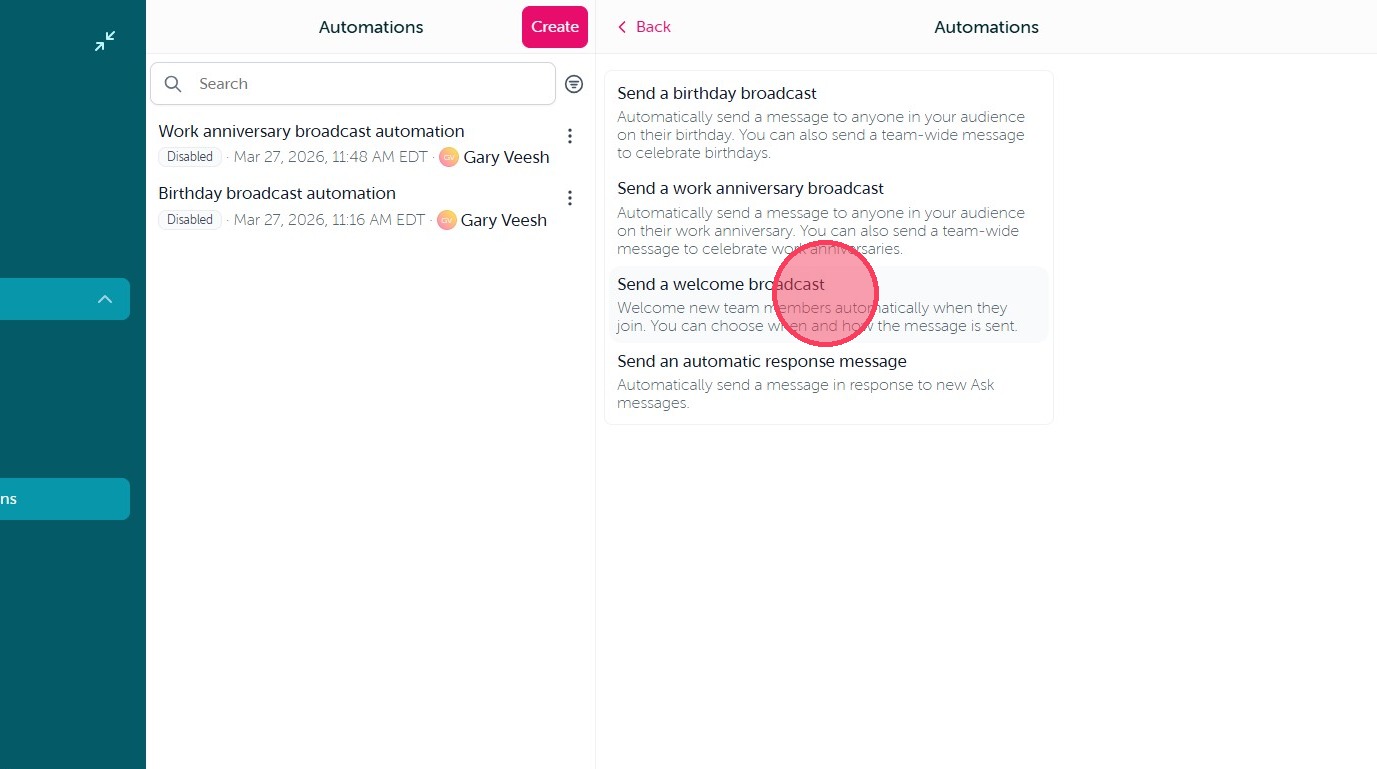
5. We will be selecting "Send a welcome broadcast" to build your onboarding automation.
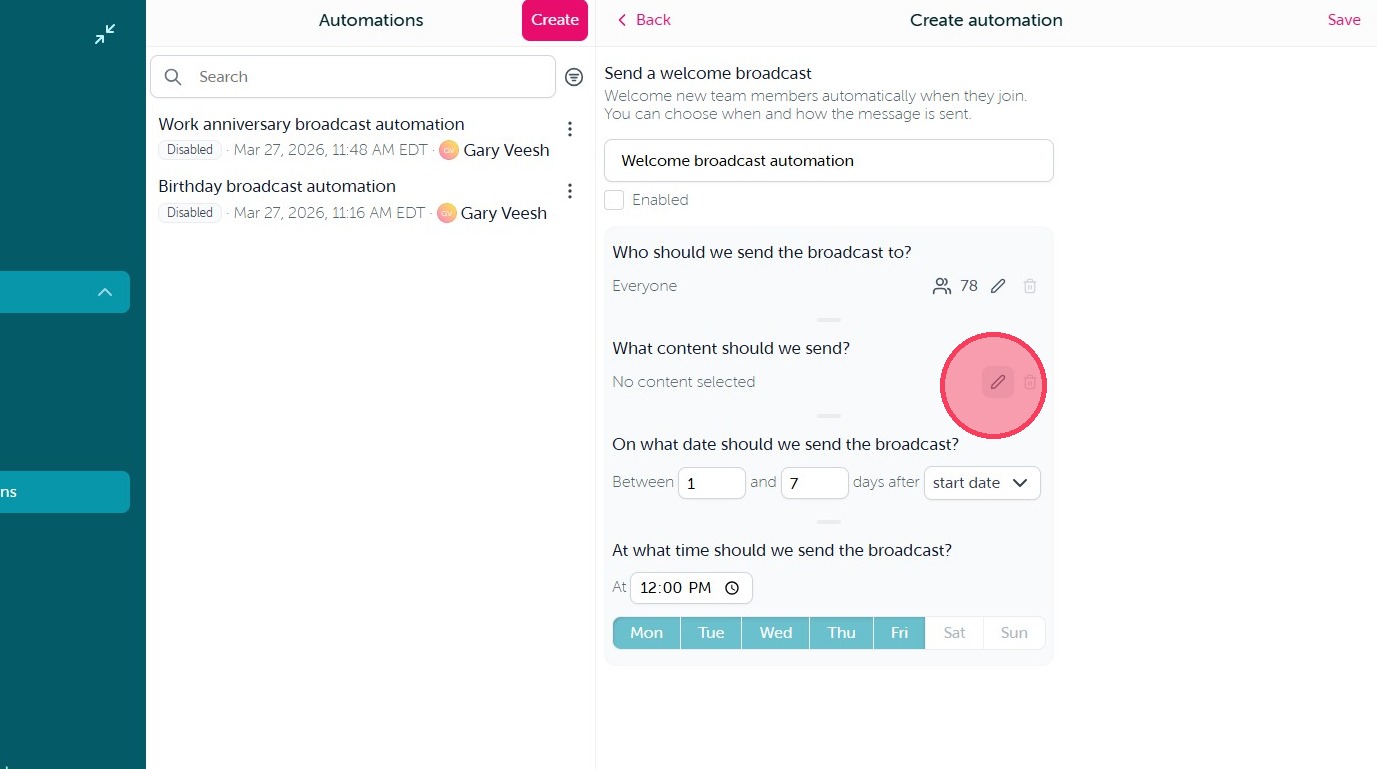
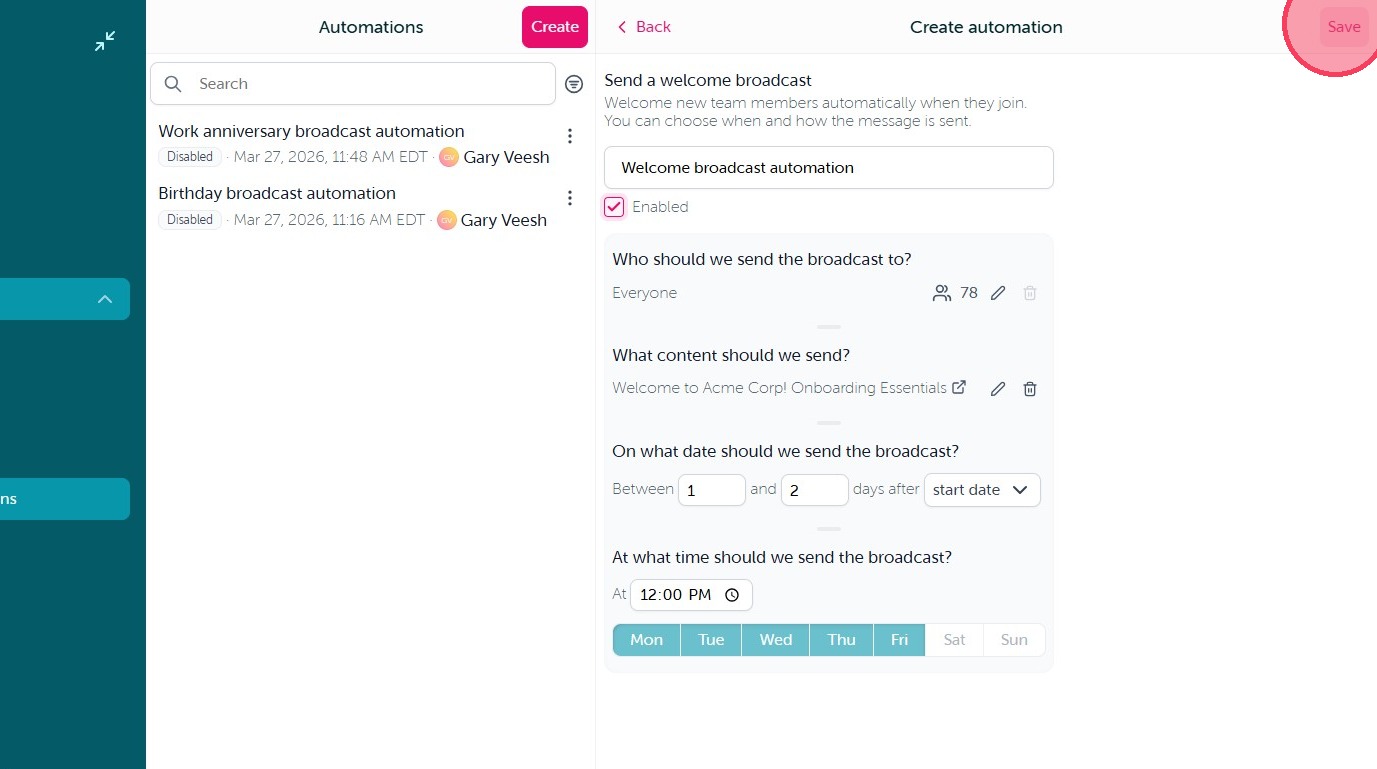
6. On this screen you can make the following adjustments:
- Update the Automation title at the top of the page
- Edit the audience based on the selected date data imported from your integration
- Select the content that will be sent through the Automation
- Outline the timing this automation will be sent and the dates used to outline that timing. You can use either the employee 'start date' which is the date they became employed at your company, or the 'added date' which is the date they were added to OurPeople.
- Set the days and times the Automation will run
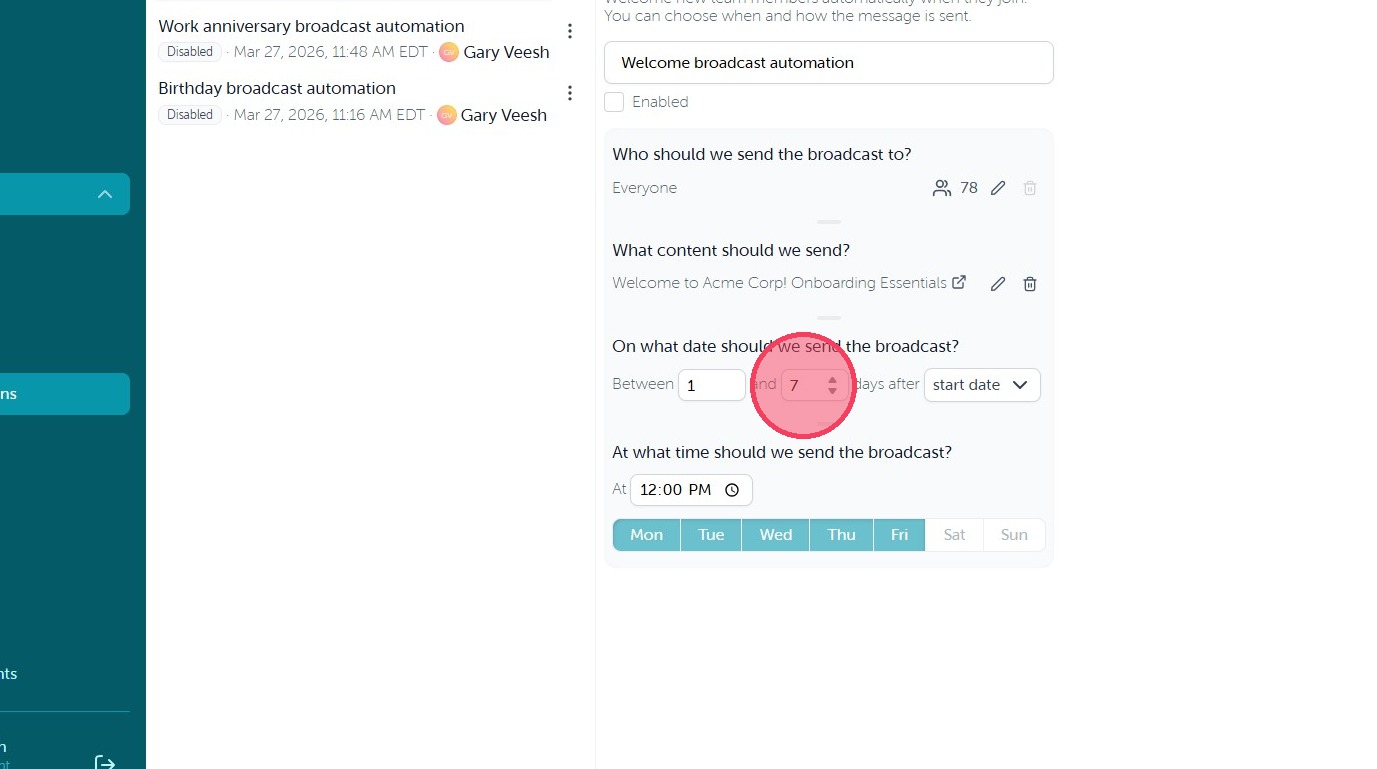
7. We recommend setting the 'Between' timing to be at least a one day gap. So if you would like to be sent on the 1st day of the outlined date data, set it to be between 1 and 2 days.
8. When you are happy with your automation settings, select the Enabled checkbox.
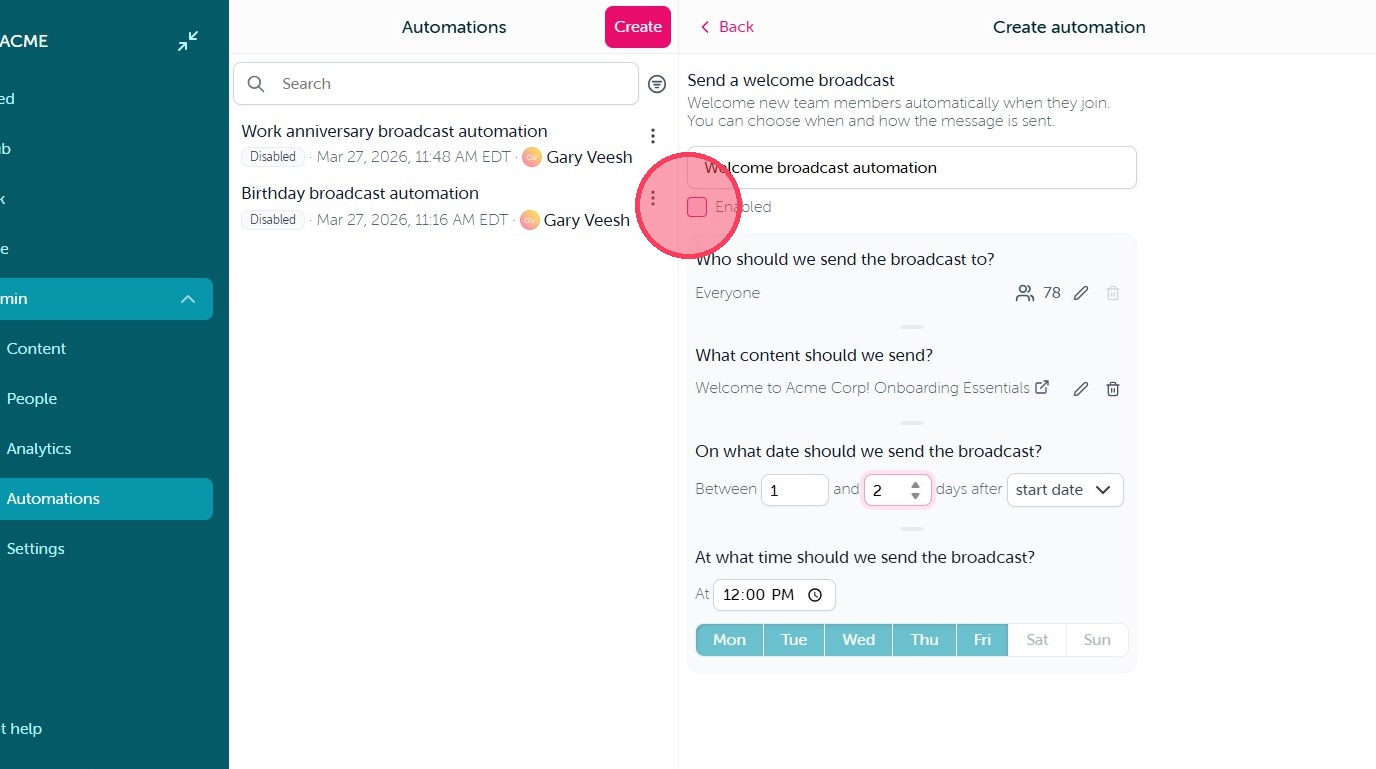
9. Then click "Save" to activate the automation.
Comments
0 comments
Article is closed for comments.