
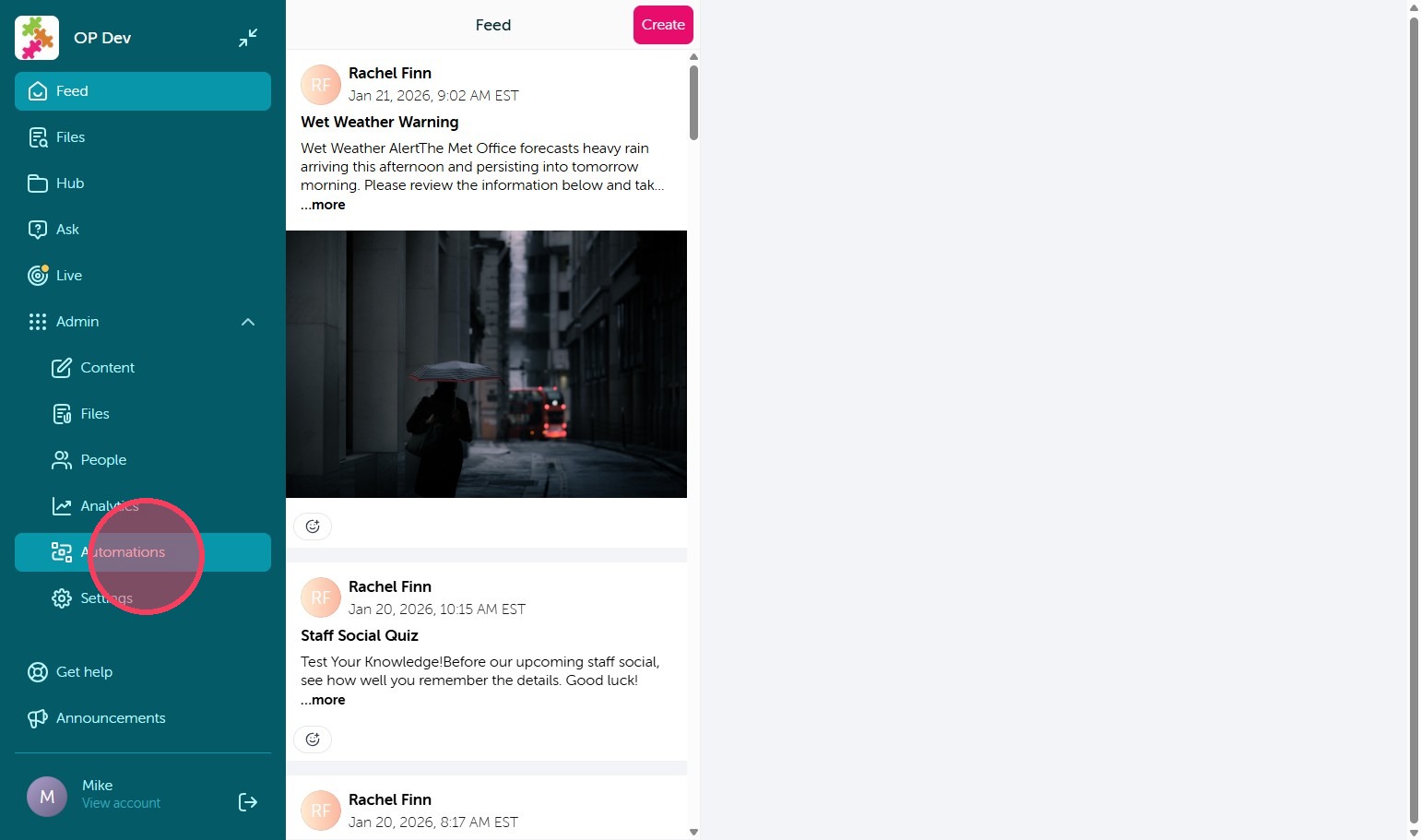
1. You can now create automations to automatically send published content to your user's using their birthdate, start date, or added date, which are all now included in user profiles. To begin select 'Automations' under the Admin dashboard.
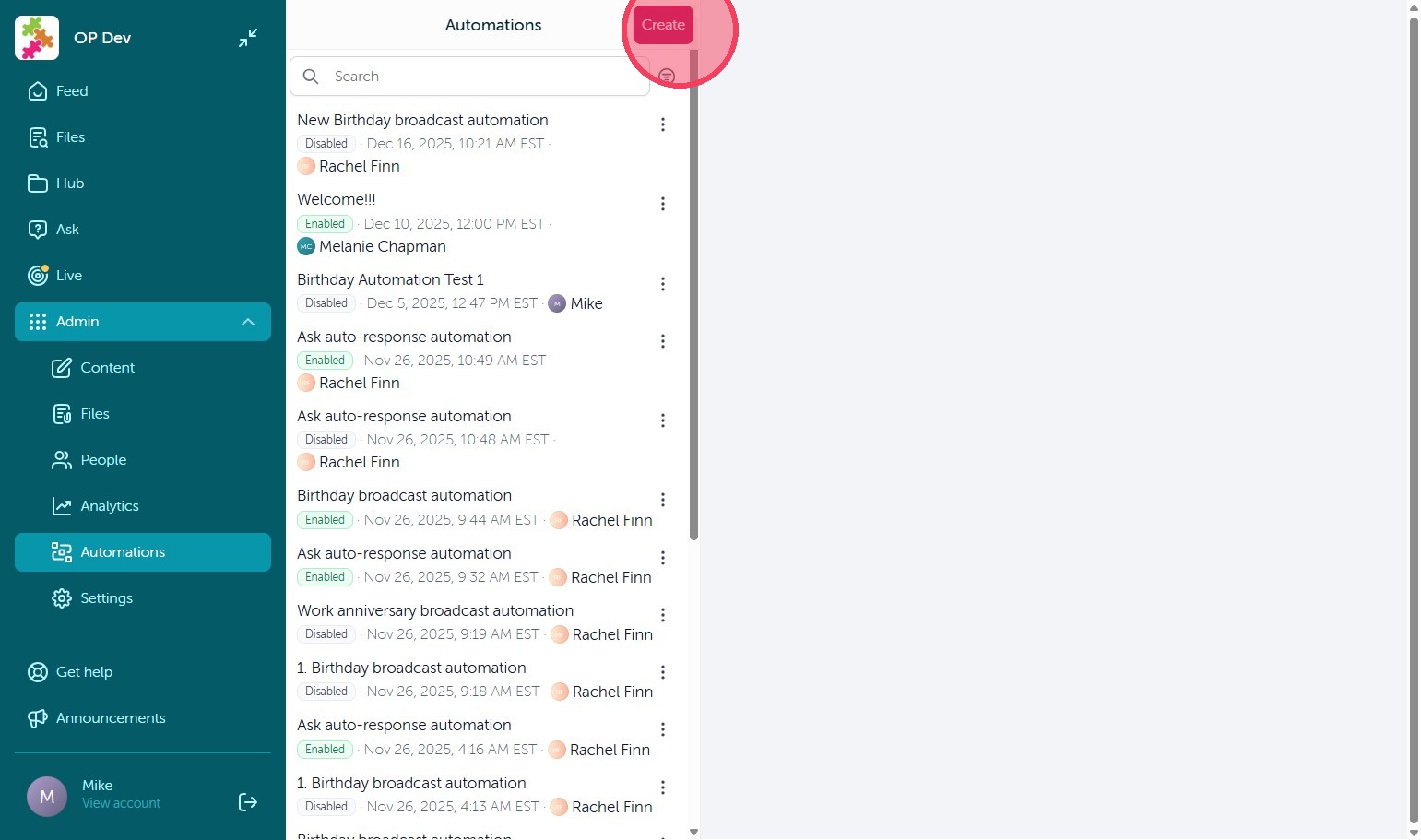
2. Click "Create" to get started.
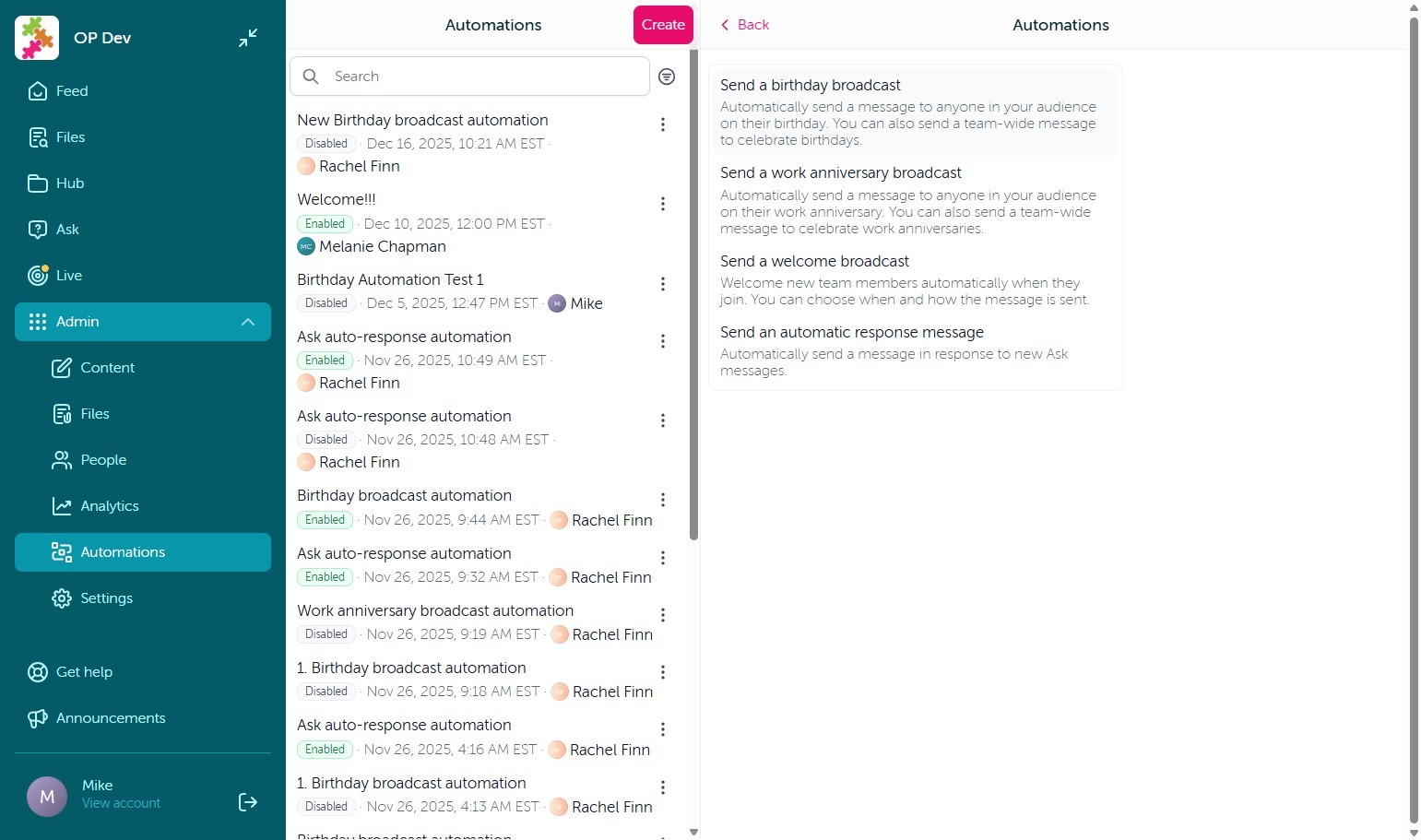
3. From here you can select from the four automation options: Birthday, Work Anniversary, Welcome/Onboarding, and Ask automatic responses. Simply select the automation you would like to set up. Ask automatic responses simply allow you to create an automated response to incoming Ask inquiries.
4. Once selected you can create a title for your new automation at the top.
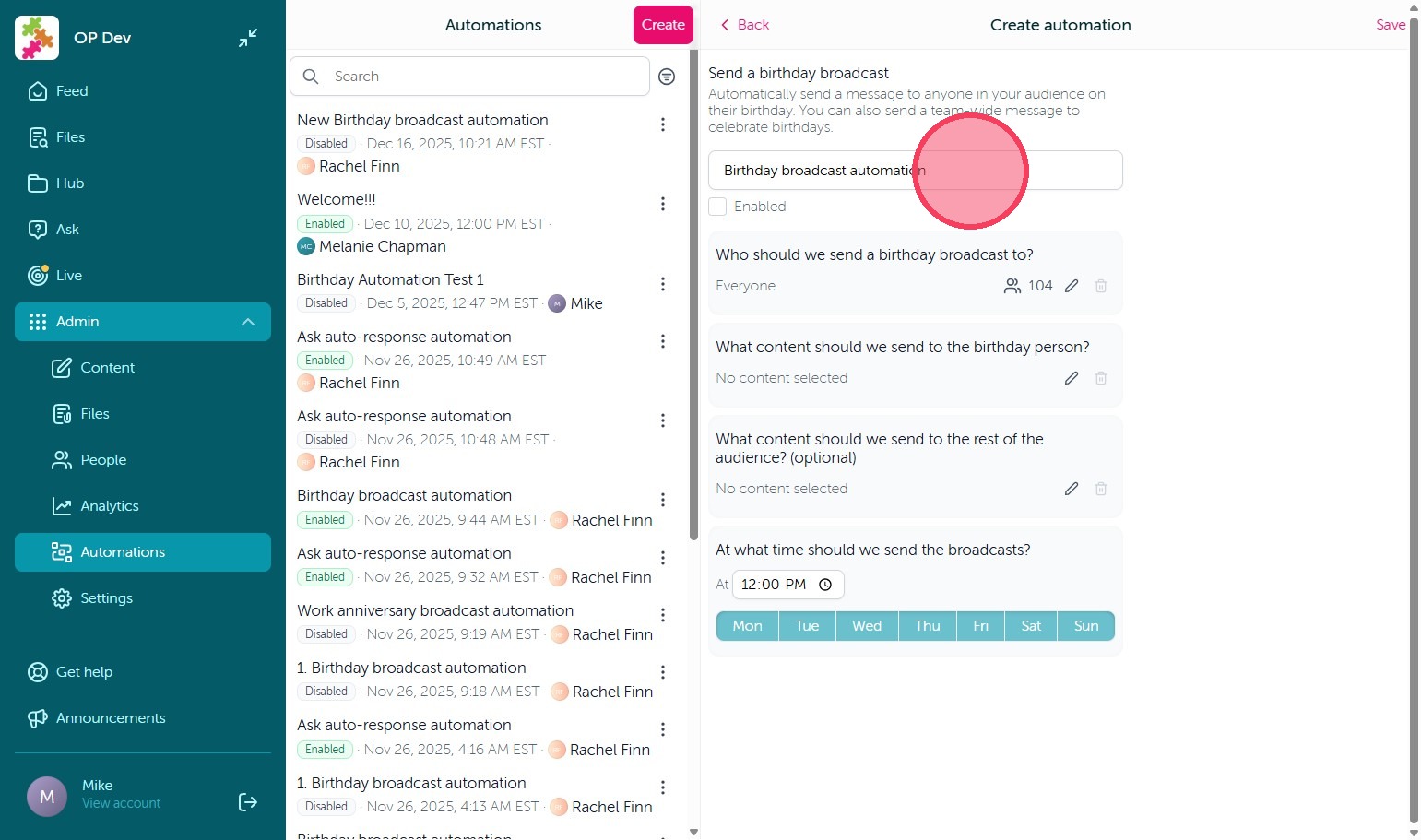
5. You can then edit the audience, or pool of user's who can receive this automation. Typically for birthday, welcome, and anniversary automations you will want to leave the audience as 'Everyone'. After, you can select the published Content you would like this automation to use.
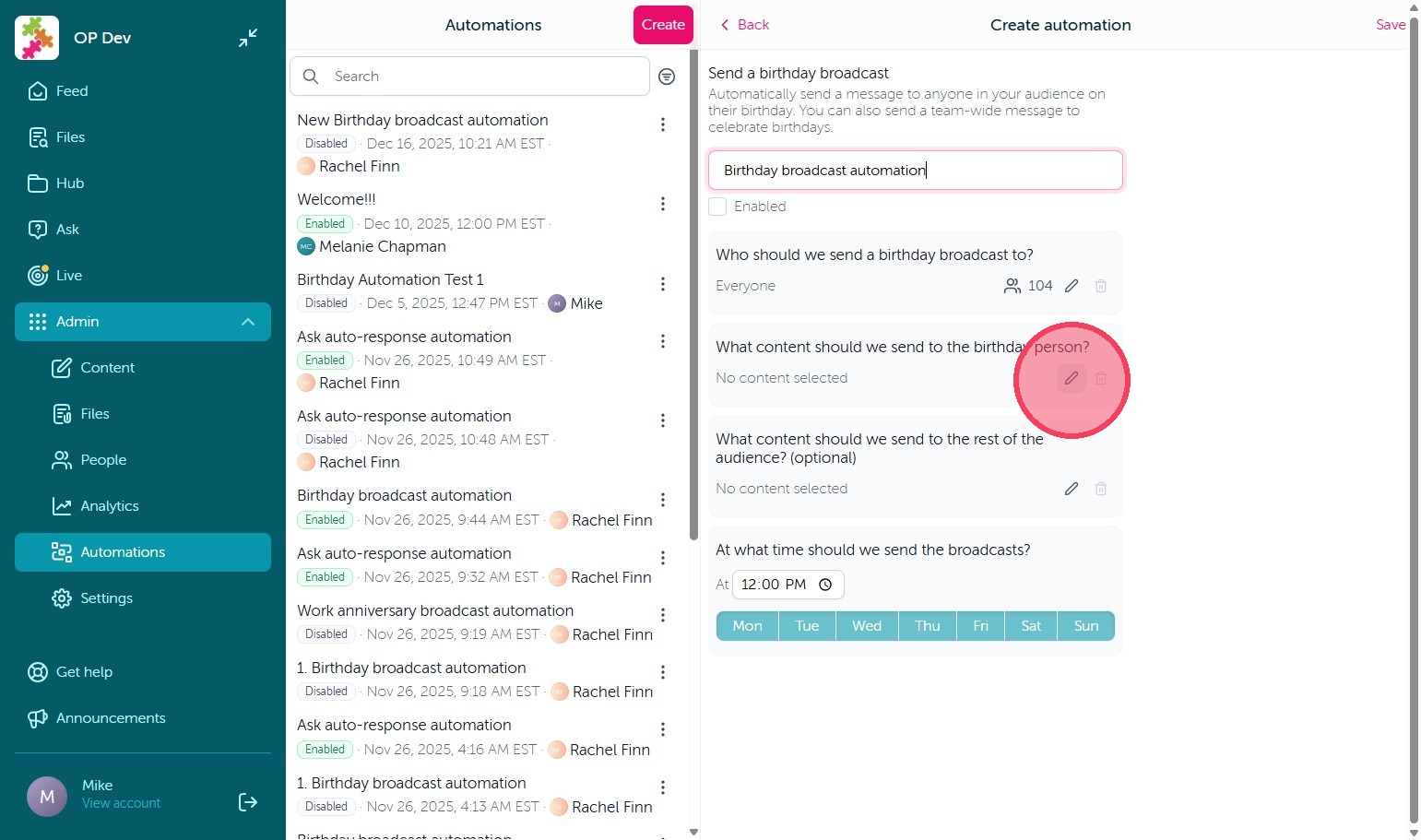
6. Simply select your Content that was published to Automations from the Content section.
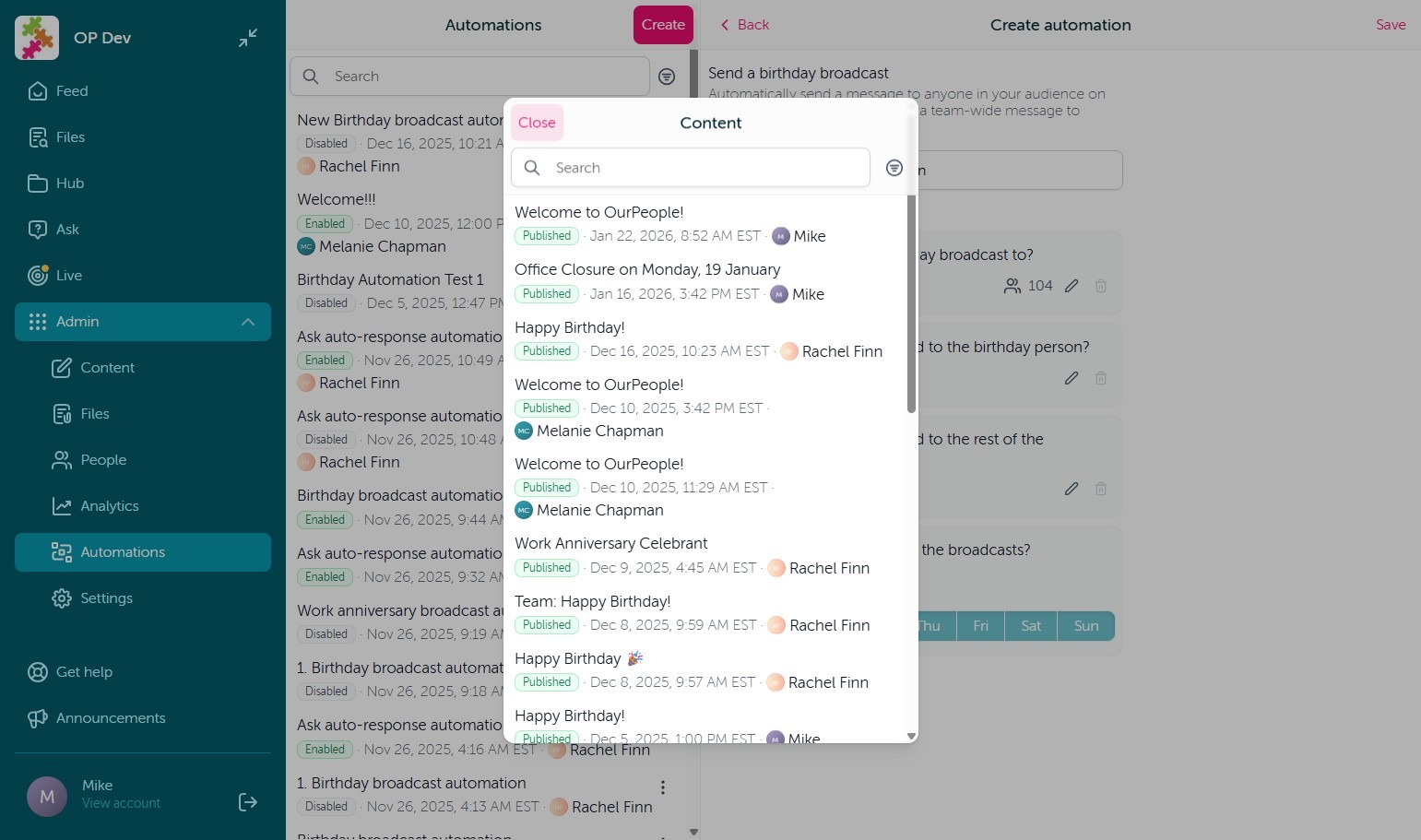
7. Once you have selected your Audience and Content you can then optionally select content you would like other user's to receive on other user's birthday's/anniversary's. Finally you can select the time and days of the week you would like this automation to be sent on.
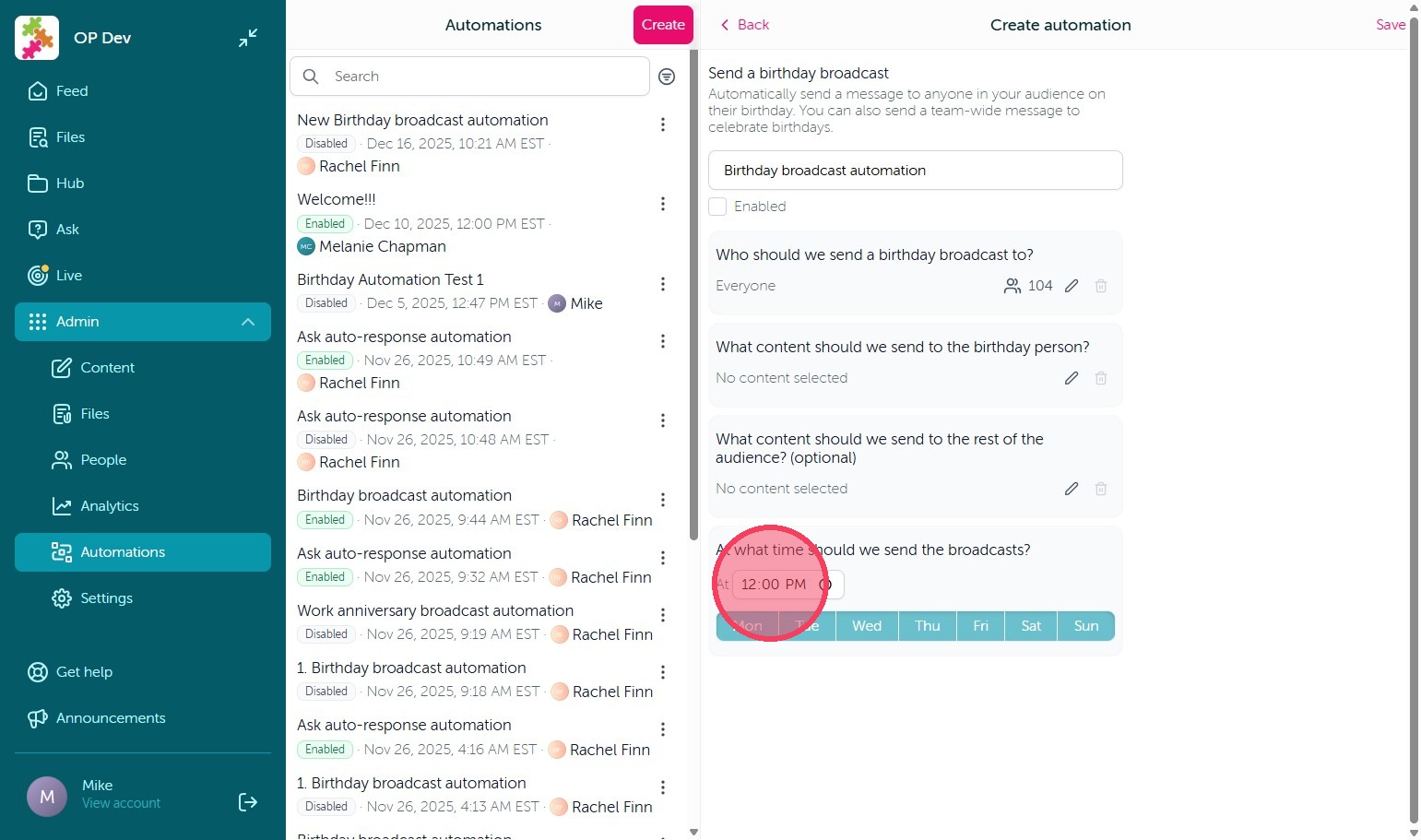
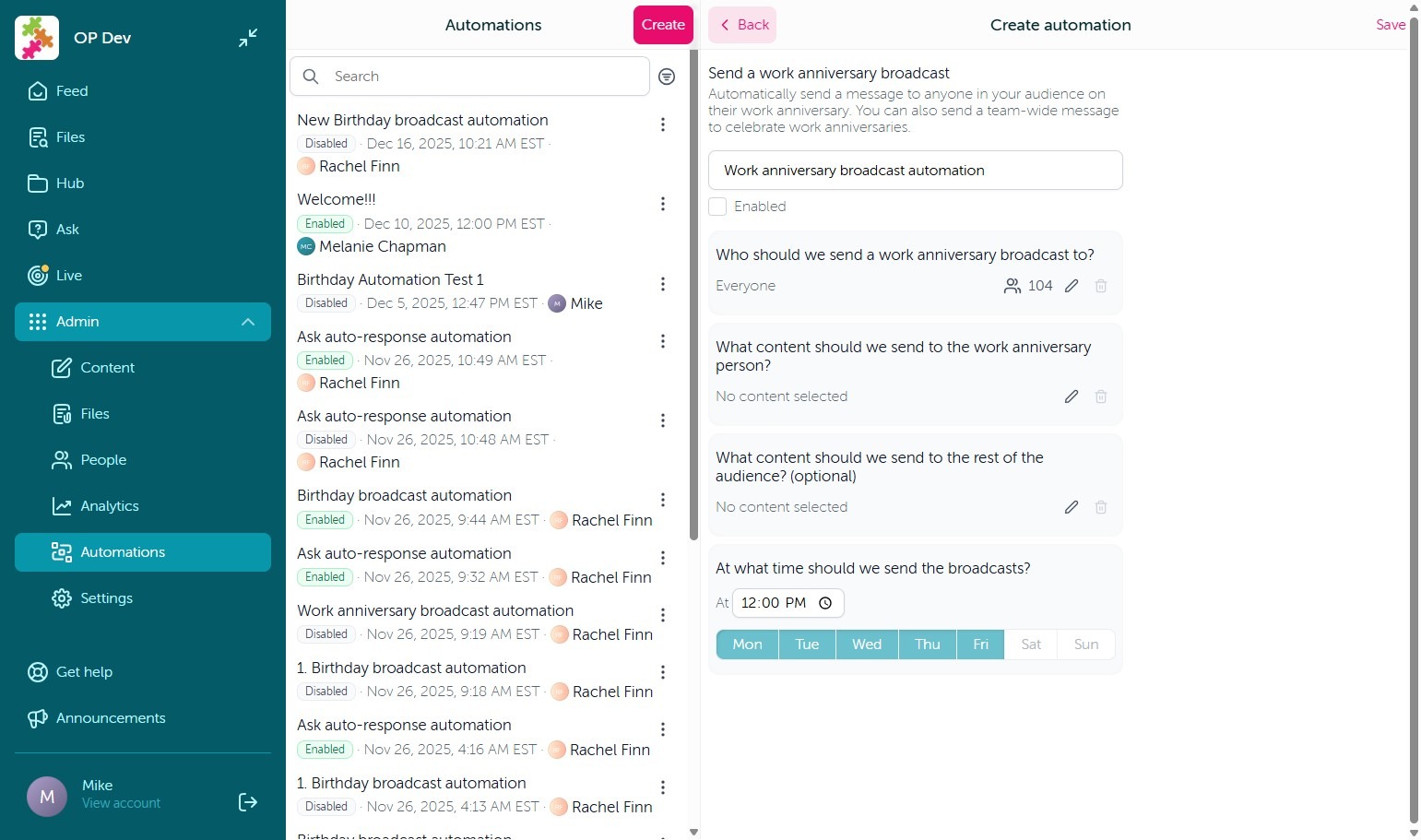
8. Work Anniversary automations are created the same as Birthday automations, the only distinction is that they use the user's start date associated with their user profile, instead of their birthdate.
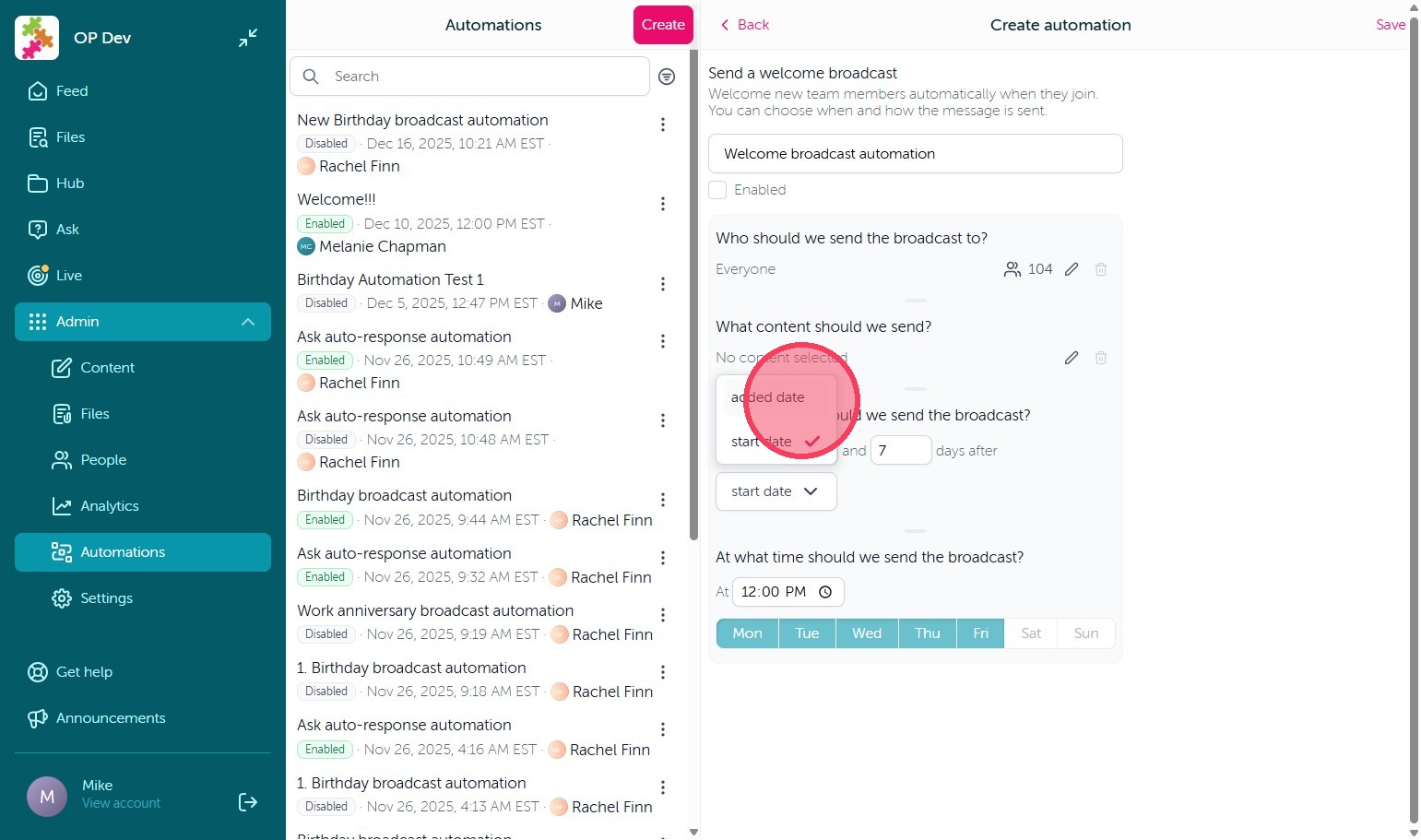
9. For Welcome/Onboarding automations you still need to select your desired content, but you now have the option to outline the date you would like the automation to be sent from, either the user's start date or added date (which is the date they were added to OurPeople).
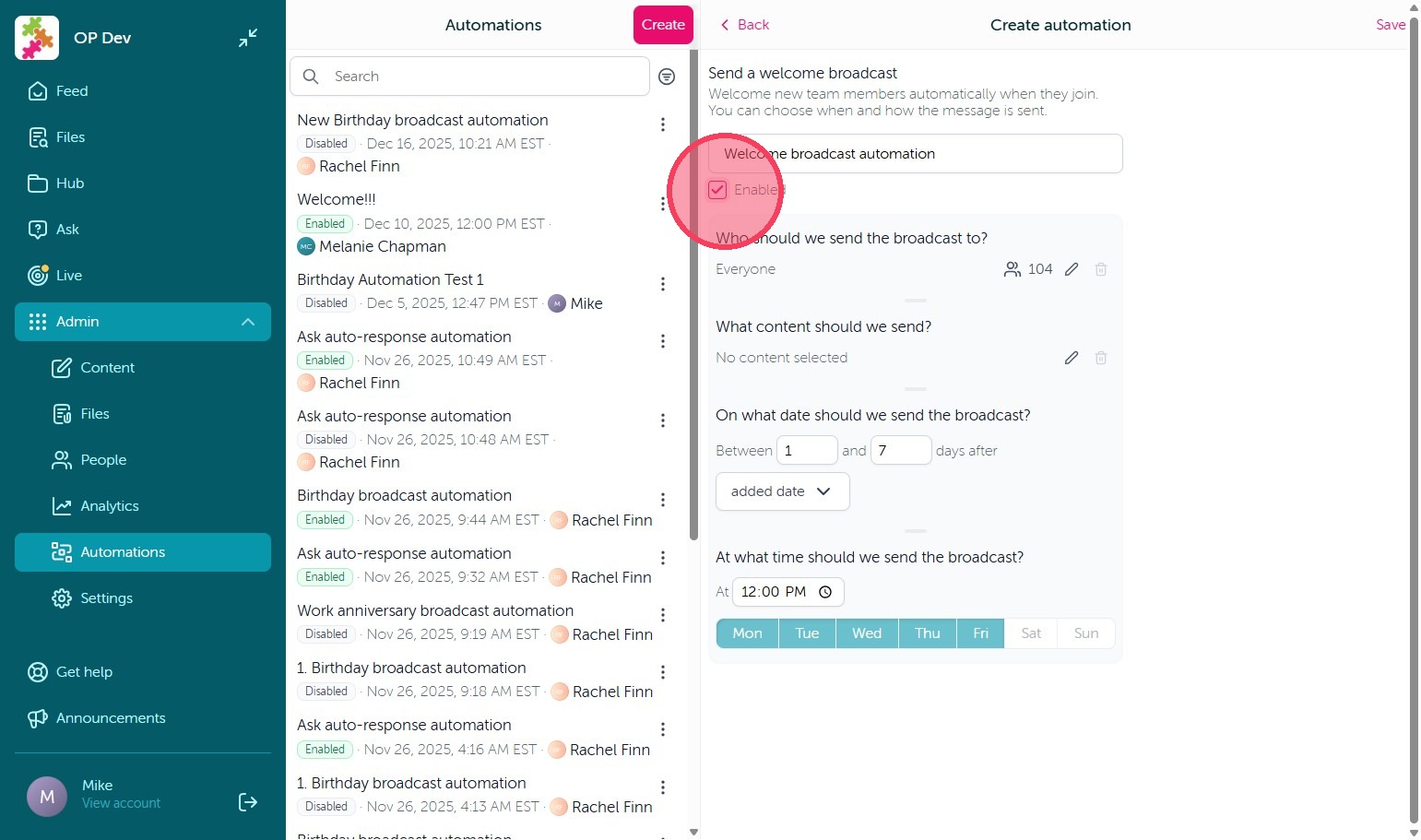
10. Once your automation is complete, just make sure you select 'Enabled' before saving in the top right corner and this will activate your new Automation and start sending using the criteria outlined.
Comments
0 comments
Article is closed for comments.