Learn how to see and reply to messages in the Live inbox. You can also manage your automated notification settings and send directed messages through the platform. This guide provides a clear walkthrough for communicating with contacts and ensuring you stay updated on new administrative messages.
Viewing and replying to an inbound message
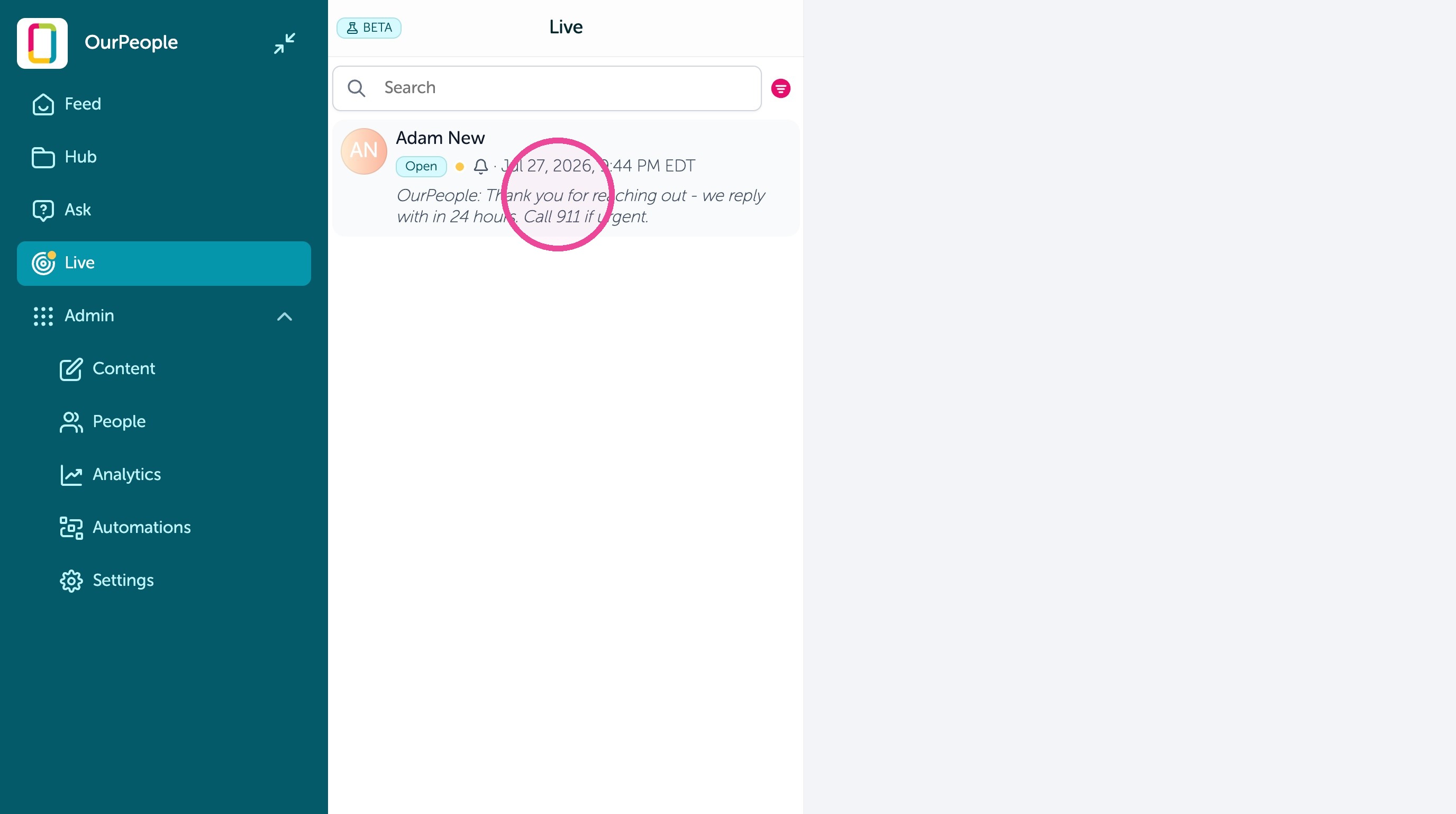
1. When employees texts in a question or uses Ask, you can to view the inbound messages by clicking "Live"
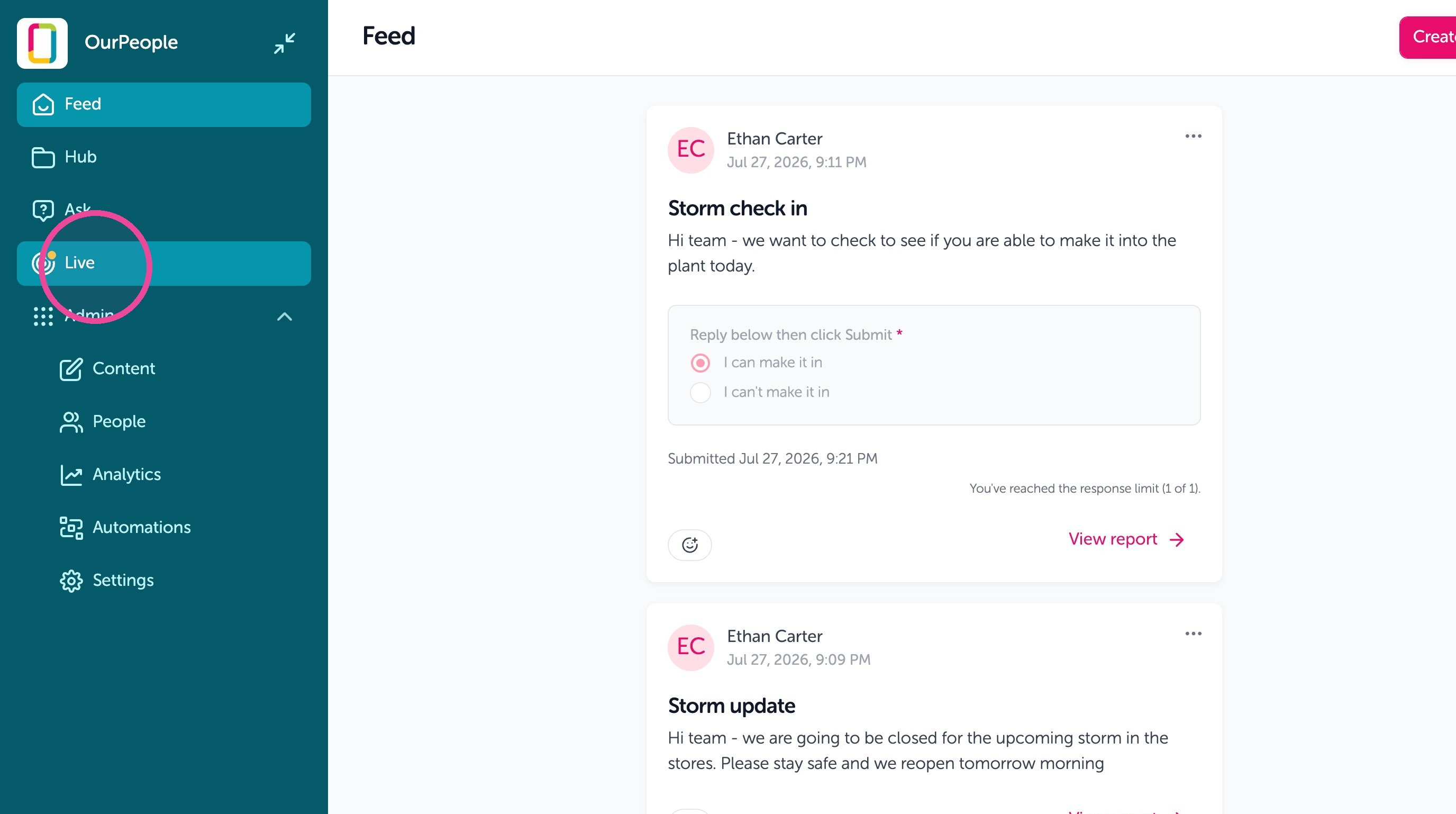
2. There's also a new message icon that is illuminated on the Live button. New messages will show up in the inbox here.
3. You can see if it was send via text message or via Ask on the web, and all prior outbound or inbound messages with this employee in this conversation thread
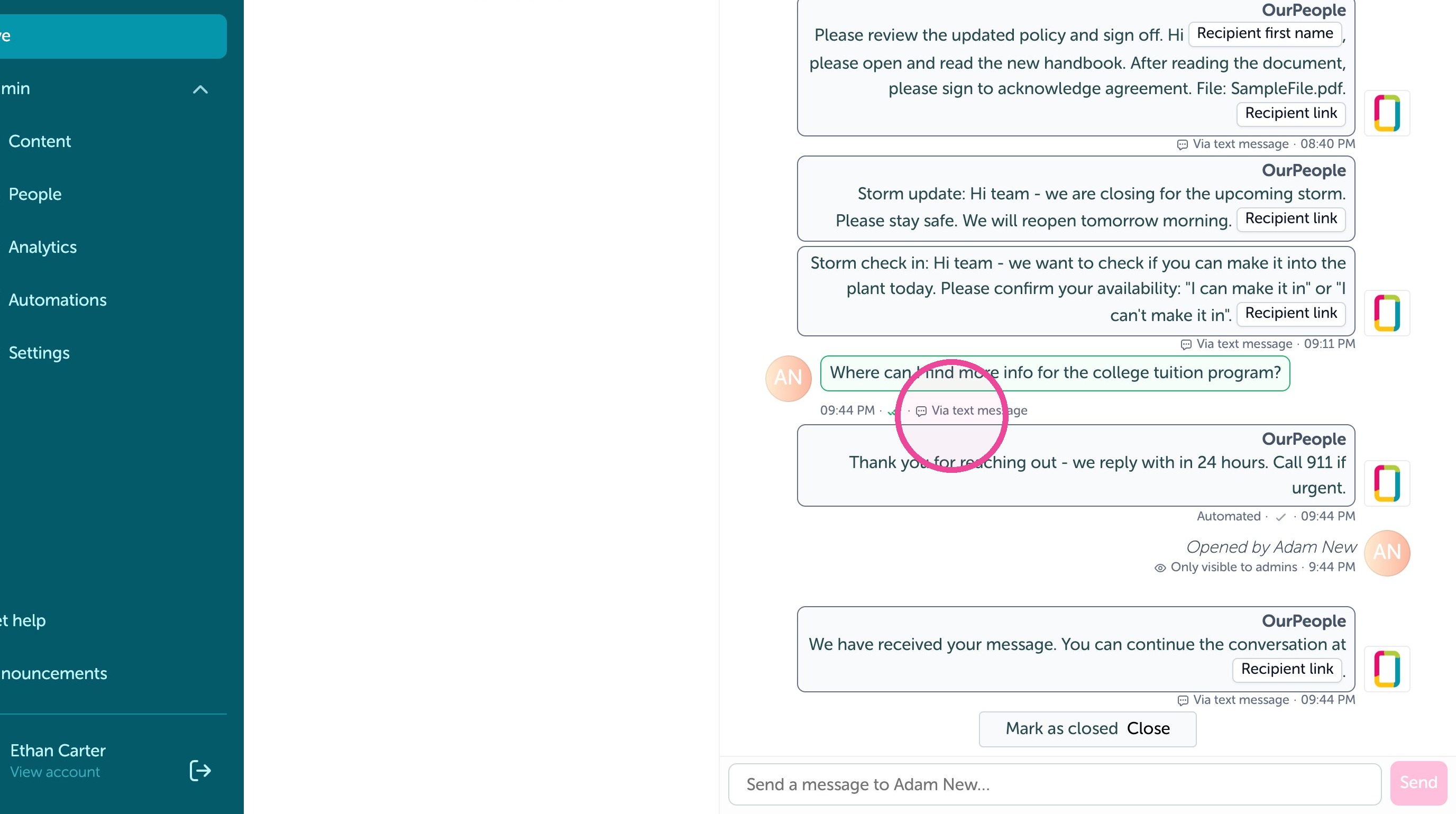
4. You can reply by typing below.
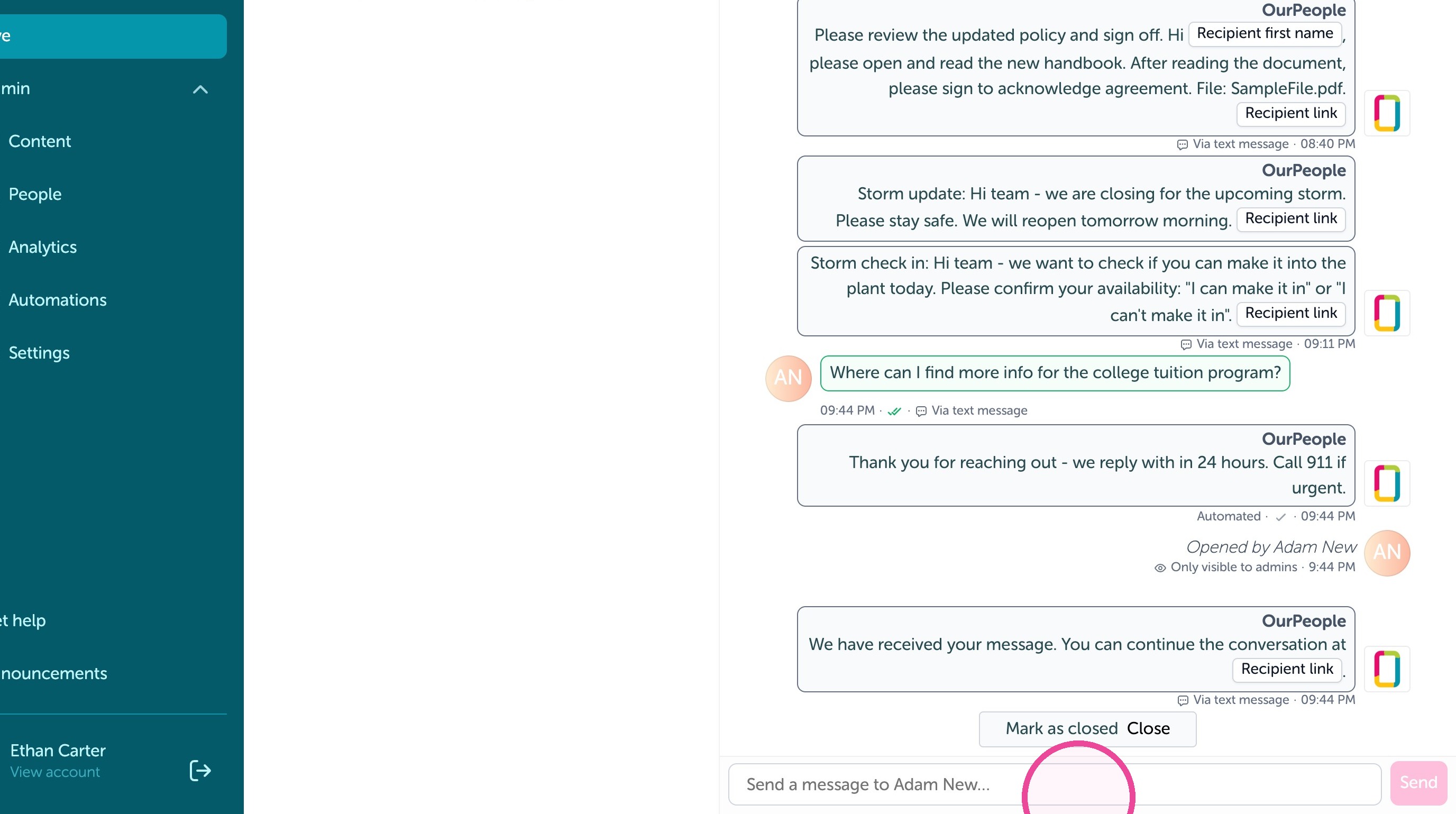
5. Click "Send" to text the employee back to answer the question.
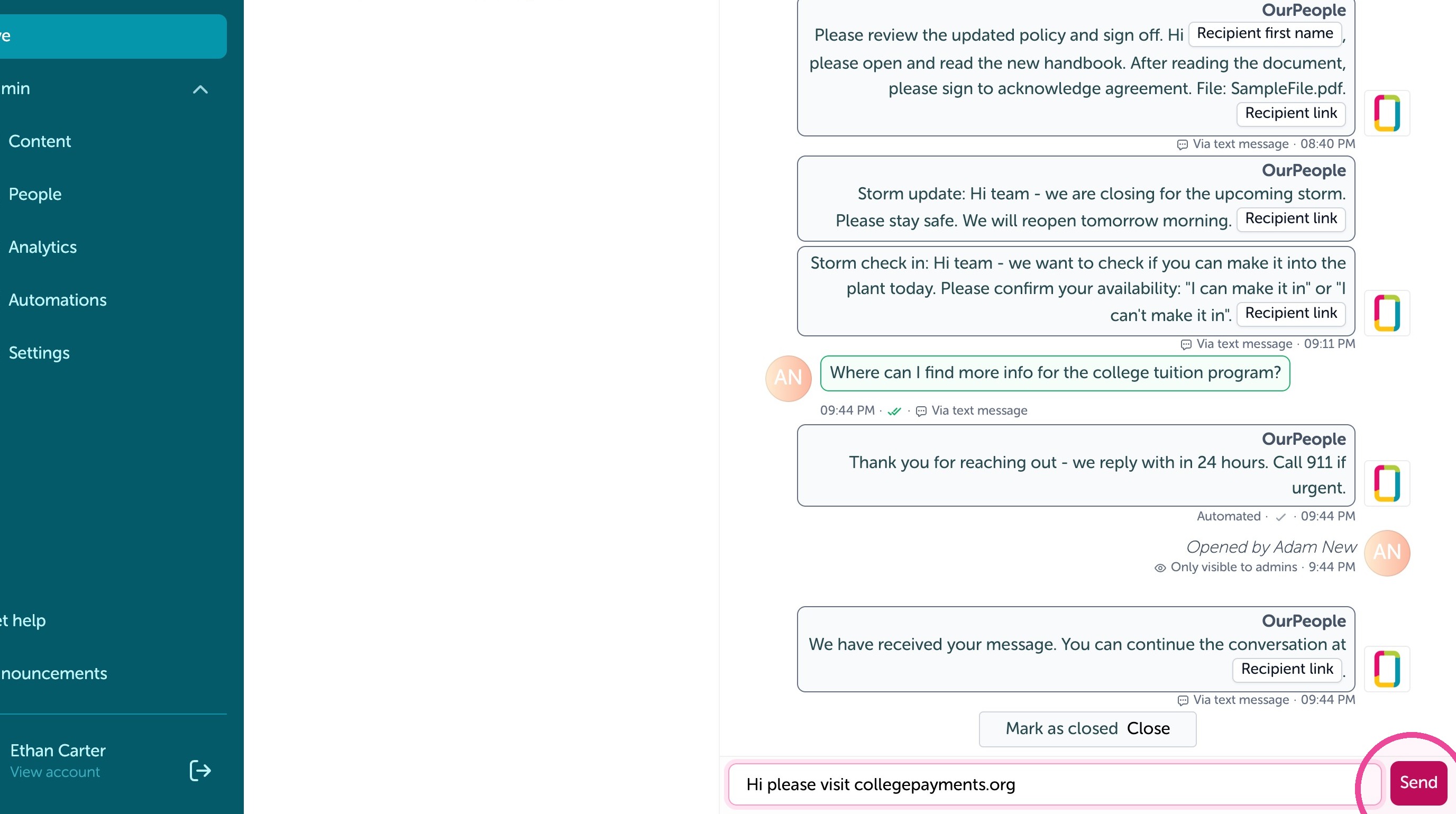
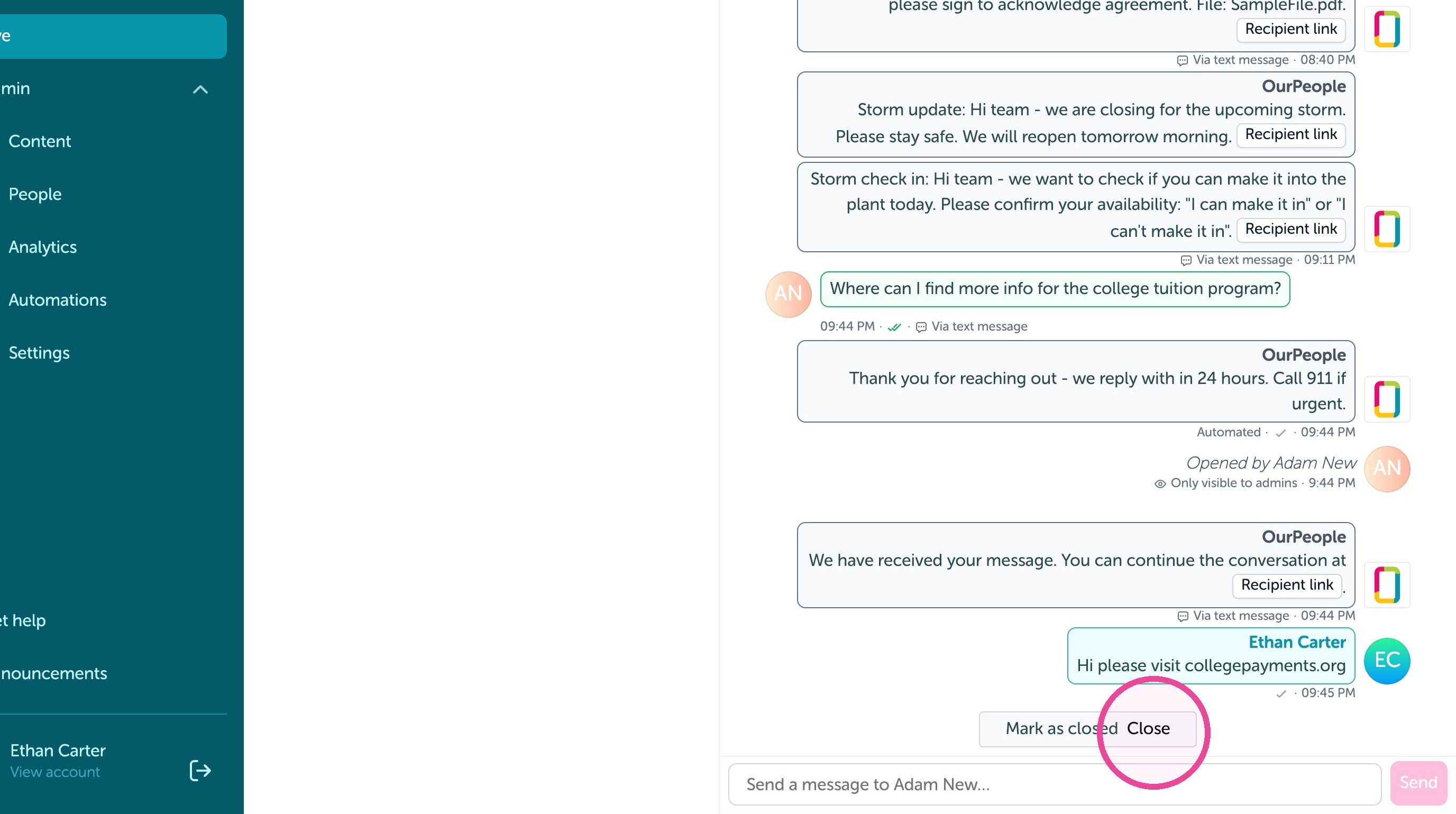
6. And when you're done you can "Close" the open conversation to hide the thread. The employee will not be notified that the message is closed, it simply keeps your view cleaner.
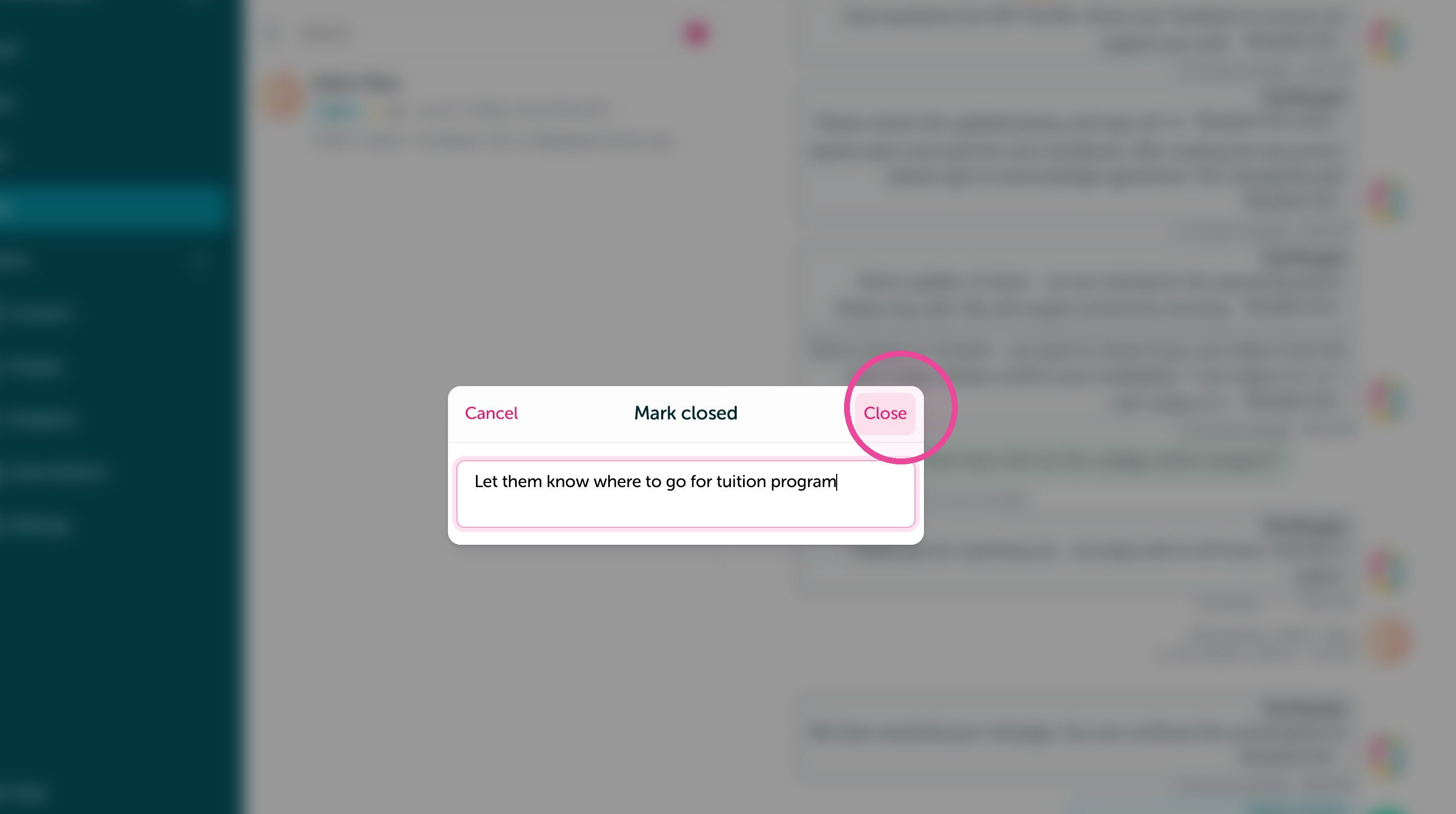
7. You can also add an option Admin view only note.
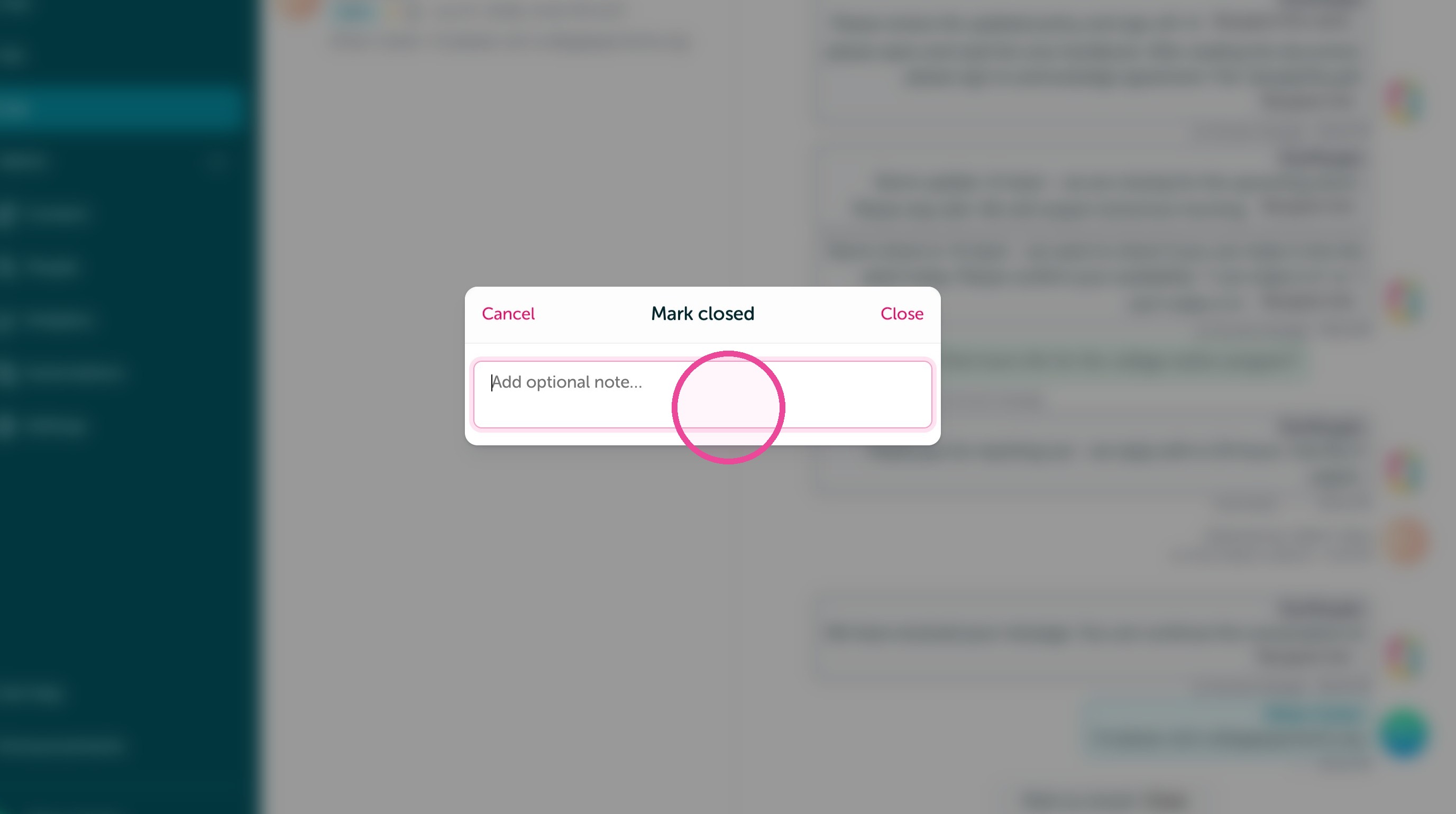
8. Click "Close" to close this open conversation
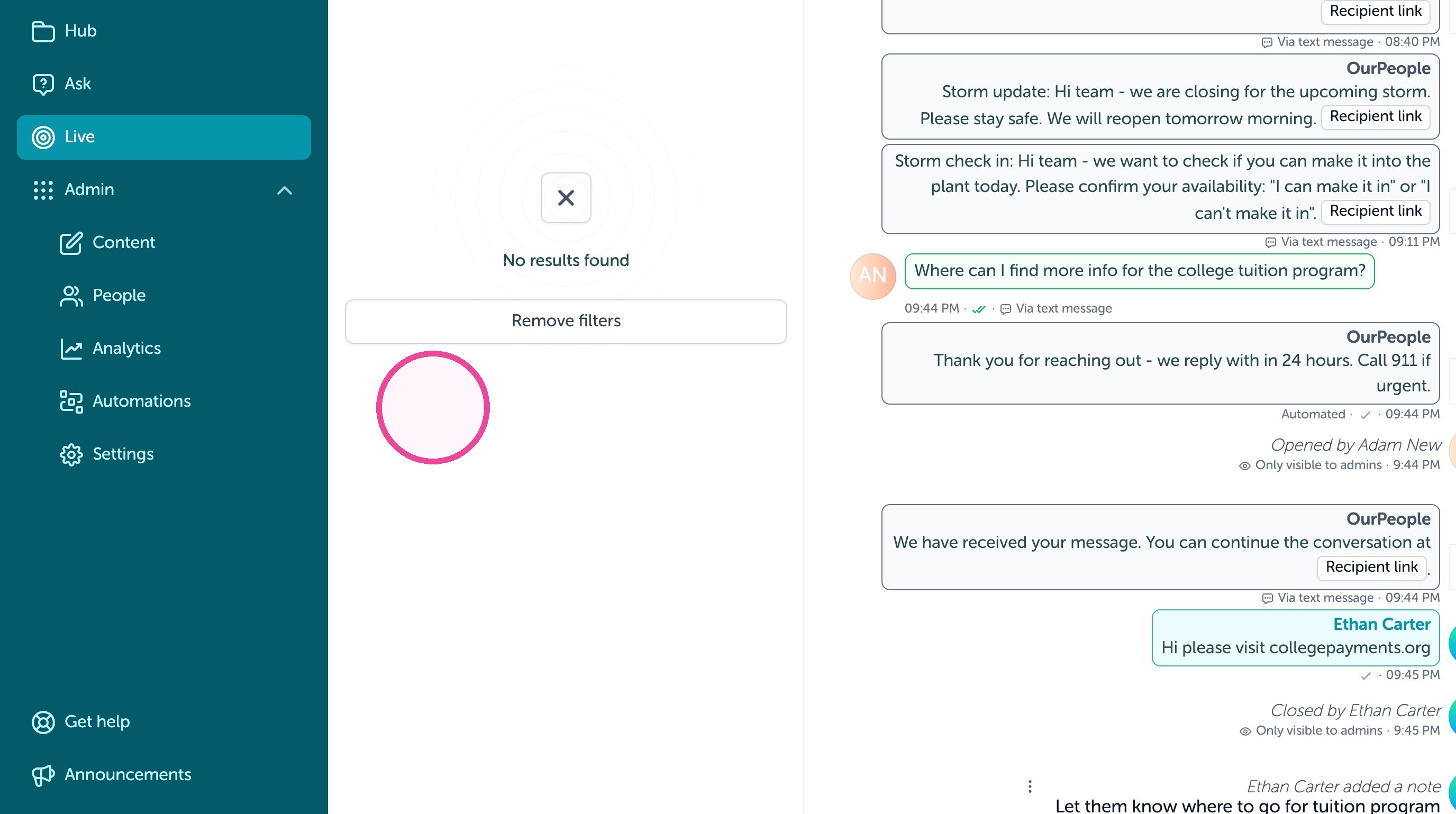
9. This message is now closed. And there is no unread messages in my Live inbox.
Live notification settings for Admins
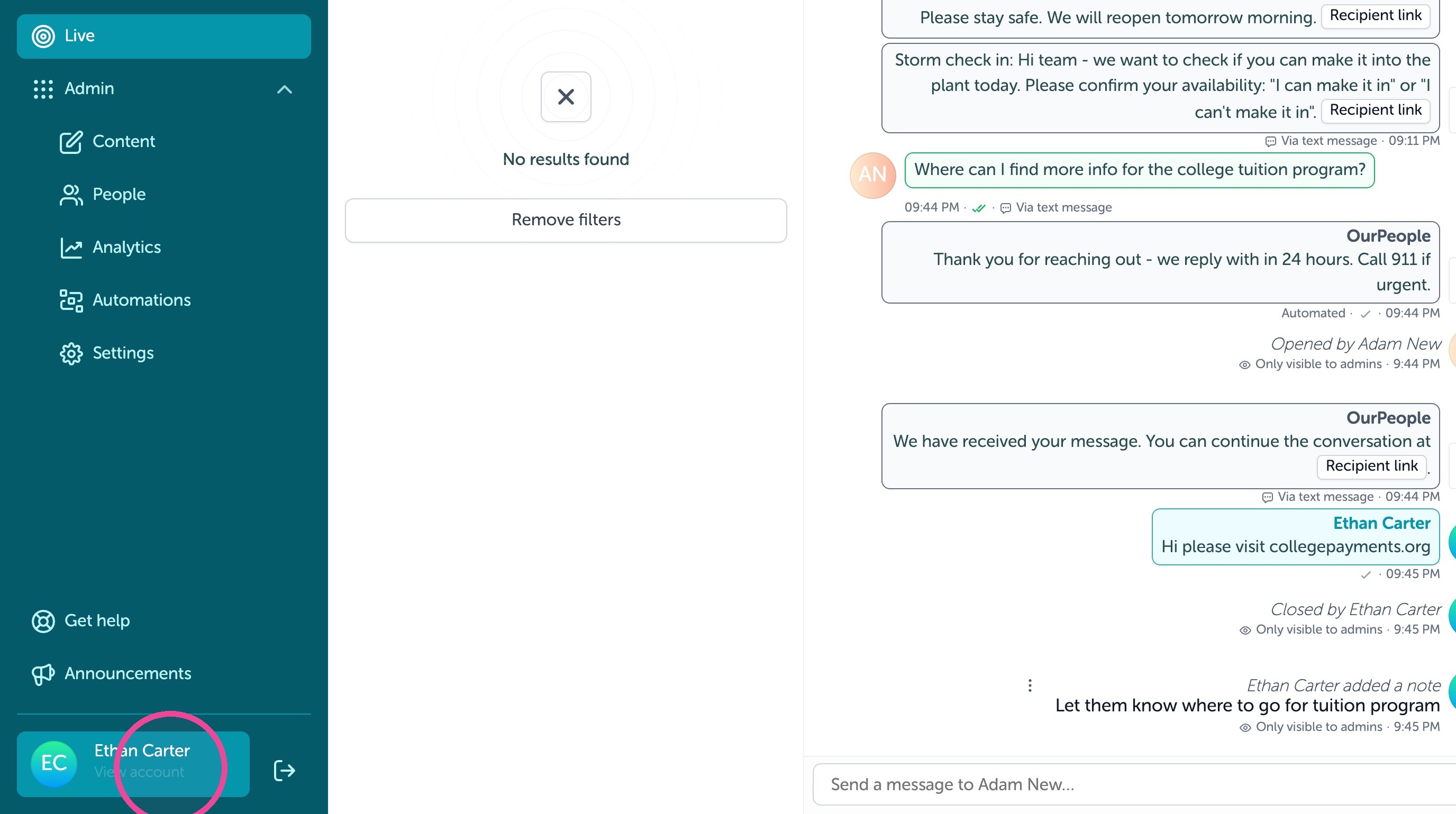
10. Click your name
11. Click "Settings" to change your Live notification settings
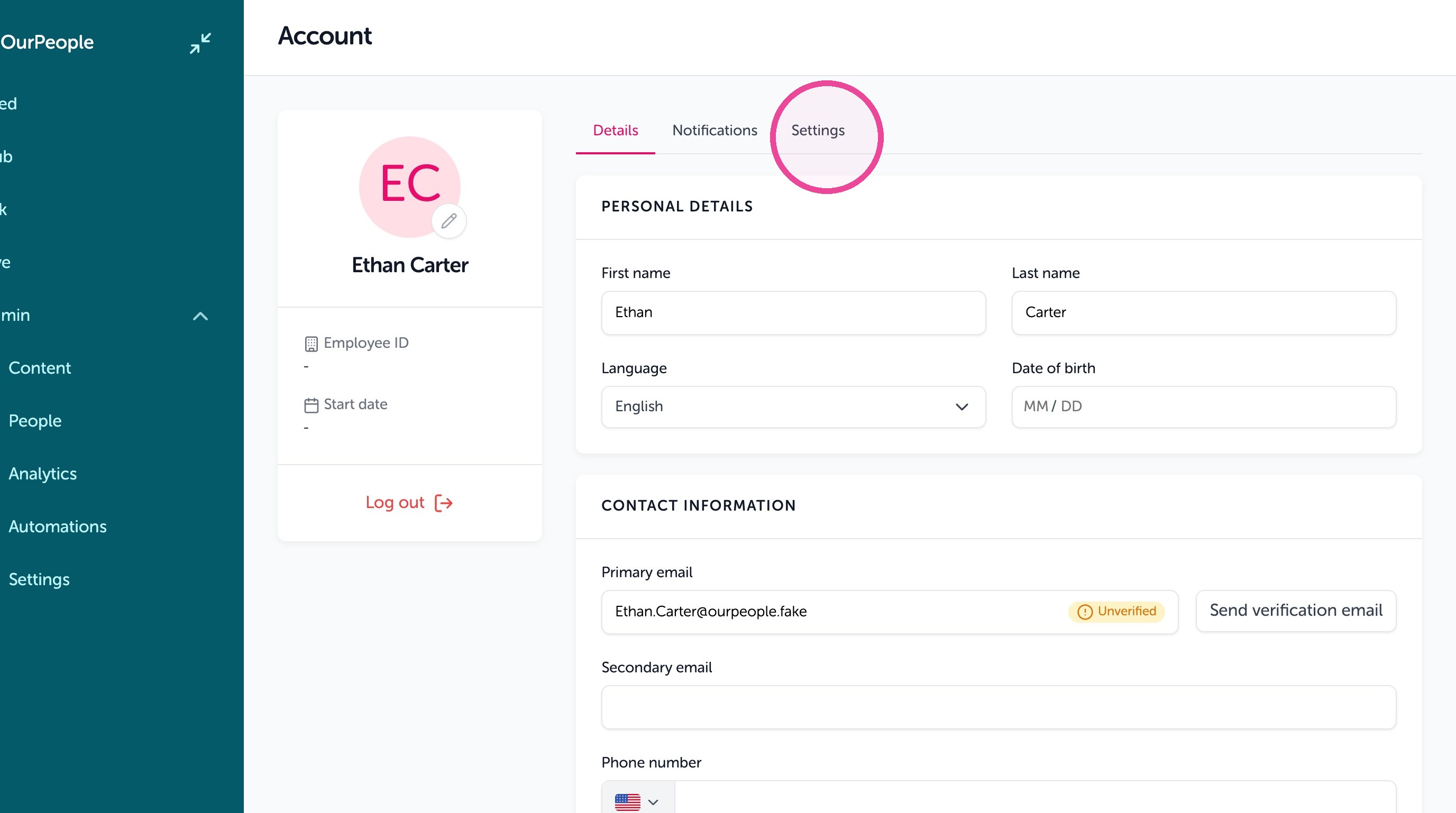
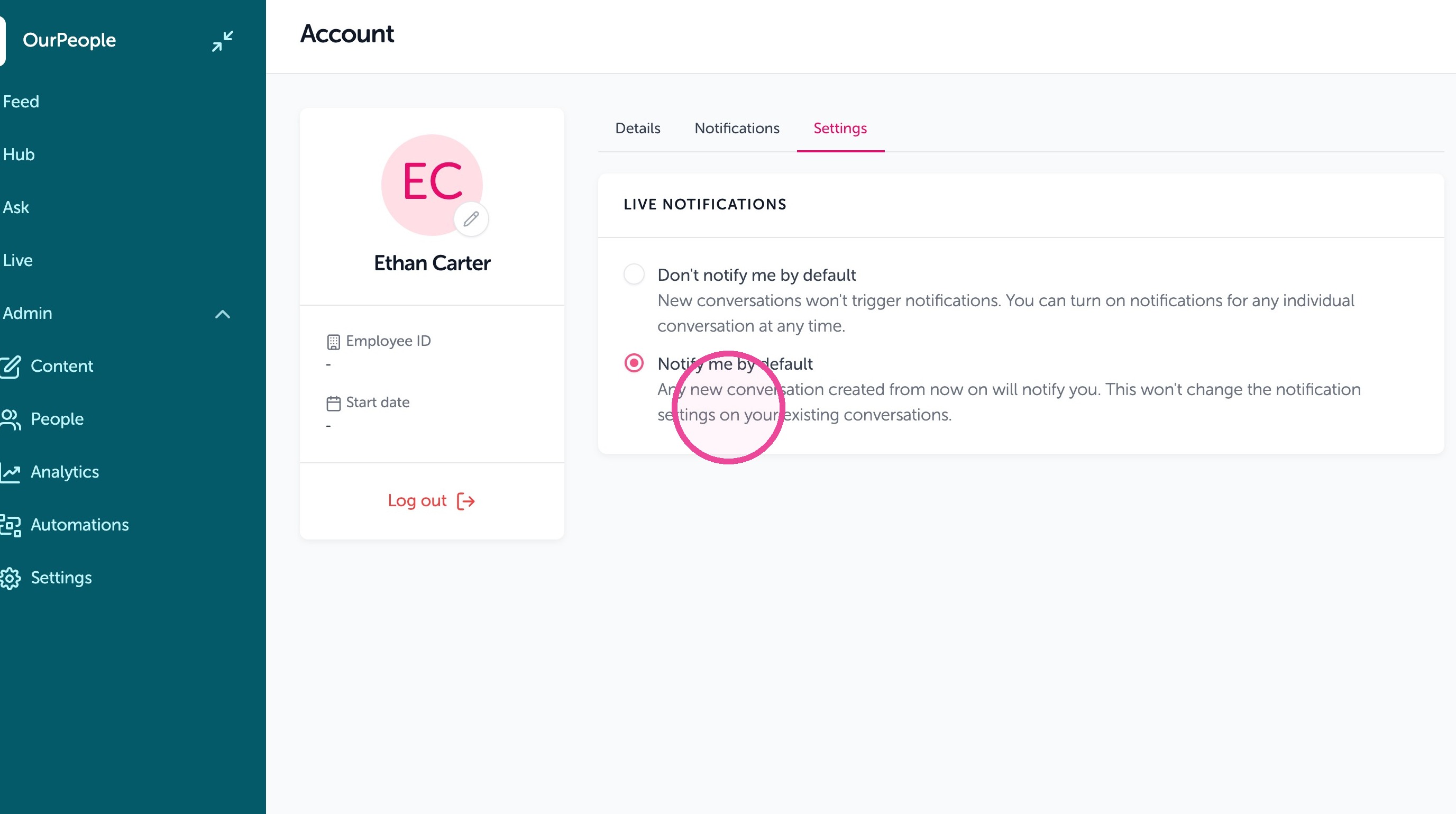
12. By default you do not get notifications of new inbound messages, or you can by selecting "Notify me by default"
13. To change how you are notified (by text or email) click "Notifications"
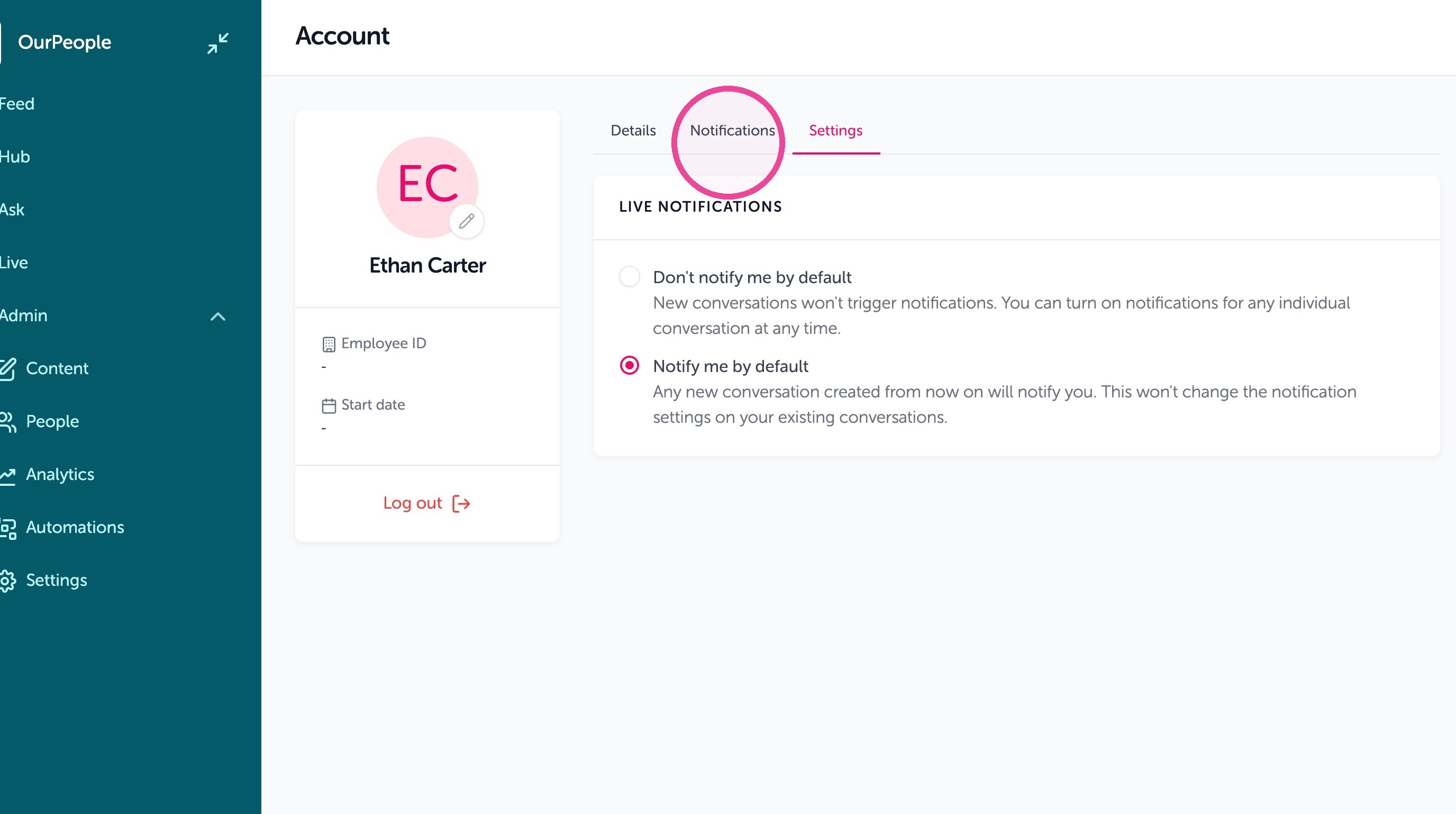
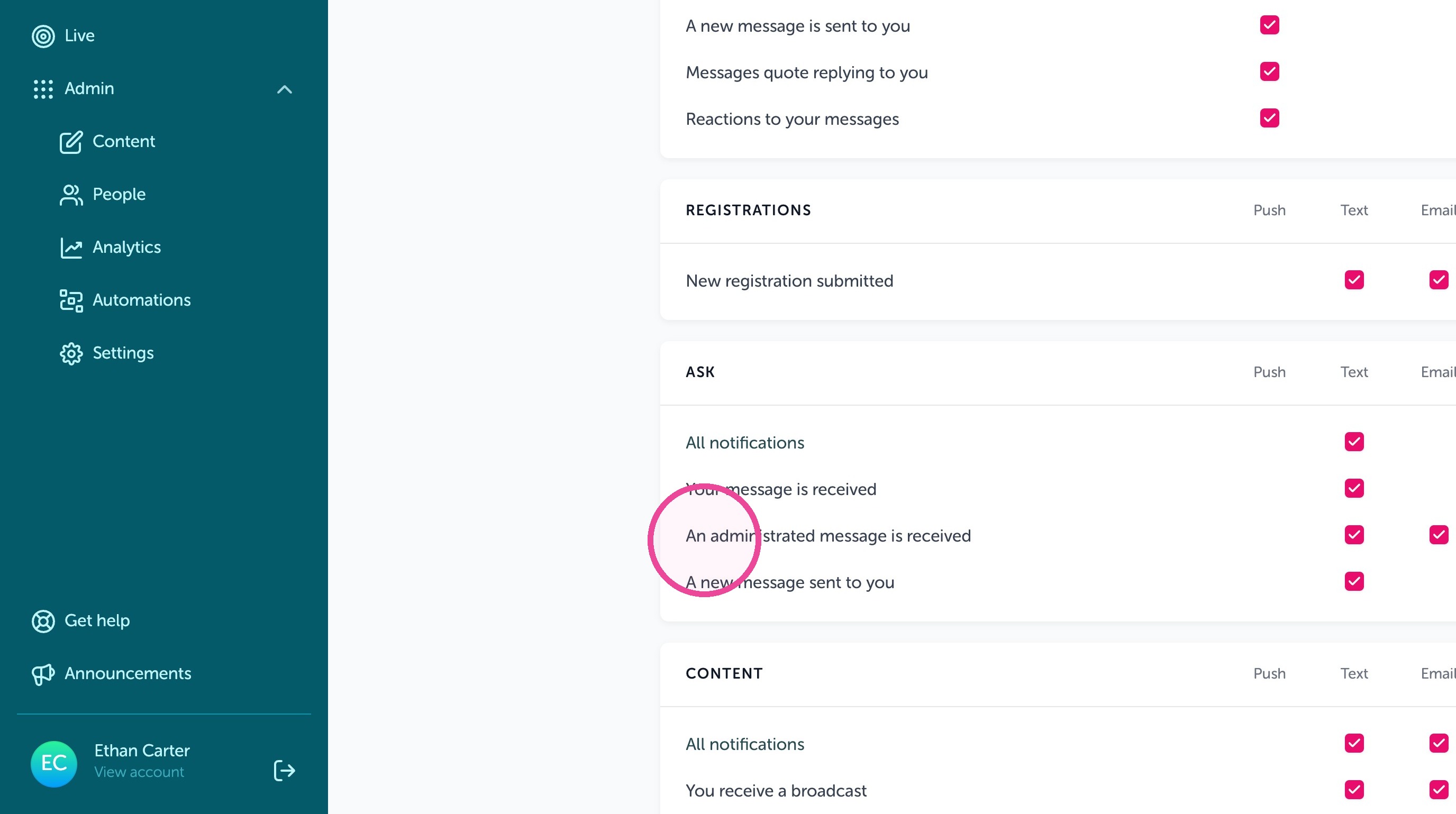
14. Go to Ask > An adminstrated message is received, by default both Text and Email are selected.