
Learn how to communicate shift updates to your team and manage message threads effectively using Ask/Live in OurPeople. This guide provides a quick workflow for sending messages as an end user and closing out discussions within the platform as an Admin.
Message Submission
1. As an app user in OurPeople, you can contact your management team directly using the Ask feature.
There are two ways to submit an Ask inquiry:
1. Through the OurPeople app
- From the home screen, select Ask
- Enter your message and tap send
2. Via text message
- Send a text directly to your company’s dedicated OurPeople phone number, or
- Reply to a broadcast notification you have previously received
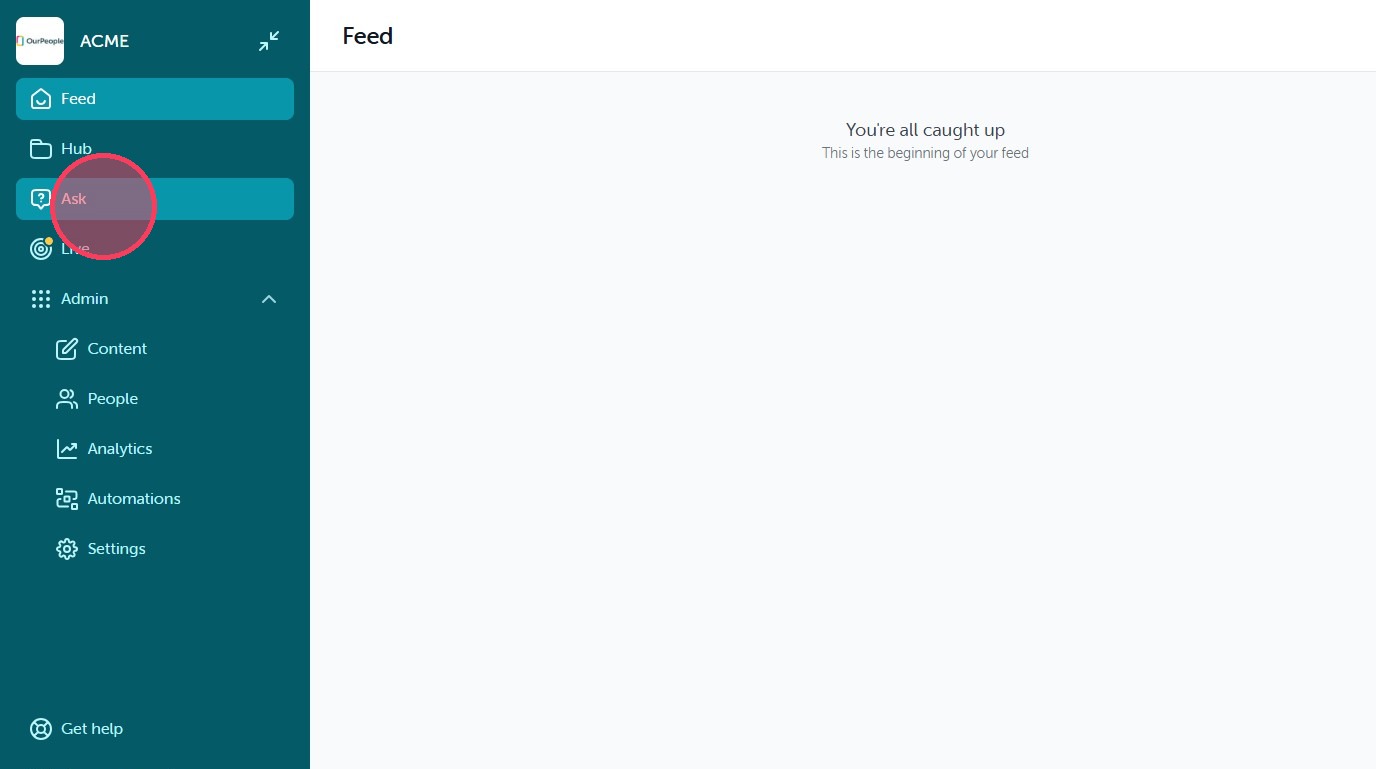
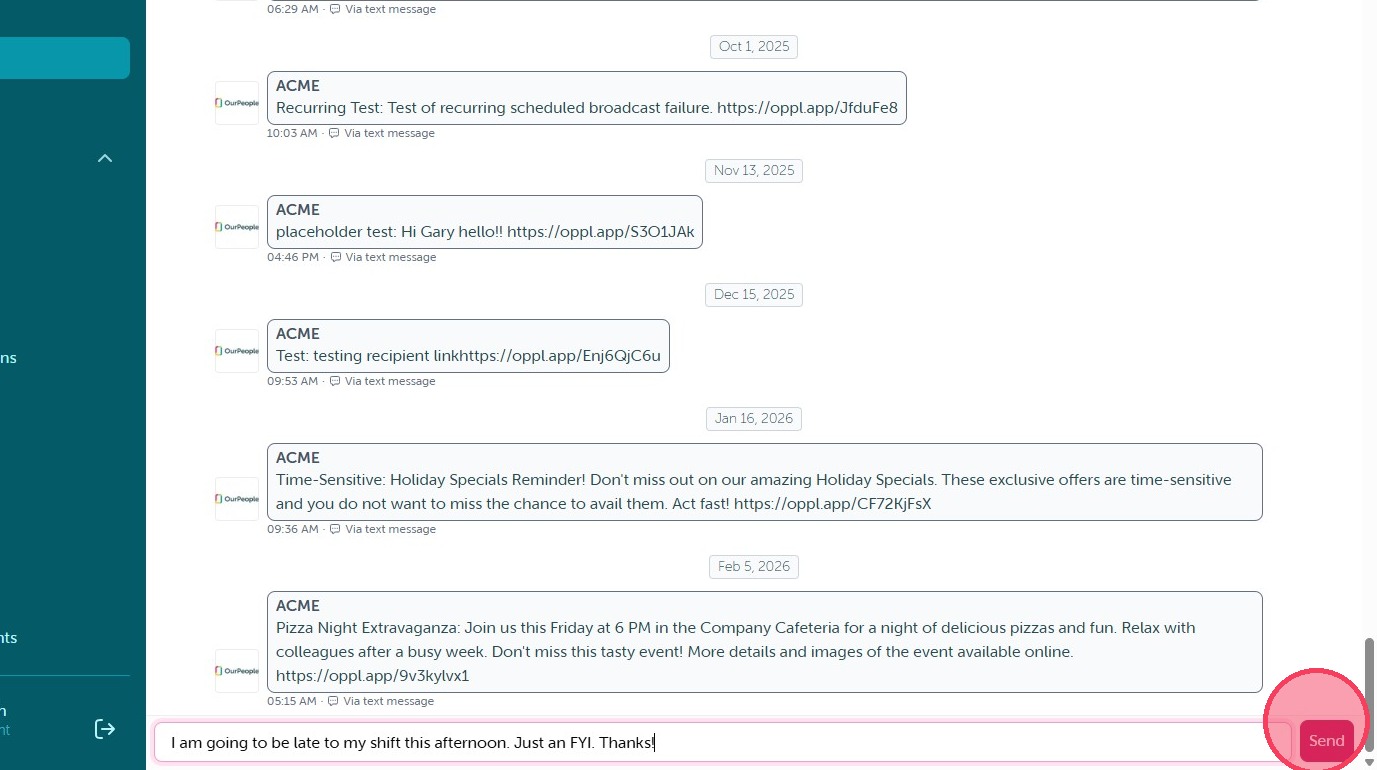
2. Click "Send" when you have typed in your message. You will notice all previous broadcast notifications are visible on the "Ask" screen.
Conversation Management
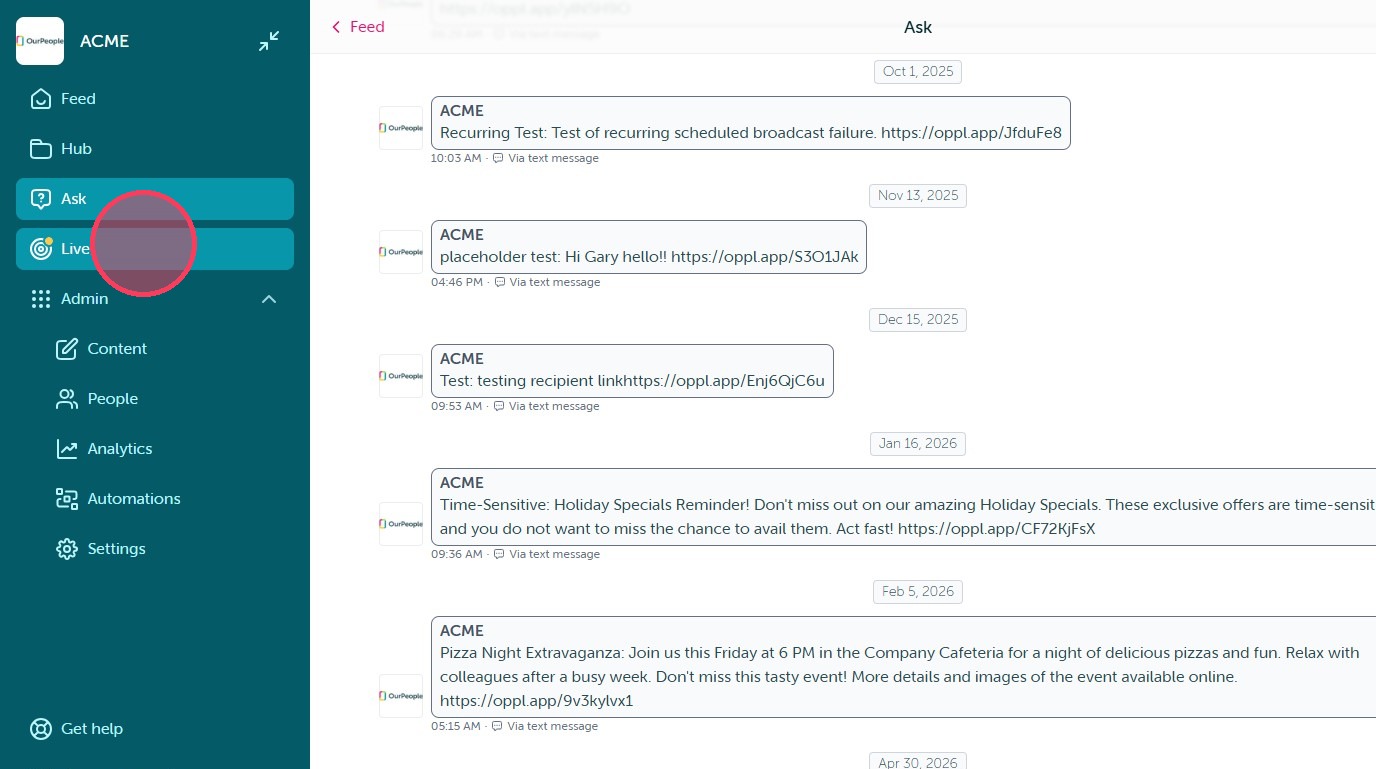
3. As a Team or Global Admin when you have received a new Ask inquiry you will notice the Live tab has a yellow icon, indicating a new thread. Click "Live" to view all threads.
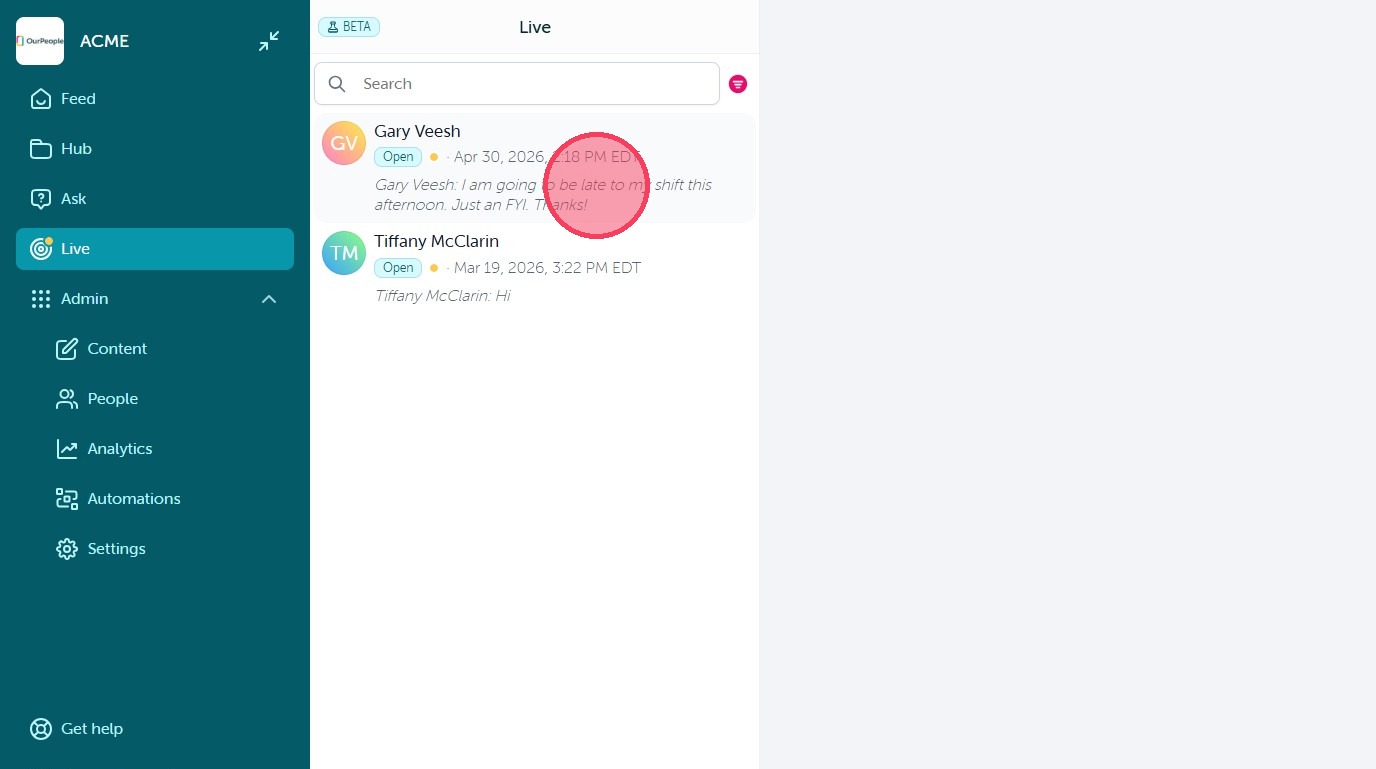
4. Select the conversation from the list.
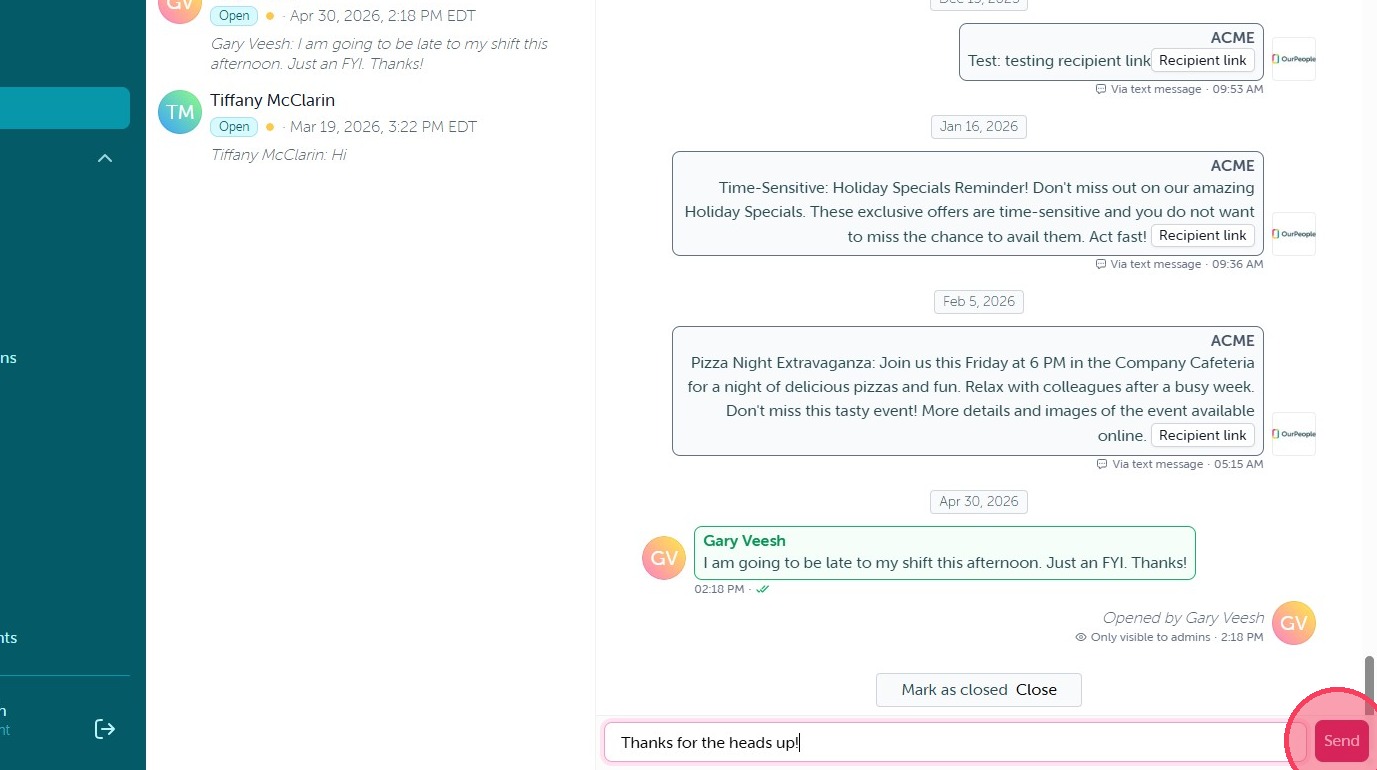
5. From here you can enter your reply and click "Send"

6. Click 'Close' and enter the reason to finalize the conversation.
Comments
0 comments
Article is closed for comments.